If you own a Nintendo Switch, you know how important the Joy-Con controllers are. These small, versatile controllers let you play games in handheld, tabletop, or docked mode. But sometimes, you detach a Joy-Con and it just won’t sync wirelessly, no matter what you do. The lights may blink, but the Switch doesn’t recognize the controller. This problem can ruin your gaming session and feel very frustrating. However, with a little guidance, you can often solve the “Joy-Con not syncing when detached” issue yourself—no need to visit a repair shop right away.
In this article, I’ll show you why Joy-Cons might not sync when removed, how to troubleshoot, and what to do if none of the usual fixes work. Whether you’re a new Switch user or a long-time gamer, you’ll find clear steps, real examples, and practical advice to get your Joy-Cons working wirelessly again.
Understanding The Joy-con Syncing Process
Before you try to fix the problem, it helps to understand how Joy-Cons connect to the Nintendo Switch. When attached to the console, the Joy-Cons connect directly through the rails using physical contacts. This is a simple, reliable connection. But when you detach the Joy-Cons, they need to connect via Bluetooth.
If your Joy-Con works when attached but fails to sync when removed, the issue is almost always related to the wireless connection. Knowing this helps you focus on the right solutions.
Wired Vs. Wireless: How Joy-cons Communicate
| Connection Mode | How It Works | Common Issues |
|---|---|---|
| Attached (Wired) | Physical pins connect Joy-Con to console | Dirty rails, hardware wear |
| Detached (Wireless) | Bluetooth connection to Switch | Signal interference, battery, pairing errors |
When troubleshooting, keep in mind that a Joy-Con can be fully functional in wired mode but fail in wireless mode due to completely different reasons.
Common Causes Of Joy-con Not Syncing When Detached
Several factors can prevent your Joy-Con from syncing wirelessly. Understanding these causes can help you pick the right fix faster.
- Low Battery: If the Joy-Con’s battery is too low, it might not have enough power to connect via Bluetooth.
- Bluetooth Interference: Devices like Wi-Fi routers, microwaves, and even other Bluetooth gadgets nearby can disrupt the connection.
- Outdated Firmware: Both the Nintendo Switch and the Joy-Con have firmware that may need updates for stable performance.
- Pairing Glitch: Sometimes, the Joy-Con loses its wireless pairing with the console.
- Physical Damage: A drop or spill can damage internal components, especially the Bluetooth module.
- Dirty or Faulty Rails: If the physical connection is dirty or worn, the Joy-Con might not charge or pair correctly.
- Software Bug: Rarely, a game or system bug can stop wireless syncing.
These are the most frequent reasons, but sometimes the cause is not obvious. That’s why it’s important to go through each step carefully.
Step-by-step Solutions To Fix Joy-con Not Syncing When Detached
Let’s walk through the best ways to solve this problem. Follow each step in order, and don’t skip ahead—some solutions build on each other.
1. Charge The Joy-con Fully
This is the simplest fix, but many people overlook it. If your Joy-Con has a very low battery, it may work while attached (drawing power from the Switch), but fail to connect wirelessly.
- Attach the Joy-Con to the Switch console.
- Make sure the Switch itself is charging or has enough battery.
- Leave the Joy-Con attached for at least 30 minutes.
- Try detaching and syncing again.
If the controller still doesn’t connect, move to the next step.
2. Remove Bluetooth Interference
Bluetooth is sensitive to other signals. Strong Wi-Fi, phones, wireless speakers, and even thick walls can block the signal.
- Move the Switch console away from Wi-Fi routers and microwaves.
- Turn off unused Bluetooth devices nearby.
- Try syncing the Joy-Con closer to the console.
Some Switch users report a big improvement just by changing their play area.
3. Update The System And Controller Firmware
Nintendo releases updates to fix bugs and improve performance. Both the console and Joy-Cons need to be up to date.
Updating The Nintendo Switch
- Go to System Settings > System > System Update.
- If an update is available, download and install it.
Updating Joy-con Firmware
- Attach the Joy-Cons to the console.
- Go to System Settings > Controllers and Sensors > Update Controllers.
- Wait until the process is finished.
Outdated firmware can cause strange syncing issues, so never skip this step.
4. Re-pair The Joy-con
If the pairing is broken, you need to reset it.
- On the Switch Home screen, tap Controllers.
- Select Change Grip/Order.
- Press and hold the Sync button on the Joy-Con for a few seconds (the small black button on the rail side).
- Watch for the flashing lights.
- When the Joy-Con appears on the screen, press a button to confirm.
If this doesn’t work, try removing the Joy-Con from the paired controllers list:
- Go to System Settings > Controllers and Sensors > Disconnect Controllers.
- Follow the prompts, then pair the Joy-Con again.
5. Check For Physical Damage
Look for signs of physical problems:
- Inspect the Joy-Con for cracks or loose parts.
- Make sure the SL and SR buttons are not stuck.
- Check the metal rails on both the console and Joy-Con for dirt, corrosion, or bent pins.
- Clean gently with a soft brush or microfiber cloth. Avoid using water or harsh chemicals.
If you notice obvious damage, you may need repair or replacement.
6. Reset The Joy-con
Sometimes, a soft reset can solve the problem:
- Detach the Joy-Con.
- Hold the Sync button for 15 seconds.
- Wait a few seconds, then attach the Joy-Con to the console.
- Try syncing again.
This process can clear minor software bugs that block wireless connection.
7. Test On Another Console
If possible, borrow a friend’s Switch or visit a store that allows you to test controllers.
- Try to sync your Joy-Con to another Switch.
- If it works, the issue is likely with your console, not the Joy-Con.
- If it still fails, the Joy-Con itself is the problem.
This step can save you hours of guessing.
8. Factory Reset (last Resort)
If nothing else works, a factory reset may help. This will erase all data and settings, so back up your saves to the cloud if you have Nintendo Switch Online.
- Go to System Settings > System > Formatting Options > Restore Factory Settings.
- Follow the on-screen instructions.
Only try this if all other solutions fail.
Pro Tips And Insights Most Beginners Miss
Even experienced players often overlook these less obvious details:
- Joy-Con Battery Desync: Sometimes, the battery indicator on the Switch is wrong. The controller may appear “charged” but is actually dead. Try charging overnight and check again.
- Invisible Interference: Some LED lights, especially smart home bulbs, can cause Bluetooth issues. If you have many smart gadgets, try turning them off and testing your Joy-Con.
- Firmware Downgrade Issue: Rarely, after a failed update, the firmware on either the Switch or Joy-Con may be mismatched. You may need to update both again, even if they appear current.
Comparing Joy-con Issues: Wired Vs Wireless
Understanding the differences between wired and wireless problems can help you diagnose faster.
| Symptom | Likely Cause (Wired) | Likely Cause (Wireless) |
|---|---|---|
| No response at all | Broken rail or contacts | Battery dead, Bluetooth module failure |
| Works attached, not detached | – | Bluetooth/firmware problem |
| Random disconnects | Loose rail | Signal interference |
| Lag or delay | Dirty contacts | Wireless interference |
By matching your symptoms to the table, you can often skip unnecessary steps.
When To Seek Professional Repair
If you’ve tried every fix and your Joy-Con still won’t sync when detached, it might be time to contact Nintendo Support. Here are signs you may need expert help:
- The Joy-Con does not power on, even when attached and charged.
- The lights flash but never connect, no matter what console you try.
- There is visible damage to the Bluetooth antenna or circuit board.
- You hear rattling or loose parts inside the controller.
In these cases, opening the Joy-Con yourself may void the warranty. Nintendo offers repair services, and some issues are covered if your console is still under warranty. For more information, you can check the official Nintendo Support page.
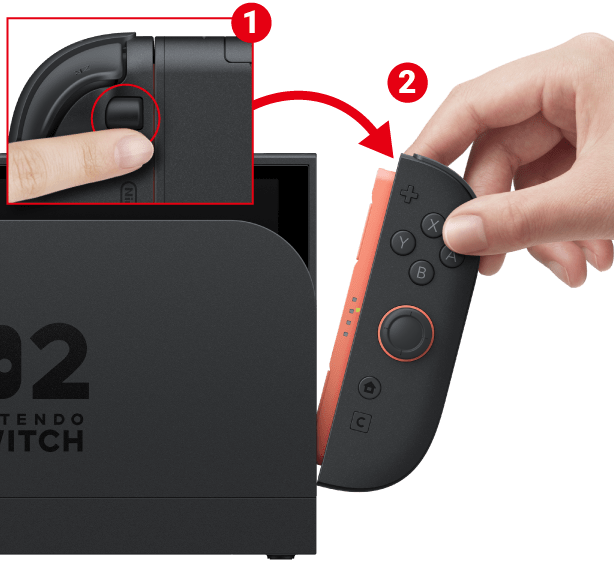
Credit: www.nintendo.com
Preventing Future Syncing Problems
Once you’ve fixed your Joy-Con, you can avoid more problems by following some easy tips:
- Charge Joy-Cons regularly, even if you don’t play every day.
- Store controllers away from strong wireless devices.
- Update firmware whenever prompted.
- Clean the rails gently with a dry cloth to avoid dirt buildup.
- Use a case to protect Joy-Cons from drops or spills.
These small habits can greatly extend the life of your controllers.
Real-world Examples: Joy-con Syncing Issues In Action
Let’s look at some real-life situations where Joy-Cons fail to sync and how users solved them.
Example 1: The Forgotten Update
Maria bought a used Nintendo Switch. Her Joy-Cons would only work when attached. After updating both the system and controller firmware, the problem disappeared. She learned the previous owner had never updated the console.
Example 2: Interference Nightmare
Sam set up his Switch near his Wi-Fi router and a Bluetooth speaker. His Joy-Cons disconnected randomly. After moving the console away from the router and turning off the speaker, syncing became stable.
Example 3: The Battery Illusion
Joey’s Joy-Con showed a full battery on the screen but wouldn’t sync wirelessly. Charging overnight fixed the issue. It turned out the battery indicator was wrong due to a glitch.
These cases show how small details often cause big problems.

Credit: www.reddit.com
Joy-con Alternatives And Upgrades
If your Joy-Con is beyond repair, or you want to avoid future issues, you might consider alternatives:
- Buy a new Joy-Con: Official replacements are available but can be expensive.
- Third-party controllers: Many brands offer wireless controllers that work with the Switch, often at a lower price.
- Pro Controller: Nintendo’s own Pro Controller is more expensive but offers better battery life and fewer sync problems.
Here’s a quick comparison of popular options:
| Controller | Wireless Sync | Battery Life | Price Range |
|---|---|---|---|
| Official Joy-Con | Yes | ~20 hours | High |
| Pro Controller | Yes | ~40 hours | Higher |
| Third-party | Varies | 10–30 hours | Low–Medium |
Always check compatibility and reviews before buying third-party controllers.
Frequently Asked Questions
Why Does My Joy-con Only Work When Attached To The Switch?
This usually means the Bluetooth connection is not working. Possible reasons are low battery, interference, outdated firmware, or a pairing issue. Try charging the controller, updating firmware, and re-pairing.
How Do I Reset A Joy-con Controller?
To reset, hold the Sync button (the small black button on the side) for about 15 seconds. Release it, wait a moment, and try syncing the Joy-Con again.
Can A Joy-con Be Fixed If The Bluetooth Module Is Broken?
If the Bluetooth module inside the Joy-Con is damaged, it often requires professional repair or replacement. Opening the Joy-Con yourself may void the warranty, so contact Nintendo Support for help.
What Devices Can Cause Bluetooth Interference With Joy-cons?
Wi-Fi routers, microwaves, wireless speakers, smart home devices, and even some LED lights can interfere with Bluetooth. Move your Switch away from such devices if you have syncing problems.
Are Third-party Joy-cons As Reliable As Official Ones?
Some third-party Joy-Cons work well, but others may have issues with wireless syncing, build quality, or compatibility. Official controllers are more reliable, but some third-party brands offer good alternatives—always check user reviews before buying.
Solving Joy-Con syncing issues can feel confusing, but with careful troubleshooting, you can usually find the cause and fix it. Most problems are small and can be solved at home with patience. By following the steps and tips above, you can get back to enjoying your favorite games with wireless freedom.
If all else fails, professional help is available. Remember, regular updates and careful handling can prevent most future problems and keep your gaming smooth.

Credit: www.reddit.com