When your Canon G300 printer shows an orange light blinking, it can be frustrating and confusing, especially if you need to print something important. Many users worry that this signal means a serious problem, but in most cases, the cause is simple and easy to fix. In this article, you’ll learn what the orange light blinking means, the main reasons it happens, and step-by-step solutions you can try at home. You’ll also find answers to common questions about this issue. If you want to keep your printer running smoothly, understanding this warning light is essential.
What Does The Orange Light Mean On Canon G300?
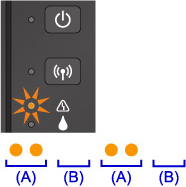
The orange light on your Canon G300 is called the alarm light. When it blinks, it’s trying to tell you that something needs your attention. The blinking pattern can help you understand what kind of problem the printer is experiencing. For example, the number of blinks in a row can indicate if the issue is related to paper, ink, or a hardware error. Unlike the green power light, the orange alarm light means you should check the printer before continuing.
Common Causes Of Canon G300 Orange Light Blinking
There are several reasons why the alarm light blinks on the Canon G300. Each cause has its own solution, so identifying the exact pattern and situation is important. Here are the main reasons you might see this warning:
- Paper Jam: The printer cannot move the paper smoothly due to a stuck sheet.
- Out of Paper: The paper tray is empty or not loaded correctly.
- Ink Cartridge Problem: The printer cannot recognize or detect the ink cartridge.
- Low Ink: The ink level is very low or empty.
- Cover Open: The printer’s cover is not closed properly.
- Print Head Not Installed: The print head is missing or not seated correctly.
- Paper Size Error: The loaded paper does not match the selected size.
- Other Hardware Errors: Internal problems like sensor or logic board issues.
Each blink pattern gives a clue. For example, two blinks may mean a paper jam, while four blinks could indicate an ink cartridge problem. Always count the blinks and check your printer’s manual for the exact meaning.
Credit: www.tonerbuzz.com
How To Fix Canon G300 Orange Light Blinking
Solving this problem is usually simple if you follow the right steps. Below are detailed solutions for each common cause.
1. Fixing A Paper Jam
- Turn off the printer and unplug it.
- Open the printer cover gently.
- Remove any jammed paper. Be careful not to tear it.
- Check for small pieces stuck inside.
- Close the cover, plug in, and turn on the printer.
2. Refilling Paper Or Loading Correctly
- Open the paper tray.
- Make sure the paper is flat and not curled.
- Adjust the paper guides to fit the paper size.
- Reload the paper and close the tray firmly.
3. Checking The Ink Cartridge
- Open the cover with the printer turned on.
- Wait for the ink carriage to move to the center.
- Remove and reinstall the ink cartridge. Make sure it clicks into place.
- If the cartridge is empty or damaged, replace it.
4. Refilling Or Replacing Ink
- Check the ink tanks visually.
- Refill with genuine Canon ink if the level is low.
- Do not overfill the tank.
- After refilling, close the caps and reset the ink counter if needed.
5. Closing The Cover Properly
- Check all covers (top, back, and front).
- Press gently to make sure each cover is fully closed.
6. Installing The Print Head
- Open the printer and locate the print head holder.
- Install the print head, making sure it’s seated correctly.
- Lock the print head lever and close the cover.
7. Resolving Paper Size Error
- Cancel the print job.
- Check the paper size set in the printer settings.
- Load the correct paper size or change the setting to match the loaded paper.
8. Handling Other Hardware Errors
- Turn off the printer and unplug it for 10 minutes.
- Plug it back in and turn it on.
- If the light still blinks, contact Canon support.
Understanding The Blink Patterns
The number of blinks is a useful clue. Here is a quick reference for common Canon G300 blink codes:
| Blink Count | Meaning | Solution |
|---|---|---|
| 2 | Paper Jam | Remove jammed paper |
| 3 | Out of Paper | Reload paper |
| 4 | Ink Cartridge Error | Check or replace cartridge |
| 5 | Print Head Not Installed | Install print head properly |
| 7 | Ink Absorber Full | Contact service center |
Knowing the blink pattern helps you solve the problem quickly without guessing.
Preventing Canon G300 Orange Light Issues
Taking care of your printer can help you avoid most orange light problems. Here are some simple tips:
- Use the Right Paper: Always use clean, flat paper suitable for inkjet printers.
- Check Ink Levels Regularly: Refill or replace ink before it runs out.
- Clean the Printer: Remove dust and debris from the paper path and rollers.
- Close Covers Properly: Open and close printer covers gently to avoid misalignment.
- Update Drivers: Use the latest Canon drivers for better compatibility.
- Handle Cartridges Carefully: Avoid touching the chip or nozzle of the cartridge.
A little care can prevent many common errors and keep your printer working smoothly.
Advanced Troubleshooting For Persistent Blinking
If basic steps do not fix the orange light, there may be a deeper problem. Here’s what you can try:
1. Resetting The Printer
- Turn off the printer.
- Unplug the power cord and wait 10 seconds.
- Hold down the Stop/Reset button.
- While holding, plug in the power and turn the printer on.
- Wait until the light stops blinking, then release the button.
2. Checking For Firmware Updates
Sometimes, a firmware update from Canon can resolve blinking issues.
- Go to the official Canon support website.
- Download the latest firmware for the G300 model.
- Follow the update instructions carefully.
3. Inspecting The Ink Absorber
If your printer blinks seven times, the ink absorber may be full. This is a pad inside the printer that collects excess ink.
- You can try resetting the absorber counter, but it’s safer to contact an authorized service center.
- Attempting to clean or replace the absorber yourself may cause leaks.
4. Comparing Common Error Causes
You may wonder which issue is most likely. Here’s a comparison of common causes, their frequency, and difficulty to fix:
| Error Type | Frequency | Difficulty |
|---|---|---|
| Paper Jam | Very Common | Easy |
| Out of Paper | Common | Very Easy |
| Ink Cartridge Error | Occasional | Moderate |
| Print Head Not Installed | Rare | Moderate |
| Ink Absorber Full | Rare | Hard |
Non-obvious Insights For Canon G300 Users
Many beginners miss these details when dealing with the orange light:
- Small Paper Fragments: Even tiny pieces of paper can trigger a jam error. Use a flashlight to check every part of the paper path.
- Unrecognized Ink After Refilling: Sometimes, after refilling the ink tank, the printer still thinks the ink is low. You may need to press and hold the Stop/Reset button for 5 seconds to reset the ink level counter.
When To Seek Professional Help
If you have tried all the steps above and the orange light keeps blinking, it may be time to contact Canon support or visit a service center. Persistent blinking can mean a failing sensor, logic board issue, or full ink absorber pad.
Do not try to open the printer’s internal parts unless you are trained, as this can void the warranty or cause further damage.
Credit: ij.manual.canon
Useful Resources
For more detailed information, you can visit the official Canon support page: Canon Official Support. They offer manuals, troubleshooting guides, and live chat support to help you solve your Canon G300 printer problems.
Frequently Asked Questions
How Do I Reset The Canon G300 After An Orange Light Error?
Turn off the printer, unplug it, and wait a few seconds. Hold the Stop/Reset button while plugging it back in and turning it on. Release the button when the light stops blinking. This resets most error states.
What Does It Mean If The Orange Light Blinks 7 Times On My Canon G300?
Seven blinks usually indicate that the ink absorber is full. The printer needs service to clean or replace this part. Continuing to print can cause ink spills inside the device.
Can I Use Non-genuine Ink In My Canon G300?
You can, but it may cause the printer to not recognize the cartridge, resulting in an orange blinking light. Genuine Canon ink is recommended for the best performance and reliability.
Why Does The Orange Light Blink After Refilling The Ink Tank?
After refilling, the printer may still think the ink is empty. Hold the Stop/Reset button for 5 seconds to reset the ink counter and clear the warning.
Is It Safe To Open The Printer To Clear A Paper Jam?
Yes, but always turn off the printer first. Remove the jammed paper gently to avoid damaging the printer. Never use sharp tools or force.
Solving the Canon G300 orange light blinking problem is often simple once you know the cause. With the tips and solutions above, you can get back to printing in no time and avoid future issues. If you ever feel unsure, Canon’s official resources are just a click away.

Credit: www.youtube.com