If you’ve ever noticed your laptop clock showing the wrong time, you know how frustrating it can be. The time on your laptop is more than just a number—it helps you schedule meetings, join online classes, and keep up with daily tasks.
When your laptop time is not syncing, it can create confusion, missed appointments, and even problems with software updates or security. Let’s explore why this happens, how to fix it, and what you can do to make sure your laptop clock always runs on time.
Why Accurate Time Is Important On Laptops
A laptop’s system clock is not just for checking the time. It’s connected to many parts of your computer’s operating system and apps. For example, file timestamps show when you created or edited a document. Calendar reminders and meeting schedules depend on your laptop’s clock. Even your antivirus software and Windows Updates need the correct time to download and install safely. If your laptop time is not syncing, you might have trouble logging in to secure websites, using email, or connecting to work servers.
Main Reasons Why Laptop Time Is Not Syncing
Understanding why your laptop’s time goes out of sync helps you find the right solution. Here are some common causes:
1. Incorrect Time Zone Settings
If your laptop’s time zone is wrong, the clock can show the wrong time, even if syncing is working.
2. Disabled Or Faulty Internet Time Sync
Laptops usually sync time with online servers. If this is off or blocked by a firewall, syncing fails.
3. Weak Or Dead Cmos Battery
The CMOS battery on your laptop’s motherboard keeps the clock running when the laptop is off. If it’s dying, your clock can reset every time you reboot.
4. Operating System Bugs
Sometimes, updates or bugs in Windows, macOS, or Linux affect time sync.
5. Malware Or Viruses
Some malware can change your laptop’s time for malicious reasons.
6. Third-party Software Conflicts
Some security or VPN software can block time sync.
7. Network Issues
Poor or restricted internet connections can block time servers.
8. Manual Time Setting
Setting your clock manually disables automatic syncing.
Non-obvious insight: Sometimes, even Bluetooth devices or docking stations can interfere with time sync, especially if your laptop switches between multiple time zones or networks.
How Laptop Time Sync Works
When your laptop is set to automatic time sync, it contacts an internet time server (like time.windows.com or time.apple.com) using the Network Time Protocol (NTP). The server tells your laptop the exact time, and the system adjusts the clock. This usually happens once a week, or when you connect to a new network.
If syncing is off, your laptop tries to keep time using its internal clock. This can drift—sometimes by several minutes every week—especially if the battery is old or the laptop is often powered off.
How To Check If Your Laptop Time Is Syncing
To see if your laptop is syncing time correctly, you can check the settings:
Windows
- Open Settings > Time & Language > Date & Time.
- Look for “Set time automatically.” If it’s on, your laptop should sync time.
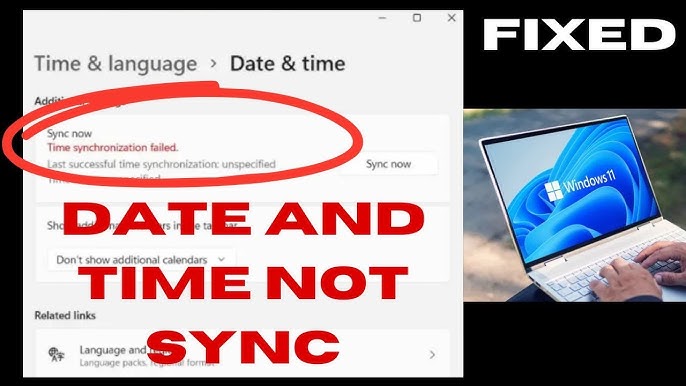
- Click “Sync now” to force a sync and see if the time corrects.
Macos
- Go to System Settings > General > Date & Time.
- Make sure “Set date and time automatically” is checked.
Linux (ubuntu Example)
- Open Settings > Date & Time.
- Look for “Automatic Date & Time.” Turn it on to sync.
You can also use the Command Prompt (Windows) or Terminal (macOS/Linux) to check the sync status with commands like `w32tm /query /status` (Windows) or `timedatectl status` (Linux).
Step-by-step Fixes For Laptop Time Not Syncing
Let’s walk through the most effective solutions for getting your laptop clock back in sync. Try these steps in order, from simplest to more advanced.
1. Check And Set Your Time Zone
If the time zone is wrong, your clock will never show the correct time, even if syncing works.
- Windows: Settings > Time & Language > Date & Time > “Set time zone automatically” or choose your city.
- MacOS: System Settings > General > Date & Time > “Set time zone automatically.”
- Linux: Settings > Date & Time > “Time Zone” drop-down.
2. Enable Automatic Time Sync
Make sure your laptop is set to sync time with an internet server.
- Turn on “Set time automatically.”
- For Windows, you can also select the time server under “Additional settings.”
3. Trigger A Manual Time Sync
Sometimes, syncing gets stuck. Force a manual sync:
- Windows: In Date & Time settings, click “Sync now.”
- MacOS: Uncheck and re-check “Set date and time automatically.”
- Linux: Run `sudo timedatectl set-ntp true` in Terminal.
4. Restart Your Laptop
A simple restart can solve time sync glitches, especially after changing settings.
5. Check Internet Connection
Time sync needs the internet. Make sure you are connected to Wi-Fi or Ethernet and can browse websites.
6. Change The Internet Time Server
Some time servers are down or blocked in certain countries. You can try another server.
- Windows:
- Go to Control Panel > Date and Time > Internet Time > “Change settings.”
- Try servers like `time.nist.gov` or `pool.ntp.org`.
- MacOS:
- In Date & Time, click the time server and choose another from the list.
Non-obvious insight: In some regions, workplace firewalls block NTP. Try syncing on a different network (like your phone’s hotspot) to test.
7. Update Your Operating System
Outdated software can cause bugs with time sync. Run the latest updates for Windows, macOS, or Linux.
8. Scan For Malware
Some malware changes system time. Use Windows Defender or a trusted antivirus to scan your laptop.
9. Check For Third-party Software Conflicts
Programs like VPNs, firewalls, or security suites can block time sync. Try disabling them briefly to test.
10. Replace The Cmos Battery
If your clock resets every time you shut down, the CMOS battery may be dead. This is common in older laptops (3-5 years old). You’ll need to open the laptop and replace the small round battery. If you’re not comfortable, visit a repair shop.
11. Reset Windows Time Service (advanced)
If you’re comfortable with command prompts:
- Open Command Prompt as Admin
- Run these commands one by one:
net stop w32time
w32tm /unregister
w32tm /register
net start w32time
w32tm /resync
This resets Windows time syncing.
12. Reinstall Or Reset Date And Time Settings
If all else fails, you can reset your laptop’s regional and time settings completely, then restart and set up syncing again.
Common Scenarios And Fixes
Let’s look at some real-life examples and their solutions.
Scenario 1: Laptop Shows Correct Time, Then Resets After Reboot
Likely cause: Dead CMOS battery.
Fix: Replace the CMOS battery.
Scenario 2: Time Is Always Wrong When Switching Between Wi-fi Networks
Likely cause: Automatic time zone is off, or time sync is blocked by certain networks.
Fix: Turn on “Set time zone automatically.” Try a different network.
Scenario 3: Time Is Off By A Few Minutes, Even After Sync
Likely cause: Poor-quality time server, or internal clock drift.
Fix: Use a more reliable time server like `time.nist.gov`.
Scenario 4: Time Is Off By Exactly One Hour
Likely cause: Daylight Saving Time not set correctly.
Fix: Make sure “Adjust for daylight saving time automatically” is on.
Scenario 5: Time Changes After Installing New Software
Likely cause: Security or VPN software interfering with NTP.
Fix: Check software settings or temporarily disable to test.
Comparing Operating System Time Sync Features
Below is a comparison of how different operating systems handle time syncing by default.
| Feature | Windows 11 | macOS Ventura | Ubuntu 22.04 |
|---|---|---|---|
| Automatic Sync | Yes (default) | Yes (default) | Yes (default) |
| Manual Time Zone | Supported | Supported | Supported |
| Choose Time Server | Yes | Yes | Yes (advanced) |
| Command-Line Control | Yes (w32tm) | Yes (systemsetup) | Yes (timedatectl) |
| Needs Internet | Yes | Yes | Yes |
Practical tip: Even if your OS supports automatic sync, it’s worth checking the settings after any major update or after joining a new Wi-Fi network.
How To Change Time Servers In Windows And Macos
Choosing a reliable time server can solve many sync problems. Here’s a quick reference.
| Time Server | Type | Reliability | Access |
|---|---|---|---|
| time.windows.com | Default (Windows) | Good | Worldwide |
| time.apple.com | Default (macOS) | Very Good | Worldwide |
| time.nist.gov | Public | Excellent | USA, Global |
| pool.ntp.org | Community | Excellent | Worldwide |
If your laptop does not sync with the default server, try switching to another one from this list.

Credit: forum.vivaldi.net
Advanced: Using Command Line Tools For Time Sync
If you want more control or need to troubleshoot deeply, you can use built-in command line tools.
Windows Command Prompt
- `w32tm /query /status` — Checks sync status.
- `w32tm /resync` — Forces sync.
- `net start w32time` — Starts the time service.
Macos Terminal
- `systemsetup -getnetworktimeserver` — Shows the current time server.
- `sudo systemsetup -setnetworktimeserver time.apple.com` — Changes the time server.
Linux Terminal
- `timedatectl status` — Displays time sync status.
- `sudo timedatectl set-ntp true` — Enables NTP sync.
Caution: Making mistakes with these commands can change other system settings. Only use them if you’re comfortable with the command line.
How To Tell If The Cmos Battery Is Failing
A failing CMOS battery is a common cause of time issues on older laptops. Here are signs to watch for:
- Clock resets every time you shut down
- BIOS settings reset to default
- Laptop shows a warning at startup: “CMOS Checksum Error” or “RTC Battery Low”
Tip: CMOS batteries are usually inexpensive. If your laptop is over three years old and shows these signs, consider a replacement.
Credit: www.youtube.com
What To Do If Automatic Time Sync Is Not Allowed
In some workplaces, automatic time sync is turned off for security reasons. Here’s how to handle this:
- Ask your IT team for the approved time server and instructions.
- Set the time manually, but remember it may drift over time.
- Use a USB-connected GPS time source as a backup.
Experience-based insight: If you travel often, your laptop might switch time zones but not update the time immediately. Always check your clock after connecting to a new Wi-Fi network or crossing time zones.
How Time Sync Problems Affect Security
Incorrect time on your laptop is more than an inconvenience. It can:
- Break SSL/TLS certificates, making secure websites unreachable
- Cause failed logins for email or cloud services
- Prevent Windows or macOS Updates from installing
- Create problems with file syncing and backups
Some ransomware and malware purposely change your laptop’s clock to avoid detection. This is why it’s important to check for malware if your laptop time is not syncing, especially if you notice other unusual behavior.
How To Prevent Future Time Sync Problems
Keeping your laptop clock accurate is easier if you follow these steps:
- Leave automatic time sync turned on.
- Choose a reliable time server.
- Update your operating system regularly.
- Scan for malware at least once a month.
- Replace the CMOS battery if your laptop is over three years old.
- Avoid setting the time manually unless required by your IT department.
- Check the time after traveling or connecting to new networks.
When To Seek Professional Help
If you’ve tried all these steps and your laptop time is still not syncing, it’s time to get help. Visit a trusted computer repair shop if:
- You’re not comfortable opening your laptop to replace the CMOS battery
- The BIOS gives error messages about the real-time clock
- The problem started after physical damage or a liquid spill
A professional can test the hardware and make repairs if needed.
Useful Resources
For more details on how time sync works and why it matters, you can check the official Network Time Protocol Wikipedia page.
Frequently Asked Questions
Why Does My Laptop Time Go Wrong Every Time I Restart?
This usually means the CMOS battery is failing. This small battery keeps your laptop’s clock running when it’s powered off. Replace it to fix the problem.
Can A Virus Change My Laptop’s Time?
Yes, some malware can change system time to avoid detection or block security updates. Always scan your system if the clock changes without explanation.
Is It Safe To Set My Laptop’s Time Manually?
Manual setting is safe but not ideal. Your clock will slowly drift and may cause problems with security and updates. Use automatic sync whenever possible.
Why Does My Laptop Show The Wrong Time After Traveling?
If “Set time zone automatically” is off, your laptop won’t update the time when you change locations. Turn this setting on, or manually select the correct time zone.
How Often Should I Check My Laptop’s Time Settings?
Check your time settings after major system updates, when connecting to new networks, or if you notice any problems with calendar events, emails, or website access.
Keeping your laptop’s clock accurate is essential for security, productivity, and smooth day-to-day use. With the steps and tips above, you can quickly solve most time syncing problems and prevent them in the future.

Credit: pureinfotech.com