The world is moving fast, and so is the need to keep our passwords safe and always accessible. That’s where apps like 1Password have made life easier. You can store your login details, notes, and sensitive information, then sync them between your phone, computer, and other devices. But what happens when 1Password stops syncing? Suddenly, the password you saved on your laptop doesn’t show up on your phone. Or, you change something at work, but later, you can’t find it at home. It’s frustrating—and can even lock you out of important accounts.
Sync issues with 1Password can feel confusing, especially for people who are not tech experts. Sometimes the app seems fine, but your data just won’t update. There are many reasons this can happen, and each requires a different fix. In this guide, you’ll learn why 1Password may not sync, how you can solve it, and how to avoid future problems.
Whether you use 1Password on Windows, Mac, iOS, Android, or in your browser, you’ll find practical advice here.
Understanding 1password Syncing
1Password is designed to sync your passwords and secure notes across all your devices. That means you can add a new password on your phone and see it on your laptop, or update a login at work and access it from home. But how does this actually work?
How 1password Syncs Data
There are a few main ways 1Password keeps your data in sync:
- 1Password.com Accounts: Most new users use a 1Password account. Your data is stored securely in the cloud and syncs automatically.
- ICloud Sync: For Apple users, 1Password can use iCloud to sync data between iOS and macOS devices.
- Dropbox Sync: Users can store their 1Password vault in Dropbox for cross-platform syncing.
- Wi-Fi Sync: This option lets you sync data directly between devices on the same Wi-Fi network (less common today).
Each method has its own setup and requirements. Cloud syncing (with 1Password. com) is now the default and works across all platforms.
Why Syncing Is Important
Without sync, your password manager is just a local storage box. Sync makes sure your data is consistent and up-to-date everywhere. Losing sync can mean:
- Not having access to new or updated passwords.
- Using old or incorrect data.
- Security risks (e.g., using outdated login info).
For teams and families, syncing is even more critical—everyone needs the latest credentials.
Common Causes Of 1password Not Syncing
When you notice that 1Password is not syncing, it’s important to find the root cause. Some reasons are simple, others more technical. Here are the most common causes:
1. Internet Connection Issues
If your device isn’t connected to the internet, or the connection is unstable, syncing can fail. This is especially common with mobile data or poor Wi-Fi.
2. Outdated App Version
Using an old version of 1Password can break syncing, especially after major updates.
3. Wrong Account Or Vault
Sometimes, you may be signed into a different account or looking at the wrong vault (a collection of items in 1Password).
4. Sync Method Problems
If you use iCloud, Dropbox, or Wi-Fi Sync, these services can have their own problems—like misconfigured settings or lack of permissions.
5. Conflicting Changes
Editing the same item on two devices at once can cause a conflict, leading to sync errors.
6. Corrupted Data Or Cache
App data can become corrupted, especially after a crash or forced shutdown.
7. Server Outages
1Password’s own servers may sometimes be down, though this is rare.
8. Device Settings
Background app refresh, power-saving modes, or restricted permissions may stop 1Password from syncing in the background.
9. Storage Limit Reached
Cloud services (Dropbox, iCloud) may be out of space, stopping new data from syncing.
10. Firewall Or Network Restrictions
Some workplaces or public Wi-Fi networks block syncing apps.
Non-obvious insight: Sometimes, syncing issues happen not because of 1Password, but due to third-party apps or settings (like aggressive battery savers or VPNs) interfering with network access.
Credit: www.1password.community
How To Fix 1password Syncing Problems
Now, let’s look at practical steps you can take to solve these issues. Always start with the simplest solutions before moving to more advanced fixes.
1. Check Your Internet Connection
Syncing requires a stable internet connection. Test your connection by opening a website or streaming a short video. If your device is offline, 1Password can’t sync.
- Switch between Wi-Fi and mobile data to see if one works better.
- Restart your router if you’re at home.
2. Confirm You’re Using The Right Account And Vault
It’s easy to accidentally sign into a different account or select the wrong vault, especially if you use 1Password for Families or Teams.
- On each device, check the email address and vault name at the top of the 1Password app.
- Make sure you’re logged into the same 1Password account everywhere.
3. Update The 1password App
Using the latest version ensures you have all bug fixes and new features.
- Go to the App Store, Google Play, or your desktop app’s update section.
- Install any available updates.
- Restart the app after updating.
4. Restart The App And Device
Sometimes, a simple restart can clear up sync issues:
- Close 1Password completely (not just minimize it).
- Restart your device.
- Open 1Password again and check if your data is synced.
5. Check For Service Outages
Visit the official 1Password Status Page to see if their servers are down. If there’s a current outage, you’ll need to wait until service is restored.
6. Review Sync Method Settings
Depending on how you sync, check these settings:
For 1password.com Sync
- Make sure you’re signed in to the same account on all devices.
- If you changed your master password, use the new one everywhere.
For Icloud Sync (apple Users)
- Go to Settings > [your name] > iCloud on iOS or System Preferences > Apple ID > iCloud on Mac.
- Make sure iCloud Drive and 1Password are enabled.
- Sign in with the same Apple ID on all devices.
For Dropbox Sync
- Open Dropbox and check if the 1Password.agilekeychain or 1Password.opvault file is present.
- Make sure Dropbox is syncing with the latest data.
- On your devices, check Dropbox permissions for 1Password.
For Wi-fi Sync
- Both devices must be on the same Wi-Fi network.
- Open 1Password on both devices and start sync manually.
7. Check Device Settings And Permissions
- Enable background app refresh (iOS/Android).
- Turn off battery savers or “Data Saver” modes.
- Make sure 1Password has permission to use data in the background.
8. Free Up Storage Space
If your cloud storage is full, syncing will fail. Check your iCloud or Dropbox storage and free up space if needed.
9. Resolve Data Conflicts
If you edited the same item on different devices, 1Password may create a duplicate or conflict.
- Look for items labeled “Conflicted Copy” or similar.
- Manually merge or delete duplicates.
10. Clear App Cache (advanced)
On Android and some desktop versions, you can clear the app cache:
- Go to device Settings > Apps > 1Password > Storage > Clear Cache.
- Restart the app.
Pro tip: Clearing cache does not delete your passwords or vaults, but it can fix temporary glitches.
11. Re-sync Manually
Some versions of 1Password let you force a sync:
- Open 1Password.
- Pull down to refresh (on mobile) or click “Sync Now” in settings (on desktop).
12. Reconnect Your Account
If nothing works, try signing out and back into your 1Password account. This can reset the sync connection, but make sure you know your master password and have your Secret Key before signing out.
Platform-specific Sync Issues
The steps above work for most cases, but some problems are unique to certain platforms. Here’s what you should know for each:
1password Not Syncing On Iphone/ipad
- Make sure Low Power Mode is off (it can pause background sync).
- Check cellular data permissions for 1Password.
- Reinstalling the app can sometimes fix stubborn issues, but make sure you have a backup.
1password Not Syncing On Android
- Turn off battery optimization for 1Password (Settings > Apps > 1Password > Battery > Don’t optimize).
- Make sure background data is allowed.
- Try clearing cache if you notice delays in sync.
1password Not Syncing On Windows
- Check Windows Firewall settings—make sure 1Password is allowed through.
- Restart the app after updating Windows.
- Try signing out and back in if sync stalls.
1password Not Syncing On Mac
- Confirm iCloud or Dropbox permissions are correct.
- If using iCloud, sign out and back into iCloud (this refreshes sync).
- Restart your Mac after any major changes.
1password Not Syncing In Browser Extension
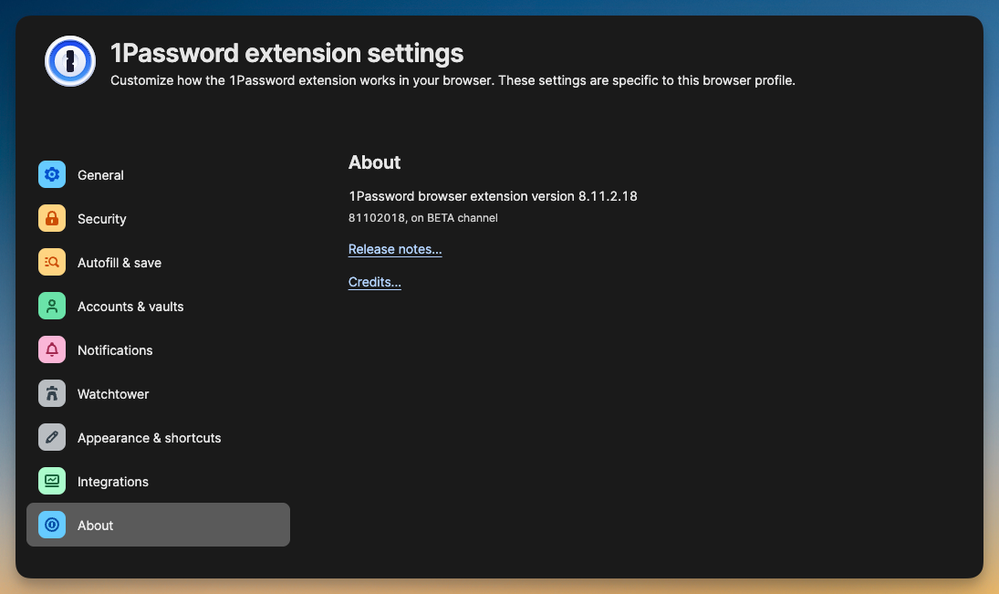
- Make sure the extension is up to date.
- If the extension is out of sync, try removing and reinstalling it.
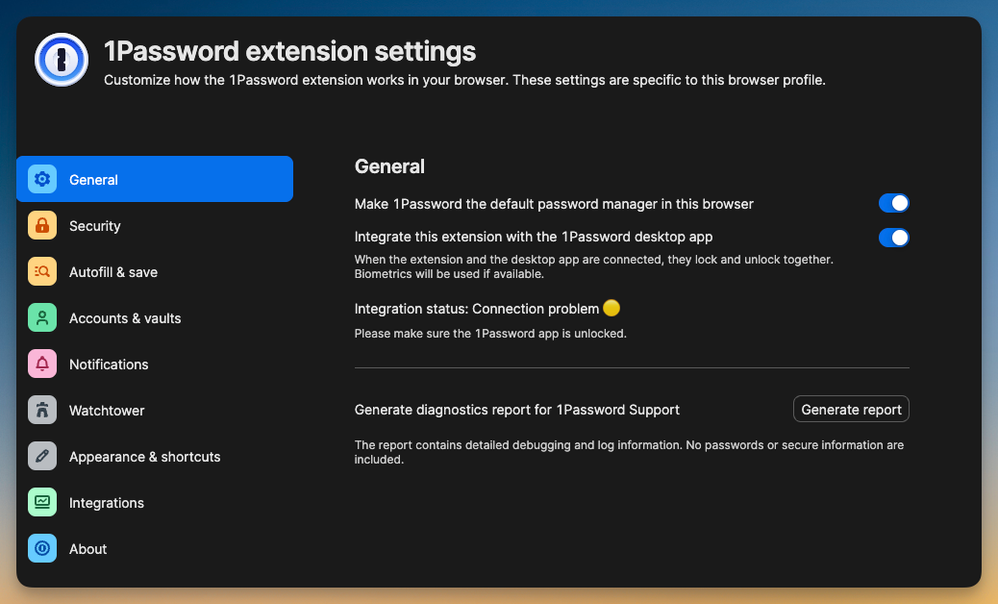
- Check if the extension is logged into the same account as your desktop app.
Non-obvious insight: Sometimes, browser extensions use cached data and may show old passwords even when the main app is synced. Refresh or reinstall the extension to fix this.
Data Table: Common Sync Methods And Compatibility
To help you choose the right sync method, here’s a comparison of the main options:
| Sync Method | Supported Platforms | Setup Complexity | Reliability |
|---|---|---|---|
| 1Password.com Account | Windows, Mac, iOS, Android, Web | Easy | Very High |
| iCloud | Mac, iOS | Medium | High |
| Dropbox | Windows, Mac, iOS, Android | Medium | High |
| Wi-Fi Sync | Windows, Mac, iOS, Android (same network) | Hard | Low to Medium |
Troubleshooting Checklist
When 1Password is not syncing, use this simple checklist to work through the problem step by step:
- Is your device online?
- Are you logged into the correct account and vault?
- Is your app up to date?
- Have you restarted the app and device?
- Are there any server outages?
- Is your sync method set up correctly?
- Do you have enough cloud storage?
- Are device permissions correct?
- Is there a data conflict or duplicate?
- Have you tried manual sync or cache clearing?
If you answer “no” to any, follow the relevant steps from earlier sections.
Data Table: Common Error Messages And Solutions
Here’s a quick reference for some error messages you might see, and what they mean:
| Error Message | Likely Cause | Suggested Solution |
|---|---|---|
| Unable to Sync | No internet or server issue | Check connection, visit status page |
| Incorrect Master Password | Wrong password entered | Double-check password, reset if needed |
| Vault Not Found | Sync location changed or deleted | Check sync settings, reconnect vault |
| Storage Full | iCloud/Dropbox out of space | Free up space, try again |
| Permission Denied | App lacks required permissions | Grant app permissions in settings |
Best Practices To Prevent Future Sync Issues
Sync problems can be annoying, but you can reduce their chances by following some best practices:
- Always keep your apps updated. New updates fix bugs and improve sync reliability.
- Use a 1Password.com account if possible—it’s the most reliable and easiest to set up.
- Regularly back up your data. Even if sync fails, you’ll have a safe copy.
- Avoid editing the same item on multiple devices at the same time.
- Check your cloud storage limits every few months.
- Review device permissions after major OS updates.
Pro tip: For teams, set clear rules about who can edit shared vaults and when. This reduces conflicts and accidental overwrites.
Credit: www.1password.community
When To Contact 1password Support
If you’ve tried all troubleshooting steps and syncing still fails, it may be time to reach out for help.
- Prepare your device info, 1Password version, and a clear description of the issue.
- Take screenshots of error messages.
- Contact support through the app or the official 1Password website.
Support can often spot issues you might miss, and they have tools to help recover from rare problems.
Frequently Asked Questions
Why Are My 1password Items Not Syncing Between My Phone And Computer?
The most common reasons are internet connection issues, being logged into different accounts, or using outdated app versions. Make sure both devices are online and signed into the same account, and update your apps.
Can I Use Multiple Sync Methods At Once In 1password?
No, each vault uses only one sync method at a time. For example, a vault synced with iCloud cannot also sync with Dropbox. If you switch methods, you must migrate your data.
What Happens If My 1password App Can’t Sync For A Long Time?
Your data will stay safe on each device, but you won’t see changes from other devices. Over time, this can create conflicting copies or outdated information. Try to restore sync as soon as possible.
Is 1password Syncing Secure?
Yes, 1Password uses end-to-end encryption. Your data is encrypted before it leaves your device, and only you have the key. Even if someone intercepts the data, they cannot read your passwords. You can read more about their security on the official 1Password security page.
Do I Need To Back Up My 1password Data If Syncing Is Working?
Yes, it’s a good idea. Syncing is not the same as backup. Backups protect you if you lose access to your account or a device is lost or stolen.
Keeping your passwords in sync is essential for both security and convenience. With the right steps, you can keep 1Password running smoothly and avoid most syncing headaches. If problems do come up, you now have the tools to solve them quickly and confidently.
Remember, a secure and up-to-date password manager is one of the best defenses against online threats—and it all starts with reliable syncing.

Credit: www.macworld.com