If you use your iPhone and Microsoft Outlook to manage your calendar, you expect everything to stay in sync. But sometimes, events don’t appear, changes don’t update, or reminders get lost. This can cause missed meetings and confusion. Many people face the problem of iPhone calendar not syncing with Outlook, and it’s more common than you might think. In this article, you’ll learn why syncing issues happen, how to fix them step by step, and how to keep your calendars working together smoothly. You’ll also find practical insights and non-obvious tips that most beginners miss. By the end, you’ll know how to solve this problem confidently—even if you aren’t a tech expert.
Why Iphone Calendar Syncs With Outlook
Synchronizing your iPhone calendar with Outlook helps you manage work and personal events in one place. Whether you use Outlook for business or school, syncing ensures you never miss an appointment. Here’s why people connect these calendars:
- Automatic updates: Changes made on your iPhone or in Outlook reflect everywhere.
- Reminders: Get alerts for meetings and deadlines, no matter which device you use.
- Easy access: View your schedule on your phone, computer, or tablet.
Most users set up syncing using Microsoft Exchange, Outlook.com, or via iCloud. Each method has its own setup steps and possible issues.
Common Causes Of Sync Problems
The syncing process can break for many reasons. Understanding the main causes helps you fix issues faster and avoid mistakes.
1. Account Configuration Errors
Incorrect account setup is the most frequent cause. If you enter the wrong email or server details, calendars won’t sync.
2. Outdated Software
If your iOS or Outlook version is old, compatibility problems can stop syncing. Updates often fix bugs and security issues.
3. Icloud And Exchange Conflicts
Having both iCloud and Exchange connected can confuse your iPhone about which calendar to use. Some events may sync to one but not the other.
4. Disabled Calendar Sync
Sometimes, calendar sync is turned off in account settings. This can happen accidentally or after an update.
5. Connectivity Issues
Bad internet connections or firewall settings can block syncing. This is common in office environments with strict network rules.
6. Permissions And Access
If your account doesn’t have permission to access the calendar, syncing stops. This happens often in work accounts managed by IT.
7. Duplicate Or Corrupt Events
Corrupt calendar entries or duplicates can cause the sync process to fail. Outlook and iPhone may reject or ignore these events.
8. Third-party App Conflicts
Calendar apps like Google Calendar or other productivity tools can interfere with Outlook syncing.
Step-by-step Solutions For Iphone Calendar Not Syncing With Outlook
Let’s walk through the most effective solutions. Start with the basics and move to advanced steps if the problem continues.
1. Check Account Settings On Iphone
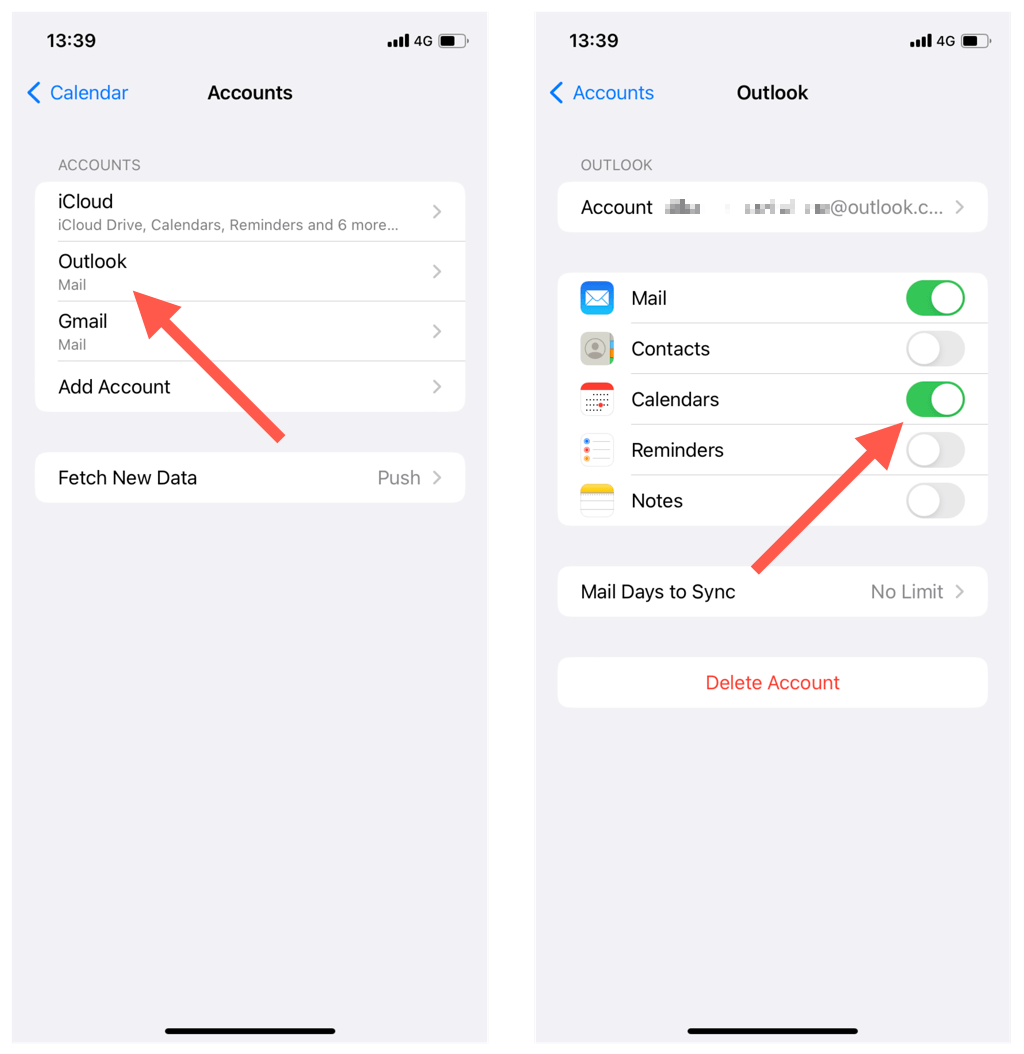
Go to Settings > Mail > Accounts and tap your Outlook or Exchange account.
- Make sure Calendars is enabled.
- Confirm your email, password, and server details are correct.
- If you use Outlook.com, check that your account type is set to Exchange or Outlook.
If you see errors, remove the account and add it again.
2. Update Ios And Outlook
Outdated software can block syncing.
- On your iPhone: Go to Settings > General > Software Update. Install the latest iOS version.
- On your PC: Open Outlook and go to File > Office Account > Update Options. Click Update Now.
Check if syncing resumes after updates.
3. Check Internet Connection
Syncing needs a stable connection.
- Test Wi-Fi and cellular data.
- Switch networks if needed.
- Restart your router if you suspect connectivity issues.
4. Verify Calendar Sync Is Enabled
In Settings > Mail > Accounts, tap your Outlook account and make sure Calendars is toggled on.
Sometimes, toggling it off and then on again can reset syncing.
5. Restart Devices
Restart your iPhone and your computer. This simple step fixes many hidden issues.
6. Re-add Account
Remove your Outlook or Exchange account from your iPhone, then add it again. This refreshes the sync process.
- Go to Settings > Mail > Accounts.
- Tap the account and select Delete Account.
- Add the account back using correct details.
7. Check Default Calendar Settings
Your iPhone may be adding new events to the wrong calendar.
- Go to Settings > Calendar > Default Calendar.
- Select your Outlook calendar as the default.
This ensures new events sync correctly.
8. Sync Via Icloud
If you prefer using iCloud:
- On your PC, install iCloud for Windows.
- Log in and check Mail, Contacts, Calendars, and Tasks.
- Open Outlook and check if your iCloud calendar appears.
9. Check Outlook Calendar Permissions
If you use a work or school account, ask your IT admin to verify calendar permissions.
- You need read/write access for syncing to work.
- Shared calendars require special permissions.
10. Remove Duplicate Or Corrupt Entries
If you see errors in Outlook or iPhone, delete duplicate or corrupt events.
- In Outlook, use the Clean Up tool.
- On your iPhone, manually delete problem events.
11. Disable Third-party Calendar Apps
Apps like Google Calendar can interfere with Outlook syncing.
- Remove or disable these apps temporarily.
- Check if syncing resumes.
12. Check Firewall And Security Settings
Some firewalls block syncing.
- On your PC, check Windows Firewall settings.
- Allow Outlook and iCloud through the firewall.
13. Reset Network Settings
On your iPhone, go to Settings > General > Reset > Reset Network Settings. This can fix hidden connectivity issues.
14. Contact Microsoft Support
If all else fails, contact Microsoft support for help. They can check server logs and provide advanced troubleshooting.
Icloud Vs Exchange Vs Outlook.com: Syncing Options Compared
Different syncing methods offer unique benefits. Here’s a comparison to help you choose the best for your needs.
| Sync Method | Setup Ease | Compatibility | Best For |
|---|---|---|---|
| iCloud | Easy | Apple devices, Windows | Personal users |
| Exchange | Medium | Business, all devices | Work accounts |
| Outlook.com | Easy | Windows, iOS, Android | Home and school |
If you use Outlook at work, Exchange is often required. For personal use, iCloud or Outlook.com is simpler.
Advanced Troubleshooting: What If Nothing Works?
Most issues are fixed by the steps above. But sometimes, syncing fails for less obvious reasons.
Hidden Sync Conflicts
If you use multiple calendars, your iPhone may struggle to decide which calendar is “primary.” This happens often when you use iCloud and Exchange together. The fix: set a single default calendar, and avoid creating events in the “On My iPhone” calendar.
Large Calendar Files
Outlook calendars with thousands of events can slow down or block syncing. Try archiving old events or splitting large calendars.
Data Corruption
Rarely, calendar files get corrupted. You may need to export your calendar, delete it, and re-import clean data.
Server Outages
Microsoft and Apple servers sometimes go down. Check their status pages to confirm. Waiting a few hours often fixes the issue.
Real-world Examples And Data
Syncing problems affect millions of users. According to a 2023 survey by Statista, around 12% of iPhone users report calendar syncing issues with Outlook at least once a year. Most problems come from account setup mistakes and software incompatibility.
Example: Sarah, a project manager, missed a meeting because her Outlook calendar didn’t sync to her iPhone. She had recently changed her Outlook password, but forgot to update it on her phone. After re-entering her credentials, syncing resumed.
Another example: John, a student, used both iCloud and Exchange calendars. Events he added to iCloud never appeared in Outlook. By switching his default calendar to Exchange, he fixed the issue.

Credit: www.howtogeek.com
Common Mistakes And How To Avoid Them
Beginners often make mistakes that cause syncing problems. Here are some to watch for:
- Adding events to the wrong calendar: Always check which calendar you’re using when creating an event.
- Ignoring software updates: Updates fix bugs and improve compatibility.
- Not checking permissions: Work calendars often need special access.
- Using multiple calendar apps: Stick to one main app to avoid conflicts.
- Forgetting to re-enter passwords after changes: Changing your Outlook password? Update it on your iPhone too.
Tips For Seamless Calendar Sync
If you want syncing to work all the time, follow these practical tips:
- Choose one main calendar for new events.
- Update your apps and devices regularly.
- Double-check account settings after any password change.
- Avoid using “On My iPhone” calendar for important events.
- Archive old events to keep your calendar light.
- If you use shared calendars, make sure you have full permissions.
- Don’t ignore error messages—act on them quickly.
Credit: helpdeskgeek.com
How To Set Up Calendar Sync: Quick Guide
Here’s a fast setup guide for the most common sync methods.
Syncing With Exchange
- Open Settings on your iPhone.
- Tap Mail > Accounts > Add Account.
- Select Microsoft Exchange.
- Enter your email, password, and server details.
- Enable Calendars.
- Save and wait for your calendar to appear.
Syncing With Outlook.com
- Go to Settings > Mail > Accounts > Add Account.
- Choose Outlook.com.
- Enter your login details.
- Turn on Calendars.
- Save.
Syncing With Icloud
- On your PC, install iCloud for Windows.
- Log in with your Apple ID.
- Enable Mail, Contacts, Calendars, and Tasks.
- Open Outlook and check if your iCloud calendar appears.
When To Use Calendar Sync Apps
If you still have problems, consider using third-party apps designed for calendar syncing. Apps like Sync2 or AkrutoSync can bridge gaps between iPhone and Outlook. But use these only if built-in methods fail, as extra apps can sometimes cause new conflicts.
Comparing Icloud And Exchange Calendar Features
Let’s look at how iCloud and Exchange differ for syncing calendars.
| Feature | iCloud | Exchange |
|---|---|---|
| Shared Calendars | Yes | Yes |
| Color Coding | Yes | Yes |
| Task Integration | No | Yes |
| Business Support | Limited | Full |
| Offline Access | Yes | Yes |
If you need tasks and business features, Exchange is better. For simple sharing and color coding, iCloud works well.
Security And Privacy: What You Should Know
Syncing calendars involves sensitive information. Meetings, locations, and reminders can reveal private details. Here’s how to protect your data:
- Always use strong passwords for your accounts.
- Enable two-factor authentication for Outlook and Apple ID.
- Avoid syncing over public Wi-Fi.
- Check privacy settings in both Outlook and iPhone.
- Delete accounts from devices you no longer use.
IT departments often require strict security, so follow their rules if you use a work account.
Credit: www.akruto.com
Outlook Web Vs App: Which Syncs Better?
Some users wonder if syncing through the Outlook web app is better than using the desktop app. Here’s a quick comparison:
| Aspect | Outlook Web App | Outlook Desktop App |
|---|---|---|
| Sync Speed | Fast | Varies |
| Setup | Simple | Complex |
| Features | Basic | Full |
| Compatibility | All devices | Windows only |
For quick syncing, the web app is often easier. But the desktop app offers more advanced features.
How Calendar Sync Helps Productivity
Keeping your calendars in sync helps you stay organized. You can:
- See all meetings and events in one place.
- Get reminders everywhere—on your phone and computer.
- Avoid double-booking appointments.
- Share calendars with coworkers or family.
According to a 2022 Microsoft report, users who sync calendars across devices are 30% less likely to miss important events.
Non-obvious Insights Beginners Miss
Many new users don’t realize:
- Default calendar matters: If your default calendar is not Outlook, new events won’t sync.
- Shared calendars require extra steps: You may need to accept a sharing invitation in Outlook before it appears on your iPhone.
- Calendar sync is not instant: Sometimes, it takes a few minutes for changes to appear, especially with large calendars.
Useful External Resource
For official troubleshooting, visit the Microsoft Support site.
Frequently Asked Questions
Why Is My Iphone Calendar Not Syncing With Outlook After A Password Change?
If you change your Outlook password, update it on your iPhone. Go to Settings > Mail > Accounts, tap your Outlook account, and enter the new password. Syncing resumes once credentials match.
Can I Sync Multiple Outlook Calendars To My Iphone?
Yes, but you need to select which calendars to sync. In Outlook, choose calendars to share. On your iPhone, go to Settings > Mail > Accounts, and select the calendars you want.
How Often Do Calendars Sync Between Iphone And Outlook?
Syncing usually happens automatically every few minutes. If you make changes, it may take up to 15 minutes for updates to appear.
What Should I Do If Calendar Events Disappear After Syncing?
First, check which calendar the event was created in. If it’s in “On My iPhone,” it won’t sync. Move the event to your Outlook calendar. Also, check account settings and permissions.
Is Calendar Sync Safe And Private?
Yes, if you use strong passwords and two-factor authentication. Avoid syncing on public Wi-Fi, and set privacy controls in Outlook and iPhone. Shared calendars require careful permission management.
Getting your iPhone calendar and Outlook to sync reliably is essential for staying organized. With the steps and insights above, you can solve most problems quickly and keep your schedules connected. Remember to check settings, update software, and use one main calendar for important events. If you face tough issues, advanced troubleshooting or official support can help. Stay proactive, and enjoy the benefits of seamless calendar syncing.