Many people rely on their Windows 11 computers to keep track of time. Accurate time is essential for work schedules, online meetings, and even basic tasks like sending emails. But sometimes, you may notice your clock is wrong or doesn’t update, even after restarting. This simple issue can cause bigger problems—missed appointments, incorrect timestamps, and trouble connecting to online services. If your time is not syncing on Windows 11, you’re not alone. This article will help you understand why it happens, how to fix it step-by-step, and what to do if common solutions don’t work.
Why Time Sync Matters On Windows 11
For most users, the system clock seems like a small detail. But it’s actually very important. Windows 11 uses time sync to:
- Keep files and logs accurate
- Protect your device from security problems
- Connect smoothly to websites and online services
If your computer’s clock is off, you may run into issues like:
- Trouble signing in to apps
- Problems with Windows Updates
- Errors when sending emails or accessing secure websites
A mismatched clock can even block access to some online accounts. In business settings, wrong timestamps may cause confusion in shared files. Some security features depend on the correct time to work properly. So, fixing time sync problems is essential for both everyday use and security.
How Windows 11 Syncs Time
Windows 11 uses the Windows Time Service to keep your computer’s clock correct. This service connects to online time servers, which send the exact time to your PC. By default, Windows 11 gets its time from time.windows.com. You can change this server if needed.
Here’s a quick look at how time syncing works:
- Your PC checks the current time from an online server.
- It compares this with its own clock.
- If there’s a difference, Windows updates the clock to match.
This process happens in the background. Most users never notice it—unless something goes wrong.

Credit: www.ninjaone.com
Common Reasons Time Is Not Syncing
Let’s explore the most frequent causes behind time sync problems in Windows 11. Understanding these can help you fix the issue faster.
1. Internet Connection Issues
Time sync needs a stable internet connection. If your PC can’t reach the server, it won’t update the clock.
2. Incorrect Time Zone Settings
If your time zone is set wrong, your clock may show the wrong time—even if syncing works.
3. Windows Time Service Disabled
If the Windows Time Service is off, your PC won’t sync time. This service can be stopped by accident or by software.
4. Outdated Windows Updates
Sometimes, updates fix bugs in the time sync system. Missing updates may cause problems.
5. Firewall Or Antivirus Blocking Sync
Security software can block time sync, especially if it sees the time server as a threat.
6. Corrupted System Files
Damaged files in Windows can stop the time sync service from working.
7. Problem With Cmos Battery
The CMOS battery keeps your computer’s clock running when it’s off. If it’s low or dead, your PC may lose time.
8. Third-party Software Conflicts
Some apps can interfere with time sync, especially network or security tools.
These reasons cover most cases, but sometimes the issue is less obvious. For example, some users report problems after changing hardware or moving between Wi-Fi networks.
How To Check If Time Sync Is Working
Before fixing anything, it’s good to check if your time sync is really broken. Here’s how:
- Look at your system clock in the lower right corner. Is it correct?
- Open Settings > Time & Language > Date & Time. See if “Set time automatically” is on.
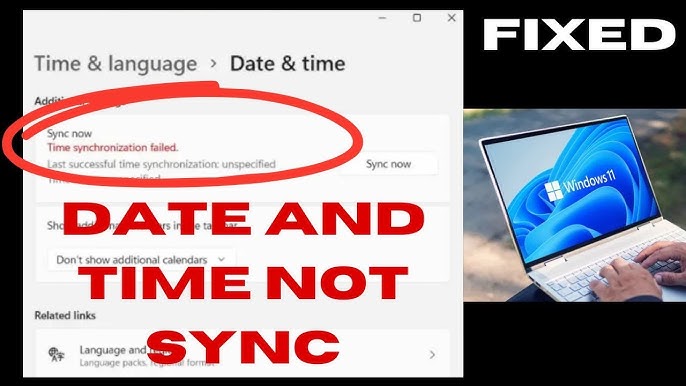
- Click “Sync now.” If you get an error, syncing is not working.
You can also use the Command Prompt to check time sync status:
- Open Command Prompt as Administrator.
- Type:
`w32tm /query /status`
This shows if your PC has synced time and when.
If you see errors or your time hasn’t synced recently, it’s time to fix the problem.
Step-by-step Fixes For Time Not Syncing
Let’s go through practical solutions, from simple to advanced. Try each step in order. Most users can fix time sync with these steps.
1. Check Internet Connection
Time sync needs an active internet connection. Make sure:
- You are connected to Wi-Fi or Ethernet.
- Your connection is stable (no drops).
- Try opening a website in your browser.
If your internet works, move to the next step.
2. Set The Correct Time Zone
Wrong time zone settings confuse Windows. Here’s how to check and fix:
- Go to Settings > Time & Language > Date & Time.
- Make sure “Set time zone automatically” is ON.
- If it’s off, select your correct time zone from the list.
Many people forget this step, but it’s key for accurate time.
3. Enable Windows Time Service
If the service is off, time won’t sync. To check:
- Press Windows + R. Type `services.msc` and press Enter.
- Find Windows Time in the list.
- Right-click and choose Properties.
- Set “Startup type” to Automatic.
- Click Start if the service is stopped.
Some computers have this service disabled by default. Enabling it usually solves the problem.
4. Force Time Sync Manually
You can trigger time sync yourself:
- Open Settings > Time & Language > Date & Time.
- Click Sync now.
Or use Command Prompt:
- Open as Administrator.
- Type:
`w32tm /resync`
You should see a message saying the time sync was successful.
5. Change Time Server
Sometimes, the default server fails. Try a different one:
- Go to Settings > Time & Language > Date & Time.
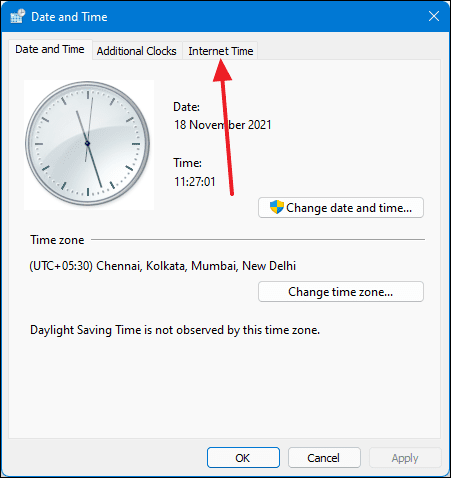
- Click Additional settings > Sync with an internet time server.
- Enter a new server address (like time.nist.gov).
- Click Update now.
This step is often missed by beginners, but changing servers can solve stubborn sync issues.
6. Update Windows
Missing updates may cause bugs. To update:
- Open Settings > Windows Update.
- Click Check for updates.
- Install any available updates.
After updating, restart your PC and check if time sync works.
7. Check Firewall And Antivirus
Security software sometimes blocks time sync. To test:
- Temporarily disable your antivirus or firewall.
- Try syncing time again.
- If it works, add an exception for Windows Time Service.
Never leave your antivirus off permanently. Only test for a few minutes.
8. Repair System Files
Corrupted files can break time sync. Use System File Checker:
- Open Command Prompt as Administrator.
- Type:
`sfc /scannow`
- Wait for the scan to finish.
If errors are found and fixed, restart your PC.
9. Replace Cmos Battery
If your PC loses time after being turned off, the CMOS battery may be low. This is a small battery inside your computer.
- For laptops: Seek professional help.
- For desktops: You can replace the battery yourself, but be careful.
This step is rare, but it’s important for older PCs.
10. Remove Conflicting Software
Some network or security tools interfere with time sync. Try uninstalling:
- VPN software
- Custom firewall apps
- Network utilities
Restart your PC after removing these. If time sync works, you found the problem.
Data: Most Common Causes Of Time Sync Issues
Here’s a comparison of how often each cause appears in user reports:
| Cause | Approximate Frequency (%) | Difficulty to Fix |
|---|---|---|
| Internet Issues | 22% | Easy |
| Wrong Time Zone | 18% | Easy |
| Windows Time Service Disabled | 15% | Medium |
| Outdated Windows | 12% | Easy |
| Firewall/Antivirus Block | 11% | Medium |
| Corrupted Files | 9% | Medium |
| CMOS Battery | 7% | Hard | Software Conflicts | 6% | Medium |
Internet and time zone problems are the most common, while CMOS battery and software conflicts are rare but more difficult.
Advanced Fixes For Persistent Issues
If the basic steps don’t work, try these advanced solutions.
Re-register Windows Time Service
Sometimes, the service itself needs a reset:
- Open Command Prompt as Administrator.
- Enter these commands one by one:
- `net stop w32time`
- `w32tm /unregister`
- `w32tm /register`
- `net start w32time`
- Restart your PC.
This process refreshes the service and fixes deep errors.
Reset Windows Time Settings
You can reset all time settings to default:
- Open Command Prompt as Administrator.
- Type:
`w32tm /config /syncfromflags:manual /manualpeerlist:”time.windows.com”`
`w32tm /config /update`
`w32tm /resync`
This tells Windows to use the default server and update settings.
Use Third-party Time Sync Tools
Some users prefer extra tools for time sync:
- NetTime
- Dimension 4
These apps connect to multiple servers and offer more control. They’re helpful if Windows Time Service fails.
Edit Registry Settings (advanced Users Only)
Incorrect registry settings can block time sync. Editing the registry is risky—only try if you’re comfortable.
- Press Windows + R, type `regedit`.
- Go to:
`hkey_local_machinesystemcurrentcontrolsetservicesw32timeparameters`
- Check values like Type and NtpServer.
- Make sure Type is set to NTP.
Back up your registry before making changes.
Comparing Windows 11 Time Sync Vs Older Windows
How does Windows 11 handle time sync compared to Windows 10 or 7? Here’s a quick comparison:
| Feature | Windows 11 | Windows 10 | Windows 7 |
|---|---|---|---|
| Default Sync Server | time.windows.com | time.windows.com | time.windows.com |
| Automatic Time Zone | Yes | Yes | No |
| Manual Sync Button | Yes | Yes | No |
| Advanced Sync Options | Yes | Limited | No |
| Integration with Online Services | Better | Good | Basic |
Windows 11 improves automatic time zone detection and offers more sync options, making it easier to fix issues.
Credit: www.youtube.com
Real-world Example: Fixing Time Sync In A Remote Work Setup
Let’s look at a common scenario. Sarah works from home, using Windows 11 for video meetings. One day, her computer clock is wrong, causing her to miss a call. After checking her settings, she finds that her Windows Time Service is disabled.
Sarah follows these steps:
- Opens `services.msc`
- Sets Windows Time Service to Automatic
- Clicks “Sync now”
Her clock updates instantly. Later, she learns that her VPN software sometimes blocks time sync. By adding an exception for Windows Time Service, she avoids future problems.
Many remote workers face similar issues. If you use VPNs or switch networks often, check your time sync settings regularly.
Preventing Time Sync Issues In The Future
After fixing your clock, you can take steps to avoid problems:
- Keep Windows updated
- Check your time zone after traveling
- Avoid installing unnecessary network or firewall tools
- If you notice time drifting, check the Windows Time Service
For businesses, setting up a local time server can keep all computers in sync. This is especially useful for teams working across different locations.
Credit: techcommunity.microsoft.com
What To Do If Nothing Works
If your time still won’t sync, try these last steps:
- Create a new Windows user profile. Sometimes, profile corruption blocks sync.
- Restore your system to an earlier point using System Restore.
- Seek professional help. Hardware issues like a faulty motherboard can cause persistent time problems.
Some rare cases need expert repair, but most users fix time sync with the steps above.
Frequently Asked Questions
Why Does My Windows 11 Clock Keep Showing The Wrong Time?
This usually happens due to wrong time zone, disabled Windows Time Service, or internet issues. Check your settings, ensure the service is running, and try syncing manually.
Can A Dead Cmos Battery Cause Time Sync Issues?
Yes. The CMOS battery keeps your PC’s clock running when it’s off. If it’s dead, your computer may lose track of time, especially after shutdowns.
How Do I Change The Time Server In Windows 11?
Go to Settings > Time & Language > Date & Time > Additional settings. Enter a new time server, like time.nist.gov, and click Update now.
Is It Safe To Use Third-party Time Sync Tools?
Generally, yes—if you download them from trusted sources. Apps like NetTime and Dimension 4 are widely used. Always scan for viruses before installing.
What Are The Risks Of Editing The Registry To Fix Time Sync?
Editing the registry can cause system errors if done wrong. Always back up your registry first. Only experienced users should make changes.
Accurate time is more than just convenience—it’s essential for security and smooth operation. By following these steps, you can fix time sync problems in Windows 11 and keep your computer running smoothly. If you want to learn more about time synchronization, visit the official Network Time Protocol page. Remember, most issues are simple to fix, and regular checks can prevent future trouble. With these solutions, you’ll never miss an important meeting or deadline again.