If you own a 4th Generation Kindle and it refuses to sync, you are not alone. Many users find it frustrating when their e-books, highlights, or reading progress do not update across devices. It can feel like your Kindle is stuck in the past, while your other devices move ahead. Syncing is one of the main features that make e-readers convenient, so when it fails, the experience suffers. Fixing this issue is possible, but it requires understanding the reasons behind it and applying the right solutions. In this article, you will discover why your 4th Gen Kindle may not be syncing, how to fix it, and how to prevent future problems. You will also see comparisons, real examples, and practical tips that make troubleshooting easier, even if you are not a tech expert.
Understanding Syncing On The 4th Gen Kindle
Syncing is the process that keeps your Kindle library up to date across all your devices. When you buy a book, highlight a passage, or read a few pages, your progress is saved to your Amazon account. The next time you open the same book on a different device—like your phone or tablet—you can continue exactly where you left off.
However, the 4th Gen Kindle is an older device, released in 2011. Its hardware and software are not as advanced as newer models. It connects to Wi-Fi but lacks features like touchscreen and Bluetooth. Because of this, syncing is sometimes slower or more prone to errors.
How Sync Works On Kindle Devices
When you connect your Kindle to Wi-Fi, it communicates with Amazon’s servers. It checks for new purchases, updates your reading location, and downloads any changes. If you read on your phone, then later pick up your Kindle, it should prompt you to sync to the latest page.
But if syncing does not work, your Kindle and Amazon’s cloud may show different information. This can lead to missing books, outdated bookmarks, or lost highlights.
Common Reasons Why The 4th Gen Kindle Does Not Sync
Many factors can cause syncing problems on the 4th Gen Kindle. Some are simple, like a weak Wi-Fi connection. Others are more complex, such as outdated firmware. Here are the most common causes:
- Wi-Fi issues: Your Kindle needs a stable internet connection to sync. Weak signals, network blocks, or incorrect passwords can prevent syncing.
- Outdated firmware: If your Kindle runs old software, it might not connect to Amazon’s servers correctly.
- Amazon account problems: Using the wrong account or having multiple accounts can confuse the syncing process.
- Cloud-only content: Some books may not be downloaded yet, so the device has nothing to sync.
- Incorrect date and time: If your Kindle’s clock is wrong, syncing may fail.
- Parental controls or restrictions: These can block certain sync features.
- Server outages: Rarely, Amazon’s servers may be down or under maintenance.
- Corrupted files or settings: Damaged files or software glitches can block syncing.
Real-world Example
Imagine you purchased a new e-book on your phone’s Kindle app. You open your 4th Gen Kindle, but the new book does not appear. Even after trying to sync manually, nothing happens. In most cases, this is due to Wi-Fi issues, outdated firmware, or your Kindle not being registered to the same Amazon account.
Step-by-step Solutions To Fix Kindle Syncing Problems
Solving syncing issues is possible, and most users can do it themselves. Here is a practical guide to help you restore syncing on your 4th Gen Kindle.
1. Check Your Wi-fi Connection
- Ensure your Kindle is connected to a reliable Wi-Fi network.
- Avoid public or guest networks that might block Amazon services.
- Test your connection by opening the Kindle Store or browsing Wikipedia on your device.
If your Kindle cannot connect, restart your router and try reconnecting. You can also move closer to the router for a stronger signal.
2. Restart Your Kindle
A simple restart can fix minor glitches:
- Slide and hold the power switch for 20 seconds.
- Wait until the screen goes blank.
- Release the switch and wait for the device to restart.
After rebooting, try syncing again.
3. Manually Sync Your Device
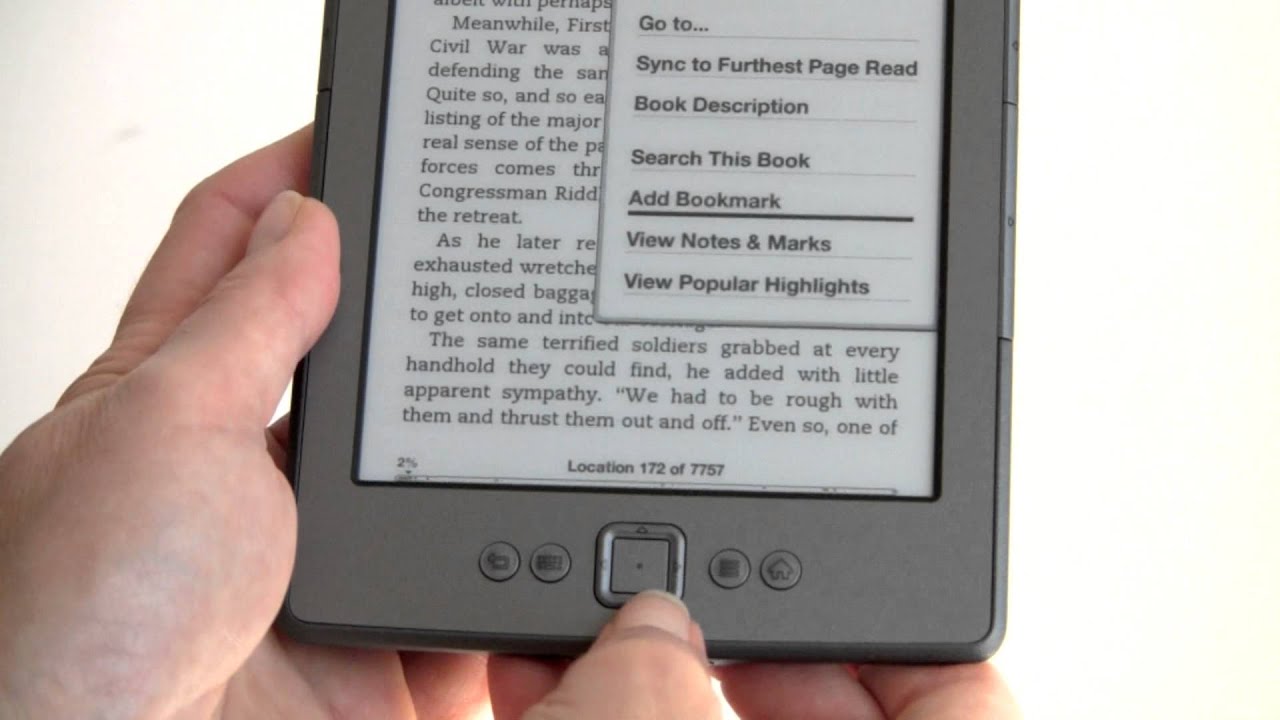
On the 4th Gen Kindle, you can force a sync:
- Press the Menu button.
- Select Sync & Check for Items.
Wait a minute to see if your books or progress update.
4. Check Amazon Account Details
- Make sure your Kindle is registered to the same Amazon account as your other devices.
- Go to Menu > Settings and look for your account name.
- If it is not correct, Deregister and then Register with the right account.
5. Update Kindle Firmware
Running old software can block syncing. To check for updates:
- Connect to Wi-Fi.
- Go to Menu > Settings.
- Press Menu again and select Update Your Kindle (if available).
If no update appears, your device may already be up to date. For manual updates, visit Amazon’s official software page for the 4th Gen Kindle and follow their instructions.
6. Verify Date And Time Settings
Incorrect date or time can cause sync errors:
- Go to Menu > Settings.
- Set the correct date and time for your region.
This is especially important if you recently traveled or reset your device.
7. Ensure Content Is Downloaded
If you see a cloud icon next to a book, it means the book is not downloaded. Select it to download the content to your Kindle. Only downloaded books will sync reading progress.
8. Clear Corrupted Files
Sometimes, books or files get corrupted. Remove the problem book and re-download it from the cloud. This can fix strange syncing errors.
9. Factory Reset (last Resort)
If nothing works, consider a factory reset. This erases all data, so backup your books first.
- Go to Menu > Settings.
- Press Menu and select Reset to Factory Defaults.
After the reset, register your Kindle and re-download your books.
Data Table: Common Sync Issues And Solutions
To help you quickly identify the cause and solution, see the table below.
| Issue | Symptoms | Recommended Solution |
|---|---|---|
| Wi-Fi not working | Cannot access Kindle Store or Wikipedia | Reconnect to Wi-Fi; restart router |
| Wrong Amazon account | Books missing; progress not updated | Deregister and register with correct account |
| Outdated firmware | Sync fails; no new features | Update software via Settings menu |
| Cloud-only content | Book shows cloud icon | Download book to device |
| Corrupted files | Book won’t open or sync | Delete and re-download book |
Comparing The 4th Gen Kindle To Newer Models
It helps to understand how the 4th Gen Kindle compares to more recent devices, especially for syncing and connectivity.
| Feature | 4th Gen Kindle | Kindle Paperwhite (2022) | Kindle Oasis |
|---|---|---|---|
| Wi-Fi Support | Yes (2.4GHz only) | Yes (2.4/5GHz) | Yes (2.4/5GHz) |
| Touchscreen | No | Yes | Yes |
| Bluetooth | No | Yes | Yes |
| Sync Speed | Slower | Fast | Fast |
| Software Updates | Limited | Frequent | Frequent |
Older devices like the 4th Gen Kindle may not get new sync features or updates. If you rely heavily on syncing, consider upgrading for a smoother experience.
Advanced Troubleshooting For Persistent Sync Issues
If your Kindle still won’t sync after basic steps, you may need more advanced methods. These are less common but sometimes necessary.
Check For Account Conflicts
If you use multiple Amazon accounts (for example, a personal and a family account), make sure all your devices use the same one for Kindle. Mixing accounts can cause missing books or progress.
Review Parental Controls
Parental controls can block syncing of certain content. If your device is managed by a parent or administrator, ask them to check the settings.
Check Amazon Server Status
On rare occasions, Amazon’s servers may be down. You can check the status at DownDetector or Amazon’s help pages. If servers are down, wait and try again later.
Remove Problematic Content
Some files, especially those sideloaded via USB, may not sync properly. Try removing these files and see if syncing resumes.
Examine Wi-fi Router Settings
Some routers block certain ports or services. If possible, log into your router and disable any firewalls or parental blocks temporarily, then try syncing again.
Credit: www.youtube.com
Data Table: Manual Vs Automatic Sync Methods
Understanding how manual and automatic syncing work can help you choose the right method when troubleshooting.
| Method | Action Needed | When to Use | Pros | Cons |
|---|---|---|---|---|
| Automatic Sync | Connect to Wi-Fi; Kindle syncs in background | Daily use, most situations | Hands-free; seamless | May fail if errors exist |
| Manual Sync | Select “Sync & Check for Items” in Menu | After new purchases; when sync stalls | Immediate; forces update | Requires user action |
Common Mistakes When Trying To Sync
Many users repeat the same errors when their Kindle won’t sync. Avoid these to save time and frustration:
- Not checking Wi-Fi: Assuming the Kindle is online when it is not.
- Overlooking account differences: Not realizing your Kindle and app use different Amazon accounts.
- Ignoring firmware updates: Old software often blocks new features.
- Failing to download books: Sync only works for books downloaded to the device.
- Skipping restarts: A simple restart often fixes temporary glitches.

Credit: www.reddit.com
Two Insights Most Beginners Miss
- Manual Sync is Sometimes Required: Many think syncing happens automatically. On older Kindles, you often need to trigger it yourself, especially after buying new books.
- Account Registration Matters More Than You Think: Even a small typo in your Amazon account email can prevent syncing. Always double-check the account your Kindle is registered to.
Practical Tips To Keep Your Kindle Syncing Smoothly
- Sync regularly: Do not wait weeks between syncs. Frequent syncing prevents large data gaps.
- Keep firmware updated: Even if updates are rare, check for them every few months.
- Restart after changes: If you update software or change networks, restart your Kindle.
- Limit sideloaded content: Files not bought from Amazon may not sync reading progress.
- Use a strong Wi-Fi network: Weak or public connections are unreliable for Kindle syncing.

Credit: www.reddit.com
When Is It Time To Upgrade?
If syncing problems become frequent or impossible to fix, consider if your 4th Gen Kindle still meets your needs. Newer Kindles offer:
- Faster syncing
- Better Wi-Fi support
- Touchscreens and better navigation
- Regular software updates
- More storage for books and audiobooks
If you read daily and use multiple devices, upgrading may improve your experience. However, for light reading, the 4th Gen Kindle still performs basic functions well.
Where To Find Official Help
Amazon offers detailed help pages for Kindle syncing issues. If you are still stuck, visit the Amazon Kindle Support page. You can also contact Amazon’s customer service for direct assistance.
Frequently Asked Questions
Why Does My 4th Gen Kindle Say “sync Failed”?
This message usually means your device can’t reach Amazon’s servers. Check your Wi-Fi connection first. If it is strong, check for firmware updates and make sure your account details are correct.
Can I Sync Books Bought From Other Sources?
Books not purchased from Amazon may not sync reading progress or highlights. Only Amazon content supports full syncing across devices.
Do I Need To Keep My Kindle Online All The Time?
No, but your Kindle must connect to Wi-Fi occasionally to sync. If you are offline for weeks, syncing will not work until you reconnect.
What Happens If I Factory Reset My Kindle?
A factory reset erases all content and settings. You will need to re-register your device and re-download your books. Only do this as a last resort.
Will Amazon Stop Supporting The 4th Gen Kindle?
Amazon sometimes phases out support for older devices, but as of now, you can still sync and download books. Over time, features may become limited. For the latest info, check official Amazon announcements or Wikipedia.
Solving syncing issues on a 4th Gen Kindle can be simple or complex, but with the right steps, most users can fix the problem themselves. By keeping your device updated, connected, and registered to the correct account, you can continue enjoying your Kindle library anywhere, anytime.
If issues persist, consider upgrading for a smoother, more reliable reading experience.