If you use DMSS for your home or business security, you expect it to record video without problems. But sometimes, you may notice that your DMSS app is not recording as it should. This can be frustrating, especially if you need footage for security or evidence. Many users face this issue, but the good news is that most solutions are simple once you know where to look.
Understanding why DMSS is not recording can save you time, money, and stress. In this guide, you’ll learn the main reasons for this problem, how to fix it, and how to prevent it in the future. Whether you are a beginner or have some experience, this article will help you get your DMSS recording working smoothly again.
What Is Dmss And Why Recording Matters
DMSS stands for Digital Mobile Surveillance System. It is an app used to view and manage video from security cameras, mainly from Dahua and related brands. People use DMSS to monitor their property in real time, watch old footage, and get alerts for unusual activity.
The key feature of DMSS is recording. Without recording, you lose the chance to review important events. If DMSS is not recording, you may miss out on evidence if something happens—like theft, vandalism, or a delivery problem.
Common Reasons Dmss Is Not Recording
There is no single reason why DMSS might stop recording. Here are the main causes:
- Storage Problems: Not enough space on the SD card, NVR, or DVR.
- Incorrect Settings: Recording schedule not set, or wrong recording mode.
- Camera Not Connected: Lost connection between camera and recorder.
- Firmware Issues: Outdated or buggy firmware in cameras or recorders.
- Network Problems: Poor Wi-Fi or LAN connection.
- Hardware Faults: Damaged SD card, hard drive, or camera.
Knowing which of these is causing your problem is the first step to fixing it.
How Dmss Recording Works
DMSS works with different recording devices: SD cards (inside cameras), NVRs (Network Video Recorders), and DVRs (Digital Video Recorders). The app itself does not usually record video directly. Instead, it controls the recording settings on your cameras or recorders.
There are several recording modes:
- Continuous: Records non-stop.
- Motion Detection: Records when movement is detected.
- Alarm: Records when a specific event triggers (like a door sensor).
You can set these modes in the DMSS app or through the recorder’s main menu. If you choose the wrong mode or do not save your settings, your system may not record.
Step-by-step Solutions When Dmss Is Not Recording
1. Check Storage Space
Lack of storage is a leading cause. Here’s how to check and fix it:
- For cameras with SD cards: Open the DMSS app, go to Device Settings > Storage. See if the SD card is full or not detected.
- For NVR/DVR: Go to Storage Management in the recorder’s main menu.
If storage is full:
- Delete old recordings if possible.
- Replace the SD card or hard drive with a higher-capacity one if needed.
- Format the storage device, but back up important footage first.
2. Review Recording Schedule
Many users forget to set the right schedule.
- In DMSS, go to Device Settings > Record Schedule.
- Make sure the right days and times are set for recording.
- Select the correct recording mode: Continuous, motion, or alarm.
- Save changes before exiting.
Mistake to avoid: If the schedule is not saved, changes will not take effect.
3. Confirm Camera Connection
Recording will stop if the camera is offline.
- Open DMSS and check live view. If you see “Offline” or “No Signal,” the camera is not connected.
- Check cables, power, and network connections.
- Reboot the camera or recorder.
If the problem continues, reset the camera and re-add it to DMSS.
4. Update Firmware
Old firmware can cause bugs.
- Visit the official Dahua website or your device’s brand site.
- Download the latest firmware for your camera or recorder.
- Update via the device’s web interface or through DMSS if supported.
Warning: Do not turn off the device during the update.
5. Improve Network Stability
For IP cameras and NVRs, a weak network can stop recording.
- Use wired connections when possible.
- Upgrade your router if you have many cameras.
- Place your Wi-Fi router closer to cameras.
A stable network helps ensure continuous recording.
6. Inspect Hardware
Physical problems are sometimes the cause.
- Remove and check the SD card or hard drive for errors.
- Try a different SD card or HDD if possible.
- Listen for strange noises from the recorder’s hard drive (clicking or beeping means failure).
If hardware is faulty, replace it as soon as possible.

Credit: www.youtube.com
Comparison Of Recording Devices
To help you decide which recording method is best, here is a comparison:
| Device | Max Storage | Reliability | Best Use |
|---|---|---|---|
| SD Card (in Camera) | Up to 256 GB | Medium | Single camera, small areas |
| NVR | Up to 10 TB (or more) | High | Multiple IP cameras, large systems |
| DVR | Up to 10 TB | High | Analog or hybrid camera setups |
Advanced Troubleshooting Tips
If the above steps do not work, try these advanced fixes:
Check Permissions In The Dmss App
Sometimes, the app may not have the correct permissions to manage or view recordings.
- Go to your phone settings.
- Find DMSS under Apps.
- Make sure permissions for storage, network, and camera are enabled.
Test Motion Detection
If you use motion recording, check the motion detection area and sensitivity.
- In DMSS, go to Device > Alarm Settings.
- Set the detection area correctly.
- Adjust sensitivity to avoid missing movement.
Example: If sensitivity is too low, small movements will not trigger recording.
Look For Overwriting Settings
Most recorders have an overwrite option. If this is off, the device will stop recording when full.
- Turn on “Overwrite” in Storage Settings so new footage replaces the oldest automatically.
Check Time And Date
Wrong time and date can cause issues with scheduling and playback.
- In DMSS or the recorder menu, check System Settings > Time.
- Sync with your phone or use NTP server for accuracy.
Use The Right App Version
Not all DMSS versions work with every device. Make sure you use the official app from the App Store or Google Play.
Real-world Example
Imagine a shop owner checks their DMSS app and finds no video for the last week. The live view works, but playback shows nothing. After checking, they see the SD card is full and the overwrite setting is off. Once they enable overwrite, recording resumes and old files are replaced automatically.
This scenario is common, but easily fixed by knowing where to look.
Key Settings To Review Regularly
To keep your DMSS system recording reliably, check these settings each month:
- Storage status: Is there enough free space?
- Recording schedule: Are times/days correct?
- Firmware version: Is everything up to date?
- Camera status: Are all cameras online?
- Overwrite setting: Is it enabled?
A monthly check prevents most surprises.

Credit: www.reddit.com
Table Of Common Problems And Fixes
Here is a quick reference for common DMSS recording problems and solutions:
| Problem | Possible Cause | Solution |
|---|---|---|
| No recordings at all | Schedule not set | Set and save recording schedule |
| Stopped after a few days | Storage full, overwrite off | Enable overwrite or clear storage |
| Motion not recorded | Sensitivity too low | Increase motion sensitivity |
| Playback missing | Wrong time/date | Correct system time and date |
| App shows “No device” | Network issue | Check Wi-Fi/cable connection |
How To Prevent Dmss Recording Failures
Prevention is better than cure. Here’s how you can avoid recording problems in the future:
- Use high-quality SD cards or hard drives. Cheap storage often fails quickly.
- Keep firmware updated for both cameras and recorders.
- Avoid power loss by using an uninterruptible power supply (UPS) for critical systems.
- Check recording logs regularly to spot issues early.
- Do not overload your network. Too many high-resolution cameras on weak Wi-Fi can cause drops.
- Back up important footage to the cloud or another device if possible.
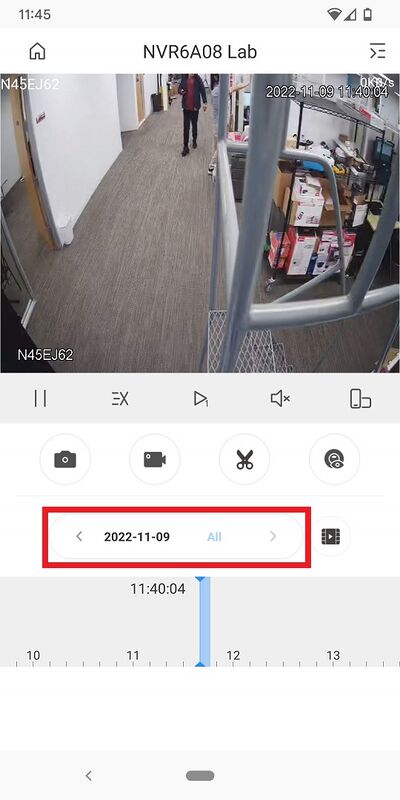
Many users forget that SD cards wear out over time. Most need replacing every 1-2 years, depending on how much you record.
Credit: dahuawiki.com
When To Call A Professional
If you try all the above steps and DMSS is still not recording, it might be time to get expert help. Some hardware failures or deep firmware bugs need special tools. Calling a certified installer or your system supplier can save hours of frustration.
Useful External Resource
For more details on DMSS setup and troubleshooting, visit the official Dahua Support Center.
Frequently Asked Questions
Why Does My Dmss Show Live Video But Not Record?
This usually means the recording schedule is not set or storage is full. Check your recording settings and make sure there is enough free space. Also, confirm the overwrite option is turned on.
How Do I Check If My Camera’s Sd Card Is Working?
In the DMSS app, go to Device Settings > Storage. You should see the SD card listed. If it says “Not detected” or “Error,” try removing and reinserting the card, or test with a new card.
Can I Use Cloud Storage With Dmss?
Some DMSS-compatible devices support cloud storage, but not all. Check your camera or recorder’s specifications. Cloud storage is useful for extra backup but may require a subscription.
What Is The Best Recording Mode For Home Security?
For most homes, motion detection saves storage and makes it easier to review events. However, if you want total coverage, use continuous recording, but be sure to have enough storage space.
Why Did My Dmss Recordings Disappear After A Power Outage?
A sudden power loss can corrupt the SD card or hard drive, leading to lost recordings. To prevent this, use a UPS (Uninterruptible Power Supply) and check your storage device for errors after any outage.
If you follow the steps and tips above, you can quickly solve most DMSS recording problems. Regular checks and good quality hardware help you keep your security system running without surprises. Remember, the key is to act early—don’t wait for a problem to become a crisis.