If you enjoy watching your favorite series or sports on your own schedule, a DVR is a must-have. But what happens when your Xfinity DVR suddenly stops recording your scheduled shows? Many users face this problem and feel frustrated, especially when they miss important episodes or live events. This article will guide you through the main reasons why your Xfinity DVR might not record scheduled shows, and how you can fix these issues quickly. You’ll also get practical tips and answers to the most common questions, so you can get back to enjoying your entertainment without interruption.
Common Reasons Why Xfinity Dvr Fails To Record Scheduled Shows
Understanding why your Xfinity DVR isn’t recording as expected is the first step to fixing it. Let’s look at the most frequent causes.
1. Recording Conflicts
Your DVR can only record a certain number of shows at the same time—usually two to six, depending on your model. If you try to schedule more recordings than your DVR can handle, some will be skipped.
2. Storage Space Full
A DVR works much like a computer; if the hard drive is full, it cannot save new recordings. Check if your DVR has enough free space. If not, older or lower-priority shows may not record.
3. Guide Data Out-of-date
The program guide tells your DVR when and what to record. If the guide is not updated, the DVR may miss scheduled shows or record the wrong program.
4. Power Or Signal Interruptions
Temporary power outages or weak signal connections can disrupt scheduled recordings. If your cable or power was interrupted, the DVR might fail to record.
5. Dvr Not Properly Set Up
Sometimes, recordings don’t work because the show wasn’t set to record the whole series, or the time was set incorrectly.
6. Recording Priority Settings
Xfinity DVRs let you assign recording priorities. If a lower-priority show is scheduled at the same time as a higher-priority one, the lower-priority show might not record.
7. Outdated Firmware
Your DVR runs on software called firmware. If it’s outdated, bugs or compatibility issues can cause recording failures.
8. Account Or Subscription Issues
If your subscription has expired or you don’t have access to a channel, the DVR will not record the show. Check your account status and package.
9. Device Overheating
If your DVR overheats, it may malfunction, causing missed recordings. Make sure it’s in a cool, open space.
Non-obvious insight: Sometimes, simply unplugging and reconnecting your DVR can refresh its settings and fix recording problems—many users overlook this easy step.
How To Troubleshoot Xfinity Dvr Not Recording
Let’s walk through step-by-step solutions to get your scheduled recordings working again.
1. Check Scheduled Recordings
Go to the Scheduled Recordings section on your DVR menu. Make sure your show is listed and set for the correct date and time.
2. Verify Storage Space
Check how much space is left on your DVR. If it’s full, delete old or watched programs to free up space.
3. Update The Program Guide
Most Xfinity DVRs update the guide data automatically, but if you notice missing or incorrect listings, restart your DVR. This often forces a guide update.
4. Check For Recording Conflicts
Look for overlapping shows. If you see conflicts, set your most important show as the highest priority or reschedule others.
5. Restart Or Reset The Dvr
Unplug your DVR for 30 seconds, then plug it back in. This simple step can fix minor software glitches.
6. Review Series Priority
Go to Series Priority settings. Move your favorite shows to the top so they always record if there’s a conflict.
7. Inspect Cables And Connections
Loose or damaged cables can cause signal problems and missed recordings. Check all connections and replace faulty cables.
8. Update Firmware
Navigate to the settings menu and look for software updates. If your DVR doesn’t update automatically, contact Xfinity support.
9. Check Account Status
Log in to your Xfinity account online and verify your subscription is active and includes the channels you want to record.
10. Keep Dvr Cool
Place your DVR in a well-ventilated area. Avoid stacking other devices on top, as heat buildup can lead to failures.
Practical tip: If you have the Xfinity Stream app, you can also schedule and check recordings from your phone or tablet.

Credit: www.reddit.com
Comparing Xfinity Dvr Models: Recording Features And Limits
Not all Xfinity DVRs are the same. Here’s a quick comparison of popular models and their recording features:
| DVR Model | Simultaneous Recordings | Storage Capacity | Cloud Recording |
|---|---|---|---|
| X1 DVR | Up to 6 | 500 GB | Yes |
| XiD | None (acts as a client) | 0 GB | No |
| Xfinity Flex | None | 0 GB | No |
| XG1v4 | Up to 6 | 500 GB | Yes |
Non-obvious insight: Some Xfinity boxes (like XiD and Flex) do not support recording at all. If your box doesn’t allow scheduled recording, you may need to upgrade.
How To Set Up Series And One-time Recordings Correctly
Setting up recordings properly helps prevent missed shows.
Step-by-step Guide
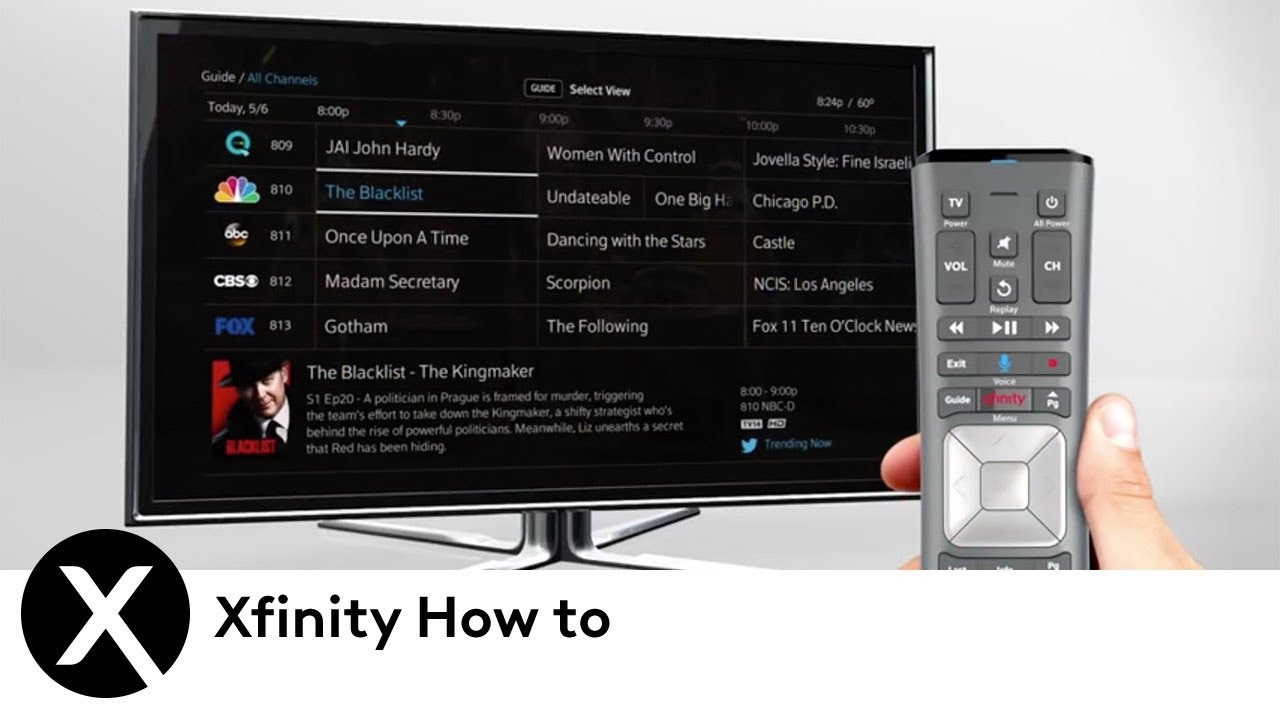
- Press the Guide button on your remote.
- Find the show you want to record.
- Highlight the program, then press the Record button.
- Choose between Record Episode (one-time) or Record Series (all episodes).
- In the recording options, set preferences like start/end time or only new episodes.
Double-check your settings to make sure you haven’t accidentally set it to record only reruns, or just one episode instead of the entire series.

Credit: lumii-solutions.com
How To Manage Recording Conflicts And Priorities
When you schedule more shows than your DVR can record at once, conflicts happen. Here’s how to manage them:
Adjust Series Priority
Go to the DVR menu and select Series Priority. Move important shows to the top of the list.
Use Cloud Dvr Features
If you have Xfinity’s cloud DVR service, you can sometimes record more shows at once or access them from other devices.
Alternate Recording Times
If the same show airs at different times, try recording a repeat when fewer conflicts exist.
Pro tip: Setting the DVR to record “only new episodes” avoids recording unnecessary repeats, freeing up space and reducing conflicts.
Troubleshooting Guide: Quick Reference Table
To help you find solutions faster, here’s a troubleshooting reference:
| Problem | Possible Cause | Solution |
|---|---|---|
| Show not recording | Not scheduled, conflict, or full storage | Check schedule, resolve conflicts, free up space |
| Wrong episode recorded | Guide out-of-date | Restart DVR to update guide |
| Partial recording | Signal loss or power outage | Check connections, avoid power interruptions |
| No recordings at all | Subscription issue or box not DVR-capable | Check account and device model |
When To Contact Xfinity Support
If you’ve tried all steps and your DVR still isn’t recording, it’s time to reach out for help. Xfinity support can run remote diagnostics, send updates, or schedule a technician visit.
Contact support if:
- The DVR menu freezes or won’t load
- Shows won’t record even after a reset
- Your device shows error codes
- You suspect hardware failure
Before calling, write down any error messages and steps you’ve tried. This helps support resolve your issue faster.
Preventing Future Recording Problems
A little maintenance can prevent many DVR headaches:
- Regularly delete watched or unwanted programs
- Keep your DVR software updated
- Check cables and ventilation every few months
- Review your recording schedule for conflicts weekly
If you travel or don’t watch TV daily, use the Xfinity Stream app to manage and check recordings from anywhere.
Credit: www.xfinity.com
Alternatives To Xfinity Dvr Recording
If you continue having problems, you might consider other options:
- Cloud DVR: Xfinity’s cloud service lets you record and watch on multiple devices, even when away from home.
- Streaming services: Many platforms like Hulu and YouTube TV offer built-in DVR features.
- Upgrading your Xfinity equipment: Newer models often fix old bugs and provide more storage.
For a deeper look at DVR options and how they compare, visit the official Xfinity support page.
Frequently Asked Questions
Why Did My Xfinity Dvr Skip A Scheduled Recording?
Your DVR may have skipped a show due to recording conflicts, full storage, or a guide data error. Check your scheduled recordings, available storage, and make sure your guide is updated.
How Do I Know If My Dvr Is Set To Record A Series Or Just One Episode?
After scheduling, check your Scheduled Recordings list. Series recordings usually show a stack icon or say “series.” One-time recordings only display the episode.
Can I Recover A Missed Or Deleted Recording?
Unfortunately, once a recording is deleted from Xfinity DVR, it cannot be recovered. For missed shows, check if On Demand or the Xfinity Stream app offers the episode.
Will My Scheduled Recordings Work If My Dvr Is Turned Off?
Yes, as long as your DVR is plugged in and connected to power and signal, it will record even if your TV is off. But if you unplug the DVR, it cannot record.
How Do I Check If My Dvr Model Supports Scheduled Recordings?
Look at the model name on your device, then compare it with the Xfinity DVR model chart above. Only certain models support recording. You can also check device details in the Xfinity account portal.
With these steps and insights, you should be able to solve most issues with your Xfinity DVR not recording scheduled shows. Regular checks and the right settings keep your favorite programs ready to watch whenever you want.