Logic Pro Not Recording: How to Fix and Avoid This Common Problem
If you use Logic Pro, you probably expect it to capture every idea, song, or podcast you create. But what if you hit record and nothing happens? Or you see the playhead move, but no sound is captured? This issue frustrates both beginners and seasoned producers. Let’s break down why Logic Pro is not recording, how you can fix it quickly, and smart ways to avoid it in the future.
Why Logic Pro Fails To Record: The Main Causes
Logic Pro is a powerful tool, but recording failures usually come from a few common sources. Understanding these will help you troubleshoot faster.
1. Audio Interface Not Detected
If your interface is not connected or Logic Pro can’t see it, the program won’t record. This often happens after unplugging and replugging a device or switching USB ports.
2. Input Settings Are Wrong
Each track in Logic Pro has its own input setting. If the input is set to the wrong channel (or no channel), your microphone or instrument signal won’t get through.
3. Track Not Armed For Recording
You must “arm” or enable a track for recording. If the red ‘R’ button isn’t activated, Logic Pro skips the track during recording.
4. Software Monitoring Issues
Monitoring lets you hear yourself as you record. If monitoring is off, you might think recording is broken, even though it’s working in the background.
5. Corrupt Preferences Or Project Files
Sometimes, Logic Pro’s settings get corrupted. This can block recording for no obvious reason.
6. System Permissions
MacOS requires permissions for apps to use the microphone. If you said ‘No’ to Logic Pro at any time, it can’t record audio.
Step-by-step Fixes For Logic Pro Not Recording
Let’s walk through the most effective solutions for when Logic Pro won’t record. Try each solution in order—many problems are fixed within minutes.
1. Check Your Audio Interface And Connections
- Unplug your audio interface and plug it back in.
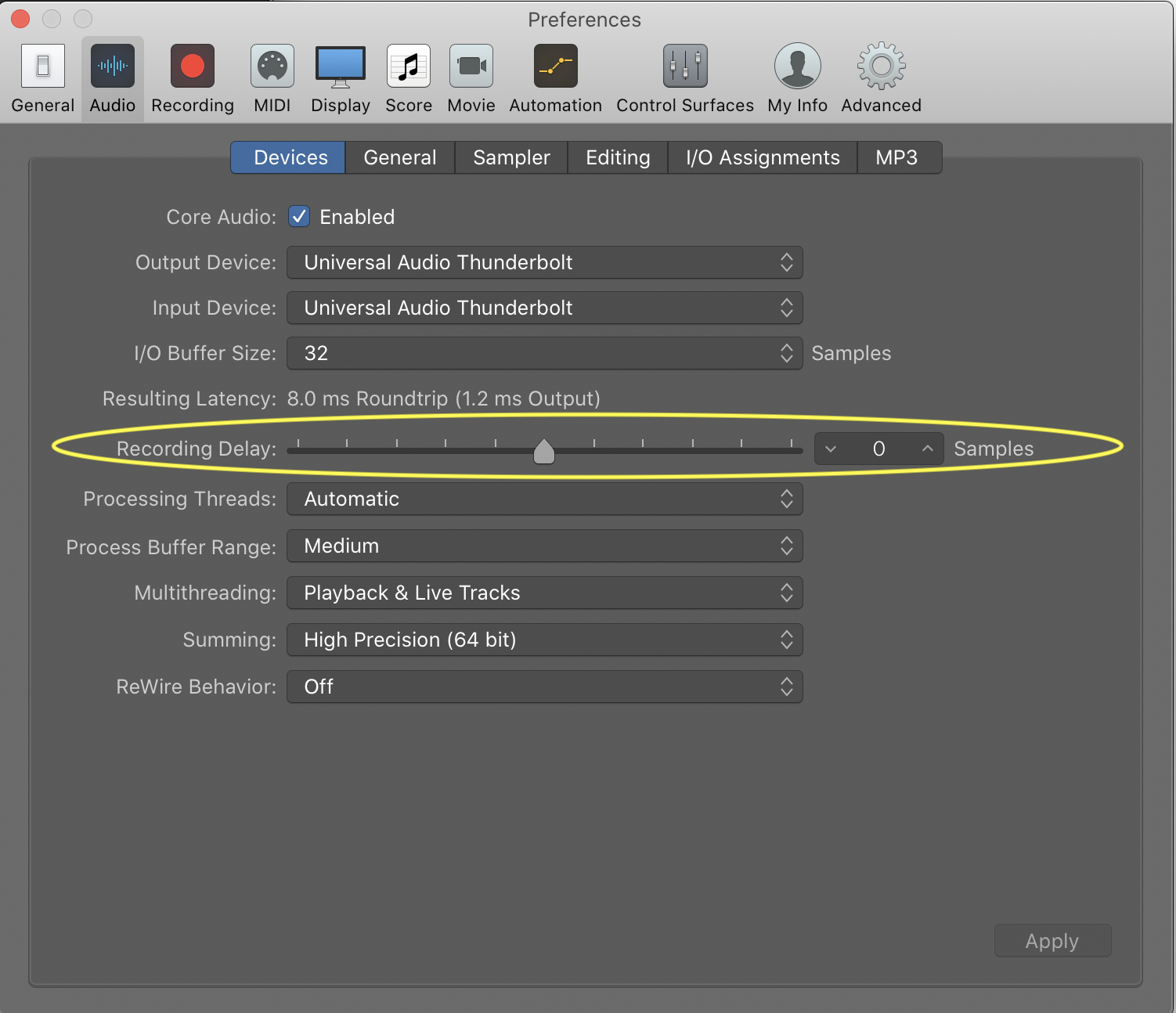
- Go to Logic Pro > Settings > Audio. Make sure the correct device is set for input and output.
- Test your cables and try a different USB or Thunderbolt port.
If you’re using a built-in mic, make sure your Mac’s internal input is selected.
2. Select The Correct Input Channel
Each track must be set to the right input.
- In the track header, look for the Input box. If your mic is plugged into input 1, select Input 1.
- For MIDI instruments, ensure the software instrument track is selected.
| Instrument Type | Typical Input Setting | Common Mistake |
|---|---|---|
| Microphone | Input 1 or 2 | Set to Input 3/4 or None |
| Guitar | Input 2 | Left on Input 1 (no sound) |
| MIDI Keyboard | Software Instrument | Audio track selected |
3. Arm The Track For Recording
You must activate the record-enable (R) button on any track you want to record.
- Click the red ‘R’ button next to the track name.
- If you want to record multiple tracks, enable ‘R’ on all of them.
A common beginner error is clicking the main record button without arming any tracks.
4. Check System And App Permissions
- Open System Settings > Security & Privacy > Microphone.
- Make sure Logic Pro is checked.
If Logic Pro isn’t listed, restart the app and try recording again. MacOS should prompt you for permission.
5. Set The Proper Recording Path
Logic Pro needs a valid folder to save recordings.
- Go to File > Project Settings > Recording.
- Check the ‘Audio Recording Path’. Make sure the folder exists and you have write access.
If the folder has been deleted or moved, Logic Pro can’t save new audio files.
6. Reset Logic Pro’s Preferences
Sometimes, settings get corrupted. To reset preferences:
- Quit Logic Pro.
- Hold Control while opening Logic Pro.
- When prompted, choose to reset preferences.
This often solves problems that seem to have no clear cause.
7. Test With A New Project
Create a brand new project with a simple audio track.
- If recording works, your old project may be corrupted.
- If not, the issue is in your Logic Pro setup or Mac system.
8. Update Logic Pro And Macos
Outdated software can block recording features.
- Open the App Store and check for Logic Pro updates.
- Update macOS if a newer version is available.
Logic Pro is optimized for the latest version of macOS.
9. Check Storage Space
If your drive is full, Logic Pro can’t save recordings.
- Check available space in About This Mac > Storage.
- Free up space if you’re running low.
10. Inspect Input Monitoring
Enable Software Monitoring in Logic Pro’s audio settings to hear yourself while recording. This is different from arming a track.

Credit: www.reddit.com
Comparing Common Recording Problems
Here’s how Logic Pro’s recording issues compare to similar DAWs:
| Issue | Logic Pro | GarageBand | Ableton Live |
|---|---|---|---|
| Track Not Armed | Red ‘R’ button required | Record button on track | Arm Track button |
| Input Not Set | Set per track | Set per track | Set per track |
| Permissions | macOS privacy settings | macOS privacy settings | Windows/Mac privacy settings |
| Interface Issues | Audio MIDI Setup | Audio MIDI Setup | Preferences > Audio |
Two Key Insights Most Users Miss
1. Aggregate Devices And Multi-input Setups
If you use more than one audio device (for example, a USB mic and an interface), you need to create an Aggregate Device in Audio MIDI Setup. Logic Pro can only use one input and one output device at a time unless you set up an aggregate device. Many users overlook this, causing Logic Pro to “see” only one device.
2. Sample Rate Mismatches
If your audio interface and Logic Pro project use different sample rates (for example, interface at 48kHz and project at 44. 1kHz), recording will often fail or glitch. Always match the sample rate in both your hardware and Logic Pro’s project settings.

Credit: www.reddit.com
Practical Prevention: How To Avoid Recording Problems In Logic Pro
Fixing problems is good, but preventing recording issues saves time and frustration. Here’s how you can keep your Logic Pro sessions smooth.
1. Check Connections Before Each Session
Make it a habit to check that all cables and devices are connected and powered on before opening Logic Pro.
2. Create A Template Project
Set up a template with the correct input and output settings, armed tracks, and monitoring enabled. This saves setup time and reduces errors.
3. Regularly Update Software
Updates often fix bugs that cause recording issues. Schedule a monthly check for updates for Logic Pro and your Mac.
4. Back Up Preferences And Projects
Corrupt files can destroy hours of work. Use Time Machine or cloud storage to back up your Logic Pro folders.
5. Review Permissions After Macos Updates
System updates can reset app permissions. Double-check Logic Pro’s microphone access after every major update.
When To Seek Professional Help
If you’ve tried every step above and Logic Pro is still not recording, consider these next moves:
- Test your interface with another DAW (e.g., GarageBand). If it fails, your hardware may be the issue.
- Try a different Mac user account. Sometimes, user-specific settings block Logic Pro.
- Reach out to Apple Support or visit the official Apple Logic Pro Support.
Hardware failure is rare, but it does happen—especially with older interfaces or cables.
Credit: www.logicprohelp.com
Real-world Examples
- Podcast producer Sarah lost an interview because she forgot to arm the correct track. After creating a template, she never missed a recording again.
- Musician Alex found his interface wasn’t recognized after a macOS update. Resetting Logic Pro’s preferences fixed the problem in under two minutes.
- Sound designer Priya discovered her sample rates didn’t match, causing all her recordings to sound distorted. Matching the rates solved it instantly.
Frequently Asked Questions
Why Does Logic Pro Show The Playhead Moving But Not Record Any Sound?
Usually, the track isn’t armed or the input is set incorrectly. Double-check the record-enable button and confirm you’re using the right input channel. Also, check system permissions.
How Do I Know If My Audio Interface Is Working With Logic Pro?
Go to Logic Pro > Settings > Audio and check that your interface appears as the input and output device. Try recording in another app (like Voice Memos) to see if the interface is detected.
Can Plugins Or Effects Cause Logic Pro To Stop Recording?
Yes. Some plugins can crash the audio engine or add excessive latency, which may block recording. Try disabling all plugins and see if recording works. If it does, enable plugins one by one to find the problem.
What Should I Do If Logic Pro Records, But The Audio Is Distorted Or Noisy?
Check your sample rate settings in both Logic Pro and your audio interface. Also, make sure your input levels aren’t too high (peaking into the red). Try another cable or microphone to rule out hardware issues.
Is There A Way To Restore A Lost Recording In Logic Pro?
If you didn’t save, the recording is probably lost. However, check the Audio Files folder inside your project package. Sometimes, Logic Pro saves audio even if the session crashes. Regular backups are the safest way to prevent loss.
Final Thoughts
Logic Pro not recording is a common issue, but it rarely means your gear is broken. Most problems come from simple setup mistakes: wrong input, track not armed, or missing permissions. By following the steps above, you can fix recording failures in minutes and avoid them in the future. Remember: set up a reliable workflow, keep software updated, and back up your work. This way, you can focus on making great music or podcasts—without worrying about lost recordings.