Garmin Not Syncing Heart Rate: Complete Guide to Fixing and Understanding the Problem
If you rely on your Garmin device to track your heart rate, a sync issue can feel frustrating and confusing. You expect your data to be accurate, reliable, and ready to review or share. But what happens when your Garmin isn’t syncing heart rate data? Whether you’re an athlete, fitness enthusiast, or casual user, you need solutions that work—fast.
This guide gives you clear answers and practical fixes. You’ll learn why Garmin heart rate sync problems happen, how to solve them, and how to prevent future issues. From software bugs to sensor errors, we’ll cover everything you need to know.
By the end, you’ll have the confidence to troubleshoot any Garmin heart rate syncing issue and get your data back on track.
Why Heart Rate Sync Matters
The heart rate sensor is a core feature in Garmin devices. It powers key metrics like calorie burn, training load, recovery, and even stress tracking. When your heart rate data doesn’t sync:
- Your stats can be incomplete or inaccurate.
- Training plans may not work as intended.
- Health monitoring features lose value.
- Sharing data with apps like Strava, MyFitnessPal, or Garmin Connect becomes unreliable.
For many users, heart rate is more than a number—it’s a guide for exercise intensity, recovery, and overall health. If your Garmin isn’t syncing heart rate, you miss out on these benefits.
Common Reasons Garmin Won’t Sync Heart Rate
Heart rate sync failures have several causes. Understanding them helps you find the right fix, instead of guessing or wasting time.
1. Device Connection Issues
Garmin heart rate sensors often connect via Bluetooth or ANT+. If the connection drops, heart rate won’t sync:
- Low battery in the sensor or watch
- Bluetooth interference from other devices
- Incorrect pairing with your Garmin watch
- Outdated firmware causing connection errors
2. Sensor Placement And Skin Contact
Heart rate sensors need proper skin contact. If the sensor doesn’t touch skin correctly, it may fail to detect or send data:
- Loose wristbands or chest straps
- Dirt, sweat, or lotion blocking the sensor
- Tattoos, hair, or scars affecting readings
3. Software Glitches
Garmin devices use complex software. Sometimes, bugs or outdated apps cause syncing failures:
- Garmin Connect app not updated
- Watch firmware needs updating
- App cache corrupted
- Syncing conflicts with third-party apps
4. Data Transfer Problems
Garmin heart rate data syncs with the Garmin Connect app and cloud. If there’s a transfer problem, your data won’t appear:
- Internet connection unstable
- Garmin Connect servers experiencing downtime
- Syncing interrupted by phone settings (e.g., battery saver)
5. Hardware Faults
If your device or sensor is damaged, syncing may fail:
- Cracked sensor lens
- Broken chest strap wires
- Water damage
Non-obvious insight: Even minor hardware faults, like a tiny crack or loose wire, can cause intermittent syncing issues. Many users overlook these.

Credit: www.youtube.com
Step-by-step Fixes For Garmin Heart Rate Sync Issues
Instead of jumping to the most complex fix, start with basic steps and move to advanced solutions. This saves time and avoids unnecessary repairs.
1. Check Battery Levels
Low battery is a common reason for syncing failure. Both your Garmin device and heart rate sensor must have enough charge.
- Charge your watch fully.
- Replace the battery in your chest strap if needed.
2. Reposition The Sensor
Make sure the sensor is tight and in the correct spot:
- For wrist devices: Place the watch above the wrist bone, not too loose.
- For chest straps: Place it directly under your chest, snug but not uncomfortable.
Clean the skin and sensor with a damp cloth. Remove lotions, sweat, or dirt.
3. Restart Your Devices
Restarting can fix temporary software glitches:
- Turn off your Garmin watch and heart rate sensor.
- Restart your smartphone and Garmin Connect app.
4. Update Firmware And Apps
Outdated software causes many syncing issues. Always use the latest versions:
- Update your Garmin watch firmware.
- Update the Garmin Connect app from the app store.
Check for updates at least once a month.
5. Re-pair Heart Rate Sensor
If connection issues persist, unpair and re-pair your sensor:
- Go to your Garmin device settings.
- Remove the heart rate sensor from paired devices.
- Re-pair using Bluetooth or ANT+.
This process often fixes hidden pairing conflicts.
6. Clear App Cache
Corrupted cache in Garmin Connect can block syncing:
- On Android: Settings > Apps > Garmin Connect > Storage > Clear Cache
- On iOS: Uninstall and reinstall the app
7. Check Internet Connection
A weak Wi-Fi or mobile data signal can interrupt syncing:
- Move to an area with strong signal.
- Avoid using battery saver modes during syncing.
8. Inspect Hardware For Damage
Look closely at your sensor and device:
- Check for cracks, corrosion, or broken wires.
- Test the sensor on another Garmin device (if possible).
If you find hardware faults, contact Garmin support.
9. Sync Manually
Automatic syncing sometimes fails. Try manual sync:
- Open Garmin Connect app.
- Tap the device icon > Sync Now.
Manual sync works even if automatic sync fails.
10. Reset Device To Factory Settings
Only use this step if all others fail:
- Backup your data first.
- Perform a factory reset using device settings.
This erases all data but often fixes persistent sync issues.
How Heart Rate Sync Works In Garmin Devices
Understanding the technical process helps you diagnose problems faster.
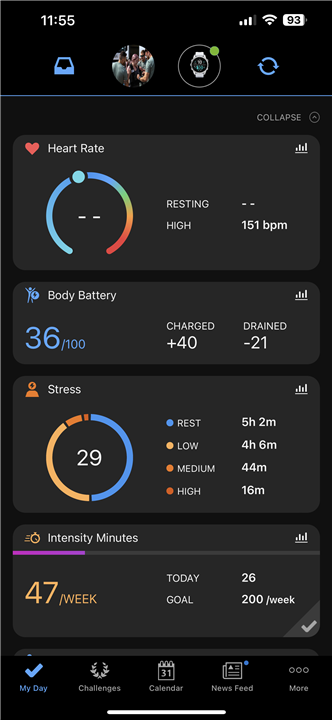
Garmin devices use optical sensors (for watches) and electrical sensors (for chest straps) to measure heart rate. The data is sent to the device, then synced to Garmin Connect app and cloud.
Bluetooth or ANT+ connects the sensor and device. The device uses Wi-Fi or mobile data to transfer the data to the app.
Here’s a simple breakdown:
- Sensor reads heart rate (optical or electrical).
- Sensor sends data to Garmin device.
- Device stores data locally.
- Device syncs data to Garmin Connect app via Bluetooth.
- App uploads data to Garmin cloud.
If any step fails, heart rate sync doesn’t work. For example, if Bluetooth drops, step 4 fails.
Credit: forums.garmin.com
Comparing Heart Rate Sync Reliability: Garmin Vs Other Brands
How does Garmin heart rate sync compare to other popular brands? Here’s a quick overview:
| Brand | Sync Reliability | Common Issues | Sensor Types |
|---|---|---|---|
| Garmin | High (with latest firmware) | Bluetooth, app cache, skin contact | Optical, chest strap |
| Polar | Moderate | Bluetooth pairing, battery | Optical, chest strap |
| Apple Watch | High | App conflicts, skin contact | Optical |
| Fitbit | Moderate | App sync, battery | Optical |
Non-obvious insight: Garmin chest straps generally offer more stable heart rate sync than wrist-based sensors. If you want maximum reliability, consider using a chest strap.
Data Loss Risks: What Happens When Sync Fails
If your Garmin doesn’t sync heart rate, you may lose important data. Here’s what you risk:
- Missing workout records
- Incomplete health tracking
- Loss of weekly or monthly heart rate trends
- Reduced accuracy for calorie burn and VO2 max estimates
Some users think data is gone forever. In most cases, it’s still stored locally on the device—but you must sync before deleting or resetting. If you reset your device before syncing, you lose unsynced data.

Credit: www.antillespr.edu
Advanced Troubleshooting Steps
If basic fixes don’t work, advanced steps can help. These are more technical but may solve rare or stubborn issues.
1. Check For Background App Conflicts
Other apps can block Garmin Connect from syncing:
- Disable fitness apps that use Bluetooth at the same time.
- Turn off battery saver or performance modes on your phone.
2. Use Garmin Express For Sync
Garmin Express is a desktop app for syncing and updating devices. It can solve mobile app sync failures.
- Download Garmin Express from the official site.
- Connect your device via USB.
- Sync heart rate data manually.
3. Review Device Storage Limits
If your Garmin device storage is full, it may stop syncing:
- Delete old activities or data from your device.
- Sync regularly to prevent storage overload.
4. Contact Garmin Support
If none of these steps work, contact Garmin customer support. They can offer advanced diagnostics and repair options.
Preventing Heart Rate Sync Issues
It’s easier to prevent sync problems than fix them. Here’s how:
- Keep your Garmin device and app updated.
- Charge your device and sensor regularly.
- Clean the sensor and your skin before workouts.
- Pair devices correctly and avoid pairing conflicts.
- Sync data after every workout.
- Avoid using battery saver modes during syncing.
Non-obvious insight: Regular syncing prevents storage overload, which is a hidden cause of sync failures. Many users only sync once a week or less, which increases risk.
Real User Experiences: Common Mistakes And Solutions
Many Garmin users share their experiences online. Here are some common mistakes and their solutions:
- Wearing the watch too loose: Tighten the band for better sensor contact.
- Ignoring firmware updates: Update regularly to prevent bugs.
- Using third-party apps with Garmin Connect: Disable other fitness apps during syncing.
- Forgetting to clean the sensor: Sweat and dirt block readings—wipe after each use.
One user reported that switching from a wrist sensor to a chest strap solved all sync issues for high-intensity workouts. Another said manual syncing via the app fixed random sync failures.
Garmin Heart Rate Sync: Data Table For Common Fixes
Here’s a quick reference table for fixing sync issues:
| Problem | Quick Fix | Time Required | Success Rate |
|---|---|---|---|
| Low battery | Charge device and sensor | 10 min | High |
| Sensor not paired | Re-pair sensor | 5 min | High |
| Firmware outdated | Update firmware/app | 15 min | Medium |
| App cache corrupted | Clear cache/reinstall app | 10 min | Medium |
| Hardware fault | Inspect/replace hardware | Varies | Low |
Heart Rate Sync For Different Garmin Models
Syncing heart rate works a bit differently depending on your Garmin device model. Here are some examples:
- Garmin Fenix series: Uses both optical and chest strap sensors. Sync is reliable, but firmware updates are crucial.
- Garmin Forerunner series: Syncs easily via Bluetooth, but wrist placement matters.
- Garmin Vivosmart/Vivoactive: Mostly optical sensors. Sync issues are often caused by skin contact.
- Garmin Edge (cycling computers): Uses chest straps for heart rate. Syncing is stable, but battery checks are important.
Non-obvious insight: Some models have hidden settings for sensor priority. For example, Fenix allows you to set chest strap as the default sensor, which improves sync reliability.
Syncing Heart Rate Data With Third-party Apps
Many users want to sync Garmin heart rate data with apps like Strava, MyFitnessPal, or Apple Health. Here’s what you need to know:
- Garmin Connect must sync heart rate data first.
- Third-party apps pull data from Garmin Connect, not directly from your device.
- Delays can happen if Garmin Connect servers are slow.
- Check permissions in each app to allow heart rate syncing.
If heart rate data isn’t appearing in third-party apps, first make sure it’s present in Garmin Connect. Then check app permissions and try manual syncing.
Latest Updates And Trends In Garmin Heart Rate Sync
Garmin continues to improve heart rate syncing with new features:
- Firmware updates add better Bluetooth stability.
- New models offer improved optical sensors.
- Garmin Connect app now supports more third-party integrations.
According to Garmin, over 80% of sync failures are solved by firmware and app updates. This shows the importance of keeping your software current.
For official troubleshooting and update information, see the Garmin Support Center.
Frequently Asked Questions
Why Isn’t My Garmin Device Syncing Heart Rate?
Most often, the problem is low battery, poor sensor contact, outdated software, or Bluetooth pairing issues. Follow the steps above to check each one.
Can I Recover Lost Heart Rate Data After A Sync Failure?
Usually, heart rate data stays on your device until you reset or delete it. Sync before resetting. If you’ve already erased the device, recovery isn’t possible.
How Can I Improve Heart Rate Sensor Accuracy?
Wear the sensor tightly, clean your skin and the sensor, and avoid placing the sensor over tattoos or scars. For intense workouts, consider a chest strap.
Will Syncing Issues Affect Other Health Metrics?
Yes. Incomplete heart rate data can affect calorie estimates, VO2 max, recovery tracking, and stress scores.
Is Garmin Heart Rate Sync Better Than Fitbit Or Apple Watch?
Garmin is known for reliable syncing, especially with chest straps. Apple Watch is strong with optical sensors. Fitbit is good but sometimes suffers from app sync delays.
Final Thoughts
Heart rate sync is a key feature for Garmin users who care about fitness and health tracking. When syncing fails, your data—and your motivation—can suffer. But most issues are easy to solve with the right steps. Keep your devices updated, pay attention to sensor placement, and sync regularly.
If problems persist, don’t hesitate to use advanced troubleshooting or contact Garmin support. With these solutions, you’ll get your Garmin heart rate syncing smoothly again—so you can focus on your goals, not your gadgets.