Many people in India and around the world depend on the HDFC app for quick banking. Whether it’s checking your balance, sending money, or paying bills, the app promises a simple, fast experience. But imagine opening the app and seeing only a loading screen or an error message. It’s frustrating, and sometimes it happens at the worst possible moment—maybe when you need to pay for groceries, transfer urgent money, or check a recent transaction.
If you’ve found yourself asking, “Why is the HDFC app not working for me?” you’re not alone. Banking apps are complex, and many things can go wrong: technical glitches, internet problems, or even scheduled maintenance. Some issues are easy to fix in seconds, but others need more attention.
This article will help you understand why the HDFC app might stop working, how to fix the most common problems, and what to do if nothing seems to help. You’ll learn simple solutions, get expert advice, and see how to keep your banking secure.
By the end, you’ll be ready to handle HDFC app issues calmly and confidently.
Understanding The Hdfc App
The HDFC Bank MobileBanking app is designed to bring most bank services to your phone. With this app, users can:
- Check balances and statements
- Transfer funds using NEFT, IMPS, or UPI
- Pay bills and recharge
- Block or manage cards
- Open deposits and investments
- Request checkbooks or manage accounts
HDFC Bank claims over 60 million digital banking users as of 2023, making it one of India’s most popular banking apps. The app is available for both Android and iOS. It uses strong security, like two-factor authentication (OTP codes) and device registration, to keep your money safe.
But even with all these features, the app can sometimes fail. Let’s look at why.
Why The Hdfc App Stops Working
There are many reasons why the HDFC app might not work on your device. Understanding these helps you find the right solution faster.
1. Server Issues And Maintenance
Banks often perform scheduled maintenance to update systems or add new features. Sometimes, servers go down unexpectedly due to technical faults or heavy usage. When this happens, many users can’t log in or complete transactions.
2. Internet Connection Problems
A slow or unstable internet connection can prevent the app from loading or syncing data. Even if your phone shows a signal, the connection might drop for a few seconds, causing errors.
3. Outdated App Version
If you haven’t updated your app for a long time, it may stop working. Old versions might not support new security features or be compatible with the latest operating system.
4. Device Compatibility
Some older phones or tablets may not support the latest version of the HDFC app. Also, custom ROMs or rooted/jailbroken devices can cause problems.
5. App Cache And Data Issues
Corrupt or overloaded app data can make the app crash, freeze, or behave strangely. This is common if you haven’t cleared cache or data for months.
6. Incorrect Login Information
Entering the wrong Customer ID, password, or OTP can lock you out or show error messages. Sometimes, typing mistakes or expired passwords are to blame.
7. Security Restrictions
For security, HDFC may block access from suspicious devices, locations, or if it detects multiple failed login attempts. If you use a VPN or travel abroad, the app might stop working.
8. Device Settings
Disabled permissions (like storage or camera), wrong date/time, or restricted background data can stop the app from running.
9. App Bugs And Glitches
No app is perfect. Sometimes, bugs in the code or a bad update can cause crashes, blank screens, or missing features.
10. Account-related Problems
Blocked accounts, KYC issues, or suspicious transactions can lead to app restrictions.
Non-obvious insight: Many users forget that third-party apps (like antivirus or VPNs) can interfere with banking apps, leading to unexpected problems.
Common Hdfc App Error Messages And What They Mean
When the HDFC app fails, it often shows a short message. Here’s what some of the most common ones mean and what you can do.
| Error Message | What It Means | Action |
|---|---|---|
| “Unable to connect to server” | Bank servers are down or your internet is unstable. | Wait and retry; check your connection. |
| “App needs update” | You’re using an old version. | Update from the Play Store/App Store. |
| “Invalid credentials” | Wrong User ID, password, or OTP. | Double-check and retry; reset if needed. |
| “Access denied” | Device or account blocked. | Contact HDFC support. |
| “Session expired” | Inactive for too long or logged in elsewhere. | Log in again. |
| “App not supported on this device” | Device too old or not compatible. | Try on a different device. |
Tip: If you see an error not listed here, take a screenshot and share it with HDFC support. This helps them solve the problem faster.
How To Fix The Hdfc App Not Working
Most HDFC app problems can be solved at home without calling customer care. Try these steps, starting from the simplest.
1. Check For Outages And Maintenance
First, see if the issue is with HDFC’s servers. You can:
- Visit the official HDFC Bank website or their social media for outage notices.
- Search Twitter for recent user complaints.
- Ask friends or family if their app works.
If many people have the same issue, it’s likely a server problem. Wait until HDFC fixes it.
2. Test Your Internet Connection
Switch between Wi-Fi and mobile data to see if the app loads. Try opening other websites or apps. If only the HDFC app is failing, continue to the next steps.
3. Update The App
Go to the Google Play Store or Apple App Store and check for updates. Outdated apps often stop working after a bank update.
- Android: Open Play Store > search “HDFC Bank” > tap “Update” if available.
- IOS: Open App Store > search “HDFC Bank” > tap “Update”.
4. Restart Your Device
A simple restart clears temporary glitches and refreshes your phone’s memory.
5. Clear App Cache And Data
If the app still fails, clear cache and data:
- Android: Settings > Apps > HDFC Bank > Storage > Clear Cache/Clear Data.
- IOS: Uninstall and reinstall the app.
Note: Clearing data will log you out, so keep your login info handy.
6. Check Device Compatibility
Make sure your device meets these requirements:
- Android: OS 6.0 (Marshmallow) or above.
- IOS: IOS 12.0 or above.
If your phone is older, the app may not run. Consider using HDFC’s website or upgrading your device.
7. Enable Necessary Permissions
The app needs some permissions to work properly:
- Storage
- Camera (for check deposit or scanning QR codes)
- Location (sometimes for security)
Open your device settings, find the HDFC app, and turn on these permissions.
8. Set Correct Date And Time
Banking apps need accurate device time. Set your phone to automatic date and time.
9. Disable Vpns And Proxies
VPNs can block banking apps. Turn them off and try again.
10. Reinstall The App
Uninstall the HDFC app and install it again from the official store. This fixes corrupt files or failed updates.
11. Reset Your Password
If you see “invalid credentials,” reset your password through the app or HDFC’s website.
12. Contact Hdfc Support
If nothing works, call HDFC customer care or visit your branch. Have details ready: your customer ID, phone model, app version, and error message.
Non-obvious insight: If you recently changed your SIM card or phone, the app might block you for security reasons. Re-register the device with HDFC’s instructions.
Advanced Troubleshooting For Persistent Issues
Some issues are rare but harder to fix. Here’s what to do if standard steps don’t work.
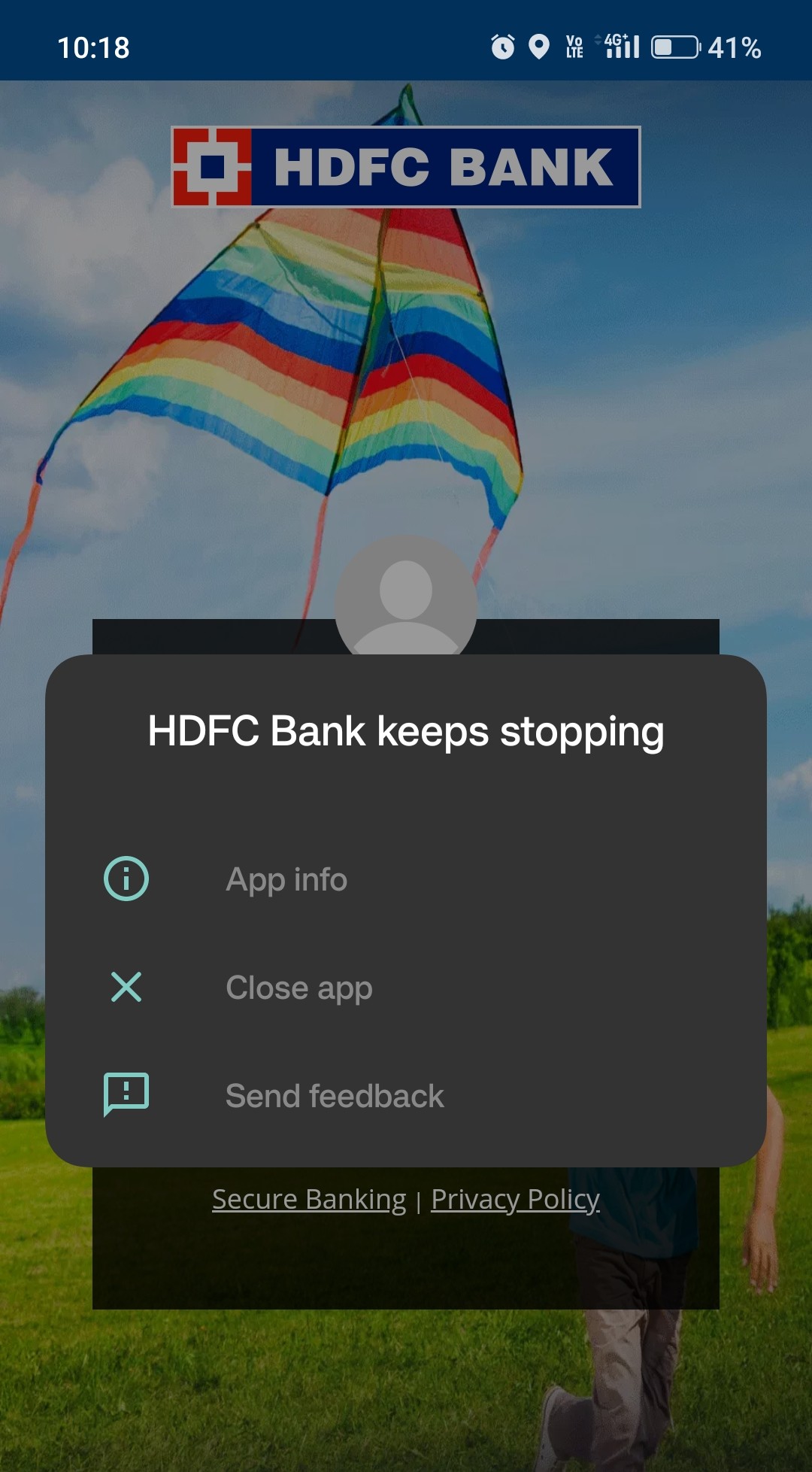
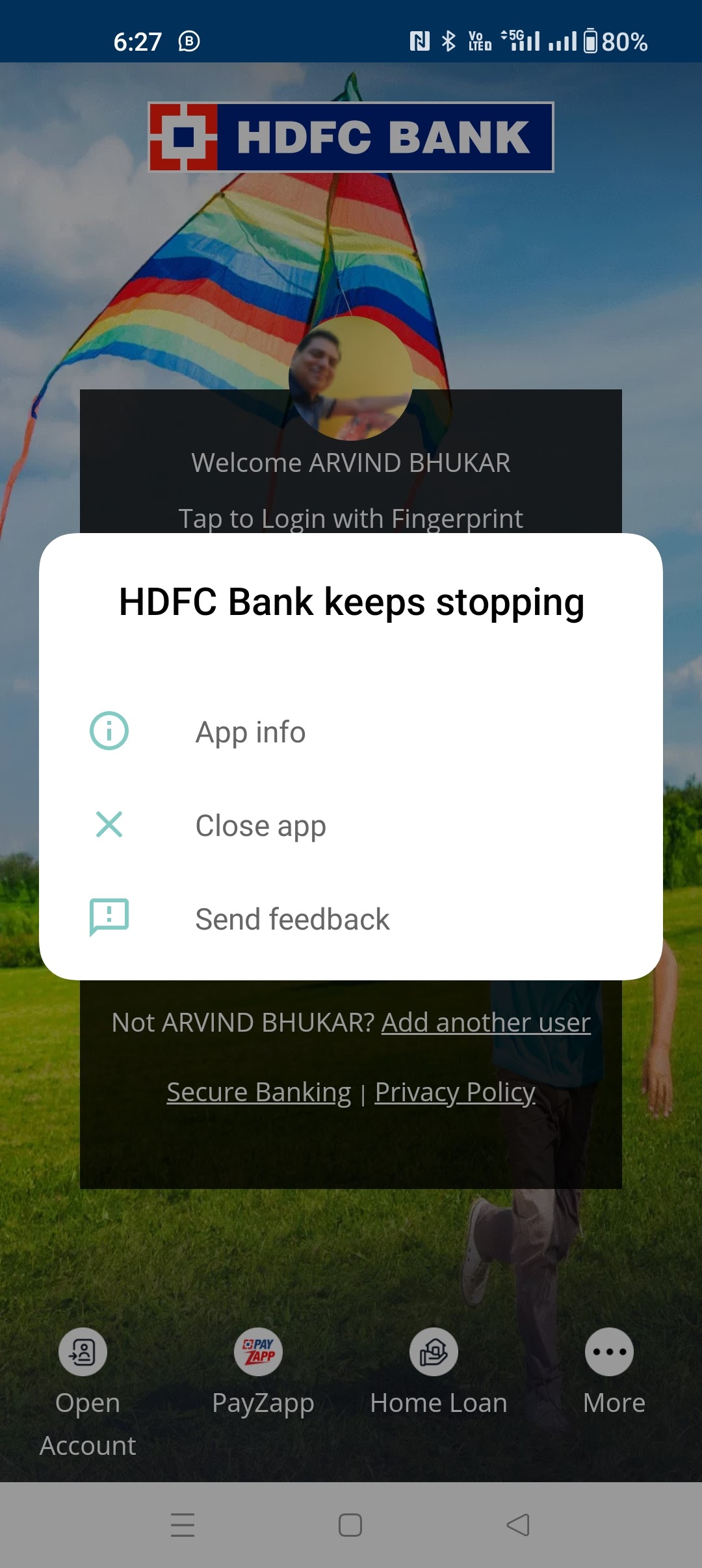
App Crashes On Launch
- Check if your phone is running low on storage. Free up space and try again.
- Check for any device software updates.
- If you have installed any app that changes phone behavior (like battery savers), disable or uninstall it.
Upi Not Working
- Ensure your UPI registration is complete.
- Check if your account is active for UPI.
- If you see “UPI PIN incorrect,” reset your PIN from the app.
Issues After Software Update
- Some Android or iOS updates break app compatibility. Report the issue to HDFC support and check for app updates regularly.
Device Rooted Or Jailbroken
- For security reasons, HDFC blocks rooted/jailbroken devices. Use a standard device or access banking on a desktop browser.
Biometric Login Not Working
- Re-register your fingerprint or face data in phone settings.
- Update the app to the latest version.
App Freezing During Transactions
- This can happen with unstable internet or server lag. Avoid making repeated attempts, as you may be charged or your account may be blocked.
- Wait a few minutes and check transaction history before retrying.
App Not Receiving Otp
- Make sure your SIM card is active and has network coverage.
- Clear SMS blocking or spam filter apps.
- If still not working, call HDFC to check if your mobile number is updated in their records.
Comparing Hdfc App With Other Banking Apps
Let’s see how the HDFC app stacks up against similar apps from other major banks in India.
| Feature | HDFC Bank App | ICICI iMobile | SBI YONO |
|---|---|---|---|
| UPI Support | Yes | Yes | Yes |
| Biometric Login | Yes | Yes | Yes |
| Credit Card Management | Full | Full | Limited |
| Mutual Fund Investment | Yes | Yes | Yes |
| Language Support | English, Hindi, others | English, Hindi, others | English, Hindi, others |
| User Ratings (Play Store, June 2024) | 4.6/5 | 4.5/5 | 4.3/5 |
Insight: While HDFC’s app is among the most feature-rich, it is not immune to technical problems—just like its competitors.

Credit: www.youtube.com
How Hdfc Handles App Outages
HDFC Bank has systems to monitor and fix outages quickly. Here’s what typically happens:
- Detection: Automated systems and user complaints alert HDFC to issues.
- Communication: Updates are posted on the HDFC Bank official website and social media.
- Fixes: Technical teams work to resolve server or app problems.
- Updates: Once fixed, HDFC notifies users through push notifications, SMS, or posts.
Pro tip: If you need urgent access during an outage, use HDFC’s internet banking on a desktop browser. It often works when the app does not.
Security Risks When The App Fails
When the HDFC app is down, you might look for other ways to bank. But be careful:
- Don’t download the app from unofficial sites. Fake apps can steal your data.
- Avoid sharing sensitive info (like OTPs) with anyone claiming to be from the bank.
- If you get SMS or email about “fixing” your app, double-check it’s from HDFC.
Non-obvious insight: During large outages, scammers may send phishing links pretending to be HDFC. Always type the official website address yourself.
How To Stay Prepared For Future App Problems
HDFC app not working can feel stressful, but you can reduce the impact by planning ahead.
1. Register For Netbanking
Set up HDFC NetBanking on your computer as a backup. Most services are available there.
2. Save Customer Care Numbers
Keep HDFC’s helpline saved in your contacts for quick access.
3. Enable Sms Alerts
With SMS alerts, you’ll get transaction info even if the app is down.
4. Keep Your App Updated
Turn on auto-updates for the HDFC app in your phone’s app store settings.
5. Learn The App’s Common Functions
Practice key actions (like transferring money or paying bills) on both the app and website, so you’re comfortable switching if needed.
6. Secure Your Device
Use a strong screen lock and avoid sharing your phone with others. This protects your account if you lose your phone.
7. Monitor Official Communication
Follow HDFC’s official social media pages for real-time updates on app issues and scams.
Real User Experiences And What They Teach
Millions use the HDFC app daily, and many share their experiences online. Here are some real examples:
- Priya, Mumbai: “My app stopped working right before a bill payment. I switched to the website and paid on time. Now, I always keep both options ready.”
- Anil, Bengaluru: “After a software update, my app crashed every time. Clearing cache and updating fixed it. I learned to check for updates first.”
- Farhan, Delhi: “I got a fake SMS during an outage, asking for my OTP. I checked HDFC’s Twitter and saw it was a scam.”
Lesson: Most problems have simple fixes, but staying alert and having backups helps you avoid bigger trouble.
Credit: communityus.oneplus.com
When To Visit Your Hdfc Branch
Most app issues are technical, but sometimes you need face-to-face help. Visit your branch if:
- Your account is blocked or frozen.
- KYC (Know Your Customer) documents are pending.
- You need to update your phone number or email.
- You can’t reset your password online.
Bring valid ID and your registered mobile number for faster service.
Hdfc App: Performance And Reliability Data
Here’s a quick look at how the HDFC app performs compared to others (as of June 2024):
| Bank | App Downtime (2023, hours/year) | App Store Rating (iOS) | Play Store Rating (Android) |
|---|---|---|---|
| HDFC Bank | 11 | 4.7 | 4.6 |
| ICICI Bank | 13 | 4.5 | 4.5 |
| SBI | 21 | 4.3 | 4.3 |
Observation: HDFC’s app is among the most reliable, but no app is perfect. Even a few hours of downtime can affect millions.
Credit: support.google.com
Frequently Asked Questions
Why Does The Hdfc App Keep Logging Me Out?
This happens for security reasons. The app may log you out if you’re inactive for a while, or if you log in from another device. Make sure you’re not sharing your Customer ID or password, and avoid using public Wi-Fi for banking.
What Should I Do If I Don’t Receive The Otp While Logging In?
First, check your mobile network. Restart your phone and make sure your number is registered with HDFC. If the problem continues, contact HDFC support to confirm your mobile number or try using the “Resend OTP” option.
Can I Use Hdfc Netbanking If The App Is Not Working?
Yes. Most features on the app are also available on HDFC NetBanking through a web browser. Go to the official HDFC Bank website and log in with your credentials.
Is It Safe To Reinstall The Hdfc App If It’s Not Working?
Yes, as long as you download the app from the official Google Play Store or Apple App Store. Never use links from unknown sources, as fake apps can steal your information.
How Can I Check If The Hdfc App Is Down For Everyone?
Look for announcements on HDFC’s official website or social media pages. You can also search on Twitter or ask friends if their app works. During major outages, news sites or online forums often report the problem.
If you ever face difficulties with your HDFC app, remember that you’re not alone, and solutions are usually simple. Stay patient, follow the steps above, and keep your banking secure. For more information, you can also visit the official HDFC Bank website. With a few smart habits, you can keep your money and data safe, no matter what happens with the app.