If you’re trying to keep active with a daily step goal, there’s a good chance you use a 10,000 steps app on your smartphone or smartwatch. When your app doesn’t sync, it can be frustrating and confusing. You may worry your progress isn’t being tracked, or that your data is lost. This guide will help you understand why syncing issues happen, what you can do to fix them, and how to prevent them in the future. Whether you use Fitbit, Google Fit, Apple Health, or another steps app, you’ll find solutions here that can get your numbers moving again.
Why Your 10000 Steps App Is Not Syncing
Before you can fix the problem, it helps to understand what causes syncing issues. Most step tracking apps connect to your phone’s sensors, a wearable device, or both. When your steps aren’t showing up, the problem is usually with the app, the device, or the connection between them.
- Bluetooth Connection Issues: Most wearables need Bluetooth to send data to your phone. If Bluetooth is off or not working, syncing stops.
- App Permissions: If your app doesn’t have permission to access your phone’s sensors or health data, it can’t count steps.
- Outdated Software: Using an old version of your app, or old phone software, can break syncing.
- Battery Saving Settings: Phones and watches sometimes limit background activity to save battery, which can block syncing.
- Account or Login Problems: If you’re logged out or your account has a problem, steps may not sync to the cloud or across devices.
- Device Storage Full: If your phone or wearable runs out of space, it may not store new step data.
- Server Outages: Sometimes, the app’s servers are down, so syncing stops for everyone.
Understanding these causes helps you target the right solution, instead of guessing and wasting time.
Quick Fixes To Try First
If your 10,000 steps app is not syncing, these quick checks can solve the problem for most users:
- Turn Bluetooth off, wait 10 seconds, and turn it back on.
- Make sure your wearable is charged and close to your phone.
- Force-close the steps app and reopen it.
- Restart your phone and wearable.
- Check for app or device updates and install them.
- Log out of your app account, then log back in.
- Give your app all needed permissions (location, activity, motion, etc. ).
- Make sure your phone or wearable has enough free storage.
These simple steps fix most syncing issues. If your problem continues, try the detailed solutions below.
How To Fix Syncing Issues In Popular 10,000 Steps Apps
Fixing Fitbit Syncing Problems
Fitbit is one of the most popular step tracking apps. If your Fitbit steps aren’t syncing, try these steps:
- Check that Bluetooth is on and your Fitbit is paired.
- Open the Fitbit app and tap the device icon at the top.
- If syncing doesn’t start, tap “Sync Now.”
- If that fails, restart your Fitbit device (each model has a different reset method).
- Uninstall and reinstall the Fitbit app.
- Remove your Fitbit from Bluetooth, restart your phone, then reconnect.
Fitbit also has a detailed troubleshooting page on their website for specific devices.
Fixing Google Fit Syncing Problems
For Google Fit, syncing issues are often caused by missing permissions or battery settings. Here’s what to do:
- Open your phone’s Settings > Apps > Google Fit.
- Tap “Permissions” and make sure “Physical Activity” is allowed.
- Disable “Battery Optimization” for Google Fit.
- If you use a third-party tracker, check its settings too.
- Sign out and back in, or reinstall the app if needed.
Fixing Apple Health Syncing Problems
For iPhone users, Apple Health tracks steps using the phone and Apple Watch. Try these steps:
- Open Settings > Privacy > Motion & Fitness, and turn on “Fitness Tracking.”
- In the Health app, tap your profile > Devices, and check if your Apple Watch or iPhone is connected.
- Restart both devices.
- Make sure iCloud is enabled for Health data if you sync across devices.
If you switched iPhones recently, make sure all your data transferred during setup.
Other Steps Apps: Common Fixes
If you use Samsung Health, Huawei Health, or another brand, the tips above apply. Always check for updates, permissions, and Bluetooth issues. You can also check user forums or the app’s help center for device-specific advice.
How Step Tracking Apps Work
To better solve syncing issues, it helps to know how steps apps count and store your data. Most use sensors in your phone (like the accelerometer) or connect to a wearable device. Some apps store data only on your device, while others sync to the cloud, so you can see your steps on other devices or the web.
- Phone Sensors: Many apps use your phone’s built-in sensors. If your phone is in your pocket, it counts steps based on movement. If your phone’s sensors are off, or permissions are missing, no steps are counted.
- Wearable Devices: Devices like Fitbit, Garmin, or Apple Watch have their own sensors. They sync with your phone using Bluetooth, then upload data to the cloud.
- Cloud Syncing: Most apps back up your steps online. If your account is logged out, or the server is down, syncing fails.
A common mistake: Many people think steps are lost if syncing fails. Usually, steps are stored on your device and upload once the problem is fixed.
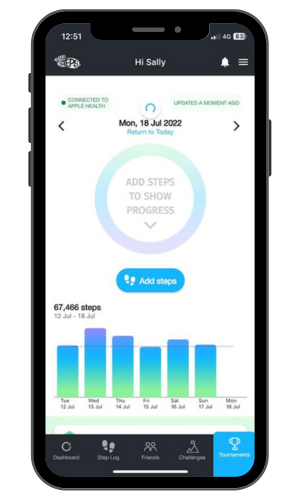
Credit: www.10000steps.org.au
Data Comparison: Steps App Features
Here’s a comparison of key features in the most popular 10,000 steps apps:
| App | Wearable Support | Cloud Sync | Offline Tracking | Data Export |
|---|---|---|---|---|
| Fitbit | Yes | Yes | Yes | Yes (CSV) |
| Google Fit | Yes (limited) | Yes | Yes | No |
| Apple Health | Yes (Apple Watch) | Yes (iCloud) | Yes | No |
| Samsung Health | Yes (Samsung devices) | Yes | Yes | Yes (limited) |
Insight: Not all apps support exporting your step data, which can make switching apps or troubleshooting harder.
Advanced Troubleshooting Steps
Sometimes, basic fixes are not enough. If your steps app still won’t sync, try these advanced solutions:
1. Clear App Cache
Old or corrupted data in the app cache can block syncing. Go to your phone’s Settings > Apps > Your Steps App > Storage > Clear Cache. This will not delete your steps data, just temporary files.
2. Remove And Re-add Devices
If you use a wearable, remove it from your app and Bluetooth settings. Restart your phone, then add the device again. This resets the connection and often fixes hidden issues.
3. Check For App Conflicts
If you use more than one health or step app (like Fitbit and Google Fit), they can sometimes conflict. Try disabling one app to see if syncing works.
4. Reset Network Settings
In rare cases, your phone’s network settings can block syncing. Go to Settings > System > Reset > Reset Network Settings. You’ll need to reconnect to Wi-Fi and Bluetooth devices after.
5. Contact App Support
If nothing works, contact the app’s customer support. Explain what you tried, what device you use, and if you see any error messages. They may have a fix or may know about an ongoing outage.
Preventing Syncing Problems In The Future
You can avoid many syncing problems with a few smart habits:
- Update your apps and devices regularly.
- Open your steps app once a day to trigger syncing.
- Charge your wearable fully each night.
- Avoid closing your steps app from the multitasking screen.
- Give needed permissions after every software update.
- Back up your phone and health data, so nothing is lost.
Experienced users also keep a screenshot or manual log of their daily steps, just in case.
Common Mistakes And Misunderstandings
Many users make small errors that cause syncing problems. Here are a few common ones, and how to avoid them:
- Relying on one device: If you use only your phone, you’ll miss steps when you leave it behind. Consider a wearable for better accuracy.
- Not checking app permissions: Apps often need to ask for permissions again after updates.
- Ignoring battery warnings: Low battery can turn off sensors or Bluetooth.
- Not reading error messages: Apps sometimes show a small warning or error at the top of the screen—don’t ignore these.
The Role Of Cloud And Local Storage
Where your step data is stored affects syncing. Here’s a quick comparison:
| Storage Type | Benefits | Risks |
|---|---|---|
| Cloud | Access from any device, backup if phone is lost | Needs Internet, privacy concerns, server outages |
| Local (phone only) | Works offline, faster syncing, more privacy | Data lost if phone breaks, can’t sync across devices |
Most modern apps use a mix: steps are stored locally, then uploaded to the cloud when possible.
When To Switch To A Different Steps App
If your app regularly fails to sync, it might be time to try another. Here’s when to consider switching:
- Your app hasn’t been updated in a long time.
- Support is slow or unhelpful.
- Your device is no longer supported.
- You need features like export, sharing, or multi-device sync.
Before switching, check if you can export your existing step data. Some apps let you import data from others, but not all do. For example, Fitbit lets you export data as a CSV file.
Real-world Example
Maria uses a Fitbit and an Android phone. One day, her steps stopped syncing. She checked Bluetooth and restarted her phone, but nothing worked. After reading the Fitbit help center, she learned her phone’s battery saver was blocking the app. She turned off battery optimization for Fitbit, and syncing started again. This shows how small phone settings can cause big problems.
How Accurate Are 10,000 Steps Apps?
No steps app is perfect. Accuracy depends on the sensors, how you wear or carry your device, and the app’s algorithms. Most modern apps are accurate within 5-10% for daily step counts, but can miss steps if you push a stroller, ride a bike, or do activities with little arm movement.
Tip: If accuracy matters, use a wearable on your dominant wrist and check your app’s settings for activity tracking.
The Science Behind 10,000 Steps
The 10,000 steps goal started in Japan in the 1960s. Research shows that walking more is good for health, but you don’t need to hit exactly 10,000 steps. For many adults, 7,000-8,000 steps a day brings big health benefits. Still, aiming for 10,000 keeps you motivated and helps form a healthy habit.
If you want to learn more about the science behind step goals, check out this review on the 10,000 steps article on Wikipedia.
Practical Tips For Reliable Step Tracking
To keep your step data accurate and safe:
- Wear your device correctly and keep your phone with you.
- Sync your device at least once a day.
- Check your step count before and after syncing—look for big differences.
- Keep your app and device software up to date.
- If you exercise without your phone or device, some apps let you add steps manually.

Credit: www.afvt.org
Step App Syncing: Feature Comparison
Here’s a look at how top apps handle syncing and backup:
| App | Sync Frequency | Manual Sync Option | Backup Method |
|---|---|---|---|
| Fitbit | Automatic (every 15 min) | Yes | Cloud |
| Google Fit | Automatic (varies) | No | Cloud |
| Apple Health | Real-time | No | iCloud |
| Samsung Health | Automatic (varies) | Yes | Cloud |
Non-obvious insight: Some apps only sync automatically, so if you’re in a low-signal area, it’s smart to trigger a manual sync when you return to Wi-Fi.
Frequently Asked Questions
Why Are My Steps Not Updating Even After Syncing?
If your steps are not updating, it might be due to missing permissions, a weak Bluetooth connection, or the app running in the background. Check that your device is close by, restart both devices, and make sure all permissions are granted.
Will I Lose My Steps If My App Doesn’t Sync?
Usually, no. Most apps store steps locally on your device. Once syncing works again, your steps should upload. Only in rare cases (device crash or app data loss) can steps be lost.
How Can I Sync My Steps Across Devices?
Use an app that supports cloud syncing (like Fitbit or Apple Health with iCloud). Make sure you’re logged in to the same account on all devices and that syncing is enabled in settings.
Is It Better To Use My Phone Or A Wearable For Step Tracking?
Wearables are usually more accurate because you wear them all the time. Phones can miss steps if you leave them behind. For best results, use both and sync to one app.
What Should I Do If None Of The Fixes Work?
Contact the app’s support team and describe your problem in detail. Include your device type, app version, and steps you’ve tried. Check the app’s official forums for similar issues.
Keeping your 10,000 steps app syncing smoothly makes staying active easier. With these solutions, you’ll spend less time troubleshooting and more time moving toward your goals.

Credit: www.reddit.com