When you buy a game on Xbox or subscribe to Xbox Game Pass, you expect your progress to follow you everywhere. Maybe you started a campaign on your Xbox console and want to continue on your PC. Or perhaps you’re hoping to pick up where you left off after reinstalling a game. When everything works, it feels magical. But sometimes, your game progress just won’t sync. You get error messages. Your saves don’t show up. Suddenly, all that convenience turns into frustration.
If your Xbox Game Pass is not syncing data, you’re not alone. Many users run into this issue, especially as more games become cross-platform. The good news: most syncing problems have clear solutions. This guide will walk you through the reasons for syncing failures, step-by-step solutions, and tips to prevent future headaches. By the end, you’ll know exactly how to get your game data back on track—without losing your hard-earned progress.
How Xbox Game Pass Syncing Works
Before you fix syncing issues, it helps to know how the system works behind the scenes. When you play a game through Xbox Game Pass, your progress (save files, achievements, settings) is often saved to the cloud. This means you can access your data from any supported device by signing into your Xbox account. The syncing process is automatic but depends on several factors.
- When you finish playing, the game uploads your save data to Microsoft’s servers.
- The next time you launch the game on any device, it downloads the latest save.
- Some games prompt you to choose between different saves if there’s a conflict.
This cloud-based system is what makes cross-save possible. However, if any part of the process fails—such as a network hiccup, software bug, or account error—your data may not sync.
Common Causes Of Xbox Game Pass Not Syncing Data
Many things can break game data syncing. Understanding the root cause helps you apply the right fix. Here are the most frequent reasons:
- Internet connectivity issues: A slow or unstable connection can stop the cloud sync process.
- Xbox Live service outages: If Microsoft’s servers are down, syncing won’t work.
- Conflicting save files: Playing the same game on different devices at the same time can create save conflicts.
- Software bugs or outdated apps: Running old versions of the Xbox app or the game itself can cause problems.
- Account issues: Using different Xbox accounts on each device or having corrupted profiles.
- Storage limitations: Running out of cloud or local storage space can block new saves.
- Firewall or antivirus interference: Sometimes, security software blocks the Xbox app from accessing the internet.
Let’s look at how these problems show up in real life—and how to fix them.
Signs Your Xbox Game Pass Is Not Syncing
Sometimes, the cause isn’t obvious. Here’s how to tell if you have a syncing issue:
- Missing progress on another device, even after playing for hours.
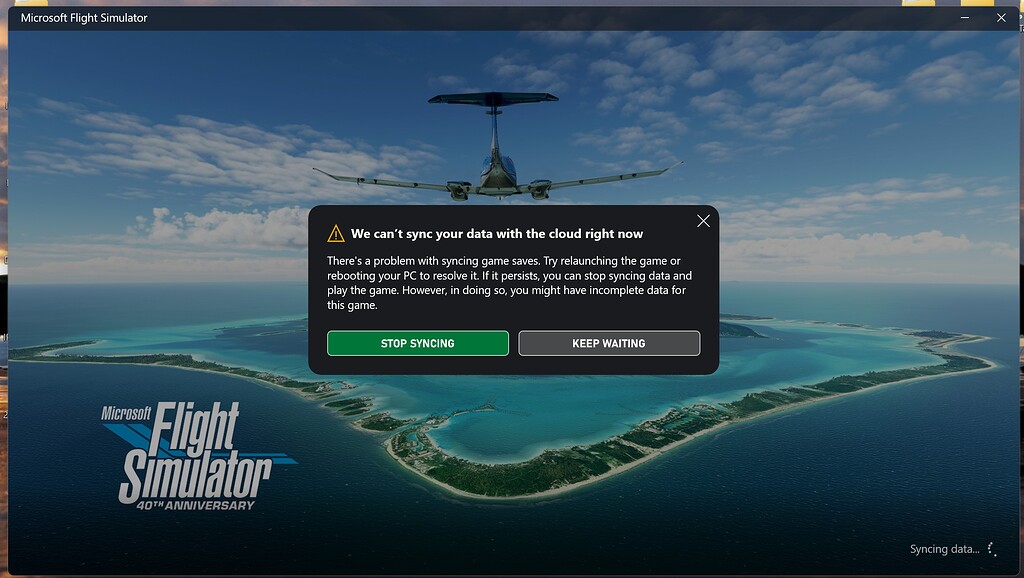
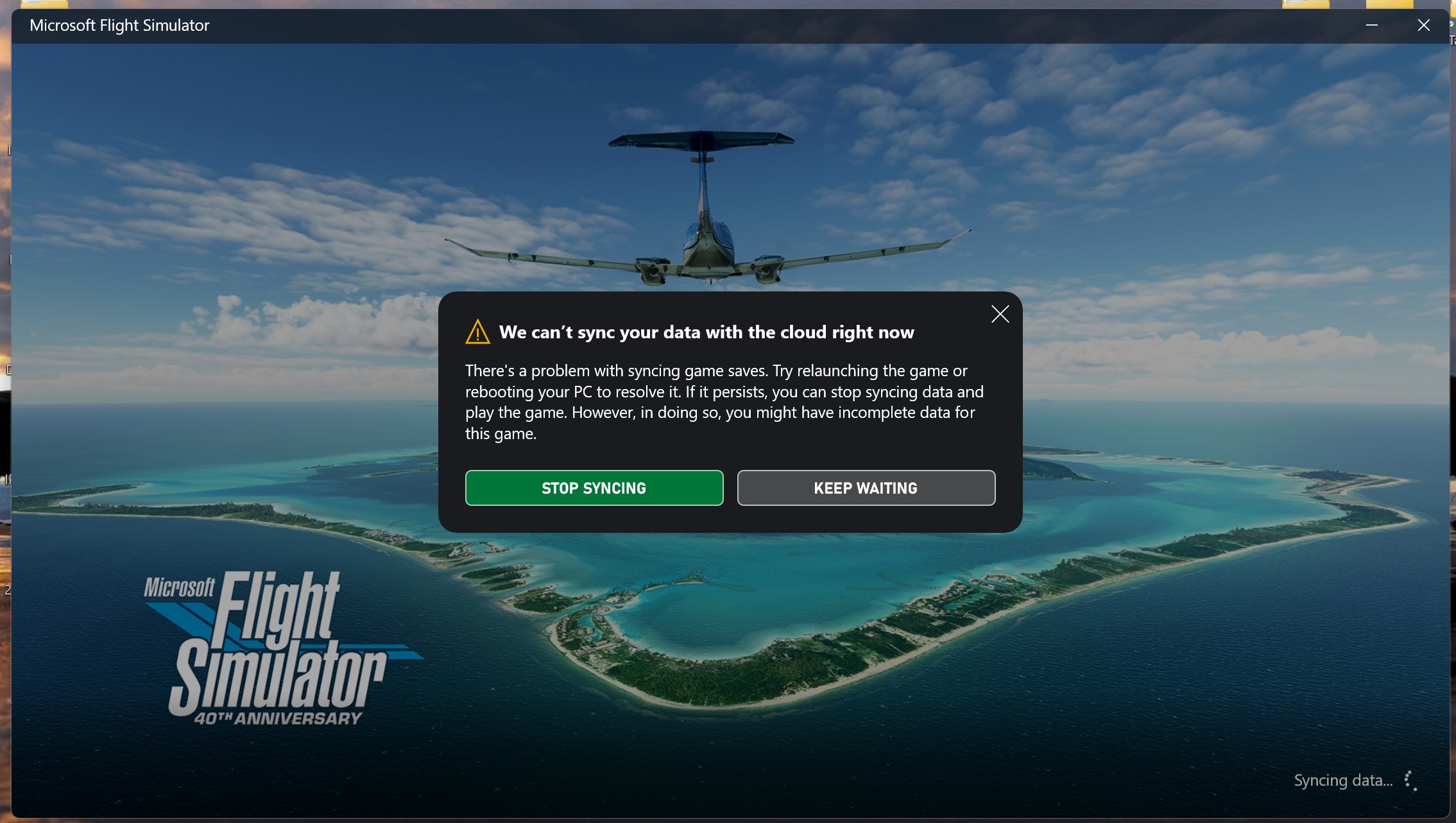
- “We can’t sync your data” error when starting a game.
- Game loads an old save instead of your latest one.
- Achievements or unlocks don’t appear across devices.
- Manual sync prompt appears, but fails.
If you see these symptoms, your Xbox Game Pass is not syncing data properly.
Step-by-step Solutions To Fix Xbox Game Pass Not Syncing Data
Solving syncing issues can feel overwhelming, but most can be fixed with some simple steps. Let’s break down what you should do, starting from the easiest fixes.
1. Check Your Internet Connection
A strong, stable internet connection is essential for syncing game data. Even a brief drop can interrupt the process. Here’s how to check and improve your connection:
- Run a speed test on the device (aim for at least 5 Mbps upload/download).
- If using Wi-Fi, try moving closer to the router or switch to a wired connection.
- Restart your modem and router to clear network glitches.
- Pause any large downloads or streaming on your network.
If your connection is unreliable, your game may not upload or download the latest save, leading to out-of-sync data.
2. Verify Xbox Live Service Status
Sometimes, the problem is on Microsoft’s end. Xbox Live services occasionally experience outages that affect syncing. Visit the official Xbox Live Status page to check if there are ongoing issues.
If the status shows problems with “Cloud Gaming” or “Game Saves,” you may need to wait until services are restored.
3. Sign Out And Back In
Account glitches are a common reason for data not syncing. Here’s a quick reset:
- Sign out of your Xbox account on all devices.
- Restart your device.
- Sign back into the same account.
This refreshes your session and can resolve temporary account sync errors.
4. Update Your Game And Xbox Apps
Old versions of games or the Xbox app may not support the latest cloud features. Always keep your software updated:
- On Xbox console: Go to “My games & apps” → “Updates.”
- On Windows: Open Microsoft Store → “Library” → Check for updates.
- On mobile: Visit your app store and update the Xbox app.
Out-of-date apps are one of the most overlooked causes of syncing trouble.
5. Restart Your Device
A simple restart often clears background processes or memory issues blocking sync:
- Completely shut down your Xbox, PC, or mobile device.
- Wait 30 seconds.
- Power it back on and retry syncing.
This step is especially helpful after software or system updates.
6. Manually Sync Your Data
If automatic syncing fails, try forcing a manual sync:
- On Xbox console: Highlight the game, press the “Menu” button, select “Manage game & add-ons” → “Saved data” → “Sync.”
- On PC: Some games let you “Sync now” from the in-game settings or Xbox app.
Manual sync can resolve small glitches where the game or app misses an upload.
7. Check For Save File Conflicts
Playing the same game on two devices at the same time can create save conflicts. When this happens, Xbox usually prompts you to choose which save to keep:
- Always choose the most recent save—usually, it’s marked by the latest timestamp.
- If you’re unsure, check the in-game progress (level, achievements) before selecting.
Choosing the wrong save can overwrite your latest progress, so double-check before confirming.
8. Free Up Storage Space
Both cloud and local storage need enough space for new save files. Here’s how to check:
- On Xbox: Go to “Settings” → “System” → “Storage” to see free space.
- On PC: Check cloud storage in the Xbox app settings.
Delete old games or unused files if space is low. Insufficient storage is a surprisingly common cause of failed syncs.
9. Adjust Firewall And Antivirus Settings
Security programs can block the Xbox app from accessing the internet. If you recently installed or updated antivirus/firewall software:
- Add exceptions for the Xbox app and Microsoft Store.
- Temporarily disable the firewall and test syncing (turn it back on after).
- Make sure your network allows outbound connections on ports used by Xbox Live.
This step is often missed by beginners and can silently block cloud saves.
10. Clear Local Saved Games Cache
If your local save file is corrupted, it might not upload to the cloud. Clearing the cache can help:
- On Xbox: Go to “Settings” → “System” → “Storage” → “Clear local saved games.”
- On PC: Navigate to the local save game folder and move/delete corrupted files (search for “[Game Name] save location”).
Warning: Only do this if you’ve already confirmed your cloud save is safe. Deleting local saves can result in lost data if the cloud version isn’t up to date.
11. Reinstall The Game Or Xbox App
If you’ve tried everything else, uninstalling and reinstalling the game or the Xbox app can resolve persistent syncing issues. This clears out corrupted files or broken app components.
- Uninstall the game/Xbox app.
- Restart your device.
- Reinstall and log back in.
Many users have fixed stubborn sync bugs with this method.
12. Contact Xbox Support
If none of the above works, your issue may be unique or server-side. Reach out to official support with:
- Your Xbox account email/gamertag
- The game(s) affected
- Error messages/screenshots
- Steps you’ve already tried
Xbox Support can check your account for deeper issues and sometimes restore lost saves.
Comparing Key Causes Of Syncing Issues
Here’s a quick comparison of the most frequent reasons for Xbox Game Pass not syncing data and how often they appear:
| Cause | Likelihood | Typical Fix |
|---|---|---|
| Internet issues | Very common | Improve connection |
| Xbox Live outage | Occasional | Wait for service |
| Conflicting saves | Common | Choose latest file |
| Outdated apps | Common | Update software |
| Account errors | Less common | Sign out/in |
| Storage full | Uncommon | Free up space |
| Firewall issues | Occasional | Add exceptions |
Examples Of Syncing Issues And Solutions
Let’s look at a few real-world examples to make these solutions clearer.
Example 1:
A user plays “Forza Horizon 5” on their Xbox, then tries to continue on their PC. The game says “We can’t sync your data.” After checking, they realize their home Wi-Fi was down when they finished playing on Xbox. Solution: Reconnect the Xbox to the internet, relaunch the game, and let it upload the save. Problem solved.
Example 2:
Someone finishes a mission in “Halo Infinite” on their laptop, then launches it on their Xbox Series X. The console asks them to pick between two save files. By checking the timestamp, they pick the latest one and continue progress.
Example 3:
After a Windows update, a user’s Xbox app can’t sync any saves. They find their new antivirus is blocking the app. Once they add an exception, syncing returns to normal.
Syncing On Console Vs Pc Vs Cloud
Syncing works slightly differently depending on where you play. Here’s a comparison:
| Platform | Sync Method | Common Issues | Unique Solutions |
|---|---|---|---|
| Xbox Console | Automatic cloud save | Network outages, full storage | Clear cache, restart console |
| PC (Xbox App) | Cloud save via Xbox app | Firewall blocks, old app versions | Update app, allow through firewall |
| Cloud Gaming | Instant cloud save | Account mismatch, service outages | Check Xbox Live status, sign out/in |
Non-obvious insight: Sometimes, syncing fails only on one device. For example, your Xbox might be fine, but your PC’s firewall is blocking the app. Always test on multiple devices to narrow down the cause.
Preventing Future Syncing Problems
Fixing a sync issue once is good, but preventing it from happening again saves you from losing progress in the future. Here are the best practices:
- Always close games properly: Don’t just turn off your device—use the game’s menu to quit, so it can upload your save.
- Wait for the sync icon: Many games show a small cloud or sync icon. Wait until it disappears before shutting down.
- Avoid playing the same game on two devices at the same time: This is the most common way to create save conflicts.
- Keep your software updated: Enable automatic updates for the Xbox app and your games.
- Check your connection before switching devices: Especially after a long offline session, connect to the internet and let the game sync before moving to another device.
- Backup critical saves: For single-player or long games, manually back up saves if possible.
- Set up account recovery: Make sure your Xbox/Microsoft account has a recovery email or phone in case you get locked out.
- Monitor storage space: Don’t let your console or PC run out of space for saves.
Hidden tip: If you’re traveling or playing offline, don’t switch devices until you’ve reconnected and let the game sync. Otherwise, you risk overwriting new progress with old saves.
Credit: forums.flightsimulator.com
What To Do If You Lose Progress
Sometimes, despite all efforts, you might lose game progress due to a failed sync. Here’s what to do:
- Check for cloud backups: Some games keep multiple cloud saves—look for “restore previous save” options in the game or Xbox app.
- Contact Xbox Support quickly: The sooner you report a lost save, the higher the chance it can be recovered.
- Look for local backups: On PC, some games keep local save copies in “Documents” or “AppData.” Check these folders for older saves.
- Join the game’s community: Forums like Reddit or official Discord servers often have guides for save recovery.
Losing progress is frustrating, but quick action can sometimes get your data back.
Syncing Data: Myths And Facts
There’s a lot of confusion around how Xbox Game Pass syncing works. Let’s clear up some common myths:
- Myth: Game Pass always syncs instantly.
Fact: Syncing can be delayed by slow internet, large save files, or server load.
- Myth: Cloud save is automatic for all games.
Fact: Some older or third-party games don’t support cloud saves, especially on PC.
- Myth: You can’t lose progress if you use cloud saves.
Fact: Cloud saves can be lost due to account errors, overwritten files, or server issues.
- Myth: Logging out deletes your cloud saves.
Fact: Cloud saves remain tied to your account; logging out does not delete them.
Credit: forums.flightsimulator.com
Advanced Troubleshooting For Persistent Issues
If you’re tech-savvy or have tried all basic steps, these advanced methods may help:
- Check Xbox app logs: On PC, use the Windows Event Viewer or look in the app’s log files for errors.
- Flush DNS and reset TCP/IP: Network issues can sometimes be fixed by running “ipconfig /flushdns” and “netsh int ip reset” in Command Prompt.
- Test another account: Create a temporary Xbox account and see if syncing works. If it does, your main account may be corrupted.
- Reset console/PC network settings: On Xbox, go to “Settings” → “Network” → “Network settings” → “Advanced settings” → “Alternate MAC address” → “Clear.”
- Reinstall Windows/Xbox OS (last resort): This step wipes your device, so only use it if all else fails.
Expert tip: Always back up important files before trying advanced troubleshooting.
When To Accept That Data Is Gone
It’s tough to accept, but sometimes lost progress cannot be recovered. This usually happens when:
- Both cloud and local saves are corrupted or deleted.
- The game never supported cloud saves.
- You played offline for a long time and then overwrote new progress with old saves.
In these rare cases, starting over might be your only option. Treat it as a fresh challenge—or use it as a reminder to set up better backup habits.

Credit: www.youtube.com
Frequently Asked Questions
Why Does My Xbox Game Pass Say “we Can’t Sync Your Data”?
This message usually means your device can’t connect to the Xbox cloud servers. Check your internet connection, Xbox Live status, and make sure you’re signed into the correct account. Sometimes, it’s a temporary server issue that resolves after waiting a few minutes.
How Can I Tell If A Game Supports Cloud Saves?
Most Xbox Game Pass titles support cloud saves, but not all. On Xbox, look for the cloud icon on the game’s page. On PC, check the game’s details in the Xbox app. Some third-party games may require manual backups or do not support cloud syncing.
What Happens If I Pick The Wrong Save In A Conflict?
If you choose an older save during a conflict, you may lose recent progress. The chosen save overwrites the cloud and local versions. Always check the timestamp and in-game achievements before making a choice.
Can I Recover Deleted Or Lost Cloud Saves?
Sometimes, yes. Xbox Support can sometimes restore recent cloud saves if you contact them quickly. You can also check for local backups on your device. However, if both cloud and local saves are gone, recovery may not be possible.
Why Does Syncing Fail Only On One Device?
Often, device-specific issues cause sync failures. This could be due to firewall/antivirus settings, outdated Xbox app versions, or account mismatches. Test syncing on another device to narrow down the cause and apply the targeted fix.
Solving Xbox Game Pass syncing issues may feel tricky at first, but with the right steps, most problems can be fixed quickly. By understanding how syncing works and following these solutions, you can enjoy your games without fear of losing progress—no matter where you play.