If you use a Yealink phone or headset, you likely know about the Yealink Busy Light. This small device plays a big role in busy offices and home workspaces. When it glows red, it tells others you’re on a call or busy. But what happens when your Yealink Busy Light stops working? Suddenly, your privacy and productivity are at risk. People might interrupt your calls. Meetings feel less professional. You may even miss important moments because you don’t see if someone is available.
This article explores why the Yealink Busy Light might not work, and how to fix it. You’ll get practical troubleshooting steps, real solutions, and tips to avoid common mistakes. Whether you’re an IT admin, a remote worker, or just want a smooth calling experience, these insights can save you time and frustration.
Understanding The Yealink Busy Light
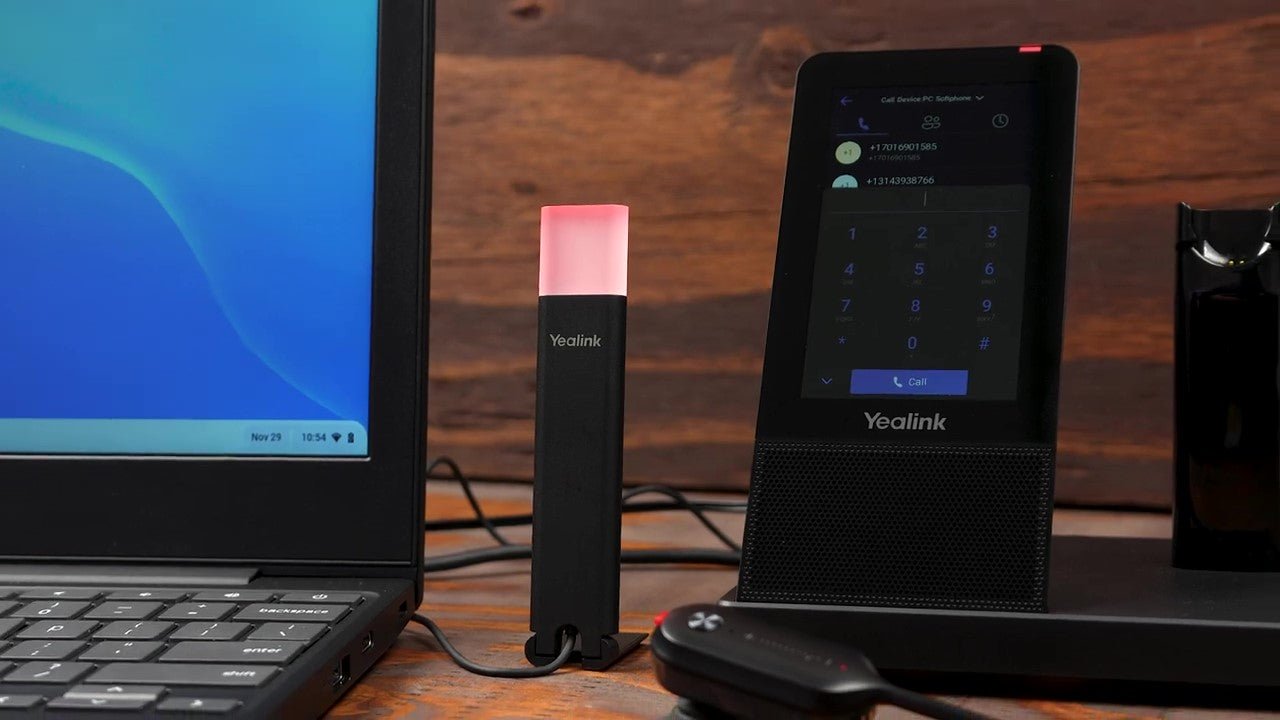
Yealink is a well-known brand for business communication devices. Their Busy Light is a USB accessory that works with Yealink phones and headsets. When you’re on a call, the light turns red or green to show your status. It’s a simple tool but very effective for teamwork.
Yealink Busy Lights are used with:
- Yealink T5 Series desk phones
- Yealink wireless headsets (WH62, WH63, etc.)
- Unified Communications platforms (Microsoft Teams, Zoom, Skype for Business)
Most Busy Lights plug into the phone or headset base via USB. Some models use a 3. 5mm jack. The light works automatically with the device’s status.
Why Is The Busy Light Important?
For many teams, the Busy Light is more than just a gadget:
- Reduces interruptions: Colleagues see the red light and wait.
- Shows call status: Everyone knows if you’re available.
- Improves professionalism: Meetings run smoothly.
- Supports remote work: Home distractions decrease.
If the light stops working, these benefits disappear. That’s why solving the problem quickly matters.
Common Symptoms When Yealink Busy Light Is Not Working
The “not working” problem can look different in every office. Here are the most common symptoms users report:
- The light stays off even during calls
- The light does not change color
- The light flashes randomly
- The light is always on, even when not in use
- Busy Light is not detected by the device
- Busy Light works with some apps (like Teams) but not others (like Zoom)
- Delays in light response
Understanding these symptoms helps you troubleshoot faster. Sometimes, the issue is simple—a loose cable or outdated software. Other times, it could be a device compatibility problem.

Credit: www.amazon.com
Main Causes For Yealink Busy Light Malfunction
Knowing what can go wrong is half the battle. The Yealink Busy Light can fail due to:
- Loose or faulty USB connection
- Software or firmware bugs
- Compatibility issues with apps or devices
- Power supply problems
- Defective Busy Light hardware
- Incorrect device settings
- Conflicts with other USB devices
- Outdated drivers or apps
- Operating system limitations
Let’s explore how each cause can affect your Busy Light.
1. Usb Connection Issues
The most basic problem: the Busy Light is not fully plugged in. Over time, USB ports can also get dusty or worn out. Faulty cables are another common culprit.
2. Software Or Firmware Problems
Yealink devices rely on firmware and software updates. If your phone or headset runs old firmware, it might not recognize the Busy Light.
3. Compatibility Gaps
Not all Yealink Busy Lights work with every phone or app. For example, a model made for T5 phones may not work with WH62 headsets. Some apps need extra plugins.
4. Power Issues
If your USB port is not giving enough power, the Busy Light may not turn on. This happens often with older computers or USB hubs.
5. Hardware Defects
Like any gadget, Busy Lights can break. Internal wiring or LEDs might fail after years of use.
6. Wrong Settings
Sometimes, users turn off the Busy Light feature without realizing. Or, the phone is set to the wrong USB mode.
7. Usb Conflicts
If you use many USB devices, they can fight for resources. The Busy Light may be ignored or disconnected.
8. Outdated Drivers
Your computer or phone needs the right driver to talk to the Busy Light. If drivers are missing or old, problems appear.
9. Os Limitations
Some operating systems (like Windows 7 or Linux) have trouble with newer USB devices or apps.
Step-by-step Troubleshooting Guide
Solving Yealink Busy Light problems is not hard if you follow these steps. Start with the simplest checks. Then move to more technical fixes.
Step 1: Check Physical Connections
- Unplug the Busy Light and plug it in again. Make sure it’s firmly connected.
- Try a different USB port or hub.
- Use the original cable, if possible.
- If using a headset, check if the light is connected to the base unit, not just the headset.
Pro tip: Sometimes, USB 3.0 ports (blue color) give better results than USB 2.0.
Step 2: Test The Busy Light On Another Device
To rule out hardware failure, plug the Busy Light into a different Yealink phone or headset. If it works there, your original device may have a problem.
Step 3: Restart The Device
Simple but powerful:
- Turn off the phone or headset.
- Unplug the Busy Light.
- Wait 30 seconds.
- Turn the device back on and plug the Busy Light in.
This resets the device’s USB system.
Step 4: Update Firmware And Software
Outdated firmware is a top cause of accessory problems.
- Go to Yealink’s official support site.
- Download the latest firmware for your phone or headset model.
- Follow the update instructions carefully.
- If using desktop software (like Yealink USB Connect), update it as well.
Warning: Don’t unplug devices during firmware updates, or you could cause more problems.
Step 5: Check Device Settings
On Yealink phones:
- Go to Menu > Features > USB Accessories.
- Look for a setting called “Busy Light” or “External LED.”
- Make sure it is turned ON.
On Yealink headsets:
- Use Yealink USB Connect software to check device settings.
- Some models let you control Busy Light behavior (always on, only for calls, etc. ).
Step 6: Test With Different Apps
Some users find the Busy Light works with Microsoft Teams, but not with Zoom or Skype. Try making a test call in different apps to see if the light responds.
Step 7: Check For Usb Device Conflicts
- Unplug all other USB devices except the Busy Light.
- If the Busy Light works now, another USB device is causing trouble.
- Try connecting your devices one by one to identify the conflict.
Step 8: Try A Different Power Source
If using a desktop or laptop, switch to another USB port. Avoid low-power USB hubs or extension cords.
Step 9: Replace The Busy Light
If nothing works, your Busy Light could be defective. Try a new unit if possible.
Hidden insight: Sometimes, the Busy Light’s LED will glow very dimly if there’s a power or hardware issue. If you see a faint red or green, don’t ignore it—this is a clue to check your USB power supply or replace the unit.
Compatibility: Which Devices And Apps Work With Yealink Busy Light?
Not every Yealink device supports the Busy Light. Here is a quick compatibility table for the most common models.
| Device | Busy Light Supported? | Notes |
|---|---|---|
| Yealink T5 Series Phones | Yes | May need firmware update |
| Yealink WH62/WH63 Headset | Yes | Busy Light plugs into base |
| Yealink T4 Series Phones | No | Not compatible |
| Yealink MP54 Teams Phone | Yes | Teams firmware required |
| Yealink CP960 Conference Phone | No | No Busy Light support |
Pro tip: Always check your device’s manual or Yealink’s compatibility list before buying a Busy Light.
Application Compatibility
Some apps support Busy Light natively, others need plugins or extra configuration.
| Application | Busy Light Support | Notes |
|---|---|---|
| Microsoft Teams | Yes | Full support with Yealink headsets |
| Zoom | Partial | Some models require plugin |
| Skype for Business | Yes | Check software version |
| Google Meet | No | No native support |
| Cisco Webex | Partial | Some features limited |
Hidden insight: If your app does not support Busy Light, third-party tools like Kuando or Busylight software can sometimes add support, but may need custom setup.
Firmware And Software: The Role They Play
Firmware is the “brain” of your Yealink device. Software lets your computer or phone talk to accessories like the Busy Light. If either is out of date or buggy, the Busy Light won’t work.
How To Update Yealink Firmware
- Find your device model (on the bottom of the phone or in settings).
- Visit the Yealink Support page.
- Download the latest firmware.
- Follow the update guide—usually via the phone’s web interface or USB.
- Restart your device.
Updating Software (yealink Usb Connect)
If you use Yealink headsets on a computer, Yealink USB Connect software helps manage devices.
- Download the newest version from Yealink.
- Install and open the software.
- Connect your headset and Busy Light.
- The software will show if updates are available.
Note: If you use Microsoft Teams, always keep both Teams and Yealink USB Connect up to date.
Common Firmware Update Mistakes
- Updating with the wrong firmware file (always double-check model numbers)
- Interrupting the update (can “brick” the device)
- Not restarting after updating
Credit: headsetadvisor.com
Real-world Examples And Case Studies
Let’s look at some real cases where the Yealink Busy Light failed—and how users fixed it.
Case 1: Busy Light Not Working With Teams
A company upgraded to Microsoft Teams and Yealink WH62 headsets. The Busy Light worked at first, but stopped after a Teams update. The IT team found that the Yealink USB Connect software was out of date. After updating, the Busy Light worked again.
Lesson: Always keep both app and device software updated.
Case 2: Busy Light Randomly Flashes
A user found that their Busy Light flashed red and green for no reason. They noticed this happened only when a USB drive was also plugged in. The problem was a power conflict. Moving the Busy Light to a different USB port solved it.
Lesson: USB port power can affect accessories.
Case 3: Busy Light Not Detected On Mac
A remote worker with a Yealink Teams phone and MacBook could not get the Busy Light to work. It turned out the Busy Light was designed for Windows only. When tested on a PC, it worked fine.
Lesson: Check OS compatibility before buying.
Case 4: Busy Light Always On
A small business owner found that their Busy Light was always red—even when not on a call. They had manually set the device to “always on” mode in the Yealink USB Connect app. Changing the setting to “on call only” fixed the problem.
Lesson: Device settings matter—double-check them.
Advanced Troubleshooting Tips
If the standard steps don’t fix your problem, try these advanced techniques.
Check Device Logs
Many Yealink phones and headsets keep logs that can show errors.
- Access the web interface of your phone or headset (enter the device’s IP address in a browser).
- Go to Settings > Logs.
- Look for errors related to USB or Busy Light.
If you see repeated errors, send the log to Yealink support.
Reinstall Device Drivers
On Windows:
- Open Device Manager.
- Find your Yealink device under “Universal Serial Bus controllers.”
- Right-click > Uninstall device.
- Unplug and reconnect the Busy Light. Windows will reinstall the driver.
Try On A Different Operating System
If you have access to another computer (Windows, Mac, Linux), test the Busy Light there. If it works on one OS but not another, the problem is software-related.
Use A Powered Usb Hub
Some computers don’t deliver enough power for accessories. A powered USB hub (with its own power supply) can fix this.
Factory Reset Your Device
If all else fails, reset your Yealink phone or headset to factory settings. This clears all settings (so back up your contacts).
- On phones: Menu > Settings > Advanced > Reset to Factory
- On headsets: Use the Yealink USB Connect app or device buttons
Preventing Busy Light Problems In The Future
Fixing a problem is good. Preventing it is better. Here’s how to keep your Yealink Busy Light working smoothly.
- Update regularly: Schedule firmware and software updates every 3-6 months.
- Use quality USB accessories: Cheap hubs or cables can cause problems.
- Keep ports clean: Dust or debris in USB ports can break connections.
- Train your team: Make sure everyone knows how the Busy Light works.
- Check compatibility before buying: Not all Busy Lights work with every Yealink device.
- Monitor device health: Use Yealink software to spot issues early.
- Back up device settings: Before updating firmware, save your settings.
Hidden insight: Many IT problems happen after a big software update (like a new version of Teams or Windows). Always test Busy Light features after major updates.
Comparing Yealink Busy Light To Other Brands
Is Yealink the only option? How does it compare to alternatives like Kuando or Poly Busy Light?
| Feature | Yealink Busy Light | Kuando Busylight | Poly Status Indicator |
|---|---|---|---|
| Device Compatibility | Yealink devices only | Many brands/apps | Poly/Plantronics only |
| Color Signals | Red/Green | Multiple colors | Red/Green |
| Setup Difficulty | Plug and play | May need software | Plug and play |
| Price Range | Low-Mid | Mid-High | Mid |
| Software Required | No/Optional | Often Yes | No/Optional |
Insight: If you use only Yealink devices, their Busy Light is simplest. For mixed-brand offices or advanced color options, Kuando is more flexible.
When To Contact Yealink Support
Most Busy Light issues can be fixed with the steps above. But sometimes, you need expert help.
Contact Yealink support if:
- The Busy Light does not work on any device
- Firmware updates fail
- You see error messages you don’t understand
- You need warranty replacement
Be ready to provide:
- Your device model and serial number
- Description of the problem
- Steps you have already tried
- Photos or videos, if possible
Yealink support is known for quick responses, especially for business customers.
Frequently Asked Questions
Why Does My Yealink Busy Light Only Work With Teams, Not Zoom?
Some Yealink Busy Lights are designed specifically for Microsoft Teams. Zoom may need extra plugins or may not support Busy Light signals on all devices. Check if your Busy Light model supports Zoom, and if plugins are needed. Yealink’s website lists compatible apps.
How Do I Know If My Yealink Device Supports Busy Light?
Check your device’s model number and look at the official Yealink documentation. Most T5 Series phones and WH headsets support Busy Light, but older models do not. You can also look in the device’s settings menu for Busy Light options.
Can I Use The Busy Light With A Usb Hub?
Yes, but not all USB hubs provide enough power. For best results, use a powered USB hub (one with its own power supply), and avoid connecting too many devices at once. Low-power hubs may cause the Busy Light to malfunction.
My Busy Light Is Always On, Even When Not On A Call. What’s Wrong?
This usually means the device is set to “always on” mode. Check the settings in your Yealink phone or USB Connect software, and set the Busy Light to activate only during calls. If the problem continues, try resetting the device.
Does The Busy Light Work On Mac And Linux?
Yealink Busy Light is designed mainly for Windows and Yealink phones. Some models may work on Mac, but not all features are supported. Linux support is limited. Always check compatibility with your operating system before purchasing.
Solving Yealink Busy Light problems can seem overwhelming, but with the right steps, most issues are easy to fix. Remember: check connections, update software, and confirm compatibility. If you still face problems, Yealink’s support team and resources like their official support page can help. With a working Busy Light, your office will feel more focused, professional, and interruption-free.
Credit: www.metrolinedirect.com