Rocket Money Not Syncing: Causes, Solutions, And Pro Tips
Managing money is stressful enough without technology problems. Many people rely on Rocket Money (formerly Truebill) to track spending, manage subscriptions, and organize their finances. But sometimes, Rocket Money does not sync with bank accounts or credit cards. This can cause missing transactions, incorrect balances, or even lost financial opportunities.
If you’re frustrated by Rocket Money not syncing, you’re not alone. This guide explains why syncing issues happen, what you can do to fix them, and how to keep your financial data accurate. You’ll also find tables comparing Rocket Money with other apps, troubleshooting steps, and answers to common questions.
Why Accurate Syncing Matters
Most users connect their bank accounts, credit cards, and sometimes investment accounts to Rocket Money. The app downloads transactions and updates balances automatically. This is the core feature that makes Rocket Money valuable for budgeting and tracking.
But if your accounts don’t sync:
- You see outdated balances
- Budgets may be wrong
- Missing transactions can lead to overdraft or missed bills
- Subscription changes might go unnoticed
For people who depend on Rocket Money’s alerts, a syncing problem can have real consequences. That’s why fixing the issue is important.
Common Causes Of Syncing Problems
Syncing issues can happen for many reasons. Understanding the cause will help you pick the right solution. Here are the main reasons why Rocket Money might not sync:
- Bank Security Updates
- Banks often change their login requirements, add security features, or update their websites. This can break the connection between your bank and Rocket Money.
- Expired Login Credentials
- If you change your bank password or username, Rocket Money will not be able to access your account until you update your information.
- Multi-Factor Authentication (MFA)
- Some banks require extra steps to log in, like entering a code from your phone. Rocket Money sometimes cannot handle these extra steps automatically.
- Temporary Bank Outages
- Banks sometimes have maintenance or outages that stop third-party apps from connecting.
- Outdated Rocket Money App
- Running an old version of Rocket Money can cause syncing to fail, especially if the app fixed bugs or improved syncing in newer versions.
- Account Type Not Supported
- Some accounts, like special savings, business, or investment accounts, may not be supported for syncing.
- Too Many Connections
- If you link many accounts at once, some may not sync correctly due to technical limits.
- Rocket Money Server Issues
- Rarely, Rocket Money’s own servers have problems, causing temporary syncing failures for many users.
How Syncing Works: Behind The Scenes
To understand why syncing fails, it helps to know how the process works. Rocket Money does not directly log in to your bank account. Instead, it usually uses a third-party service like Plaid or Finicity to connect to thousands of banks.
Here’s a simplified breakdown:
- You enter your bank login credentials in Rocket Money.
- The app passes this information (securely) to a syncing service.
- The service connects to your bank, downloads transactions, and sends them back to Rocket Money.
- Rocket Money processes the data and updates your dashboard.
If any step fails—for example, if your bank blocks access or Plaid is down—syncing will fail.
First Steps: Checking For Simple Fixes
Before you try advanced troubleshooting, check for basic problems:
- Are you using the latest version of Rocket Money?
- Did you recently change your bank password?
- Has your bank changed its website or required new security?
- Is your internet connection stable?
It sounds simple, but these account for nearly half of all syncing issues.
Step-by-step Troubleshooting Guide
If Rocket Money is not syncing, follow these steps to solve the problem:
1. Update Login Credentials
If you changed your bank password, Rocket Money cannot access your account. Here’s how to fix it:
- Open Rocket Money and go to Accounts
- Find the account with a syncing error (often marked with a warning sign)
- Tap Re-link account or Update login
- Enter your new username and password
- Complete any extra steps (like entering an MFA code)
This solves most issues related to expired passwords.
2. Force A Manual Sync
Sometimes, Rocket Money does not refresh automatically. You can force a sync:
- Go to the Accounts tab
- Swipe down or tap the refresh icon
- Wait for Rocket Money to update your balances
If this works, you may just need to refresh more often.
3. Remove And Re-add The Account
If syncing still fails, try removing the account and adding it again:
- Go to Accounts
- Tap the account you want to remove
- Select Remove account
- Confirm your choice
- Re-add the account by choosing your bank and entering your login details
This can solve deeper connection problems.
4. Check For Bank Outages
Your bank may be having issues. To check:
- Try logging in to your bank’s website directly
- Visit your bank’s status page or social media
- Search online for “[Your Bank] outage”
If your bank is down, wait until it’s back online. Rocket Money cannot sync until your bank allows connections.
5. Update The Rocket Money App
Using an old app version can cause syncing problems. To update:
- For iPhone: Open the App Store, search Rocket Money, tap Update
- For Android: Open Google Play, search Rocket Money, tap Update
Always use the latest version for best performance.
6. Contact Rocket Money Support
If none of the above works, reach out to Rocket Money’s support team:
- Go to the app’s settings, find Help or Support
- Describe your problem and what steps you’ve tried
- Attach screenshots if possible
Rocket Money support can sometimes fix syncing from their end.
Advanced Tips For Persistent Syncing Issues
Some problems are trickier to solve. Here are advanced solutions if normal steps fail:
A. Try A Different Device
Install Rocket Money on another phone or tablet. Sometimes, device-specific bugs stop syncing. If the other device works, the problem may be with your phone or app installation.
B. Clear App Cache Or Data
On Android, you can clear Rocket Money’s cache:
- Go to Settings > Apps > Rocket Money > Storage
- Tap Clear Cache (and Clear Data if needed)
On iOS, uninstalling and reinstalling the app does the same thing.
C. Wait For Bank Integration Updates
If your bank recently changed, Rocket Money may need days or weeks to adjust their syncing service. Check the app or their website for known issues. Patience is sometimes necessary.
D. Switch To A Different Syncing Service
Some apps allow you to choose between Plaid and Finicity. Check if Rocket Money supports this. If so, try switching to the other service for better compatibility.
E. Set Up Alerts Outside Rocket Money
If you rely heavily on notifications, set up backup alerts with your bank directly. This reduces risk if Rocket Money cannot sync.
Comparing Rocket Money With Other Personal Finance Apps
How does Rocket Money’s syncing compare to other major apps? Here’s a look at three popular choices:
| App | Syncing Reliability | Supported Banks | Manual Transaction Entry |
|---|---|---|---|
| Rocket Money | Good (occasional delays) | 5,000+ | No |
| Mint | Good (frequent outages with some banks) | 6,000+ | Yes |
| You Need A Budget (YNAB) | Excellent (manual option available) | 10,000+ | Yes |
Rocket Money focuses on automation, but does not let you manually add missed transactions. This means syncing is even more important compared to Mint or YNAB.
What To Do If Your Bank Is Not Supported
Some users find their bank is not available in Rocket Money’s list. Here’s what you can do:
- Request support for your bank within the app (usually found in the “Add Account” menu).
- Use a different app that supports your bank.
- Track those accounts manually outside Rocket Money.
If you have multiple banks, you may need to use more than one app to cover all your accounts.
Credit: www.self.inc
Security And Privacy During Syncing
Many users worry about sharing their bank login details with Rocket Money. The app uses secure, encrypted connections and does not store your credentials directly. Syncing services like Plaid have strong security practices. However, there are still risks. Here’s a quick comparison of security features:
| Feature | Rocket Money | Mint | Bank Direct Apps |
|---|---|---|---|
| Encryption | Yes (256-bit) | Yes (256-bit) | Yes (varies) |
| Stores Credentials | No (uses Plaid/Finicity) | No (uses Plaid) | No |
| Multi-Factor Support | Partial | Partial | Full |
Always use unique, strong passwords and enable two-factor authentication with your bank for extra safety.
Real-world Examples: When Syncing Goes Wrong
Let’s look at two examples:
- Jessica connects her checking account but notices Rocket Money missed two recent transactions. She checks her bank’s website and sees a new security question added. After updating her login in Rocket Money, syncing resumes.
- David finds his credit card balance is two days old. He learns his bank has a planned website update. The next day, Rocket Money syncs his transactions after the bank’s update ends.
In both cases, the problem was not with Rocket Money directly but with changes on the bank’s side.
How Often Does Rocket Money Sync?
Rocket Money usually syncs your accounts once per day. Some banks allow more frequent updates, but most users see new transactions every 24 hours. If you need real-time balances, check your bank’s app directly.
Some banks limit third-party syncing to reduce fraud. This can cause delays or require you to verify your identity more often.
Pro Tips To Keep Syncing Smooth
If you use Rocket Money daily, these tips can help avoid syncing headaches:
- Update passwords in Rocket Money anytime you change them at your bank.
- Check Rocket Money’s app store page for updates every month.
- Limit the number of accounts you link at once for better reliability.
- Keep your phone’s operating system updated.
- Review your transaction history weekly to catch missing data.
- If you get frequent errors, consider using a backup app or spreadsheet.
Credit: www.wallstreetsurvivor.com
When To Consider Switching Apps
If syncing problems happen often and affect your budgeting, it may be time to try another app. Here’s a simple table to help you compare:
| Best For | Rocket Money | Mint | YNAB |
|---|---|---|---|
| Subscription Tracking | Excellent | Good | Poor |
| Manual Transaction Entry | No | Yes | Yes |
| Custom Budgeting | Good | Basic | Excellent |
| Syncing Reliability | Good | Fair | Excellent |
Switching may feel like a hassle, but if syncing is critical, it’s worth considering all your options.
When To Be Patient Vs. Take Action
Not every syncing problem needs urgent action. Here’s how to decide:
- If the problem is with one account and just started, wait 24–48 hours.
- If many users report issues (check social media or support forums), Rocket Money is likely working on a fix.
- If you see errors for more than three days, try the troubleshooting steps above.
- If your main checking or credit card account never syncs, contact support or consider switching apps.

Credit: www.rocketmoney.com
Long-term Solutions: Keeping Data Accurate
Missing transactions or incorrect balances can create budgeting chaos. Here’s how to prevent long-term problems:
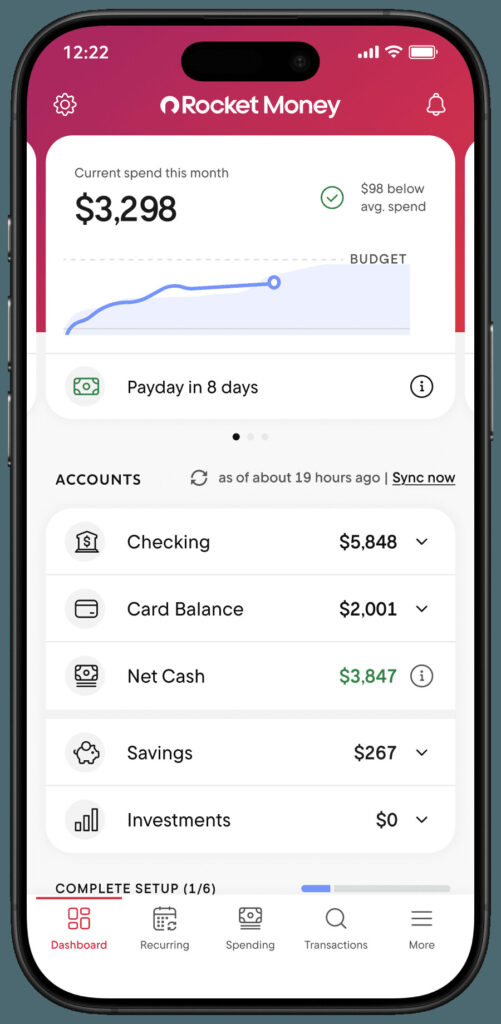
- Review Rocket Money’s dashboard weekly for missing or duplicate entries.
- Keep a backup record of your main account balances each month.
- Check your subscription list every 30 days to avoid missed charges.
- If you have a big life change (new job, move, new bank), double-check that Rocket Money is syncing all accounts.
Extra Resources And Where To Get Help
If you need more detailed or technical help, Rocket Money’s official support page and forums are a good place to start. Sometimes, checking the support page of your bank or reading personal finance forums can uncover recent syncing problems and solutions.
You can find additional information about secure financial data connections at the Consumer Financial Protection Bureau.
Frequently Asked Questions
Why Is My Rocket Money Account Not Syncing With My Bank?
The most common reasons are changed bank passwords, new security measures at your bank, or temporary outages. Try updating your credentials and checking for bank maintenance. If the problem continues, contact Rocket Money support.
How Do I Fix Rocket Money Syncing Errors?
Start by updating your login details in the app. Then, force a manual sync. If that fails, remove and re-add the account. Make sure your app is updated and your internet connection is stable.
Can Rocket Money Sync With All Banks And Credit Cards?
Rocket Money supports thousands of banks and cards, but not all. Some smaller or international banks may not be available. If your bank is missing, request support in the app or use another budgeting tool for those accounts.
Is It Safe To Link My Bank To Rocket Money?
Rocket Money uses secure, encrypted connections and does not store your password. Services like Plaid handle the connection. While no system is risk-free, Rocket Money follows industry security standards.
How Often Does Rocket Money Update My Transactions?
Most banks sync once per day, but some allow faster updates. If your transactions are missing, wait a few hours and try refreshing. For real-time updates, check your bank’s app directly.
—
If you depend on Rocket Money for financial clarity, syncing problems can feel stressful. But in most cases, a few simple steps will fix the issue. Understanding why syncing fails—and what you can do—gives you control over your money again.
Stay proactive, check your accounts regularly, and don’t hesitate to ask for help if you need it. With the right approach, you’ll keep your financial life running smoothly.