If you use Google Chrome across devices, you probably enjoy how your browsing history, bookmarks, and passwords sync automatically. But when Chrome stops syncing your history, things can get frustrating fast. You might check a website on your phone, only to find it missing from your laptop’s history. Or, you clear history on one device, but it stays on another. This problem can break your workflow, lower productivity, and even create privacy risks if you share devices.
If you’re facing the “Chrome not syncing history” issue, you’re not alone. This guide covers the causes, fixes, and smart tips to avoid future sync trouble. Whether you use Chrome for work, school, or daily browsing, you’ll find practical steps to get your history syncing again.
Why Chrome Syncs History—and Why It Matters
Chrome’s sync feature is more than just a convenience. It’s designed to:
- Keep your browsing experience consistent across devices
- Let you pick up where you left off, on any phone, tablet, or PC
- Help you find old pages with a quick search
- Speed up autofill for forms and passwords
When history doesn’t sync, you lose these benefits. For professionals and students, this can mean wasted time or missing critical info. For families, it can cause confusion if parents and kids share devices.
How Chrome History Sync Works
Before fixing sync problems, it helps to know what’s happening behind the scenes. Chrome uses your Google Account to store and share browsing data. When you sign in to Chrome:
- Your history is encrypted and uploaded to Google’s servers.
- Each device you use checks for new data and downloads it.
- Changes (like new sites visited or history deletions) should appear everywhere.
This process relies on several things working perfectly—your account, internet connection, Chrome’s settings, and Google’s own servers.
Here’s a simple breakdown of what Chrome can sync (when it works):
| Data Type | Synced by Default? | Customizable? |
|---|---|---|
| Browsing History | Yes | Yes |
| Passwords | Yes | Yes |
| Bookmarks | Yes | Yes |
| Open Tabs | Yes | Yes |
| Extensions | Yes | Yes |
| Settings | Yes | Yes |
Non-obvious insight: Chrome does not sync downloads, cookies, or some temporary files—even if history sync is working.
Common Reasons Chrome Is Not Syncing History
If your Chrome history isn’t syncing, it’s usually one of these causes:
- Sync is paused or turned off on one or more devices.
- Account conflicts (signed in with different Google accounts).
- Outdated Chrome version (missing features or security updates).
- Data corruption (sync data gets stuck or broken).
- Network or firewall issues (blocking Google sync servers).
- Extensions or antivirus interfering with sync.
- Google server outages (rare, but possible).
- Passphrase set up (extra security blocks sync on some devices).
- Device storage full (prevents Chrome from storing more data).
- Syncing not allowed by admin (common on school or work devices).
Beginner mistake: Many users forget that all devices must be signed in to the same Google account for sync to work.
How To Check If Chrome Is Syncing History
Before you fix the problem, you need to confirm what’s actually happening. Here’s how:
On Desktop
- Click your profile icon in the top right.
- If it says “Sync is on,” your data should be syncing.
- Click “Sync is on” > “Manage what you sync.”
- Make sure History is checked.
On Mobile
- Open Chrome and tap the three dots (top right).
- Go to Settings > your Google account.
- Tap Sync.
- Check that History is enabled.
Quick test: Visit a new site on one device. Wait a few minutes, then check history on another. If it doesn’t show up, sync is broken.

Credit: www.reddit.com
Quick Fixes For Chrome Not Syncing History
Sometimes the simplest steps solve the problem:
- Restart Chrome on all devices.
- Sign out and sign in again (on each device).
- Update Chrome to the latest version.
- Restart your device (phone, tablet, or PC).
- Check your Wi-Fi or mobile data connection.
If these don’t work, move on to deeper fixes.
Advanced Fixes For History Sync Issues
If you still have problems, try these solutions. They target the most common sync blockers.
1. Make Sure Sync Is Enabled Everywhere
- On every device, open Chrome’s settings and confirm you’re signed in.
- Check that sync is on and history is selected.
- If you use multiple Google accounts, make sure the same one is signed in everywhere.
2. Remove And Re-add Google Account
Sometimes, your sync profile gets corrupted. Removing and re-adding your account can fix this.
- On desktop: Go to Settings > You and Google > Turn off, then “Clear bookmarks, history, passwords, and more from this device.” Sign in again.
- On mobile: Go to your device’s Accounts settings, remove the Google account, then add it again.
3. Reset Chrome Sync
Resetting Chrome sync will erase sync data from Google’s servers, but not local data. This can fix stuck or corrupted sync.
- Visit [chrome: //settings/syncSetup](chrome://settings/syncSetup) in your browser.
- Scroll down and select Reset Sync.
- Wait a few minutes, then turn sync back on.
4. Clear Cache And Cookies
Old cache or cookies can block history updates.
- On desktop: Settings > Privacy and security > Clear browsing data. Select “Cookies and other site data” and “Cached images and files.”
- On mobile: Settings > Privacy > Clear browsing data.
5. Check For Third-party Interference
Some extensions or antivirus programs can block sync.
- Disable extensions one by one to see if sync starts working.
- Check your antivirus or firewall settings for any blocks on Chrome or Google services.
6. Disable Sync Passphrase
If you set up a passphrase for extra security, history may not sync if the passphrase isn’t entered on every device.
- Go to Settings > Sync and Google services > Encryption options.
- Remove or re-enter the passphrase on all devices.
7. Free Up Device Storage
If your device is nearly full, Chrome might not save new history. Delete unused apps or files to free space.
8. Check For Google Server Issues
Rarely, Google’s servers may be down. Check the official Google Workspace Status Dashboard to see if Chrome Sync is experiencing problems.
Device-specific Troubleshooting Tips
Different devices can have unique issues. Here’s what to check for:
Windows & Mac
- Make sure you’re not using a guest profile or incognito mode, which don’t sync history.
- Some company-managed devices restrict sync. Check with your IT department if you see “Sync is disabled by your administrator.”
Android
- Check that Google Play Services is updated.
- Go to your device’s Accounts section. Tap your Google account, then Account sync. Make sure Chrome is listed and enabled.
Ios
- Make sure you’re signed in to Chrome, not just your device.
- Check iOS settings to allow Chrome access to mobile data.
Chromebook
- Sign in with your main Google account.
- Visit chrome: //policy to check for admin restrictions.
Hidden tip: If sync works on Wi-Fi but not mobile data, your mobile carrier might block some connections.
How History Sync Differs From Tab And Bookmark Sync
Many users confuse history sync with tab or bookmark sync. They are similar, but not the same.
| Feature | Data Synced | Where to Access |
|---|---|---|
| History Sync | All visited pages | History menu |
| Open Tabs Sync | Currently open tabs | Other devices section |
| Bookmark Sync | Saved bookmarks | Bookmarks bar/folder |
Non-obvious insight: Open tab sync only shares what’s open now, not your full history. Closed tabs disappear from sync.

Credit: support.uscsd.k12.pa.us
Privacy Concerns When Syncing Chrome History
Syncing Chrome history means your browsing data is stored on Google’s servers. This has privacy benefits and risks:
Benefits:
- Data is encrypted in transit.
- You can recover history if you lose a device.
Risks:
- If someone gets your Google password, they can see your history.
- Google may use anonymous data for analytics or ad targeting.
You can use a sync passphrase for extra security. But remember, if you forget it, your sync data is lost.
Pro tip: Use a strong, unique Google password and two-factor authentication for best security.
How To Prevent Chrome Sync Problems In The Future
Once you fix the problem, you want to avoid it coming back. Here are some smart habits:
- Keep Chrome updated on all devices.
- Review sync settings after major updates.
- Sign out devices you no longer use.
- Back up important data (like bookmarks) separately.
- Check for extension updates that might affect sync.
- Monitor Google Account security for unauthorized access.
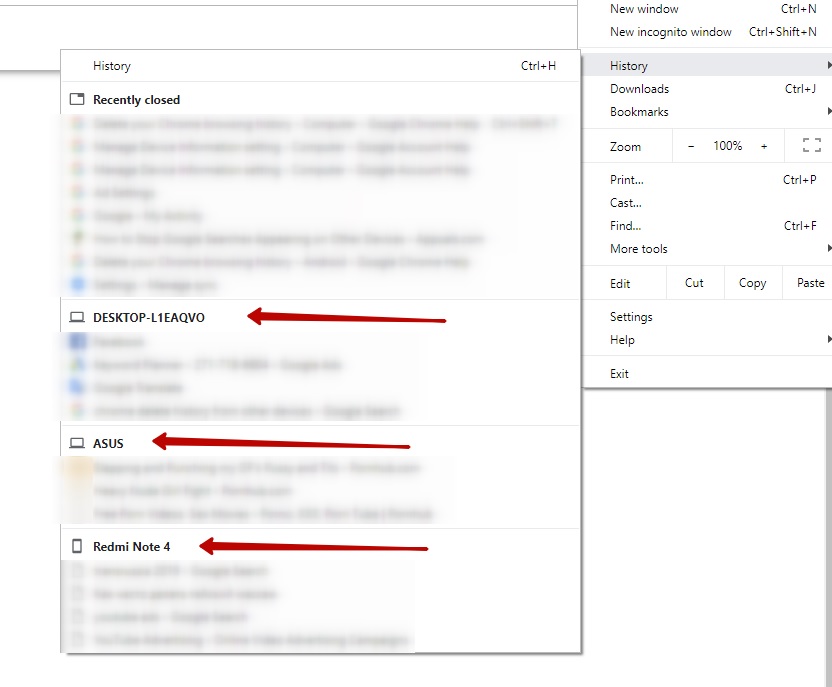
Beginner mistake: Forgetting to remove old devices from your Google account. This can cause data conflicts.
Credit: support.google.com
When To Contact Google Support
If you’ve tried all steps and Chrome still won’t sync history, it might be a deeper issue. Signs you need help:
- Sync is disabled with a message from your admin, and you can’t change it.
- You see error codes (like “Sync isn’t working. Error: 2”).
- History sync works on some devices, but not others, with no clear reason.
Reach out to Google Support or visit the official Chrome Help Center for guidance. Sometimes, bugs or account-specific problems require their help.
What If You Never Want To Sync History?
Some users prefer not to sync history for privacy reasons. Here’s how to turn it off:
- Go to Chrome Settings > Sync and Google services > Manage what you sync.
- Turn off History.
- You can also use incognito mode for private browsing (no history saved or synced).
Important: Turning off history sync does not delete old history from Google’s servers. You must remove it manually at [myactivity.google.com](https://myactivity.google.com).
Alternatives To Chrome Sync
If you keep having problems, or want more control, consider these alternatives:
- Manual export/import: You can export bookmarks and history manually. Not as smooth as auto-sync, but works for one-time transfers.
- Third-party sync tools: Some password managers or browser extensions offer cross-device sync for bookmarks or passwords.
- Other browsers: Firefox and Edge have their own sync systems, with different privacy policies and features.
Pro insight: No browser sync is perfect. Each has its own quirks, so choose what fits your workflow.
Real-world Examples
Here are two common scenarios and how to handle them:
Scenario 1: Chrome History Not Syncing Between Work And Home
You use a work laptop and a home PC, both signed in to Chrome. At work, you visit research sites, but they don’t appear in your home history.
Solution: Your company may restrict sync, or you’re using different Google accounts. Double-check both. If it’s an admin block, there’s often no workaround.
Scenario 2: Chrome Sync Works For Bookmarks, Not History
Your bookmarks and passwords sync fine, but history does not. This usually means history sync is turned off, or a passphrase is blocking only history. Check “Manage what you sync” and encryption settings.
Chrome Sync Data Limits And Performance
Chrome can sync a large amount of data, but there are limits. For most users, these won’t be a problem, but heavy users (thousands of tabs, huge histories) might notice:
- Sync delays when switching devices
- Data not appearing instantly
- Occasional sync errors
Chrome does not publish exact sync limits, but estimates suggest:
| Data Type | Approximate Limit |
|---|---|
| Bookmarks | 100,000 items |
| Passwords | 25,000 items |
| History Entries | Unlimited (practically) |
| Open Tabs | 100 per device |
If you hit these limits, sync might pause or behave oddly. Clear old data to improve performance.
How Chrome Sync Compares To Other Browsers
Chrome is not the only browser with sync features. Here’s how it stacks up:
- Firefox Sync: Offers similar features but uses different encryption and privacy defaults.
- Microsoft Edge Sync: Syncs history, passwords, bookmarks, and even collections.
- Safari (Apple): Syncs through iCloud, but only on Apple devices.
If privacy is a top concern, some users prefer Firefox for its open-source approach. Chrome is best for those deeply invested in the Google ecosystem.
For more on browser sync comparisons, see this Wikipedia overview.
Frequently Asked Questions
Why Is Chrome Not Syncing History But Syncing Everything Else?
Usually, history sync is turned off, or a passphrase is blocking history only. Check your sync settings and encryption options.
How Long Does It Take For Chrome To Sync History Across Devices?
Sync is usually instant or within a few minutes. Delays can happen if you have a lot of data, slow internet, or use power-saving settings.
Does Chrome Sync History In Incognito Mode?
No. Incognito mode does not save or sync history. Anything you browse in incognito is erased when you close the window.
Can I Force Chrome To Sync My History Now?
Yes. Try signing out and in again, or visiting the sync page (chrome://settings/syncSetup) and toggling sync off and on. This often triggers a fresh sync.
Is It Safe To Sync Chrome History?
Generally, yes—especially if you use a strong password and enable two-factor authentication. For more privacy, use a sync passphrase or turn off sync for sensitive data.
If you depend on Chrome’s sync features, fixing history sync can save you time and headaches. With these steps and tips, you can enjoy a seamless browsing experience, no matter where you are or what device you use.