If you use a password manager like 1Password, you expect your passwords to sync perfectly across all devices. Imagine you change a password on your laptop, but later on your phone, the new password isn’t there. This can be frustrating and even risky if you lose access to important accounts. Syncing problems are more common than you might think, but most can be fixed with some careful steps. Let’s explore why 1Password not syncing between devices happens, and how you can solve it efficiently.
Understanding How 1password Sync Works
1Password offers several ways to sync your data, and knowing which one you use is the first step. Most people today use the 1Password.com account, which syncs everything through the cloud. However, older setups may use iCloud, Dropbox, or even Wi-Fi sync. These methods have different requirements and common issues.
When you add or change a password, 1Password uploads the data to its servers (or to your chosen sync service) and then downloads it to your other devices. If something breaks in this chain, your devices won’t match up.
A common mistake: People sometimes mix sync methods. For example, syncing with 1Password.com on their phone but using Dropbox sync on their old laptop. If you do this, the vaults won’t stay in sync.
Common Reasons 1password Does Not Sync
Let’s look at the most frequent causes:
- Outdated app version – If one device has an old version of 1Password, syncing can break.
- Network issues – A weak or unstable internet connection can block the sync.
- Wrong account signed in – Sometimes, you may accidentally sign in to a different 1Password account on one device.
- Incorrect sync method – Using different sync methods on different devices causes confusion.
- Disabled sync in settings – Sync may be turned off in the app’s settings.
- Operating system issues – Outdated device software or restrictions can prevent syncing.
- Vault not shared – The vault you want may not be shared with all your devices.
- Storage limitations – Running out of space on your device can stop sync.
- Firewall or security apps – Some security programs block 1Password from connecting to the internet.
- Corrupted data – Rare, but possible. Corrupted vault data may not sync properly.
Quick Fixes To Try First
Before diving into advanced troubleshooting, start with these simple actions:
- Restart all devices – A classic fix that often solves temporary glitches.
- Update 1Password app – Make sure you have the latest version on every device.
- Check your internet – Try opening a website to confirm your connection works.
- Sign out and sign back in – Sometimes, re-authenticating can reset the sync.
- Force sync – On many devices, you can manually trigger a sync in the app.
These steps solve more than half of everyday syncing issues, especially if you haven’t updated the app in a while.
How To Troubleshoot 1password Sync Issues
If the basics didn’t help, it’s time for deeper troubleshooting. Here’s what to check and how to fix common problems.
1. Confirm Your Sync Method
Open 1Password on each device and check how your vaults are set to sync. Are you using 1Password. com, iCloud, Dropbox, or Wi-Fi?
- On desktop: Go to Accounts & Vaults. See which account or sync method is listed.
- On mobile: Open Settings > Vaults or Accounts.
Tip: If your devices use different methods, pick one (preferably 1Password.com cloud sync) and set it up on all devices.
2. Check Account Details
Make sure you’re signed in with the same email and secret key on every device. It’s easy to accidentally create a second account or use a different login.
- On desktop: Settings > Accounts
- On mobile: Settings > Accounts
Compare the details. If you find a mismatch, sign out and sign in with the correct account.
3. Review Vault Sharing
Some vaults are shared, and others are private. If you expect to see a vault on all devices, check that it’s actually shared with your account everywhere.
- On 1Password.com: Go to Vaults and check sharing settings.
- On mobile/desktop: Open the vault and check who has access.
If a vault isn’t shared, add your other devices or accounts.
4. Network And Security Settings
Poor network or strict security settings can silently block sync.
- Switch to a different Wi-Fi or use cellular data to test.
- Turn off VPNs, firewalls, or security apps temporarily.
- Make sure your device’s date and time are correct; wrong settings can block secure connections.
5. Check For App Or Os Updates
A mismatch between app versions or outdated device software can cause issues.
- Update 1Password on all devices.
- Update your device’s operating system.
6. Free Up Device Storage
Low storage can prevent 1Password from saving new data or syncing.
- Delete unused files or apps.
- On iOS/Android: Check Settings > Storage.
- On desktop: Clear out large files or move them to cloud storage.
7. Re-sync Or Re-add The Vault
Sometimes, removing and re-adding a vault can reset sync.
- On desktop: Remove the vault, then add it again from your account.
- On mobile: Log out and log back in, or remove/re-add the account.
Caution: Always back up data before removing vaults.
Comparing 1password Sync Methods
Different sync methods have strengths and weaknesses. Here’s a quick comparison to help you understand:
| Sync Method | Supported Devices | Setup Difficulty | Reliability |
|---|---|---|---|
| 1Password.com Cloud | All | Easy | High |
| iCloud | Apple only | Moderate | Medium |
| Dropbox | Most | Moderate | Medium |
| Wi-Fi Sync | Desktop/Mobile | Hard | Low |
Most users today benefit from 1Password.com cloud sync. It’s the most reliable and easiest to set up. If you use iCloud or Dropbox, remember they depend on those services working correctly.
How To Fix Sync Problems By Platform
If You Use 1password.com Account
- Sign in on all devices with the same account.
- Check the emergency kit (your secret key and sign-in address) is correct.
- If you see a sync error, try logging out and back in.
If You Use Icloud Sync
- Make sure you’re signed in to the same Apple ID on all devices.
- ICloud must be enabled for 1Password in Settings > iCloud.
- Both devices must be online and using iOS/MacOS.
- Problems? Try toggling iCloud off and on, then restart devices.
If You Use Dropbox Sync
- Ensure the same Dropbox account is used everywhere.
- Check the 1Password.agilekeychain or 1Password.opvault file exists in Dropbox.
- Open Dropbox and confirm the file is synced on each device.
- If needed, force a Dropbox sync or reinstall the Dropbox app.
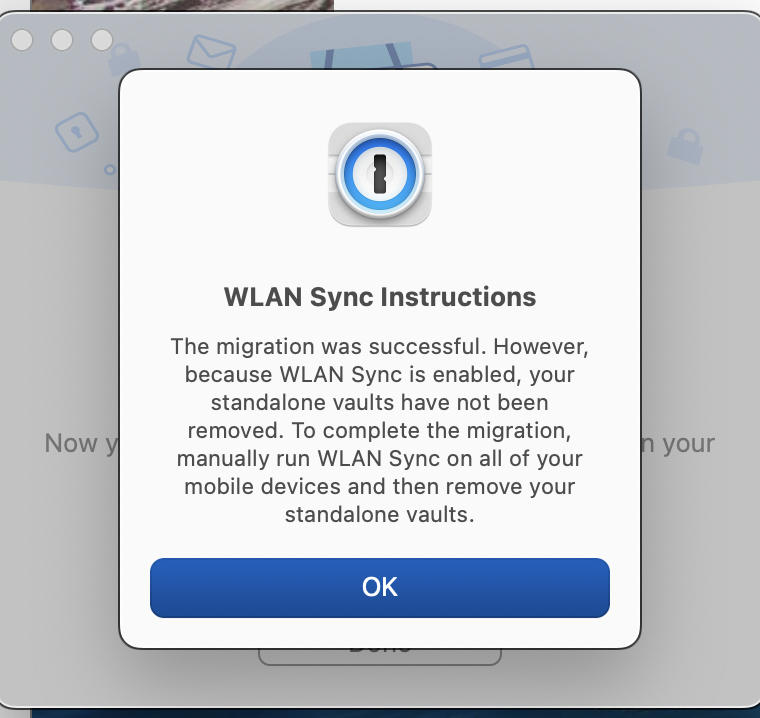
If You Use Wi-fi Sync
- Both devices must be on the same Wi-Fi network.
- Firewalls must allow 1Password traffic.
- Restart both devices and try again.
- This method is less reliable and not recommended for most users.

Credit: www.reddit.com
Advanced Troubleshooting Steps
If none of the above works, you may need to dig deeper.
Check For Vault Conflicts
Sometimes, multiple versions of the same vault can exist. This confuses 1Password and stops syncing.
- On desktop, check for duplicate vaults.
- Merge or delete extra vaults.
View Sync Status And Logs
1Password apps usually show sync status. Look for error messages or red warnings.
- On desktop, check Help > Diagnostics.
- On mobile, look for sync errors in Settings.
Advanced users can review logs for more details, but most people won’t need this.
Reinstall The App
As a last resort, uninstall and reinstall 1Password. Be sure to have all your account details and backups before doing this. This can fix corrupted files or settings.
Preventing Sync Problems In The Future
Sync issues can be avoided with a few smart habits:
- Keep all apps updated – Install updates regularly on all devices.
- Use the same sync method everywhere, ideally 1Password.com cloud.
- Check device storage from time to time.
- Don’t mix accounts or vaults unless you know what you’re doing.
- Review sharing settings after adding new devices.
- Test sync after major changes – For example, after resetting a phone or computer.
- Backup your Emergency Kit – Keep your secret key and sign-in address in a safe place.
Real-world Example: How Sync Issues Cause Trouble
Let’s look at a typical case. Jane uses 1Password on her Mac and iPhone. She changes her bank password on her Mac, but when she tries to log in on her iPhone, the new password isn’t there. After some frustration, she realizes her iPhone is syncing through iCloud, while her Mac is using 1Password.
com. Once she sets both devices to use her 1Password. com account, passwords sync as expected.
This problem is common, especially for users who started with 1Password years ago and switched sync methods later. It shows how mixing methods is a hidden cause of headaches.
Data Security And Syncing
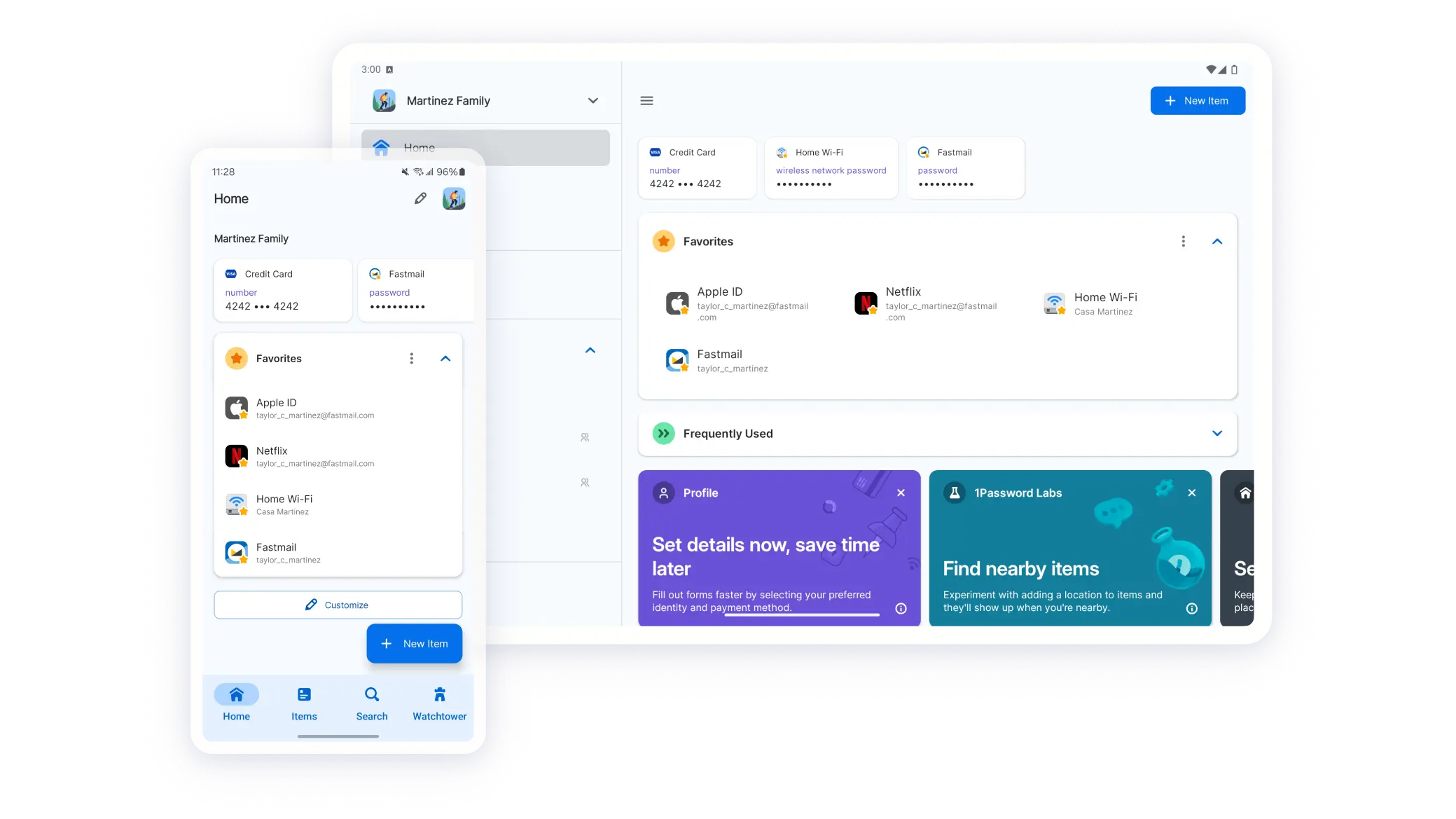
When using password managers, security is just as important as convenience. 1Password uses end-to-end encryption, so even if sync fails, your data is safe. However, if you share vaults or use third-party sync (like Dropbox), always check your sharing settings and device security.
A useful tip: Don’t share vaults with people you don’t trust, and always use strong master passwords. If you ever suspect a sync issue is due to unauthorized access, change your master password immediately and review device access.
Credit: 1password.com
Common Mistakes To Avoid
Many users overlook small details that can block syncing. Here are a few:
- Ignoring app updates. Even a minor update can include vital sync fixes.
- Signing in with the wrong account, especially if you have multiple emails.
- Using mobile data with poor coverage, which can silently fail.
- Forgetting to check vault sharing after adding a new device.
- Not checking for duplicate vaults or conflicts after a crash or reset.
Comparing 1password To Other Password Managers
Is 1Password more likely to have sync issues than its competitors? Here’s a comparison of popular managers:
| Password Manager | Sync Reliability | Supported Platforms | Manual Sync Option |
|---|---|---|---|
| 1Password | High | All major | Yes |
| LastPass | Medium | All major | No |
| Dashlane | High | All major | No |
| Bitwarden | High | All major | Yes |
1Password is known for reliable syncing, especially with its cloud service. However, any tool can have issues if not set up correctly.
Credit: www.1password.community
When To Contact 1password Support
If you’ve tried everything and syncing still doesn’t work, it’s time to contact support. Gather this information first:
- Your device types and operating systems
- 1Password app versions
- Sync method used
- Description of the issue and any error messages
1Password’s support team is experienced with sync problems and can guide you through complex cases. For official help, visit the 1Password support page.
Frequently Asked Questions
Why Does 1password Stop Syncing Suddenly?
This often happens due to app updates, network changes, or switching accounts. Check your internet connection, update the app, and make sure you’re signed in with the correct account everywhere.
Can I Use Multiple Sync Methods At The Same Time?
It’s not recommended. Mixing sync methods (like 1Password. com on one device and iCloud on another) leads to missing data or duplicated vaults. Choose one method and use it on all devices.
What If My Vault Is Missing On One Device?
First, check if you’re signed in to the correct account and if the vault is shared with that device. Next, make sure syncing is enabled and working. If it’s still missing, try re-adding the account or contacting support.
Is My Data Safe If Sync Fails?
Yes, your data is encrypted and stored locally on each device. A sync failure only means your changes are not updating everywhere. Your passwords are not exposed or lost, but you should fix the sync to keep everything up to date.
How Do I Force 1password To Sync?
On desktop and mobile, there is usually a “sync now” button or a pull-to-refresh gesture. If not, logging out and back in, or restarting the app, can trigger a sync.
Final Thoughts
Syncing is at the heart of any good password manager. If 1Password is not syncing between devices, you can usually fix it with a few careful checks and updates. Start with the basics: update your apps, check your accounts, and confirm your sync method is the same everywhere. Avoid mixing sync types, and keep your devices in good working order. For stubborn problems, advanced troubleshooting or support can help. Most important, don’t let a sync issue stop you from using strong, unique passwords for every account—your security depends on it.