If you rely on 1Password to manage your online accounts, you know how crucial it is for everything to sync smoothly. The 1Password Chrome extension helps you fill in passwords quickly, generate strong logins, and keep everything in sync across devices.
But sometimes, users notice that the extension is not syncing as expected. Logins saved on your phone might not show up in Chrome. Or, changes in the browser don’t appear on other devices. This can be frustrating, especially if you depend on 1Password to access work accounts or personal sites daily.
Syncing issues are more common than you might think. They can be caused by network problems, outdated software, account misconfigurations, or even browser settings. The good news is that most syncing problems with the 1Password Chrome extension can be fixed with clear steps.
Let’s explore why this happens, how you can troubleshoot, and what you should do to get your data syncing again quickly.
How 1password Chrome Extension Syncing Works
Before troubleshooting, it’s helpful to understand how syncing in 1Password works with the Chrome extension. The extension connects your browser to your main 1Password account. Whenever you add, change, or delete an item (like a password or note), the extension tries to sync these changes to your 1Password account stored in the cloud.
This means any changes you make in Chrome should appear on your phone, tablet, or other computers using the same 1Password account. Syncing depends on:
- Internet connection: The extension needs to reach the cloud.
- Logged-in account: You must be signed into the same account everywhere.
- Software version: Outdated extensions or apps might not sync.
- Browser settings: Some settings can block sync.
If something goes wrong at any step, you may notice missing or outdated data.
Common Reasons The 1password Chrome Extension Is Not Syncing
Syncing issues can happen for several reasons. Here are the most frequent causes:
- Network problems: If your computer can’t reach the 1Password servers, syncing stops.
- Outdated extension: Using an old version may cause compatibility issues.
- Logged out session: If you’re not signed in, the extension can’t sync.
- Multiple accounts: Syncing the wrong account means changes won’t appear everywhere.
- Browser privacy settings: Blocking cookies or running extensions in private mode can break syncing.
- 1Password service outages: Rare, but possible. If the servers are down, syncing fails.
- Corrupted local cache: Sometimes, local data gets stuck or corrupted.
Understanding the root cause helps you fix the problem faster.
How To Check If 1password Chrome Extension Is Syncing
To find out if your extension is syncing:
- Open the 1Password Chrome extension by clicking the icon in your browser.
- Make a small change, like adding a new login or editing a note.
- Check if the change appears on 1Password.com (log in via web), or on another device using the same account.
- Look for sync status icons or error messages inside the extension.
- Try logging out and back in; if you see old data, syncing is not working.
If changes aren’t appearing across devices, you have a syncing problem.
Step-by-step Solutions For 1password Chrome Extension Not Syncing
Let’s walk through practical steps to fix the issue. Not every step will apply to all users, but following these in order helps most people.
1. Check Your Internet Connection
A stable internet connection is required for syncing. Test your connection by loading a few websites. If your internet is down or slow, 1Password can’t reach its servers. Try restarting your router or switching to a different network if possible.
2. Confirm You’re Logged Into The Right Account
If you have multiple 1Password accounts (work, family, personal), make sure the Chrome extension is logged into the correct one. Open the extension, go to settings, and verify the account email. Double-check on other devices that you’re using the same account.
3. Update The Chrome Extension
An outdated extension may not sync correctly. To update:
- Open Chrome.
- Go to chrome: //extensions/
- Turn on Developer mode (top right).
- Click Update.
You can also uninstall and reinstall the extension from the Chrome Web Store. Keeping both the extension and the main 1Password app up to date prevents many issues.
4. Restart Chrome And Your Computer
Sometimes, browser or system glitches cause sync failures. Close all Chrome windows, reopen the browser, and check if syncing resumes. If not, try restarting your computer as well.
5. Clear Browser Cache And Cookies
Browser data can become corrupted, blocking extension sync. Try this:
- Go to Chrome settings > Privacy and security > Clear browsing data.
- Select cookies and cached images/files.
- Restart Chrome.
Warning: This will sign you out of most websites, so be prepared to log in again.
6. Disable Conflicting Extensions
Some extensions (like ad blockers or privacy tools) can interfere with 1Password. Temporarily disable other extensions, especially those that block scripts or cookies. If syncing works, re-enable them one by one to find the culprit.
7. Check 1password Server Status
Very rarely, 1Password’s servers might be down. Visit 1Password’s official status page to check for outages. If there’s a known issue, you’ll need to wait for their team to fix it.
8. Sign Out And Sign Back Into The Extension
Sometimes, your session may expire or become corrupted. To refresh:
- Open the extension.
- Go to settings > Sign out.
- Sign back in with your account credentials.
After signing in, wait a few minutes and see if your data syncs.
9. Reinstall The 1password Chrome Extension
If none of the above work, remove the extension completely and reinstall it:
- Right-click the 1Password icon > Remove from Chrome.
- Restart Chrome.
- Reinstall from the Chrome Web Store.
This often clears up stubborn syncing bugs.
10. Check For Browser Or Os Updates
Outdated browsers can cause compatibility problems. Make sure Chrome is updated to the latest version. Also, check your operating system for updates, as some security patches may affect extensions.
11. Review Privacy And Security Settings
Some Chrome settings can block 1Password:
- Cookies: Make sure Chrome allows at least first-party cookies.
- Site isolation: Advanced security features can interfere with extensions.
- Incognito Mode: 1Password must be enabled to work in private browsing.
Go to Chrome settings > Privacy and security, and review these options.
12. Test On A Different Device
Try logging into 1Password. com on another device (phone, tablet, or another computer). If syncing works there, the problem is local to your main device.
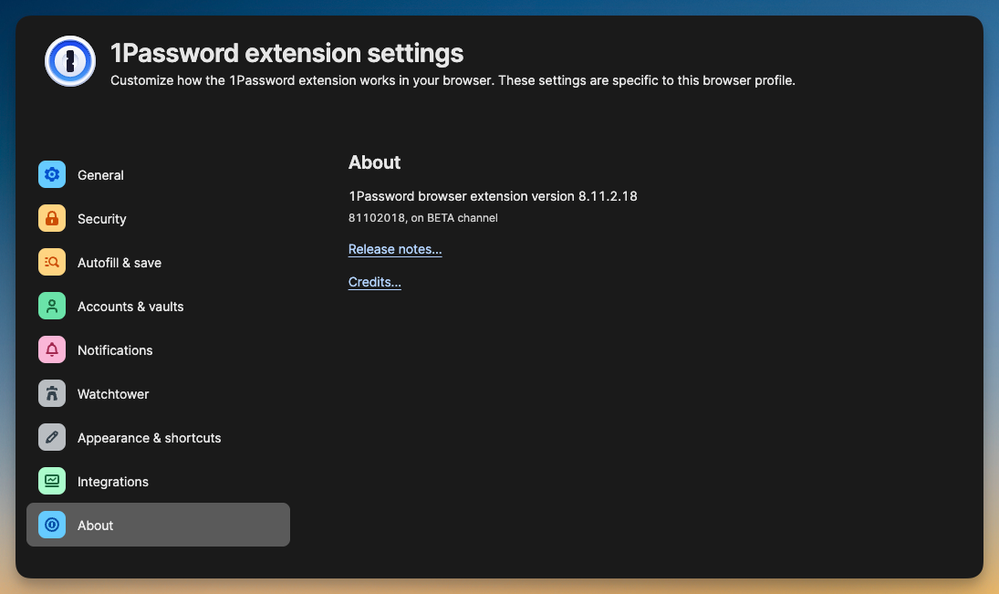
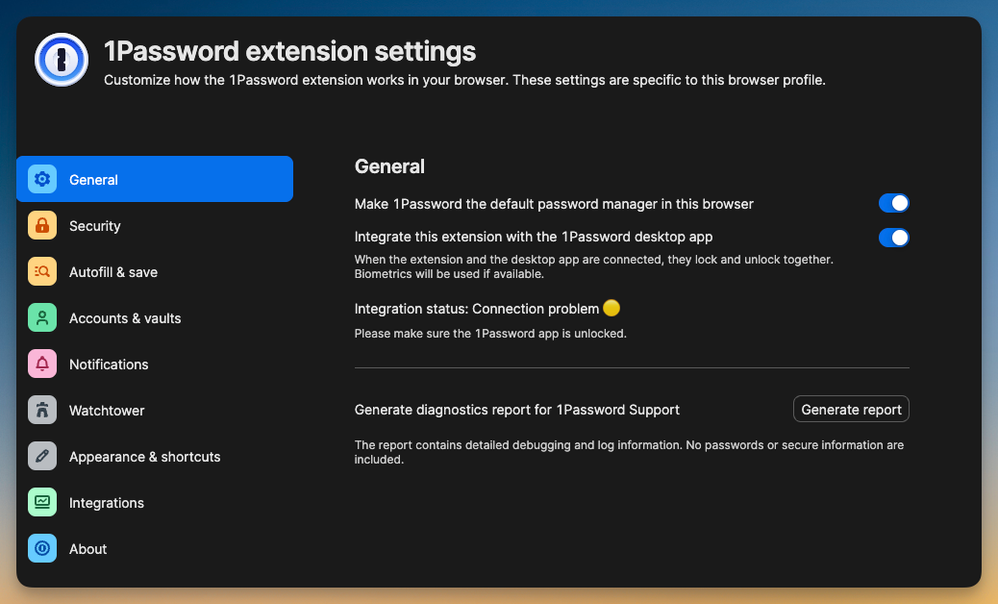
13. Check 1password App Integration
If you use both the desktop app and browser extension, make sure both are connected. Sometimes, the app and extension can get out of sync. Open the desktop app, check your vaults, and see if they match what you see in Chrome.
14. Reset Local Cache (advanced)
If you’ve tried everything else, you can reset the local cache. This deletes temporary extension data:
- Remove the extension from Chrome.
- Delete any leftover 1Password folders in your Chrome profile (advanced users only).
- Reinstall the extension.
This step is only for advanced users, as deleting the wrong files may affect your browser.
15. Contact 1password Support
If you still have problems, reach out to 1Password support. Include details like:
- Your operating system and Chrome version
- 1Password extension version
- Steps you’ve tried
- Error messages or screenshots
Their support team can help with more advanced troubleshooting.

Credit: helpme.trustednursestaffing.com
Comparing 1password Extension Sync Vs. Other Password Managers
How does 1Password’s Chrome extension syncing compare to other popular password managers? Here’s a quick look:
| Password Manager | Sync Method | Offline Access | Known Sync Issues |
|---|---|---|---|
| 1Password | Cloud-based, real-time | Yes (with app) | Rare, often fixed by reinstall/relog |
| LastPass | Cloud-based, real-time | Limited | Occasional sync delays |
| Bitwarden | Cloud/optional self-hosted | Yes | Few, usually network-related |
| Dashlane | Cloud-based | No | Some browser integration problems |
Non-obvious insight: Sometimes, switching between managers can temporarily break Chrome extension sync due to leftover browser data. Always clear your cache when switching tools.
Real-world Example: Fixing A Sync Issue
Let’s look at a common scenario. Sara uses 1Password on her Windows PC and iPhone. She updates a banking password on her phone, but the change doesn’t show up in Chrome. Here’s how she solves it:
- Checks the internet: Both devices are online.
- Verifies the account: She’s logged into the same 1Password account on both.
- Updates Chrome and the extension: Finds a pending Chrome update, installs it.
- Clears browser cache: Logs in again.
- Opens the extension: Now sees the updated password.
What beginners often miss: Syncing isn’t always instant. Sometimes, it takes a minute or two for changes to appear, especially on slower connections.
Credit: www.1password.community
Data Table: Troubleshooting Actions And Results
Here’s a quick summary of troubleshooting steps and expected outcomes:
| Action | What it Fixes | Time to Test | Success Rate |
|---|---|---|---|
| Restart Chrome | Temporary glitches | 1 minute | 30% |
| Update extension | Outdated software | 2 minutes | 60% |
| Clear cache | Corrupted browser data | 3 minutes | 50% |
| Reinstall extension | Persistent sync bugs | 4 minutes | 70% |
| Contact support | Advanced issues | Varies | 90% |
Tips To Avoid Future Sync Problems
- Keep everything updated: Regularly update Chrome, the extension, and your OS.
- Don’t use multiple password managers: They can conflict and block sync.
- Enable auto-sync: In 1Password settings, make sure sync is enabled.
- Avoid clearing cookies too often: This logs you out and can break session sync.
- Check for security software conflicts: Antivirus or firewalls may block extension traffic.
Another non-obvious tip: If you use Chrome profiles, make sure 1Password is installed and signed in on the profile you use most. Syncing only works within the active Chrome profile.
When To Consider Reinstalling Everything
If you’ve tried all normal solutions, a full reinstall may be needed:
- Uninstall the Chrome extension.
- Uninstall the 1Password desktop app (if used).
- Reboot your computer.
- Reinstall both from official sources.
- Log in and test syncing.
This resets all local data and ensures a fresh start.
Security Considerations
Never share your 1Password account credentials with anyone. If you reset your extension or app, always download from the official 1Password website or the Chrome Web Store. Third-party downloads can be risky. Also, be careful with browser extensions that ask for access to “all data on all websites.” Only trust extensions from known developers.
Credit: www.1password.community
Should You Use The 1password Desktop App With The Chrome Extension?
Using both the desktop app and browser extension can improve your experience. The desktop app provides offline access and advanced features. The extension is fast and great for web logins. However, if you only use the extension, syncing still works — but you lose some offline benefits.
Comparison of using both:
| Setup | Sync Speed | Offline Access | Best For |
|---|---|---|---|
| Extension only | Fast online | No | Web use, quick logins |
| App + extension | Instant | Yes | Power users, offline work |
Frequently Asked Questions
Why Is 1password Chrome Extension Not Syncing Only On One Device?
This usually means there’s a local problem with Chrome, the extension, or your network on that device. Try updating Chrome, clearing cache, or reinstalling the extension. Make sure you’re logged in to the correct account.
Does 1password Sync Instantly Across All Devices?
Usually, yes. Changes sync within seconds, but delays can happen if your internet is slow or the servers are busy. Wait a minute, then check again.
Can Browser Privacy Settings Block 1password Sync?
Yes. Blocking cookies, running in incognito mode, or using privacy extensions can stop syncing. Review your Chrome privacy settings and allow the 1Password extension.
What Should I Do If Reinstalling The Extension Doesn’t Fix Sync?
Try uninstalling the 1Password desktop app as well (if used), then reinstall both. If problems continue, contact 1Password support with details about your setup.
Is It Safe To Reset Or Clear 1password Extension Data?
Yes, as long as your data is safely stored in your 1Password account online. Never reset if you haven’t synced recent changes to the cloud. Always download the extension from the official Chrome Web Store or 1Password’s official download page.
Keeping your passwords safe and accessible is important. With these steps, you can fix most syncing problems in the 1Password Chrome extension and keep your accounts secure. If you run into trouble, don’t hesitate to reach out to 1Password support or check their status page for updates.