If you’re reading this, you probably own a Fitbit and rely on it to keep you connected. But what happens when Fitbit notifications stop working? Suddenly, you’re missing calls, texts, app alerts, and calendar events. This can be stressful, especially if you use your Fitbit for work, fitness goals, or daily reminders. The good news: you’re not alone, and there are practical solutions.
Fitbit devices are designed to sync seamlessly with your phone. They should deliver notifications instantly. When they don’t, the problem can be confusing. The cause might be your phone settings, Fitbit software, Bluetooth issues, or even simple things like “Do Not Disturb” being on. In this guide, you’ll learn why your Fitbit is not getting notifications and—more importantly—how to fix it.
You’ll find step-by-step troubleshooting, real-world examples, and expert tips. By the end, you’ll understand how Fitbit notifications work, what commonly goes wrong, and how to make sure you never miss an important alert again.
How Fitbit Notifications Work
To troubleshoot, it’s useful to know how notifications move from your phone to your Fitbit. Here’s a simple explanation:
- Your phone receives a notification (like a text, call, or app alert).
- The Fitbit app forwards this notification, using Bluetooth, to your Fitbit device.
- Your Fitbit vibrates or shows the alert on its screen.
Each step relies on both your phone’s settings and your Fitbit’s configuration. If there’s a break anywhere, notifications won’t appear.
Non-obvious insight: Notifications don’t go straight from the cloud to your Fitbit. They depend on your phone as a bridge. If your phone’s Bluetooth or the Fitbit app is blocked, your Fitbit won’t get the alert—even if your phone does.
Another detail that surprises many users: even if your phone receives a notification, the Fitbit app must be allowed to access and “read” those notifications in the background. If the app is forced to close, or if you manually swipe it away from your recent apps, the notification handoff may fail. So, keeping the Fitbit app running quietly in the background is essential for real-time alerts.
Common Reasons Fitbit Stops Getting Notifications
Many users assume the issue is with the Fitbit itself. In reality, the root cause is often your phone or app settings. Here are the main reasons Fitbit notifications stop working:
1. Bluetooth Connection Issues
If Bluetooth is off or unstable, your Fitbit and phone can’t talk. This is the most common reason for missed notifications. Sometimes, interference from other wireless devices (like headphones or smart home gadgets) can also disrupt the signal.
2. App Permissions
The Fitbit app needs permission to access notifications. If permissions are denied, nothing gets forwarded. On some phones, permissions can be reset after a system update, so it’s smart to check them again occasionally.
3. Battery Optimization Settings
Phones try to save battery by putting apps to sleep. If the Fitbit app is “optimized” or restricted, notifications won’t go through. This is especially true on Android phones with aggressive battery saving features, which sometimes silently turn off Fitbit’s background activity.
4. Do Not Disturb (dnd) Or Sleep Modes
If DND is on—either on your phone or Fitbit—alerts are blocked. Some users accidentally enable these modes by tapping shortcuts on their Fitbit or phone.
5. Outdated Software
Old app or device software may have bugs or compatibility problems. For example, a recent Android update might need a new Fitbit app version to work correctly.
6. Notification Settings In Fitbit App
If you haven’t selected which notifications to send, you won’t receive any. This can happen after reinstalling the app or setting up a new device.
7. Multiple Devices Paired
If you connect your Fitbit with more than one phone or tablet, notifications can get confused. Your Fitbit may try to communicate with a device that isn’t nearby.
8. App-specific Issues
Some apps need extra permissions or settings. For example, messaging apps may need “pop-up” or “show on lock screen” enabled.
9. Connection Lost After Update
Sometimes, after a phone or Fitbit update, the notification connection breaks. You may need to re-pair your device.
10. Physical Distance Or Obstructions
If your phone is too far from your Fitbit (over 30 feet), Bluetooth may disconnect. Thick walls or metal objects can also weaken the connection.
Extra tip: Some Wi-Fi networks and microwaves can interfere with Bluetooth. If you notice notifications fail only in certain rooms, try moving to a different spot.
Let’s look at how to check and fix these issues step-by-step.
Credit: axiomagl.com
Step-by-step Troubleshooting Guide
Here’s how to solve most Fitbit notification issues. Go through these steps in order. After each one, test if notifications are working.
1. Check Bluetooth Connection
- Make sure Bluetooth is turned on for your phone.
- Keep your Fitbit within 10–30 feet of your phone.
- Restart Bluetooth: Turn it off, wait 10 seconds, then turn it on again.
- If you have other Bluetooth devices connected, try disconnecting them (they can interfere).
- If your Fitbit is listed multiple times in Bluetooth settings, “forget” all entries, then reconnect.
A practical example: If you use wireless earbuds and a Fitbit at the same time, you may notice your Fitbit disconnects when you start music. Try pausing the music or disconnecting the earbuds while testing Fitbit notifications.
2. Restart Your Fitbit And Phone
- Restart your phone (simple but often works).
- Restart your Fitbit:
- For most Fitbits, press and hold the button until you see the Fitbit logo.
- For Sense or Versa, go to Settings > About > Reboot Device.
Pro tip: A restart clears memory glitches that block notifications.
Extra insight: Restarting both devices can also force them to “renegotiate” their Bluetooth connection, which can fix invisible pairing errors that simple toggling does not.
3. Update Software
- Open your phone’s app store.
- Update the Fitbit app to the latest version.
- Open Fitbit app and check for device firmware updates.
Non-obvious insight: Outdated firmware can silently break notifications, even if everything else seems fine.
It’s also wise to update your phone’s operating system if possible. Some notification issues are fixed in newer Android or iOS versions, especially when Fitbit and phone companies release compatibility updates together.
4. Check Notification Permissions
- On iPhone:
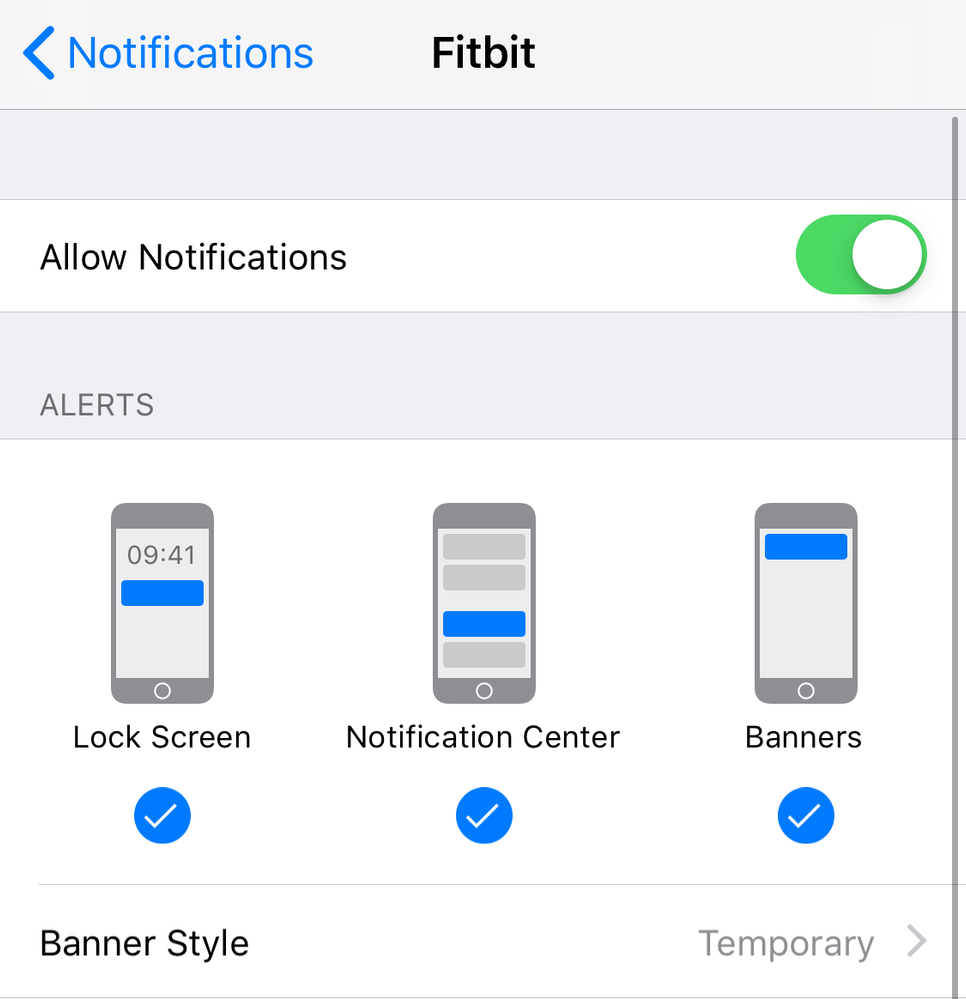
- Go to Settings > Notifications > Fitbit. Allow Notifications.
- Go to Settings > Bluetooth > [Your Fitbit] > enable “Share System Notifications.”
- On Android:
- Go to Settings > Apps > Fitbit > Notifications. Turn on all toggles.
- In the Fitbit app, tap your profile > your device > Notifications. Turn on the notifications you want.
Extra detail: If you have Focus or Priority modes set up on your phone, be sure the Fitbit app is allowed to bypass those as well.
5. Disable Do Not Disturb And Sleep Modes
- On your phone, turn off DND and Sleep/Bedtime modes.
- On your Fitbit, swipe down and check for DND, Sleep, or Focus icons. Make sure they’re off.
Example: If your Fitbit shows a tiny “crescent moon” icon, Sleep Mode is on—no notifications will appear.
A common mistake: Some users schedule DND or Sleep mode for nighttime but forget to turn it off in the morning, causing missed alerts all day.
6. Check App Notification Settings
- Open the Fitbit app.
- Tap your profile picture > your Fitbit device > Notifications.
- Make sure “Calls,” “Texts,” and “App Notifications” are ON.
- For “App Notifications,” select which apps (WhatsApp, Messenger, etc.) You want to get alerts from.
If you recently installed a new messaging or calendar app, revisit this section to add it to your notification list. Fitbits only show notifications from apps you specifically enable.
7. Review Battery Optimization Settings
Phones may block the Fitbit app to save power.
- On Android:
- Go to Settings > Apps > Fitbit > Battery > Unrestricted or “Don’t optimize.”
- On iPhone:
- Make sure Low Power Mode is off.
Important: If the Fitbit app is optimized, notifications may only arrive when the app is open.
On some Android devices (like Huawei or Xiaomi), you may need to lock the Fitbit app in the “Recent Apps” list to keep it alive in the background.
8. Re-pair Your Fitbit
- In the Fitbit app, remove (“forget”) your device.
- Remove the Fitbit from your phone’s Bluetooth list.
- Restart both devices.
- Re-add your Fitbit in the app.
This resets the Bluetooth and notification handshake.
Tip: Wait at least 30 seconds after removing the Fitbit before re-pairing, to allow your phone’s Bluetooth memory to clear out old connections.
9. Try A Test Notification
Most Fitbits let you send a test notification from the app:
- Fitbit app > your device > Notifications > Test Call or Test Message.
If you see the test, but not real notifications, the problem is with phone settings.
An overlooked detail: Some users only test with calls or texts, but forget to test app notifications (like WhatsApp or Gmail). Make sure to test the actual app you rely on most.
10. Check For App-specific Problems
Some apps need extra permissions. For example, WhatsApp on Android may need “Pop-up notifications” allowed. Go to app settings and enable all notifications.
On iOS, make sure the app is allowed to show notifications even when the phone is locked.
11. Avoid Multiple Paired Devices
Only connect your Fitbit to one phone at a time. If you switch between devices, disconnect the other one.
A common mistake: Leaving your Fitbit paired with an old phone can cause notifications to “choose” the wrong device, especially if both phones are nearby.
12. Reset Fitbit To Factory Settings (last Resort)
If nothing works, you can factory reset your Fitbit. This erases all data, so only do it if you’ve tried everything else.
- On your Fitbit: Settings > About > Factory Reset.
After resetting, set up your Fitbit as a new device and check notifications step by step.
Quick Reference: Notification Troubleshooting Steps
Here’s a summary for quick checks:
| Step | Action | Result |
|---|---|---|
| 1 | Check Bluetooth | Stable connection between phone and Fitbit |
| 2 | Restart Devices | Clears connection glitches |
| 3 | Update Software | Fixes known bugs |
| 4 | Check Permissions | Allows notification forwarding |
| 5 | Disable DND/Sleep | Ensures notifications are not blocked |
| 6 | Set App Notifications | Choose which alerts to receive |
| 7 | Adjust Battery Settings | Prevents app from sleeping |
| 8 | Re-pair Device | Resets notification connection |
| 9 | Test Notification | Checks if problem is fixed |
| 10 | Factory Reset | Last resort; erases Fitbit data |
If you get stuck at any step, pause and double-check each detail before moving on. Skipping steps can leave hidden issues unresolved.

Credit: www.exportersvyapar.com
Comparing Notification Reliability By Fitbit Model
Some Fitbits are more reliable with notifications than others. Here’s a comparison of popular models:
| Model | Notification Type | Known Issues | Best for |
|---|---|---|---|
| Versa 3 / Sense | Calls, texts, apps | Occasional Bluetooth drop | All-around use |
| Charge 5 | Calls, texts, apps | Battery optimization issues on Android | Fitness focus |
| Luxe | Calls, texts | App notification support limited | Slim design fans |
| Inspire 3 | Calls, texts, apps | Occasional missed notifications | Simple tracking |
| Ace 3 | Basic notifications | Limited support | Kids |
Tip: Higher-end models (like Versa or Sense) generally offer more reliable notification features.
Extra note: If notification reliability is your top priority, check user reviews for your phone model as well. Some phone brands work better with Fitbit than others due to differences in Bluetooth or background app management.
How Notifications Differ On Iphone Vs. Android
Fitbit works with both iOS and Android, but each system handles notifications a little differently. Here’s what you need to know.
Iphone
- Requires “Share System Notifications” enabled in Bluetooth settings.
- Only one device can be connected at a time.
- Notifications may be delayed if your phone is locked for a long time.
- Certain features (like quick replies) may not work.
A subtle detail: If you use Focus modes on iOS (like “Work” or “Sleep”), these can block notifications from reaching your Fitbit unless you add Fitbit as an allowed device.
Android
- Needs notification access permission.
- Battery optimization is more aggressive; you must disable it for Fitbit.
- Some Android skins (Samsung, Xiaomi) may block Fitbit in the background.
- Quick replies supported on some models.
Here’s a quick comparison:
| Feature | iPhone | Android |
|---|---|---|
| Call Alerts | Yes | Yes |
| Text Alerts | Yes | Yes |
| Quick Replies | No | Yes (some models) |
| Battery Optimization Issues | Rare | Common |
| Custom App Alerts | Limited | Wide support |
| System Notification Sharing | Manual | Automatic (with permission) |
Tip: If you use Android, always check battery and background settings after phone updates.
Another insight: On Android, some notifications may show up as “Silent” by default, which means your Fitbit might not vibrate. Adjust your app’s notification priority to ensure you get a noticeable alert.

Credit: www.saltlaketriclub.com
Advanced Tips For Reliable Fitbit Notifications
If you want to go beyond basic troubleshooting, here are some advanced tips to keep your notifications working smoothly.
Use A Stable Bluetooth Environment
- Avoid connecting your Fitbit to multiple devices (like a laptop and phone) at the same time.
- Keep your phone’s Bluetooth firmware up to date.
- Place your phone and Fitbit in the same room when possible.
Some users find that switching off Bluetooth on other nearby devices (like tablets) helps stabilize the Fitbit connection, especially in crowded wireless environments.
Keep The Fitbit App Open In The Background
- Do not “force close” the Fitbit app.
- On Android, lock the Fitbit app in your recent apps list (if your phone supports it).
Non-obvious insight: Some phones kill background apps aggressively—even if you don’t see it happening.
You can test if your phone is closing the Fitbit app: Open the app, then leave it running for a few hours. If notifications stop, check your phone’s battery or app management settings for hidden restrictions.
Prioritize Important Apps
- In the Fitbit app’s notifications settings, only enable the apps you really need.
- Too many notifications can overwhelm both you and your Fitbit, causing some to be missed.
If you’re missing critical alerts (like calls or texts), try disabling less important app notifications to see if reliability improves.
Watch Out For Updates
- After major phone or Fitbit software updates, check notification settings again. Sometimes updates reset permissions or Bluetooth connections.
It’s also good practice to visit Fitbit’s official support or community forums after updates, to see if other users are reporting similar issues.
Use Manufacturer Forums
If you have a persistent issue, check Fitbit’s official forums or your phone brand’s support pages. Many users report device-specific bugs that aren’t in the manual.
Some Android phone makers offer hidden “whitelists” for apps; searching their forums can reveal special instructions for keeping Fitbit notifications reliable.
Real-world Examples And Case Studies
Example 1: Android Battery Optimization Problem
Maria owns a Fitbit Charge 5 and a Samsung Galaxy. Notifications worked at first but stopped after a week. She discovered her phone was putting the Fitbit app to sleep to save battery. After setting Battery > Unrestricted for Fitbit, alerts returned.
Added detail: Maria also noticed that when her phone switched to “Medium power saving,” the problem returned. She set an exception for the Fitbit app, which solved it permanently.
Example 2: Iphone Notification Sharing Issue
John paired his Fitbit Versa 3 with his iPhone. He forgot to enable “Share System Notifications” in Bluetooth settings. After turning this on, he started getting calls and texts on his Fitbit.
Added insight: John also had “Focus” mode enabled for meetings. He learned to add Fitbit as an allowed device in Focus settings to avoid missing notifications during work hours.
Example 3: Multiple Device Confusion
Ali paired his Fitbit with both a work and a personal phone. Notifications were inconsistent. After only pairing with his main phone, the problem was solved.
Extra tip: If you change phones often, always remove your Fitbit from the old device’s Bluetooth list before pairing with a new one to avoid these conflicts.
When To Contact Fitbit Support
If you’ve tried all the steps above and Fitbit is still not getting notifications, it may be a hardware issue. Contact Fitbit support if:
- You see error messages or device won’t pair at all.
- Notifications only work sometimes, even after resets.
- The screen or vibration motor is not working.
Fitbit support may offer advanced diagnostics or a warranty replacement if your device is faulty.
You can visit the official Fitbit support page for more help:
When contacting support, have your device model, app version, and troubleshooting steps ready. This will help them diagnose your problem faster.
Preventing Notification Problems In The Future
A little prevention can save time later. Here’s how to keep your Fitbit notifications reliable:
- After updates, double-check notification permissions and Bluetooth connection.
- Avoid installing suspicious battery saver or cleaning apps.
- Keep both your Fitbit app and phone system updated.
- Use your Fitbit regularly; devices that go unused for days can lose Bluetooth pairing.
- If you change phones, always remove your Fitbit from the old device before pairing with the new one.
- Charge your Fitbit regularly. Low battery can sometimes cause features (including notifications) to turn off to save power.
Pro tip: Set a monthly reminder to review your Fitbit and phone notification settings. This can help you catch silent changes before you start missing alerts.
Frequently Asked Questions
Why Does My Fitbit Not Get Notifications When My Phone Is Locked?
Some phones block Bluetooth activity when locked, or restrict background apps to save power. On iPhone, make sure “Share System Notifications” is enabled. On Android, check battery optimization settings and allow Fitbit to run in the background.
Extra detail: Try setting your phone’s lock screen to “Show all notifications” so nothing is hidden while locked.
Can I Get Whatsapp Or Facebook Alerts On My Fitbit?
Yes, most newer Fitbits support app notifications. In the Fitbit app, go to Notifications > App Notifications and select WhatsApp, Facebook, or other apps. If you don’t see the app, check your phone’s notification settings.
Some models only support basic text and call notifications. Check your device’s manual if you’re unsure.
Do Fitbit Notifications Work Without My Phone Nearby?
No. Your Fitbit depends on Bluetooth connection to your phone for notifications. If your phone is off, far away, or Bluetooth is disabled, you won’t get alerts. Only Fitbit models with built-in cellular (very rare) can receive notifications independently.
Why Do Notifications Stop After A Phone Or App Update?
Updates can reset permissions, break Bluetooth pairing, or change battery settings. After any update, open the Fitbit app, check notification settings, and re-pair your device if needed.
Non-obvious insight: Sometimes updates add new battery-saving features that block background apps by default. Always check battery and notification settings after updating.
How Can I Get Support If Nothing Works?
If you’ve tried all troubleshooting steps and notifications still fail, contact Fitbit Support through their website or app. They can check for device-specific issues or help with warranty service. More info is available at the Fitbit Help Center.
Staying connected with your Fitbit is important—not just for convenience, but for safety and peace of mind. By understanding how notifications work, checking the right settings, and following these tips, you can make sure you never miss another important alert on your wrist.
With a few adjustments, your Fitbit will keep you in the loop, every day.