When you try to close an app on your Mac and it doesn’t respond, it can feel frustrating—especially if “Force Quit” doesn’t work either. Most Mac users expect that when an app freezes or stops working, the Force Quit option will close it. But sometimes, even this fails, leaving you with a stubborn app you can’t shut down. If you’re facing the App Not Force Quitting Mac problem, you’re not alone. This issue can lead to slow performance, system hangs, or even data loss if not handled carefully. Let’s look at why this happens, what you can do about it, and how to prevent it in the future.
Why Apps Refuse To Force Quit On Mac
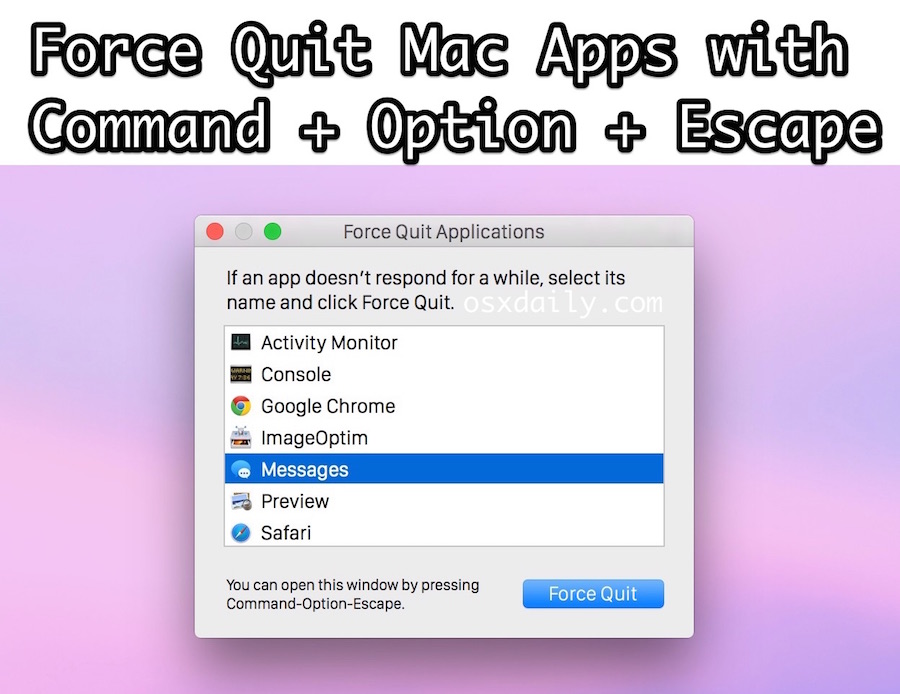
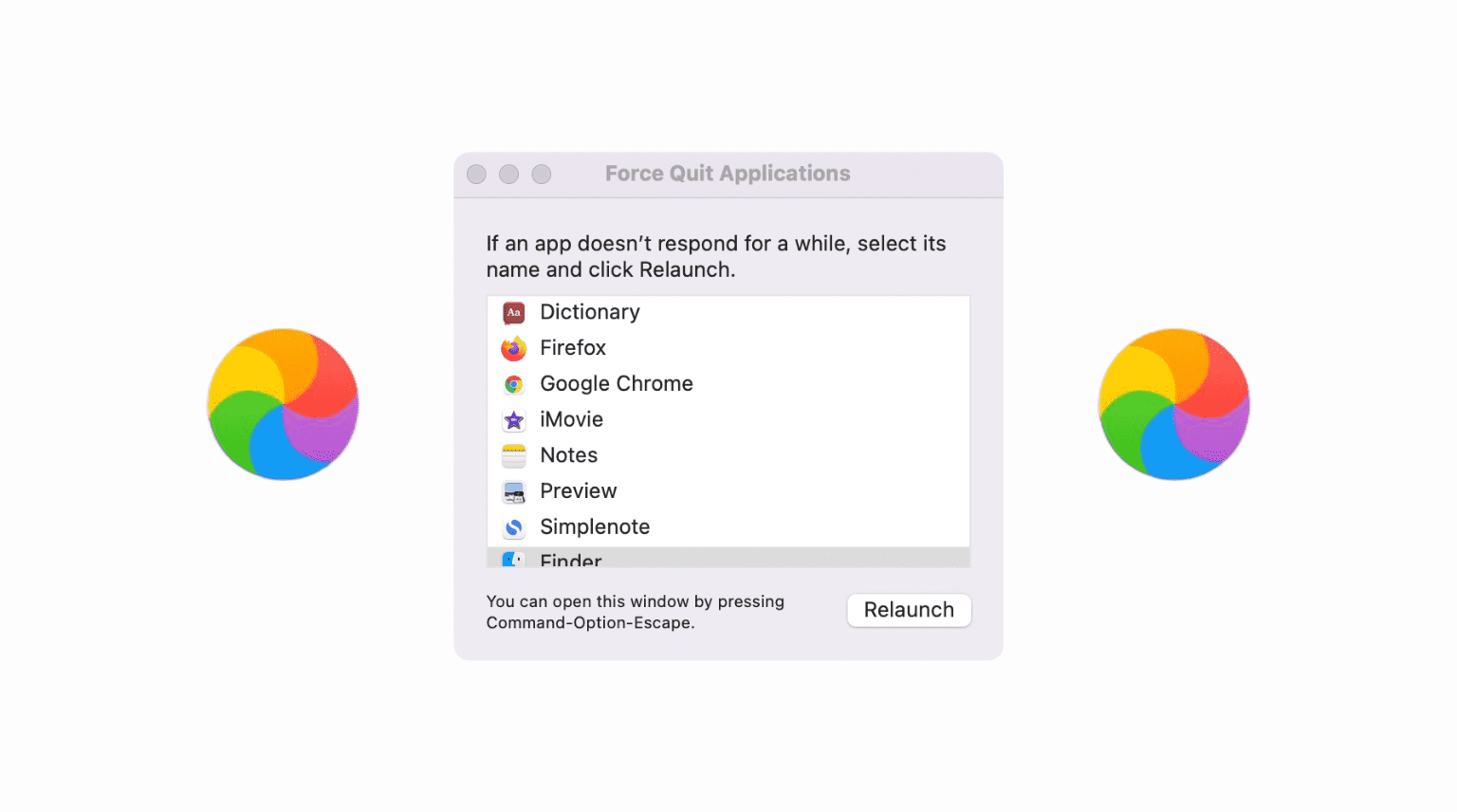
Usually, Force Quit works well—just press Command + Option + Esc, pick the app, and click Force Quit. But when an app ignores this, there’s a deeper problem. Understanding the reasons helps you fix and even avoid it later.
Common Causes
- System Resource Lock: Sometimes, an app is using a system resource (like a file or network connection) that is locked. The app waits for it to finish, but if the resource never becomes free, the app hangs.
- Kernel or System-Level Crash: If the app or a part of macOS crashes at a low level (the kernel), the usual Force Quit command may not work.
- Corrupted App State: Apps save their state to help you pick up where you left off. If this data is corrupted, the app might get stuck in a loop.
- Unresponsive Background Processes: Some apps run helper tools or background processes. If one of these freezes, the main app may not close.
- Hardware Issues: Failing RAM or storage can cause system-level hangs, making apps impossible to close with Force Quit.
- MacOS Bugs or Updates: Sometimes, a recent macOS update introduces bugs that affect app stability and responsiveness.
How Often Does This Happen?
While Apple doesn’t publish exact numbers, surveys and forums show that about 10–15% of Mac users encounter an app that refuses to Force Quit at least once a year. This is more common with resource-heavy apps like video editors or browsers with many tabs open.
Standard Ways To Force Quit Apps On Mac
Before diving into advanced solutions, it’s important to review all the standard methods for quitting apps on a Mac. Sometimes, a simple step is all you need.
Keyboard Shortcut
The fastest way is:
- Hold Command + Option + Esc
- Select the unresponsive app in the window that appears
- Click Force Quit
Dock Method
- Right-click (or Control-click) the app’s icon in the Dock
- Hold the Option key
- Click Force Quit in the menu
Activity Monitor
The Activity Monitor gives you more control:
- Open Spotlight with Command + Space
- Type “Activity Monitor” and press Enter
- Find the app in the list
- Click it, then click the X button at the top left
- Choose Force Quit
Apple Menu
- Click the Apple icon () in the top left corner
- Choose Force Quit
- Select the app and click Force Quit
These methods solve most problems. But if they don’t work, you need to try more advanced steps.
What To Do When Apps Refuse To Force Quit
If none of the standard ways work, your Mac might need deeper fixes. Here are practical steps you can take, moving from simple to more advanced.
Use Terminal To Kill The App
The Terminal is a powerful tool for ending stubborn apps.
- Open Terminal (use Spotlight or find it in Applications > Utilities)
- Type `ps aux | grep [app name]` (replace [app name] with the app, like Safari)
- Find the app’s PID (Process ID) in the list
- Type `kill -9 [PID]` (replace [PID] with the number you found)
Example:
ps aux | grep Safari
kill -9 1234
This command forcibly ends the app, even if macOS cannot.
Try Logging Out Or Restarting
If Terminal doesn’t work:
- Click the Apple icon and choose Log Out
- If log out fails, try Restart
Note: Sometimes, the frozen app prevents log out or restart. If this happens, move to the next step.
Safe Mode Boot
Starting in Safe Mode can stop apps or processes that refuse to close.
- Shut down your Mac
- Turn it on and immediately press and hold Shift
- Release Shift when you see the login window
Safe Mode disables non-essential software. After starting, try Force Quit or Activity Monitor again.
Force Shutdown
As a last resort, hold down the Power button for 5–10 seconds. Your Mac will turn off. This is not ideal, but it works if nothing else does.
Caution: You may lose unsaved data. Only use this if all else fails.
Advanced Troubleshooting For Persistent App Freezes
If you often face the issue of apps not quitting, deeper troubleshooting is needed. Here’s how to diagnose and fix the root causes.
Check For Software Updates
Outdated apps or macOS versions can cause conflicts.
- Open the App Store and check for app updates
- Go to System Settings > General > Software Update for macOS updates
Updating often fixes bugs that cause freezing.
Remove Problematic App Preferences
Sometimes, an app’s preference files get corrupted.
- Quit the app (or force it, if possible)
- Go to Finder
- Press Command + Shift + G
- Type `~/Library/Preferences/` and press Enter
- Find the file named like `com. [appname].plist` (e.g., `com.apple.Safari.plist`)
- Move it to the Trash
Restart the app. It will create a new preferences file.
Clear System Cache
A full or corrupt cache can cause system slowdowns and app freezes.
- In Finder, go to Go > Go to Folder
- Type `~/Library/Caches/` and delete the folders for problem apps
Tip: Do not delete system cache folders you’re not sure about.
Run Disk Utility First Aid
Storage issues can lead to unresponsive apps.
- Open Disk Utility (Applications > Utilities)
- Select your main disk
- Click First Aid
This checks for and repairs disk errors.
Check Activity Monitor For High Resource Use
Apps that use too much CPU, Memory, or Disk can freeze.
Here’s a quick comparison of normal vs problematic resource usage:
| Resource | Normal Usage | Problematic Usage |
|---|---|---|
| CPU | < 50% per app | 100% (or near) for long periods |
| Memory (RAM) | < 2GB per app | 4GB+ (especially on 8GB Mac) |
| Disk | Occasional spikes | Constant high read/write |
If you see an app stuck at high CPU or memory, it’s likely causing the freeze.
Reinstall The Problem App
If one app always freezes, uninstall it:
- Drag the app from Applications to Trash
- Empty the Trash
- Download the latest version from the official site or App Store
- Reinstall
This replaces any corrupted files.
Scan For Malware
Rare, but sometimes malware causes apps to hang or not close. Use a trusted tool like Malwarebytes to scan your Mac.
Create A New User Account
If the problem is user-specific, a new account can help isolate it.
- Go to System Settings > Users & Groups
- Click Add Account
- Set up a new Standard user
- Log in as the new user and check if the issue happens
If not, your original user account has a configuration issue.
How To Prevent Apps From Getting Stuck
Prevention is better than cure. Here are practical tips to reduce the chances of apps refusing to quit.
Keep Software Updated
Developers release updates to fix bugs and improve stability. Make it a habit to update both macOS and your apps regularly.
Don’t Overload Your Mac
Running too many apps or browser tabs at once can use up RAM and CPU, making freezes more likely. Close apps you’re not using.
Watch For Warning Signs
If an app starts running slowly, shows “Not Responding,” or uses lots of CPU in Activity Monitor, save your work and restart it.
Monitor Free Space
macOS needs free disk space for virtual memory and cache. Aim for at least 10–15% free space on your startup disk.
Avoid Unsupported Plugins Or Add-ons
Some third-party plugins can cause apps to crash or freeze. Only install well-reviewed, updated plugins from trusted sources.
Regularly Restart Your Mac
A simple restart clears temporary files and resets memory. Try to restart your Mac at least once a week.
When To Seek Professional Help
Most users can solve “App Not Force Quitting Mac” problems with the steps above. But if your Mac often freezes, apps won’t close, or you see system errors, it might be time to get help.
Signs You Need Expert Support
- The Mac won’t start or frequently crashes
- You see kernel panic messages or repeated errors
- Multiple apps freeze at once, often
- You notice hardware problems (strange noises, overheating)
Apple offers support at their stores and online. For hardware checks, book a Genius Bar appointment or contact Apple Support.
Impact Of Unresponsive Apps On Mac Performance
It’s tempting to ignore a frozen app, but this can affect your whole system. Here’s what can happen if you leave an unresponsive app running:
- System Slowdown: The app keeps using memory or CPU, making other apps sluggish.
- Battery Drain: On laptops, stuck apps can drain the battery quickly.
- Data Loss: If you force shutdown, you may lose unsaved work in other apps.
- Corrupted Files: Sometimes, files the app is using become corrupted if closed incorrectly.
Here’s how a stuck app can affect system resources over time:
| Time Stuck | CPU Usage | Memory Usage | System Impact |
|---|---|---|---|
| 5 min | High (spikes) | Moderate | Minor slowdown |
| 30 min | Consistently High | High | Major lag, risk of crash |
| 1+ hr | Very High | Very High | Possible system freeze |
As you can see, the longer you wait, the bigger the problem.
Non-obvious Insights: What Most Beginners Miss
When dealing with unresponsive apps, beginners often overlook two key facts:
- Background Services Matter: Some apps have helper tools or background daemons. Killing just the main app may not solve the problem—you may need to end these related processes in Activity Monitor.
- External Devices Can Cause Freezes: If you have external drives, printers, or USB accessories connected, a malfunction in these can cause certain apps to hang. Try disconnecting unnecessary devices when troubleshooting.
Another point: if you use cloud sync tools (like Dropbox or iCloud), a syncing error can freeze apps trying to access those files. Check your cloud status if you notice repeated problems.
Best Practices For Using Force Quit Safely
Using Force Quit is powerful, but not always risk-free. Here’s how to use it safely:
- Always try to save your work first: Even if the app seems frozen, wait a minute to see if it recovers.
- Use Force Quit only on the problem app: Don’t close system processes unless you know what they do.
- Restart after multiple Force Quits: If you’ve had to Force Quit several apps, restart your Mac to clear out any issues.
Force Quit is a helpful tool, but overuse can hide deeper issues. If you need it often, look for patterns or triggers—certain files, websites, or actions may cause the problem.
App-specific Issues: Some Apps Are Harder To Quit
Not all apps behave the same way when frozen. Here are examples of apps known to be more stubborn:
- Web Browsers (Chrome, Firefox, Safari): Often have multiple background processes. You may need to quit each process in Activity Monitor.
- Adobe Creative Cloud Apps: Heavy use of RAM and system resources; sometimes require a full restart.
- Microsoft Office: Can hang if a document stored on a network drive becomes unavailable.
- System Preferences: Rarely, even macOS tools can freeze, often due to a bad preference file.
If you notice one app is often a problem, check their official forums or support sites for known issues.

Credit: www.youtube.com
The Role Of System Updates And Compatibility
Sometimes, after a macOS update, certain apps become less stable. This happens if the app hasn’t yet been updated to work with the latest system. Before major system updates:
- Check that your important apps are compatible with the new version
- Wait a few weeks after release before updating, to let developers fix bugs
This is especially important for work-critical software.
Hardware Factors: When Your Mac’s Specs Matter
Older Macs or those with less RAM are more likely to have apps freeze and refuse to quit. Here’s a quick look at how hardware affects app stability:
| Mac Type | RAM | App Stability | Freeze Risk |
|---|---|---|---|
| Older MacBook Air (2015) | 4GB | Lower | High |
| New MacBook Pro (M1 or M2) | 8GB+ | High | Low |
| iMac (2020) | 16GB | Very High | Very Low |
If your Mac often struggles, consider upgrading RAM (if possible) or closing extra apps.
How Macos Handles Force Quit Differently Than Windows
On Windows, the Task Manager often ends any app instantly. On Mac, Force Quit is user-friendly but sometimes less powerful. Here’s why:
- MacOS tries to let the app save work before closing, while Windows ends it immediately.
- System Integrity Protection (SIP): MacOS protects system files and processes, making some apps harder to kill.
- Background processes: Many Mac apps split work into several helper tools.
This means that while Force Quit is safe, it may not always be as “final” as Windows users expect. If you’re used to Windows, learn to use Activity Monitor and Terminal for stronger control.
Tips For Power Users
If you’re comfortable with Terminal and want more control, here are extra tips:
- Use `htop` (install via Homebrew) for a more detailed process view.
- Learn about launch daemons and agents in `/Library/LaunchDaemons/` and `/Library/LaunchAgents/`—sometimes a stuck app has a helper here.
- Use `sudo kill -9 [PID]` if a regular kill doesn’t work (requires admin password).
Warning: These are advanced steps. Only use them if you know what you’re doing.
Credit: osxdaily.com
Useful Tools For Diagnosing Unresponsive Apps
Several third-party tools can help you spot and solve stuck apps:
- CleanMyMac X: Offers system cleaning and real-time monitoring.
- IStat Menus: Shows detailed CPU, RAM, and app stats in the menu bar.
- Malwarebytes: Checks for malware that can cause freezes.
- OnyX: For advanced system cleanup and maintenance.
Most users don’t need these, but they can help if you face frequent issues.
Real-world Example: A Stubborn Browser Freeze
Let’s say you’re using Chrome with 20 tabs open. Suddenly, Chrome stops responding. You try Command + Option + Esc, but Chrome won’t close. You open Activity Monitor and see several Chrome Helper processes, all using lots of RAM. You Force Quit each one, but some remain.
Here’s how to handle it:
- Try Terminal: `killall “Google Chrome”`
- If that fails, check for Chrome Helper processes in Activity Monitor and kill them one by one.
- If Chrome still refuses to close, log out or restart.
- If your work is saved, try a full shutdown.
This real-world workflow is often needed with browsers, which spawn many background helpers.
Frequently Asked Questions
What Should I Do If Force Quit Is Not Working For Any App On My Mac?
If Force Quit fails for all apps, your system may be frozen or dealing with a deeper issue. Try using Activity Monitor or Terminal to close the problem app. If your Mac still won’t respond, a restart or force shutdown may be necessary.
Will Force Quitting An App Damage My Mac Or Files?
Force quitting usually doesn’t harm your Mac, but you may lose any unsaved data in the app. If you force quit system processes or do it often, you might cause instability or file corruption. Always save your work first when possible.
How Can I Prevent Apps From Freezing In The Future?
Keep your macOS and apps updated, avoid running too many programs at once, and maintain enough free disk space. Watch for warning signs like slowdowns or high CPU use. Restart your Mac regularly to keep it running smoothly.
Is There A Way To Force Quit System Processes?
System processes are protected by macOS for stability. You can try using Activity Monitor or Terminal with `sudo kill -9 [PID]`, but this is risky and can cause system problems. Only attempt this if you understand the risks.
Where Can I Find More Help For Persistent Mac Issues?
Apple’s official support site (Apple Support) offers guides and live help. You can also visit an Apple Store or use the Apple Community forums for advice from other users.
If you face the “App Not Force Quitting Mac” issue, don’t panic. With the right steps, you can usually resolve it safely and keep your Mac running well. If problems are frequent, look for deeper causes and don’t hesitate to seek professional help.
By staying proactive, you’ll avoid most app freezes and enjoy a smoother Mac experience.
Credit: www.idownloadblog.com