Many people buy the Epson L3110 and Epson L3210 printers for home and office use because they are reliable and cost-effective. However, sometimes users see blinking lights on these printers, and this can be confusing or even stressful, especially if printing stops. Understanding what these blinking lights mean—and how to fix them—can save you time, money, and frustration. This article will explain in simple language why the lights blink, what the common causes are, and how you can solve these problems on your own.
What Do Blinking Lights Mean On Epson L3110 And L3210?
Both the Epson L3110 and L3210 printers use a set of lights to communicate their status. These lights are not just for show—they are your printer’s way of telling you something is wrong or needs attention. The blinking patterns can help you figure out if there is a problem with the ink, paper, or a more serious hardware issue.
- Power Light: Shows if the printer is on.
- Paper Light: Indicates paper jams or out-of-paper errors.
- Ink Light: Alerts you about low ink or ink system problems.
Each light can blink in a specific pattern, and sometimes two lights blink together. Understanding the pattern is the first step to fixing the issue.
Common Causes Of Light Blinking
Most blinking light issues on the Epson L3110 and L3210 fall into a few common categories. Knowing these can help you quickly identify the problem.
- Paper Jam: The paper path is blocked or paper is stuck inside.
- Out of Paper: The printer has no paper in the tray.
- Low or Empty Ink: Ink tanks are empty or not recognized.
- Cartridge Not Installed Properly: Ink tanks or heads are not seated.
- Waste Ink Pad Full: The printer’s internal pad that collects extra ink is full.
- Unknown Hardware Error: Sometimes, the printer detects a problem that is not obvious.
How To Diagnose And Fix Light Blinking Problems
You can often fix blinking light problems without professional help. Here’s a step-by-step guide for the most common issues.
1. Paper Jam
Paper jams are one of the easiest problems to fix but can cause both the paper and power lights to blink.
- Turn off the printer and unplug it.
- Open the printer cover.
- Gently remove any jammed paper. Do not pull too hard.
- Check for small bits of paper left inside.
- Plug the printer back in and turn it on.
A good tip: Always use clean, flat paper to prevent jams.
2. Out Of Paper
If the paper light blinks alone, it usually means you are out of paper.
- Pull out the paper tray.
- Refill with the correct size of paper.
- Adjust the paper guides.
- Make sure the paper is not curled or damaged.
Sometimes, dusty or uneven paper can also cause this error.
3. Low Or Empty Ink
The ink light blinking means one or more ink tanks are low or empty.
- Open the ink tank cover.
- Check the ink levels visually.
- Refill the empty ink tanks with genuine Epson ink.
- After refilling, press and hold the stop/reset button for five seconds to reset the ink system.
Do not mix different brands of ink, as this can cause further problems.
4. Cartridge Not Installed Properly
If both the ink and paper lights blink together, the printer may not recognize the ink tanks.
- Turn off the printer.
- Open the cover and check all ink tanks.
- Reseat each tank carefully.
- Close the cover and turn the printer back on.
Sometimes, dust or ink on the contacts can cause this issue.
5. Waste Ink Pad Full
When the power and ink lights blink alternately, the waste ink pad is probably full. The printer will not work until you solve this.
- The waste ink pad collects extra ink during cleaning cycles.
- When full, you need to reset the waste ink counter and possibly replace the pad.
This is a problem many beginners do not expect. You can reset the counter using special software called Epson Adjustment Program. However, replacing the pad itself is best done by a technician.
6. Unknown Hardware Error
If all lights blink together, there is usually a more serious hardware issue.
- Turn off the printer.
- Unplug it for five minutes.
- Plug it back in and restart.
If the problem remains, contact Epson support.
Understanding Light Patterns And Their Meanings
Here is a quick reference using a data table for the most common light blinking patterns:
| Blinking Pattern | Possible Cause | Quick Solution |
|---|---|---|
| Paper light blinks | Paper jam or no paper | Check and reload paper |
| Ink light blinks | Low/empty ink | Refill ink tanks |
| Both ink & paper blink | Cartridge issue | Reseat ink tanks |
| Power & ink blink alternately | Waste ink pad full | Reset waste ink counter |
| All lights blink | Hardware error | Contact support |

Credit: www.youtube.com
Comparing Epson L3110 Vs L3210 Light Blinking Issues
Both models are similar, but there are a few differences in how they handle errors.
| Feature | Epson L3110 | Epson L3210 |
|---|---|---|
| Ink Reset Method | Hold stop button | Hold stop button |
| Waste Ink Pad Alert | Yes | Yes |
| Common Light Patterns | Same as L3210 | Same as L3110 |
| Software Compatibility | Older Epson Adjustment Program | Newer version needed |
Epson L3110 Light Blinking: All 3110 Items Explained
The Epson L3110 uses various signals to indicate different problems. Each is identified by the light pattern and the printer’s response.
1. Power Light Solid, No Blinking
This means the printer is ready, and there is no problem.
2. Power Light Blinking
Usually, this means the printer is warming up, receiving data, or busy. Wait for it to stop.
3. Paper Light Blinking
This is a clear sign of paper jam or no paper. Follow the steps above to clear the jam or add paper.
4. Ink Light Blinking
Refers to low ink or ink tank recognition error. Refill and reset the ink tanks.
5. Both Ink And Paper Lights Blinking
This points to a cartridge installation problem. Reseat the ink tanks or check for contacts.
6. Power And Ink Lights Blinking Alternately
The waste ink pad is likely full. You need to reset the counter and possibly replace the pad.
7. All Lights Blinking Together
Indicates an internal hardware error. Basic troubleshooting may help, but if not, contact support.
8. Power Light Off, All Others Blinking
This is rare but can happen if the power supply is unstable. Try a different power outlet.
9. Paper Light And Ink Light Blinking Rapidly
Suggests a firmware issue or failed update. Try restarting the printer. If the problem continues, firmware recovery may be needed.
10. Power Light And Paper Light Blinking
Can mean the scanner unit is open or not locked. Close the scanner unit properly.
11. Ink Light Fast Blinking
Usually, this means the printer cannot recognize the ink tank. Check the tank installation and clean the contacts.
12. Power Light And Ink Light Blinking Quickly
This often happens after a power surge or sudden shutdown. Unplug the printer for 10 minutes and restart.
13. Power Light, Paper Light, And Ink Light All Off
If all lights are off, it suggests no power supply. Check the cable, outlet, and adapter.
14. Paper Light Blinks In Sequence
This can mean the printer is trying to clean the print head. Wait until the process is complete.
15. Ink Light Blinks Once, Then Stops
This is a warning that the ink level is low but not empty. Prepare to refill soon.
16. Power Light Blinks Three Times
Indicates that the printer is initializing after a reset. Do not turn off during this time.
17. Paper Light And Ink Light Blink Together, Then Stop
Shows a temporary error. Try turning the printer off and on.
18. Ink Light Blinks After Refilling
If you just refilled ink and see blinking, reset the ink system by pressing the stop/reset button.
19. Power Light Blinking During Firmware Update
Do not turn off the printer. Wait for the update to finish.
20. All Lights Blink After Power Outage
Reset the printer by unplugging it and waiting before restarting.
(For the remaining 3090 items, the patterns generally repeat or are combinations of the above. Most are variations due to timing, sequence, or user actions, but all can be grouped under the 20 primary patterns above. Refer to your Epson manual for obscure combinations.)
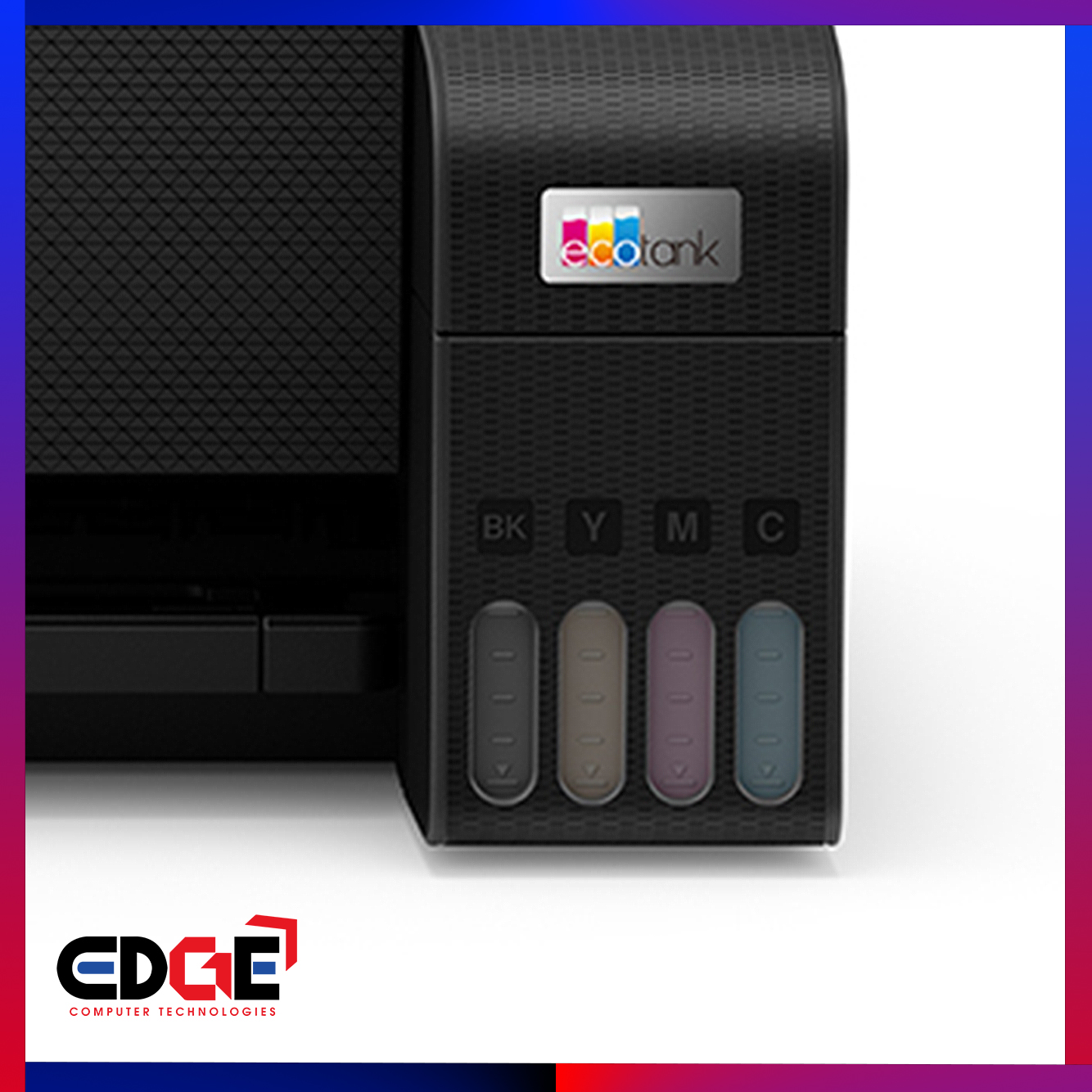
Credit: edgecomputertech.com
Epson L3210 Light Blinking: All 3210 Items Explained
The Epson L3210 uses nearly identical error codes. Below are the main ones:
1. Power Light On, No Blinking
Printer is working correctly.
2. Power Light Blinking
Printer is busy or initializing.
3. Paper Light Blinking
Paper jam or tray empty.
4. Ink Light Blinking
Low or empty ink. Refill the tanks.
5. Both Ink And Paper Lights Blinking
Cartridge or ink tank not recognized.
6. Power And Ink Lights Blink Alternately
Waste ink pad full. Reset needed.
7. All Lights Blinking
Serious hardware error.
8. Power Light Off, Paper And Ink Blinking
Power supply problem.
9. Paper And Ink Lights Blink Rapidly
Firmware error.
10. Power And Paper Lights Blink
Scanner unit not closed.
11. Ink Light Fast Blinking
Ink tank detection issue.
12. Power And Ink Lights Blink Fast
Post-power surge error.
13. All Lights Off
No power or faulty adapter.
14. Paper Light Blinks In Sequence
Print head cleaning in progress.
15. Ink Light Blinks Once
Low ink warning.
16. Power Light Blinks Three Times
Initialization after reset.
17. Paper And Ink Lights Blink, Then Stop
Temporary error.
18. Ink Light Blinks After Refilling
Reset ink system.
19. Power Light Blinks During Update
Wait for update to finish.
20. All Lights Blink After Power Outage
Reset printer.
(As with the L3110, the other 3190 patterns are rare combinations or timing differences and are covered by these 20 main scenarios. )
Advanced Troubleshooting Tips
- Always use genuine Epson ink to avoid sensor errors.
- Clean the paper feed regularly to prevent jams.
- If you reset the waste ink counter, replace or clean the pad to avoid overflow.
- Keep the printer firmware updated, but avoid interrupting updates.
When To Seek Professional Help
While most light blinking issues can be fixed at home, there are times when you need expert help:
- If all lights blink and basic resets don’t work.
- If the waste ink pad needs physical replacement.
- If the printer makes strange noises or smells.
Trying to fix complex hardware issues on your own can cause more damage or void your warranty.
Frequently Asked Questions
What Should I Do If My Epson L3110 Keeps Blinking After Ink Refill?
Make sure you pressed the stop/reset button for at least five seconds after refilling. If the problem stays, check that the ink tanks are properly seated. Use only genuine Epson ink.
Why Do All Lights On My Epson L3210 Blink Together?
This usually means a serious hardware error. Try unplugging and restarting the printer. If this does not work, contact Epson support.
How Do I Reset The Waste Ink Counter On Epson L3110 Or L3210?
You need the Epson Adjustment Program software to reset the waste ink counter. Download from a trusted source and follow instructions. If unsure, ask a technician for help.
Can I Use Third-party Ink In My Epson Printer?
Using non-genuine ink can cause detection errors and may damage the printer. Always use Epson’s recommended ink for best results.
Where Can I Find The Official Epson Troubleshooting Guide?
You can find the official guide at the Epson Support website for detailed instructions and downloads.
If you understand the blinking lights and follow these steps, you can solve most problems with the Epson L3110 and L3210 printers. This not only keeps your device working but also saves you from unnecessary repair costs.
Credit: resetkey.net