A small, blinking red light on your Blink camera can quickly get your attention. But what does it really mean? You’re not alone if you’ve found yourself worried when you notice this light. Many people wonder if it’s a sign of a problem, a normal camera behavior, or something more serious. This guide explains why your Blink camera red light is blinking, what each pattern means, and how to fix common issues. With clear steps, practical tips, and answers to frequent questions, you’ll know exactly what to do the next time you see that mysterious red light.
Understanding The Blink Camera Red Light
Blink cameras use LED lights to communicate with users. Each color and pattern has a purpose. The red light is one of the most important indicators. When it blinks, it’s trying to tell you something—usually about the camera’s connection, setup process, or a problem that needs attention.
What Triggers The Red Light?
The red light on a Blink camera can blink for several reasons:
- Powering on or resetting: The camera shows a red light when it starts or after a reset.
- Wi-Fi issues: Blinking red often means the camera has lost its Wi-Fi connection.
- Setup mode: During initial setup, the red light blinks until the camera connects.
- Low battery: Some models flash red when battery power is low.
- Motion detected (rare): In specific settings, a red light may blink when motion is captured.
Understanding the meaning of the red light depends on the context and the pattern you see.
Blink Camera Red Light Patterns And Their Meanings
Not all red light blinks are the same. The pattern—how fast it blinks, how long it stays on, or if it’s steady—can help you diagnose the camera’s status.
Here’s a quick comparison of the most common red light patterns and what they mean:
| Red Light Pattern | Possible Meaning | Action Needed |
|---|---|---|
| Slow blinking | Camera in setup mode | Complete setup via Blink app |
| Rapid blinking | Wi-Fi connection lost | Check network and reset camera |
| Red light stays on | Low battery or hardware issue | Replace batteries or contact support |
| Blinks when motion detected | Motion alerts enabled | Optional, can disable in settings |

Credit: support.blinkforhome.com
Main Reasons For Blink Camera Red Light Blinking
Let’s go deeper into the main causes behind a blinking red light. Knowing the real reason makes troubleshooting much faster.
1. Wi-fi Connection Problems
The most common reason for a red blinking light is a lost or weak Wi-Fi signal. Blink cameras need a stable internet connection to work. If the camera can’t connect, it shows a red light to alert you.
Common causes include:
- Router is too far from the camera.
- Wi-Fi password changed recently.
- Home network is offline or unstable.
- Interference from walls or other electronics.
Non-obvious insight: Even a small change in your home’s Wi-Fi (like moving a router or adding a new device) can cause the camera to lose its connection.
2. Camera Setup Or Reset
When setting up a new Blink camera or after a factory reset, the device shows a blinking red light. This means it’s in setup mode and waiting to connect.
If you see this during setup, it’s normal. But if it happens after your camera was working, it may mean the device lost its settings and needs to be reconnected.
3. Low Battery Warning
Some Blink cameras flash a red light when batteries are low. This is less common but important. If you ignore it, the camera could stop working at any time.
Non-obvious insight: Using non-rechargeable lithium AA batteries (the type Blink recommends) is important. Regular alkaline batteries may cause false low battery warnings.
4. Hardware Or Firmware Issues
A steady red light that doesn’t go away, or strange blinking after a recent update, can point to hardware or firmware problems. This is rare but possible after a power surge or failed update.
How To Fix A Blinking Red Light On Blink Camera
Fixing the problem depends on the cause. Here are step-by-step solutions for each main issue.
Step 1: Check Your Wi-fi Connection
- Make sure your Wi-Fi network is working with other devices.
- Move your camera closer to the router if possible.
- Restart your router and wait for a stable connection.
- Use the Blink app to check the camera’s signal strength.
If the camera reconnects, the red light should stop blinking.
Step 2: Complete The Setup Process
If your camera is new or has been reset:
- Open the Blink app.
- Follow the instructions to add a new device.
- Scan the QR code on the camera.
- Wait for the camera to connect. The red light should turn off or change to blue (depending on the model).
Step 3: Replace The Batteries
- Remove the back cover.
- Take out the old batteries.
- Insert new, high-quality lithium AA batteries.
- Wait for the camera to restart.
If the red light remains after battery replacement, check for other issues.
Step 4: Update Firmware (if Needed)
- Open the Blink app.
- Go to camera settings.
- Look for firmware updates and install if available.
- Restart the camera after updating.
Some rare problems resolve after a firmware update.
Step 5: Reset The Camera
If nothing else works, try a reset:
- Press and hold the reset button on the camera for 10–20 seconds.
- Wait until the red light blinks, then follow setup steps in the app.
Warning: Resetting will remove the camera from your account, so you’ll need to set it up again.
When To Contact Blink Support
If the red light keeps blinking after following all steps above, it may be a hardware issue. Contact Blink support if:
- The red light never turns off, even after a reset.
- The camera gets hot or makes strange noises.
- You see error messages in the app that don’t go away.
Support can run deeper diagnostics or arrange a replacement if your camera is under warranty.
How Blink Camera Red Light Differs By Model
Blink has several camera models, including Blink Indoor, Blink Outdoor, Blink Mini, and Blink Video Doorbell. The red light behavior can be slightly different.
Here’s a quick comparison to help you:
| Camera Model | Red Light Location | Common Causes for Blinking |
|---|---|---|
| Blink Indoor/Outdoor | Front LED | Wi-Fi loss, setup, low battery |
| Blink Mini | Below lens | Setup, network issues |
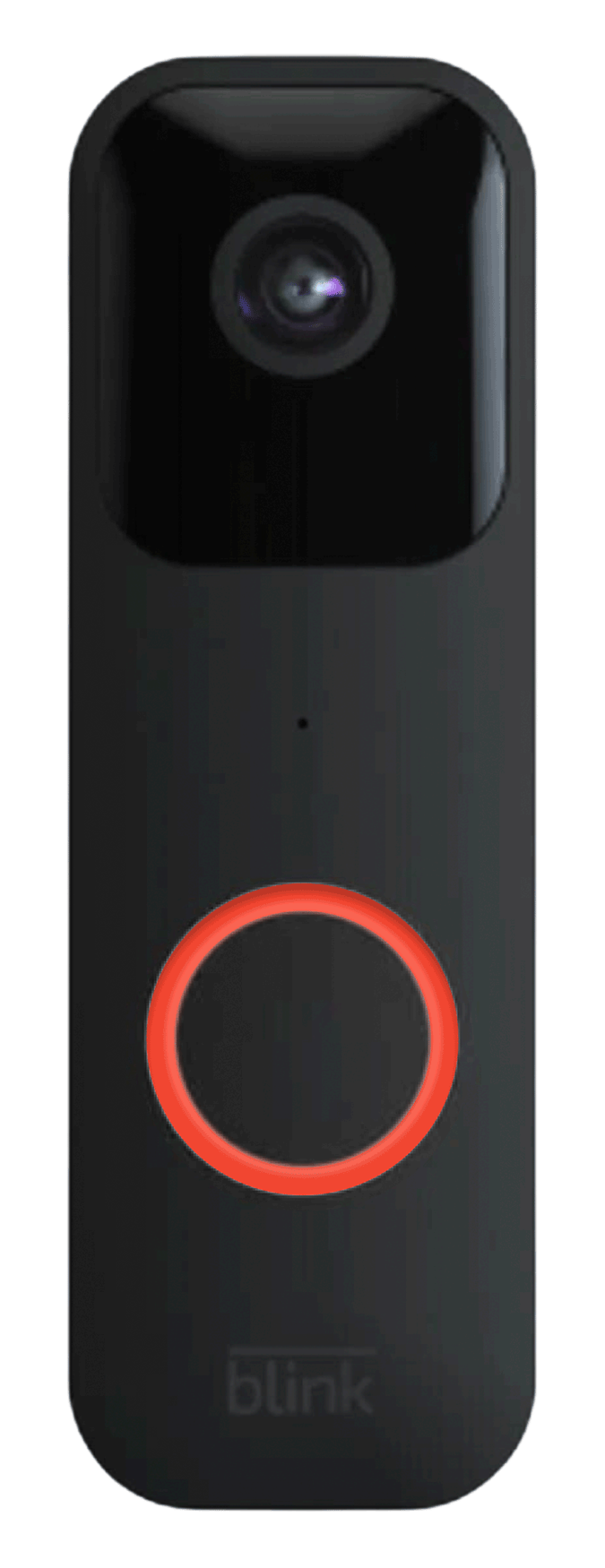
| Blink Video Doorbell | Ring light | Setup, Wi-Fi issues |
Tip: Always check your model’s manual if you’re unsure. The meaning of the red light can change based on the camera type.
Preventing Future Red Light Issues
It’s easier to prevent problems than fix them. Here are some simple ways to keep your Blink camera running smoothly:
- Keep your Wi-Fi strong: Place your camera within 20 feet of the router if possible.
- Use the right batteries: Only use recommended lithium AA batteries for outdoor and indoor models.
- Update regularly: Check for firmware updates in the Blink app every few months.
- Protect from weather: For outdoor cameras, use weatherproof covers to prevent moisture damage.
- Avoid frequent resets: Only reset your camera if you really need to.
Real-world Example: Solving A Blinking Red Light
Imagine Sarah, who installed her Blink Outdoor camera near her garage. One day, she noticed the red light blinking quickly. Her phone app said the camera was offline.
What she did:
- Checked her Wi-Fi—her router had rebooted and changed passwords.
- Updated the password in the Blink app.
- The red light stopped blinking, and her camera was back online.
Lesson: Most red light issues are related to network changes or low batteries. Simple checks can save you time.
Credit: support.blinkforhome.com
Why The Red Light Matters For Security
The red blinking light is more than just a warning. It’s a key part of your home security system. If your camera isn’t working, you might miss important events or alerts.
- A working camera helps you feel safe.
- Fixing the red light quickly means less time with your camera offline.
- Understanding the signals makes you a more confident system owner.
Common Mistakes To Avoid
Some mistakes can make a blinking red light worse or harder to fix:
- Using cheap or wrong batteries.
- Ignoring the red light for too long.
- Resetting the camera without trying simple fixes first.
- Not updating the Blink app or firmware.
If you avoid these, your camera will run better and last longer.
Additional Resources
If you want even more details, the official Blink support site is a good place to start: Blink Support.
Other trusted sources like Wikipedia can help you learn about Blink’s history and technology.
Frequently Asked Questions
Why Is My Blink Camera Blinking Red After Setup?
A red blinking light after setup usually means your camera can’t connect to Wi-Fi. Double-check your network name and password. If your Wi-Fi is working, try restarting both the camera and router.
Can I Turn Off The Red Light On My Blink Camera?
You cannot disable the red light completely, as it’s a built-in indicator. However, you can turn off the motion detection red light in the settings for some models.
How Do I Know If My Blink Camera Batteries Are Low?
A red light may blink or stay solid if batteries are low. The Blink app also shows battery status. Always use recommended lithium batteries for best results.
Does The Red Light Mean Someone Is Watching My Camera?
No, the red blinking light is not a sign that someone is viewing your camera. It’s only for status alerts like setup, connection issues, or battery warnings.
Is A Blinking Red Light Dangerous For My Camera?
A blinking red light itself isn’t harmful. But it means your camera isn’t working normally. Fix the problem quickly to keep your security system active.
If you follow the advice here, you can handle any Blink camera red light blinking issue with confidence. The next time you see that little red light, you’ll know exactly what to do.

Credit: www.youtube.com