If you own a PlayStation Vita (PS Vita) and suddenly see an orange light blinking on your device, it can be worrying. Many gamers experience this issue, but not everyone knows what it means or how to fix it. Some think their console is broken, while others believe it’s just a charging problem. Understanding the real cause can save you time, money, and stress.
This guide explains what the PS Vita orange light blinking actually means, why it happens, and how to fix it. You will learn about common causes, practical solutions, and even some advanced troubleshooting steps. Whether you are a casual gamer or an expert, you will find clear answers and tips to keep your PS Vita running smoothly.
What Does The Orange Light Mean?
The PS Vita uses different LED indicators to show the device’s status. The orange light blinking is one of them, but its meaning is often misunderstood. Usually, the orange light is related to charging, standby, or system errors.
Charging Status
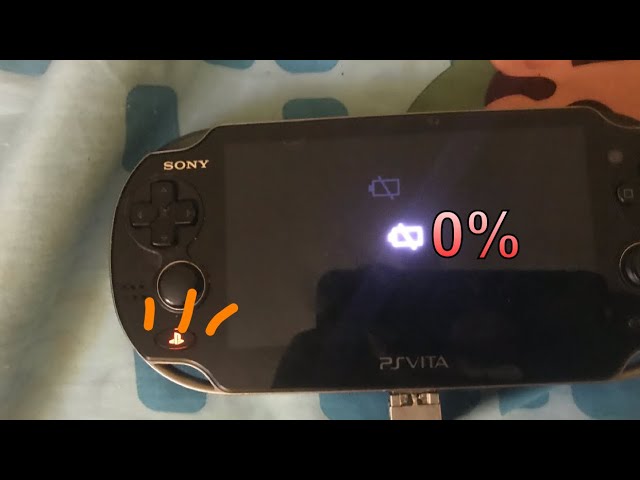
When you plug your PS Vita into a charger, the orange light should turn on. If it blinks instead of staying solid, it often means there is a problem with charging. A solid orange means the battery is charging normally.
A blinking orange light suggests the device is not getting a stable charge.
Standby Or Sleep Mode
The PS Vita sometimes blinks orange when it is in standby mode or sleep mode. This happens if the device is updating, downloading, or syncing data while not fully powered on. However, this is rare compared to charging issues.
System Errors
In some cases, a blinking orange light can signal a system error or hardware issue. This could be related to the battery, motherboard, or other internal components.
Common Causes Of Orange Light Blinking
Several reasons can make your PS Vita’s orange light blink. Understanding these causes helps you find the right solution.
1. Faulty Charger Or Cable
Most often, the problem is with the charger or USB cable. If the cable is damaged or the charger is not compatible, the device cannot charge properly.
2. Dirty Charging Port
Dust and debris inside the charging port can block the connection, causing the orange light to blink.
3. Battery Issues
If the battery is old, damaged, or not seated correctly, it may not charge. This can trigger a blinking orange light.
4. Software Glitches
Sometimes, software bugs or firmware updates can make the LED blink. This is less common but possible.
5. Overheating
The PS Vita can blink orange if it gets too hot. This is a safety feature to protect the device.
6. Power Supply Problems
If the wall outlet does not supply steady power, the device may not charge, causing the blinking light.
How To Fix Ps Vita Orange Light Blinking
There are several ways to fix the blinking orange light. Try these steps in order, from simple to advanced.
1. Check The Charger And Cable
First, make sure your charger and USB cable are working. Use the original charger if possible. If not, try a known good charger and cable.
- Use a different charger and cable to see if the problem goes away.
- Avoid cheap third-party chargers, as they may not supply enough power.
- Look for signs of damage like bent pins or frayed wires.
2. Clean The Charging Port
Dust and lint can block the connection. Use a soft brush or compressed air to clean the port. Be gentle to avoid damaging the pins.
- Unplug the device before cleaning.
- Do not use water or sharp objects.
3. Let The Device Cool Down
If your PS Vita feels hot, let it rest for 10–15 minutes. Overheating can cause charging problems and blinking lights.
4. Restart Or Reset The Device
A simple restart can fix some software issues. Hold the power button for 20 seconds to force a restart. If that does not work, try a soft reset.
- Press and hold the power button until the screen turns off.
- Wait a few seconds, then turn it back on.
5. Update System Software
Outdated software can cause glitches. Connect your PS Vita to Wi-Fi and check for system updates.
- Go to Settings > System Update.
- Install any available updates.
6. Try A Different Power Outlet
Sometimes the wall outlet is the problem. Plug your charger into another outlet to see if the device charges.
7. Replace The Battery (advanced)
If nothing works, the battery may be faulty. Replacing the battery is difficult and should only be done if you are comfortable with electronics. Otherwise, seek professional help.
- Buy a compatible PS Vita battery.
- Follow guides or ask a technician for help.
Comparing Charger And Cable Options
Choosing the right charger and cable is important. Here is a comparison of the most common options:
| Charger Type | Compatibility | Charge Stability | Price Range |
|---|---|---|---|
| Original Sony Charger | Perfect | High | $10–$20 |
| High-Quality Third-Party | Good | Medium | $5–$15 |
| Cheap Third-Party | Varies | Low | $2–$10 |
Always use a charger with correct voltage and amperage for your PS Vita. Cheap chargers can cause problems, including orange light blinking.
Credit: www.youtube.com
Signs Of Battery Failure
A blinking orange light can mean your battery is failing. Here are signs to watch for:
- The device only works when plugged in
- Battery drains quickly
- The device shuts off randomly
- The battery feels swollen or hot
If you see these signs, consider battery replacement.
How Long Should Charging Take?
The PS Vita usually takes about 2–3 hours to charge fully. If your device blinks orange for much longer, something is wrong.
| Charging Time | Expected LED Behavior | Possible Issues |
|---|---|---|
| 0–15 minutes | Solid Orange | Normal |
| 15–180 minutes | Solid Orange | Normal |
| Over 3 hours | Blinking Orange | Possible Battery or Charger Issue |
If charging takes much longer, check your charger, cable, and battery.
Firmware And Software Solutions
Sometimes, the orange light blinking is caused by software bugs. Updating firmware or resetting the device can help.
How To Update Firmware
- Make sure your PS Vita is connected to Wi-Fi.
- Go to Settings > System Update.
- Follow on-screen instructions.
How To Restore System
- Back up your data first.
- Go to Settings > Format > Restore the PS Vita System.
- This will wipe your device and may fix software issues.
Advanced Troubleshooting
If the above steps do not work, try these advanced solutions.
Rebuilding Database
This can fix corrupted files that cause blinking lights.
- Turn off the device.
- Hold the Power, PS, and Volume Up buttons together until the recovery menu appears.
- Select “Rebuild Database”.
Checking Internal Connections
Loose internal connections can cause blinking lights. Only try this if you are experienced with electronics.
- Open the device carefully.
- Check battery and motherboard connections.
Professional Repair
If you cannot fix the problem yourself, seek professional repair. Sony and local shops can help, but prices vary.
| Repair Type | Estimated Cost | Success Rate |
|---|---|---|
| Battery Replacement | $20–$40 | High |
| Motherboard Repair | $40–$80 | Medium |
| Port Cleaning | $10–$20 | High |
Extra Tips Most Beginners Miss
Many users overlook these important tips:
- Use a surge protector: Protects your PS Vita from power spikes.
- Avoid charging while gaming: This can cause overheating and blinking lights.
- Check for software updates regularly: Keeps your device running smoothly.
- Inspect cables often: Even small damage can cause charging problems.
These steps prevent future issues and keep your PS Vita healthy.
When To Replace Your Ps Vita
If your device shows blinking orange light even after trying all fixes, it may be time to consider a replacement. Older models, especially those with many years of use, can develop unfixable hardware issues.
- Devices over 5 years old may need replacement.
- Repairs can cost more than buying a used PS Vita.
- Check warranty status before replacing.

Credit: www.reddit.com
The Role Of Battery Health Apps
Some apps can help monitor battery health. While the PS Vita does not officially support battery health apps, you can use PC tools or check battery stats via settings.
- Go to Settings > System > Battery Information.
- Look for unusual battery behavior.
Reliable Information Sources
If you want more details on PS Vita troubleshooting, visit the official PlayStation support site. For in-depth guides, see Wikipedia.

Credit: www.reddit.com
Frequently Asked Questions
What Should I Do If My Ps Vita Orange Light Keeps Blinking?
Check your charger and cable first. Clean the charging port and try another power outlet. If the problem continues, update your firmware or replace the battery.
Can A Blinking Orange Light Damage My Ps Vita?
Usually, the blinking light itself does not cause damage. However, if the issue is overheating or a faulty battery, it can harm your device. Fix the problem quickly to avoid risks.
How Do I Know If My Battery Needs Replacement?
If your PS Vita only works when plugged in, drains quickly, or shuts off randomly, your battery may need replacement. Swollen batteries are a sign of urgent replacement.
Is It Safe To Use Third-party Chargers?
High-quality third-party chargers are often safe. Avoid cheap or unbranded chargers, as they can cause charging problems and blinking orange lights.
Does The Blinking Orange Light Mean My Ps Vita Is Updating?
Rarely, yes. Sometimes during updates or downloads, the orange light may blink. If the device is not updating, it is probably a charging or hardware issue.
If you follow these steps, you can confidently handle the PS Vita orange light blinking problem. Most issues are simple to fix, but knowing the right approach prevents bigger problems. Your PS Vita will stay healthy and ready for gaming if you pay attention to these warning signs and solutions.