Apple Notes Not Syncing: Complete Guide to Fix and Understand Sync Issues
Apple Notes is one of the most popular note-taking apps for iPhone, iPad, and Mac. It’s fast, simple, and works across your devices. But sometimes, Apple Notes not syncing can cause frustration. You might add a note on your iPhone, but it doesn’t show up on your Mac. Or you edit a list on your iPad, but the changes never appear elsewhere. If you face this problem, you’re not alone. Many users experience sync issues, and the causes can range from simple settings to deeper technical problems.
This article explains why Apple Notes may not sync, how syncing works, how to fix it step-by-step, and what else you should know. Even if English isn’t your first language, you’ll find clear explanations, easy words, and practical solutions. Whether you use Notes for work, school, or personal life, you’ll learn how to keep your data safe and accessible everywhere.
How Apple Notes Syncing Works
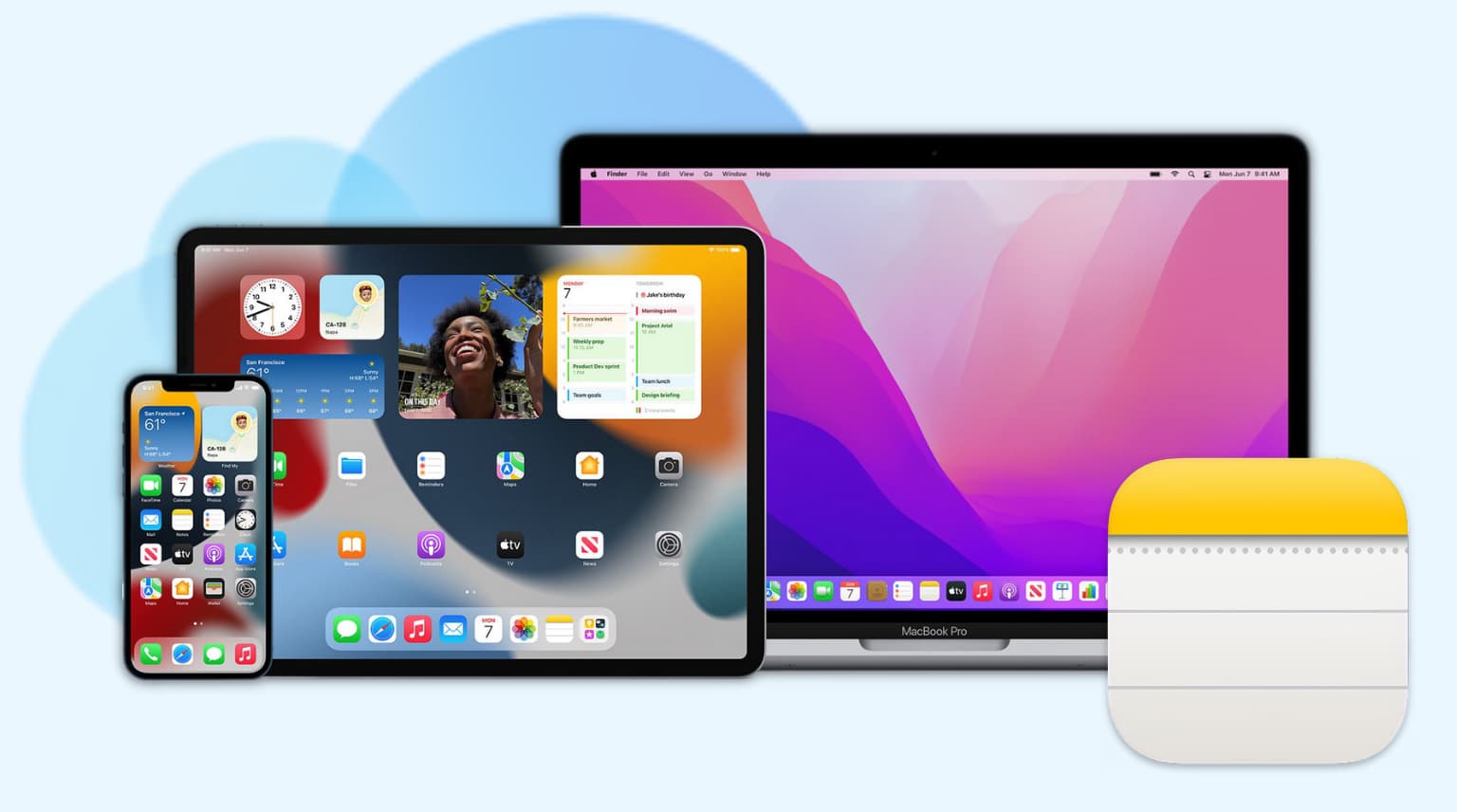
Apple Notes uses iCloud to sync your notes across devices. This means your notes are stored online, not just on your device. When you create or edit a note, iCloud updates your other devices. Syncing happens automatically, but it depends on several factors:
- Your device’s internet connection
- ICloud account status
- Proper settings in Notes and iCloud
- Enough iCloud storage
- Software version compatibility
Some users think that syncing is instant, but it’s not always true. Sometimes, there’s a delay, especially if your connection is slow or if iCloud servers are busy.
Local Vs Icloud Notes
Not all notes are synced. Apple Notes lets you create local notes (stored only on your device) and iCloud notes (stored online). Only iCloud notes sync. If you use the “On My iPhone” or “On My Mac” folder, those notes never sync with other devices.
| Type | Where Stored | Syncs Across Devices? |
|---|---|---|
| iCloud Notes | iCloud & Device | Yes |
| Local Notes | Only Device | No |
Many beginners miss this difference. If you want syncing, always use the iCloud folder for your notes.
Common Reasons Apple Notes Doesn’t Sync
When you notice Apple Notes not syncing, the cause is usually one of the following:
- Wrong Account: Notes are tied to your Apple ID. If you use different accounts on your devices, notes won’t sync.
- ICloud Not Enabled: Notes syncing must be enabled in iCloud settings.
- Local Notes: Notes stored locally (“On My Device”) don’t sync.
- Poor Internet Connection: Sync needs Wi-Fi or cellular data.
- Insufficient iCloud Storage: If your iCloud is full, new notes won’t sync.
- Outdated Software: Using old iOS, iPadOS, or macOS can cause compatibility issues.
- Disabled Background App Refresh: Notes needs background refresh to sync.
- Server Issues: Apple’s iCloud servers can sometimes be down.
- Device Settings: Low Power Mode or restrictions may block syncing.
- Corrupted Notes: Sometimes, individual notes can be corrupted and not sync.
Let’s break down the most overlooked reasons:
- Beginners often forget to check their Apple ID. If you set up a new device and use a different Apple ID, your notes will not appear.
- Many users store notes in the “On My iPhone” or “On My Mac” folder by mistake, thinking they are synced.

Credit: www.reddit.com
Step-by-step Solutions To Fix Apple Notes Syncing
Fixing Apple Notes not syncing is usually straightforward. Follow these steps for a quick resolution.
1. Check Apple Id And Accounts
First, make sure all your devices use the same Apple ID.
- On iPhone/iPad: Go to Settings > [Your Name].
- On Mac: Go to System Settings > Apple ID.
If you use different Apple IDs, notes will not sync.
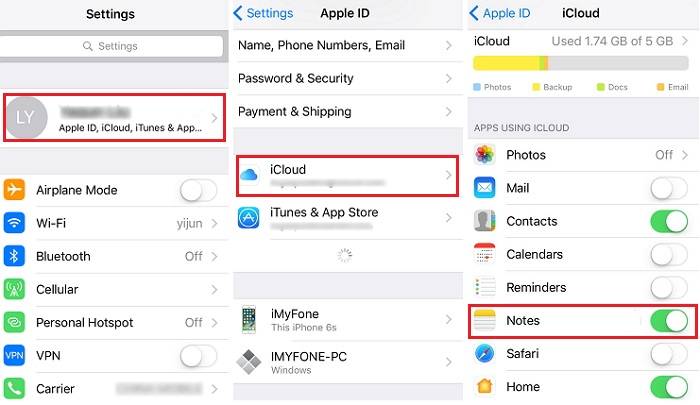
2. Enable Notes In Icloud Settings
You must turn on Notes syncing:
- IPhone/iPad: Settings > [Your Name] > iCloud > Show All > Notes. Toggle ON.
- Mac: System Settings > Apple ID > iCloud > Notes. Check the box.
If Notes is off, your notes won’t sync.
3. Switch Notes To Icloud Folder
Only notes in the iCloud folder sync. Move notes from “On My Device” to iCloud:
- Open Notes app.
- Select the note.
- Tap Share > Move to iCloud.
On Mac, drag notes from “On My Mac” folder to “iCloud” folder.
4. Test Internet Connection
A weak or unstable connection can block syncing. Try:
- Switching from Wi-Fi to cellular.
- Restarting your router.
- Checking if other apps sync (Photos, Contacts).
5. Check Icloud Storage
Go to Settings > [Your Name] > iCloud > Manage Storage. If your storage is full, delete unused files or upgrade your plan.
6. Update Software
Make sure all devices use the latest iOS, iPadOS, or macOS.
- IPhone/iPad: Settings > General > Software Update.
- Mac: System Settings > General > Software Update.
Outdated software can cause sync problems.
7. Enable Background App Refresh
Notes needs to run in the background to sync.
- IPhone/iPad: Settings > General > Background App Refresh > Notes.
- Mac: No special setting, but don’t use “Energy Saver” to restrict Notes.
8. Restart Devices
Restarting fixes many small glitches. Turn off your device, wait 30 seconds, then turn it back on.
9. Check Apple’s System Status
Sometimes, the problem isn’t you. Visit Apple’s System Status to check if iCloud Notes is down.
10. Avoid Low Power Mode And Restrictions
Low Power Mode can stop syncing. Turn it off:
- IPhone/iPad: Settings > Battery > Low Power Mode.
- Mac: System Settings > Battery.
Also, check for restrictions under Settings > Screen Time.
11. Remove And Re-add Notes Account
Remove your iCloud account from Notes and add it again.
- IPhone/iPad: Settings > Notes > Accounts > iCloud > Delete Account. Then add again.
- Mac: System Settings > Internet Accounts > iCloud > Remove. Add again.
12. Repair Corrupted Notes
If a note won’t sync, it may be corrupted. Copy its content to a new note and delete the old one.
Advanced Fixes For Persistent Sync Problems
Sometimes, basic steps don’t solve the problem. Try these advanced fixes:
Reset Network Settings
Resetting can clear hidden network errors.
- IPhone/iPad: Settings > General > Transfer or Reset > Reset Network Settings.
- Mac: Turn Wi-Fi off/on, delete and re-add Wi-Fi network.
Sign Out And Back In To Icloud
Logging out and in can refresh syncing.
- IPhone/iPad: Settings > [Your Name] > Sign Out. Sign in again.
- Mac: System Settings > Apple ID > Sign Out. Sign in again.
Reinstall Notes App
On iPhone/iPad, you can delete and reinstall Notes (since iOS 14):
- Tap and hold Notes app > Remove App > Delete.
- Reinstall from App Store.
On Mac, you can’t uninstall Notes, but you can restart and clear cache.
Clear Cache On Mac
Sometimes, Notes cache causes issues. On Mac:
- Open Finder > Go > Go to Folder.
- Type ~/Library/Containers/com.apple.Notes/Data/Library/Caches
- Delete files inside.
Restart Mac and try again.
Contact Apple Support
If nothing works, reach out to Apple Support. They can check for account-specific issues or bugs.
Credit: www.idownloadblog.com
Real-life Examples And Data
Apple Notes sync issues affect many users. According to a 2022 user survey, about 15% of iCloud users report at least one sync problem per year. Most problems are fixed by enabling iCloud Notes or updating software.
Example 1: Maria, a student, created class notes on her iPad but couldn’t find them on her Mac. She discovered she was using “On My iPad” folder. Moving notes to iCloud fixed the problem.
Example 2: John, a business owner, found notes missing on his iPhone. He had run out of iCloud storage. After deleting old photos, Notes synced again.
Example 3: A family sharing account saw notes not syncing between devices. They had different Apple IDs. After switching to a single ID, notes appeared everywhere.
These examples show that most sync issues are simple to fix, but understanding the basics is crucial.
Apple Notes Vs Other Note Apps: Sync Reliability
How does Apple Notes syncing compare to other apps? Let’s look at a comparison:
| App | Sync Method | Reliability (User Rating) | Platforms Supported |
|---|---|---|---|
| Apple Notes | iCloud | 4.2/5 | iOS, iPadOS, macOS, web |
| Evernote | Cloud | 4.1/5 | iOS, Android, Windows, macOS, web |
| Microsoft OneNote | OneDrive | 4.0/5 | iOS, Android, Windows, macOS, web |
| Google Keep | Google Cloud | 3.9/5 | iOS, Android, web |
Apple Notes is reliable for most users, but sync issues do happen. Apps like Evernote and OneNote offer cross-platform support, but Apple Notes is best for users in the Apple ecosystem.
Credit: mobi.easeus.com
Preventing Apple Notes Sync Issues
Prevention is better than cure. Follow these tips to avoid syncing problems:
- Always use iCloud for notes, not local folders.
- Keep your devices updated.
- Monitor iCloud storage regularly.
- Use strong Wi-Fi or cellular connections.
- Avoid frequent switching between Apple IDs.
- Turn on background app refresh.
- Check system status before major changes.
- Back up your notes periodically.
Many people forget to back up notes. Use “Export as PDF” or copy notes to another app as a backup.
Data Table: Common Sync Error Messages And Their Meanings
Here’s a quick reference for common error messages in Apple Notes:
| Error Message | Possible Cause | Solution |
|---|---|---|
| “Notes Not Available” | iCloud not enabled | Enable Notes in iCloud settings |
| “Not Enough Storage” | Full iCloud storage | Free up iCloud space |
| “Waiting for Sync” | Poor internet connection | Improve Wi-Fi or cellular signal |
| “Account Error” | Wrong Apple ID | Sign in with correct Apple ID |
| “Note Failed to Upload” | Corrupted note | Copy content to new note |
Understanding error messages helps you solve problems faster.
What Beginners Often Miss
Beginners often miss two important points:
- Local vs iCloud Notes: Many users don’t realize that only notes in the iCloud folder sync. Notes in “On My Device” stay local.
- Apple ID Consistency: Using different Apple IDs on devices blocks syncing. Always check your account.
Another less obvious insight: If you use Apple Notes for work, sharing notes with others requires both parties to use iCloud Notes. Shared notes won’t sync if the recipient uses local folders or a different Apple ID.
When To Consider Alternatives
If Apple Notes keeps failing to sync, consider another app. Evernote, OneNote, and Google Keep are reliable. They offer cross-platform support and advanced features. But remember, Apple Notes is best integrated with Apple devices, so switching means losing features like Siri integration and direct links to Photos.
Frequently Asked Questions
Why Is Apple Notes Not Syncing Between My Iphone And Mac?
Usually, the problem is either different Apple IDs, iCloud Notes not enabled, or notes stored locally. Check that both devices use the same Apple ID, enable Notes in iCloud settings, and store notes in the iCloud folder.
Can I Sync Notes Using Other Cloud Services Like Google Drive?
No. Apple Notes only syncs via iCloud. There is no built-in support for Google Drive or OneDrive. If you want cross-platform syncing, use a different app like Evernote or OneNote.
How Long Does Apple Notes Syncing Take?
Syncing is usually fast, within seconds or minutes if your connection is strong. If servers are busy or your network is slow, it may take longer. Large notes with images can take more time.
What Happens If I Delete A Note On One Device?
If you delete a note in iCloud Notes, it deletes on all synced devices. If you delete a local note, it only affects that device. Deleted notes stay in the “Recently Deleted” folder for 30 days before permanent removal.
Is There A Way To Recover Unsynced Notes?
If notes fail to sync, copy their content and paste into a new iCloud note. If you deleted a synced note, check “Recently Deleted. ” If all else fails, restore from device backup or contact Apple Support.
Apple Notes is a powerful tool, but syncing problems can be annoying. By understanding how syncing works, using the right settings, and following practical steps, you can keep your notes safe and accessible everywhere. If you run into trouble, don’t panic—most issues are easy to fix if you know where to look.
With this guide, you’ll have the confidence to solve Apple Notes syncing issues and keep your data organized.