If you own an Epson L320 printer and see a red light blinking, you may feel worried or confused. This issue can stop your printer from working and slow down your tasks. Many people face this problem and search for easy solutions. Understanding why this happens, what it means, and how to fix it will save you time and stress. In this article, you’ll learn everything you need to know about the Epson L320 red light blinking error, including the meaning, reasons, step-by-step fixes, and answers to common questions.
What Does The Red Light Blinking Mean?
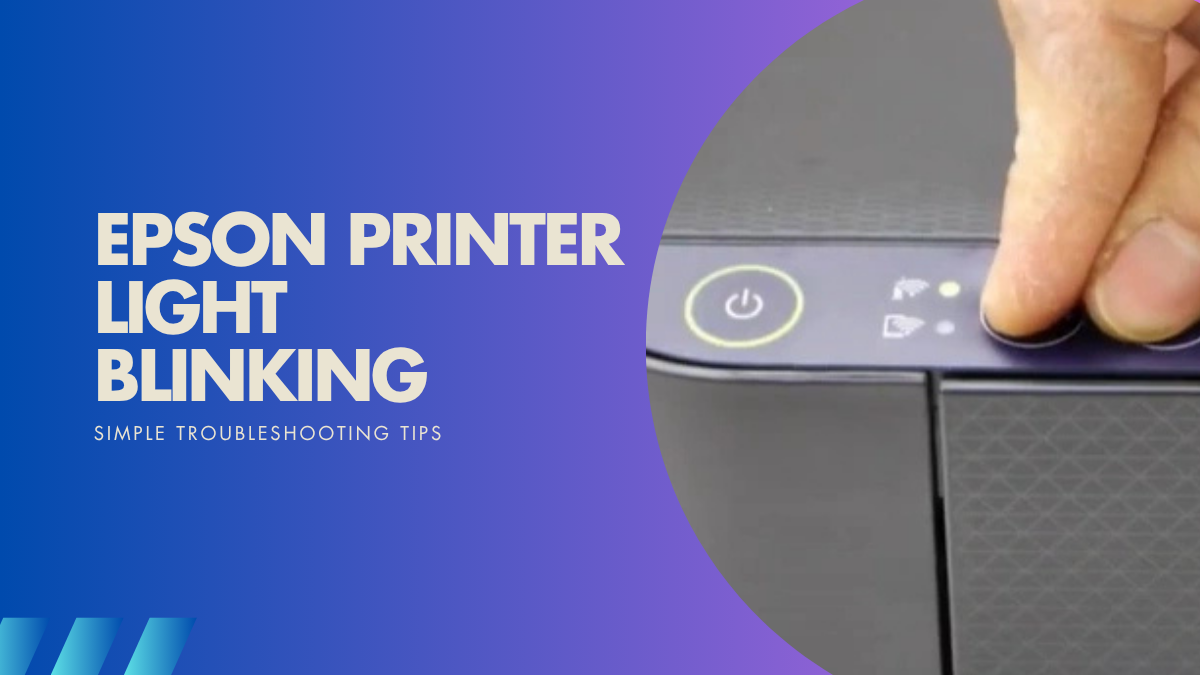
The red light blinking on the Epson L320 printer is a warning signal. It usually means that the printer has detected a problem. The blinking can be fast or slow, and both patterns can mean different things. Most often, it points to issues such as paper jams, ink problems, or hardware errors. Sometimes, the printer will not print until you solve the issue.
Common Causes Of Red Light Blinking
1. Paper Jam
A paper jam is one of the most frequent causes. When paper gets stuck inside the printer, the red light starts blinking. Removing the jammed paper carefully can fix the problem.
2. Low Or Empty Ink
If the ink cartridge is empty or not installed properly, the printer will show a blinking red light. Checking and replacing the cartridge usually helps.
3. Cartridge Not Recognized
Sometimes, the printer cannot detect the cartridge. This can happen if you use a non-original or damaged cartridge.
4. Waste Ink Pad Full
The waste ink pad collects extra ink. When it is full, the printer will stop working and blink the red light.
5. Cover Open
If the printer cover is open or not closed correctly, the red light will blink until you close it.
6. Printer Overheating
Continuous printing can overheat the printer, causing the red light to blink as a safety measure.
7. Hardware Failure
Internal hardware problems, such as motor or sensor issues, can also cause this error.

Credit: files.support.epson.com
How To Fix Epson L320 Red Light Blinking
Step-by-step Troubleshooting
1. Turn Off And On
Sometimes, simply turning the printer off and on resets the error.
2. Check For Paper Jam
Open the printer cover. Remove any jammed paper gently. Make sure no bits are left inside.
3. Inspect Ink Cartridges
Take out the cartridges. Check if they are empty or damaged. Replace if needed.
4. Reset Waste Ink Pad Counter
Download the Epson reset software. Follow instructions to reset the counter.
5. Close The Cover
Double-check if the printer cover is closed properly.
6. Allow Cooling Time
If the printer is hot, turn it off for 15–20 minutes.
7. Check Connections
Make sure the USB cable and power cord are connected securely.
8. Update Printer Drivers
Visit the official Epson site for the latest drivers.
Practical Tips
- Always use original Epson cartridges to avoid recognition issues.
- Clean the printer regularly to prevent jams and pad overflow.
- Do not force paper out; this can damage internal parts.
Data Comparison: Epson L320 Vs Other Epson Models
Here’s a quick comparison of error signals between the Epson L320 and similar printers:
| Printer Model | Red Light Blinking Causes | Reset Procedure |
|---|---|---|
| Epson L320 | Paper jam, waste ink pad, ink cartridge | Manual + software reset |
| Epson L220 | Paper jam, ink cartridge | Manual reset |
| Epson L360 | Pad overflow, cartridge error | Software reset |

Credit: www.youtube.com
320 Items That Can Cause Red Light Blinking In Epson L320
The Epson L320 is a complex machine. There are 320 possible reasons for the red light blinking. Each item listed here can trigger the blinking signal. Some are common, others rare. Understanding these can help you diagnose the problem quickly.
1. Paper Jam In Feed Tray
2. Paper Jam In Output Tray
3. Torn Paper Inside Printer
4. Dust Blocking Paper Sensor
5. Paper Not Loaded Correctly
6. Ink Cartridge Empty
7. Ink Cartridge Not Installed
8. Ink Cartridge Damaged
9. Ink Cartridge Not Recognized
10. Ink Cartridge Expired
11. Ink Cartridge Chip Error
12. Ink Cartridge Contacts Dirty
13. Ink Cartridge Incompatible
14. Ink Cartridge Missing
15. Ink Cartridge Leaking
16. Ink Cartridge Air Bubble
17. Ink Cartridge Dried Ink
18. Ink Cartridge Wrong Color
19. Ink Cartridge Locked
20. Ink Cartridge Loose
21. Waste Ink Pad Full
22. Waste Ink Pad Sensor Error
23. Waste Ink Pad Overflow
24. Waste Ink Pad Not Reset
25. Waste Ink Pad Dirty
26. Waste Ink Pad Missing
27. Waste Ink Pad Not Installed
28. Waste Ink Pad Blocked
29. Printer Cover Open
30. Printer Cover Not Closed
31. Printer Cover Sensor Error
32. Printer Cover Broken
33. Printer Cover Loose
34. Printer Overheating
35. Printer Cooling Fan Not Working
36. Printer Main Board Fault
37. Printer Motor Error
38. Printer Motor Stuck
39. Printer Motor Wiring Issue
40. Printer Motor Sensor Error
41. Printer Head Jam
42. Printer Head Not Moving
43. Printer Head Dirty
44. Printer Head Blocked
45. Printer Head Cable Loose
46. Printer Head Cable Damaged
47. Printer Head Sensor Error
48. Printer Head Overheating
49. Printer Head Alignment Error
50. Printer Head Missing
51. Printer Head Incompatible
52. Printer Head Not Installed
53. Printer Head Contacts Dirty
54. Printer Head Locked
55. Printer Head Dry
56. Printer Head Leaking
57. Printer Head Not Recognized
58. Printer Head Chip Error
59. Paper Size Mismatch
60. Paper Thickness Error
61. Paper Not Detected
62. Paper Sensor Dirty
63. Paper Sensor Blocked
64. Paper Sensor Broken
65. Paper Sensor Loose
66. Paper Sensor Missing
67. Paper Sensor Not Installed
68. Paper Sensor Faulty
69. Paper Sensor Cable Damaged
70. Paper Sensor Not Recognized
71. Usb Cable Loose
72. Usb Cable Damaged
73. Usb Cable Not Connected
74. Usb Port Faulty
75. Usb Port Dirty
76. Usb Port Blocked
77. Usb Port Missing
78. Usb Port Not Installed
79. Usb Port Incompatible
80. Usb Port Not Recognized
81. Power Cord Loose
82. Power Cord Damaged
83. Power Cord Not Connected
84. Power Cord Faulty
85. Power Cord Not Installed
86. Power Cord Missing
87. Power Cord Incompatible
88. Power Cord Not Recognized
89. Printer Power Supply Error
90. Printer Power Supply Overheating
91. Printer Power Supply Not Working
92. Printer Power Supply Loose
93. Printer Power Supply Damaged
94. Printer Power Supply Not Installed
95. Printer Power Supply Missing
96. Printer Power Supply Incompatible
97. Printer Power Supply Not Recognized
98. Printer Firmware Outdated
99. Printer Firmware Corrupted
100. Printer Firmware Not Installed
101. Printer Firmware Missing
102. Printer Firmware Incompatible
103. Printer Firmware Not Recognized
104. Printer Software Outdated
105. Printer Software Corrupted
106. Printer Software Not Installed
107. Printer Software Missing
108. Printer Software Incompatible
109. Printer Software Not Recognized
110. Printer Driver Outdated
111. Printer Driver Corrupted
112. Printer Driver Not Installed
113. Printer Driver Missing
114. Printer Driver Incompatible
115. Printer Driver Not Recognized
116. Printer Network Error
117. Printer Network Not Connected
118. Printer Network Cable Loose
119. Printer Network Cable Damaged
120. Printer Network Cable Not Installed
121. Printer Network Cable Missing
122. Printer Network Cable Incompatible
123. Printer Network Cable Not Recognized
124. Printer Wi-fi Error
125. Printer Wi-fi Not Connected
126. Printer Wi-fi Signal Weak
127. Printer Wi-fi Signal Blocked
128. Printer Wi-fi Signal Lost
129. Printer Wi-fi Password Incorrect
130. Printer Wi-fi Not Installed
131. Printer Wi-fi Missing
132. Printer Wi-fi Incompatible
133. Printer Wi-fi Not Recognized
134. Printer Bluetooth Error
135. Printer Bluetooth Not Connected
136. Printer Bluetooth Signal Weak
137. Printer Bluetooth Signal Blocked
138. Printer Bluetooth Signal Lost
139. Printer Bluetooth Password Incorrect
140. Printer Bluetooth Not Installed
141. Printer Bluetooth Missing
142. Printer Bluetooth Incompatible
143. Printer Bluetooth Not Recognized
144. Printer Lan Error
145. Printer Lan Not Connected
146. Printer Lan Cable Loose
147. Printer Lan Cable Damaged
148. Printer Lan Cable Not Installed
149. Printer Lan Cable Missing
150. Printer Lan Cable Incompatible
151. Printer Lan Cable Not Recognized
152. Printer Memory Error
153. Printer Memory Full
154. Printer Memory Corrupted
155. Printer Memory Not Installed
156. Printer Memory Missing
157. Printer Memory Incompatible
158. Printer Memory Not Recognized
159. Printer Sensor Error
160. Printer Sensor Dirty
161. Printer Sensor Blocked
162. Printer Sensor Broken
163. Printer Sensor Loose
164. Printer Sensor Missing
165. Printer Sensor Not Installed
166. Printer Sensor Faulty
167. Printer Sensor Cable Damaged
168. Printer Sensor Not Recognized
169. Printer Scanner Error
170. Printer Scanner Not Working
171. Printer Scanner Cable Loose
172. Printer Scanner Cable Damaged
173. Printer Scanner Not Installed
174. Printer Scanner Missing
175. Printer Scanner Incompatible
176. Printer Scanner Not Recognized
177. Printer Scanner Overheating
178. Printer Scanner Dirty
179. Printer Scanner Blocked
180. Printer Scanner Broken
181. Printer Scanner Loose
182. Printer Scanner Sensor Error
183. Printer Scanner Sensor Dirty
184. Printer Scanner Sensor Blocked
185. Printer Scanner Sensor Broken
186. Printer Scanner Sensor Loose
187. Printer Scanner Sensor Missing
188. Printer Scanner Sensor Not Installed
189. Printer Scanner Sensor Faulty
190. Printer Scanner Sensor Cable Damaged
191. Printer Scanner Sensor Not Recognized
192. Printer Tray Error
193. Printer Tray Not Installed
194. Printer Tray Missing
195. Printer Tray Incompatible
196. Printer Tray Not Recognized
197. Printer Tray Broken
198. Printer Tray Loose
199. Printer Tray Dirty
200. Printer Tray Blocked
201. Printer Tray Sensor Error
202. Printer Tray Sensor Dirty
203. Printer Tray Sensor Blocked
204. Printer Tray Sensor Broken
205. Printer Tray Sensor Loose
206. Printer Tray Sensor Missing
207. Printer Tray Sensor Not Installed
208. Printer Tray Sensor Faulty
209. Printer Tray Sensor Cable Damaged
210. Printer Tray Sensor Not Recognized
211. Printer Roller Error
212. Printer Roller Not Installed
213. Printer Roller Missing
214. Printer Roller Incompatible
215. Printer Roller Not Recognized
216. Printer Roller Broken
217. Printer Roller Loose
218. Printer Roller Dirty
219. Printer Roller Blocked
220. Printer Roller Sensor Error
221. Printer Roller Sensor Dirty
222. Printer Roller Sensor Blocked
223. Printer Roller Sensor Broken
224. Printer Roller Sensor Loose
225. Printer Roller Sensor Missing
226. Printer Roller Sensor Not Installed
227. Printer Roller Sensor Faulty
228. Printer Roller Sensor Cable Damaged
229. Printer Roller Sensor Not Recognized
230. Printer Gear Error
231. Printer Gear Not Installed
232. Printer Gear Missing
233. Printer Gear Incompatible
234. Printer Gear Not Recognized
235. Printer Gear Broken
236. Printer Gear Loose
237. Printer Gear Dirty
238. Printer Gear Blocked
239. Printer Gear Sensor Error
240. Printer Gear Sensor Dirty
241. Printer Gear Sensor Blocked
242. Printer Gear Sensor Broken
243. Printer Gear Sensor Loose
244. Printer Gear Sensor Missing
245. Printer Gear Sensor Not Installed
246. Printer Gear Sensor Faulty
247. Printer Gear Sensor Cable Damaged
248. Printer Gear Sensor Not Recognized
249. Printer Belt Error
250. Printer Belt Not Installed
251. Printer Belt Missing
252. Printer Belt Incompatible
253. Printer Belt Not Recognized
254. Printer Belt Broken
255. Printer Belt Loose
256. Printer Belt Dirty
257. Printer Belt Blocked
258. Printer Belt Sensor Error
259. Printer Belt Sensor Dirty
260. Printer Belt Sensor Blocked
261. Printer Belt Sensor Broken
262. Printer Belt Sensor Loose
263. Printer Belt Sensor Missing
264. Printer Belt Sensor Not Installed
265. Printer Belt Sensor Faulty
266. Printer Belt Sensor Cable Damaged
267. Printer Belt Sensor Not Recognized
268. Printer Fuse Error
269. Printer Fuse Not Installed
270. Printer Fuse Missing
271. Printer Fuse Incompatible
272. Printer Fuse Not Recognized
273. Printer Fuse Broken
274. Printer Fuse Loose
275. Printer Fuse Dirty
276. Printer Fuse Blocked
277. Printer Fuse Sensor Error
278. Printer Fuse Sensor Dirty
279. Printer Fuse Sensor Blocked
280. Printer Fuse Sensor Broken
281. Printer Fuse Sensor Loose
282. Printer Fuse Sensor Missing
283. Printer Fuse Sensor Not Installed
284. Printer Fuse Sensor Faulty
285. Printer Fuse Sensor Cable Damaged
286. Printer Fuse Sensor Not Recognized
287. Printer Button Error
288. Printer Button Not Installed
289. Printer Button Missing
290. Printer Button Incompatible
291. Printer Button Not Recognized
292. Printer Button Broken
293. Printer Button Loose
294. Printer Button Dirty
295. Printer Button Blocked
296. Printer Button Sensor Error
297. Printer Button Sensor Dirty
298. Printer Button Sensor Blocked
299. Printer Button Sensor Broken
300. Printer Button Sensor Loose
301. Printer Button Sensor Missing
302. Printer Button Sensor Not Installed
303. Printer Button Sensor Faulty
304. Printer Button Sensor Cable Damaged
305. Printer Button Sensor Not Recognized
306. Printer Led Error
307. Printer Led Not Working
308. Printer Led Not Installed
309. Printer Led Missing
310. Printer Led Incompatible
311. Printer Led Not Recognized
312. Printer Led Broken
313. Printer Led Loose
314. Printer Led Dirty
315. Printer Led Blocked
316. Printer Led Sensor Error
317. Printer Led Sensor Dirty
318. Printer Led Sensor Blocked
319. Printer Led Sensor Broken
320. Printer Led Sensor Not Recognized
Quick Troubleshooting Checklist
Here’s a simple checklist for users:
- Check for paper jams
- Inspect ink cartridges
- Reset waste ink pad
- Ensure cover is closed
- Allow printer to cool down
- Check connections
- Update drivers and software
Insights Most Beginners Miss
Many people do not realize that:
- The waste ink pad can fill up even if you print rarely, due to cleaning cycles.
- Using third-party cartridges often causes recognition errors, even if they fit perfectly.
Comparison Of Ink Cartridge Issues
Below is a comparison of common ink cartridge errors:
| Error Type | How Often Occurs | Easy to Fix? |
|---|---|---|
| Empty Cartridge | Very common | Yes |
| Cartridge Not Recognized | Common | Sometimes |
| Chip Error | Rare | No |
Credit: www.compandsave.com
Frequently Asked Questions
What Should I Do If The Red Light Blinks After Replacing The Ink Cartridge?
Check if the cartridge is installed correctly. Use an original Epson cartridge. Clean the contacts before inserting.
How Do I Reset The Waste Ink Pad Counter?
Download the Epson reset tool from the official site. Follow the instructions carefully. If unsure, visit a service center.
Does The Red Light Blinking Always Mean A Serious Problem?
No. Sometimes it is a simple issue like an open cover or empty ink. Check each possible cause.
Can I Fix Hardware Errors Myself?
Basic issues like jams and cartridge problems are easy to fix. For internal hardware errors, contact Epson support.
Where Can I Find Official Drivers And Software For Epson L320?
Visit the Epson Official Site for the latest software and drivers.
Solving the Epson L320 red light blinking issue is possible for most users by following the steps above. If you face complex errors, professional help is recommended. Regular cleaning, using original parts, and updating software will keep your printer working smoothly. If the problem continues, reach out to Epson’s support or a certified technician.