If you own a Canon G3000 printer and notice an orange light blinking, you’re probably worried. Printers play a huge role in homes and offices, so any problem can feel urgent. Many users face this blinking light issue and don’t know how to fix it. This guide will help you understand the cause, offer step-by-step solutions, and prevent future problems. You’ll also find practical tips that most beginners miss, plus answers to common questions.
Understanding how to deal with this orange light can help you save money, avoid downtime, and keep your printer running smoothly. Even if you’re not very technical, the steps here are clear and simple. By the end, you’ll know exactly what each blink means, what to do, and how to avoid mistakes that could make things worse.
Why Does The Canon G3000 Orange Light Blink?
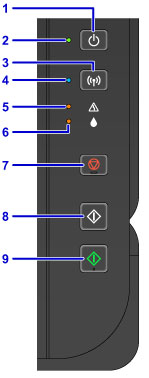
The orange light on the Canon G3000 signals different errors or warnings. It’s not just a random blink. Each pattern—number of blinks, speed, and pause—means something specific. Usually, it’s related to:
- Paper jams
- Low ink
- Cartridge errors
- Hardware faults
But sometimes, the blinking points to more complex issues. If you ignore it, the printer may stop working or produce poor prints.
Some users think the orange light is only about ink, but it can be a sign of deeper hardware trouble. For example, a printhead issue or full ink absorber may need more than a quick fix. Ignoring these early signs can lead to more expensive repairs later, or even permanent printer damage.
Understanding The Blink Patterns
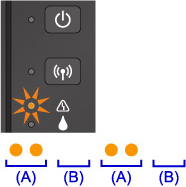
Canon G3000 printers use blink codes to communicate errors. Here are some common patterns:
- One blink: Paper is out, or paper not loaded properly.
- Two blinks: Paper jam or paper feed problem.
- Three blinks: Ink cartridge not recognized.
- Four blinks: Ink cartridge is empty or not installed correctly.
- Five blinks: Printhead error.
- Six blinks: Internal hardware issue.
- Seven blinks: Ink absorber full.
- Eight blinks: Printer needs service.
Pay attention to the blink count—it’s your clue to the exact issue.
| Blink Count | Error Type | Recommended Action |
|---|---|---|
| 1 | Paper out | Load paper |
| 2 | Paper jam | Clear jam |
| 3 | Cartridge not recognized | Reinstall cartridge |
| 4 | Empty cartridge | Replace/refill cartridge |
| 5 | Printhead error | Clean printhead |
Sometimes, the blink pattern may pause and start again. For example, three quick blinks, a pause, then repeat. Always count the blinks in one group. If you’re unsure, watch closely and write down the pattern. This step prevents guessing and helps you fix the right problem faster.
Credit: ij.manual.canon
How To Fix Canon G3000 Orange Light Blinking
Let’s break down the practical steps for each common cause:
1. Fixing Paper Jam Issues
Paper jams are a frequent reason for the orange light blinking. Here’s how to clear a jam:
- Turn off the printer and unplug it.
- Gently open the paper tray and remove any stuck paper.
- Check for tiny pieces inside—these are easy to miss.
- Reload the paper correctly and close the tray.
- Plug in and turn on the printer.
Non-obvious tip: Always use clean, undamaged paper. Wrinkled or torn sheets cause jams more often.
Check inside the printer, especially near the printhead, where small scraps can hide. Use a flashlight if needed. For stubborn jams, avoid using sharp tools, as they can damage the printer’s rollers. If you feel resistance, wiggle the paper gently instead of pulling hard.
Another detail: Make sure the paper guides in the tray are set to the correct size. If the guides are too tight or loose, the paper might not feed straight, causing more jams.
2. Resolving Ink Cartridge Problems
Ink cartridge errors are tricky. Sometimes, the cartridge isn’t installed properly. Other times, it’s empty or faulty.
- Open the top cover.
- Remove and reinstall the cartridge. Make sure it clicks in place.
- If the error continues, try a new cartridge.
- For refillable cartridges, check ink levels. Refill if needed.
- Clean cartridge contacts with a dry cloth.
Beginner mistake: Many users forget to remove protective tape from new cartridges. Always check!
If you see ink on your hands, wipe it off before touching other parts. Dirty contacts can confuse the printer, making it think the cartridge is missing or empty. When refilling, never overfill the tank—spilled ink can block sensors and cause more errors.
If you use compatible or third-party cartridges, make sure they are designed for the G3000. Some cheap versions do not fit well, triggering blinking errors.
If you changed cartridges and still see the light, try restarting the printer. Sometimes, the printer needs to reset before it recognizes the new cartridge.
3. Addressing Printhead Errors
Printhead errors can trigger the blinking orange light. Cleaning the printhead often solves the issue.
- Open the printer cover.
- Remove the printhead carefully.
- Wipe with a lint-free cloth.
- Reinstall and close the cover.
- Run the printer’s built-in cleaning cycle from the software.
Extra insight: Printhead errors can also occur if you use third-party cartridges. Stick with genuine Canon products for best results.
If cleaning does not work, try a deeper cleaning cycle in the printer’s maintenance menu. This uses more ink but often clears dry or clogged nozzles. Avoid touching the copper contacts or nozzles directly with your fingers.
If you print rarely, print a test page every few weeks. This keeps the printhead moist and prevents blockages. If you see streaks or faded colors, clean the printhead twice. If problems continue, a replacement printhead may be needed.
4. Ink Absorber Full
If the ink absorber is full, the printer stops working and blinks orange.
- This part collects extra ink during cleaning.
- Replacing it is not easy for beginners. You may need a technician.
- Some users reset the printer using a special button sequence. But this only works for small issues.
| Action | Difficulty | Cost |
|---|---|---|
| Replacing ink absorber | Advanced | $20–$50 |
| Resetting printer | Easy | Free |
If you want to try a reset, search online for the G3000 “waste ink counter reset. ” But remember, resetting does not empty the absorber. If it’s truly full, ink can leak inside the printer, causing permanent damage or messy workspaces.
If you often print large volumes or run frequent cleaning cycles, the absorber will fill faster.
5. Hardware And Service Errors
When the blinking pattern is more than 5, it usually means a hardware problem. Examples include:
- Internal chip failure
- Sensor issues
- Mainboard errors
In these cases, you should:
- Try a printer reset.
- If the error continues, contact Canon support or visit a service center.
Sometimes, disconnecting the printer from your computer and reconnecting with a different USB cable helps. Faulty cables or ports can trigger strange errors. If you hear unusual noises (clicking, grinding), turn off the printer immediately to avoid further damage.
For wireless printers, check your Wi-Fi connection. Network issues can sometimes make the printer show hardware errors, especially after a firmware update.
Resetting The Canon G3000 Printer
Sometimes, resetting the printer clears minor errors.
Steps:
- Turn off the printer.
- Unplug from power for 1 minute.
- Plug back in and turn on.
- Hold the Stop button for 5 seconds.
- Release and wait for the printer to initialize.
This simple reset solves many blinking light problems.
If you still see the blinking light after resetting, try updating your printer driver on your computer. Outdated software can send wrong signals, confusing the printer. For stubborn errors, repeat the reset twice or try connecting the printer to a different PC to rule out computer-related issues.
Credit: ij.manual.canon
Preventing Future Orange Light Issues
Solving the blinking light is good, but prevention is even better. Here’s how you can avoid problems:
- Use quality paper and genuine ink.
- Keep the printer clean—dust causes errors.
- Don’t overload the paper tray.
- Update printer drivers regularly.
- Run maintenance tasks every month.
Hidden insight: Many beginners ignore software updates. Outdated drivers can cause blinking light issues, even if hardware is fine.
Place your printer in a dust-free area and cover it when not in use. Humidity and heat can also affect sensors and ink flow. Schedule a reminder to clean the printhead and check ink levels every month. Keep the printer’s firmware updated—manufacturers release updates to fix bugs and improve performance.
Avoid turning the printer off by unplugging it directly. Always use the power button so the printer can park the printhead and reduce ink waste.
Comparing Canon G3000 With Other Printers
You may wonder if other printers face similar blinking light problems. Here’s a quick comparison:
| Printer Model | Common Error Light Issues | Ease of Fix |
|---|---|---|
| Canon G3000 | Paper jam, ink, printhead, hardware | Moderate |
| HP DeskJet | Paper jam, cartridge | Easy |
| Epson EcoTank | Ink absorber, paper jam | Hard |
As you can see, the Canon G3000 is not alone, but the fixes are generally easier than Epson EcoTank.
HP DeskJet printers often have simpler mechanisms, so fixing common errors can be easier for beginners. Epson EcoTank models, while very efficient, can be harder to maintain if the ink absorber is full or the printhead is clogged. Canon G3000 offers a good balance of reliability and repairability, especially if you use genuine supplies and follow regular maintenance.

Credit: www.youtube.com
When To Seek Professional Help
Some issues are too complex for home fixes. Seek help if:
- The orange light blinks after every fix.
- You hear strange noises from the printer.
- The printer refuses to print even after resets.
Professional help ensures your printer doesn’t suffer bigger damage. Visit an official Canon service center or trusted repair shop.
If your printer is under warranty, contact Canon before trying to fix hardware errors yourself. Opening the printer or using non-official parts can void your warranty. Most service centers offer free diagnostics, so you’ll know the repair cost before deciding.
Real-world Example
A small business owner noticed the orange light blinking on his Canon G3000. He tried changing the paper and refilling ink, but nothing worked. After checking the blink pattern (seven blinks), he realized the ink absorber was full. He contacted Canon support and had it replaced in one day. His printer worked like new.
Lesson: Always check the blink pattern first—it saves time and prevents wrong fixes.
Another example: A student had three blinks and kept buying new cartridges, but the error remained. After reading the manual and checking contacts, he found a small piece of tape stuck on the cartridge chip. Removing it fixed the problem instantly.
Frequently Asked Questions
What Does The Orange Light Mean On Canon G3000?
The orange light signals an error or warning. The blink count tells you what’s wrong—paper, ink, cartridge, or hardware.
How Do I Clear A Paper Jam On Canon G3000?
Turn off the printer, unplug it, remove all stuck paper from the tray and inside, then reload clean paper. Don’t forget to check for small pieces.
Can I Fix The Ink Absorber Issue Myself?
Replacing the ink absorber is hard for beginners. It’s best to contact Canon support or a technician. Some minor issues can be reset, but not full absorber problems.
Is Using Third-party Ink Cartridges Safe?
While third-party cartridges are cheaper, they can cause blinking errors and damage the printhead. It’s safer to use genuine Canon ink.
Where Can I Find Official Canon Support?
For reliable help and guides, visit the official Canon website: Canon Support.
If your Canon G3000 shows an orange blinking light, don’t panic. Follow the steps in this guide, check the blink patterns, and use the practical tips. Most issues can be fixed with careful troubleshooting, but don’t hesitate to seek expert help if needed.
With smart maintenance and genuine supplies, your printer will stay reliable for years.