If your Apple TV light is blinking, it’s easy to feel frustrated or confused. That small, pulsing LED can mean many things—from simple updates to more serious hardware problems. Understanding what your Apple TV is trying to tell you can save time, reduce stress, and often help you fix the issue without outside help. In this guide, you’ll discover what each blinking pattern means, what causes them, and how to solve the most common problems. Whether you own the latest Apple TV 4K or an older model, you’ll find practical steps, clear explanations, and expert tips to get your streaming box working smoothly again.
What Does A Blinking Light On Apple Tv Mean?
The Apple TV status light is a small indicator on the front of your device. While it’s easy to ignore, this light is an important way your Apple TV communicates its health and status.
- Solid white: Normal operation
- Slow blinking: Software update or waiting for a response
- Fast blinking: Error, startup problem, or hardware issue
Each pattern has a specific meaning. Sometimes the light blinks because the device is updating. Other times, it’s warning you of a bigger problem, such as a failed update or hardware malfunction.
Common Causes Of Apple Tv Light Blinking
Let’s break down the most frequent reasons you’ll see the light blinking on your Apple TV.
- Software Updates: Apple TV may blink its light when installing updates. If you turn off the device during an update, it can get stuck blinking.
- Power Issues: Unstable power or loose cables can trigger the light to blink as the device tries to restart.
- Remote Problems: If the remote can’t connect, you might see the light respond with blinking when you press buttons.
- HDMI/Display Issues: Problems with the HDMI cable or port can cause the TV to lose signal, making the light blink.
- System Errors: Corrupted files or failed boots can make the Apple TV enter recovery mode, often shown with a rapid blinking light.

Credit: www.youtube.com
Understanding Blinking Patterns
Not all blinking is the same. Here’s a quick reference to help you understand what your Apple TV’s blinking light might mean:
| Blinking Pattern | Possible Meaning | Typical Solution |
|---|---|---|
| Solid White | Normal operation | No action needed |
| Slow Blinking | Update in progress or waiting for connection | Wait for update to finish |
| Fast Blinking | Error, failed boot, or hardware issue | Troubleshooting required |
| Blinks When Remote Used | Remote not paired or battery low | Pair remote or charge battery |
How To Fix A Blinking Apple Tv Light
Most Apple TV blinking light issues can be fixed at home. Follow these steps, from simple to advanced.
1. Check Your Power And Cables
Start with the basics. Unplug your Apple TV and all cables. Wait at least 30 seconds before reconnecting.
- Make sure the power cable is firmly in place.
- Try a different power outlet if possible.
- Use the original Apple cables to avoid compatibility problems.
A loose or faulty cable is one of the most common, yet overlooked, causes.
2. Inspect Your Hdmi Connection
If the HDMI cable isn’t connected well, you might see a blinking light and a blank screen.
- Unplug and replug your HDMI cable on both ends.
- Test with a different HDMI cable or port on your TV.
- Some 4K TVs have special HDMI ports for high-speed data—use the recommended port.
3. Wait Out Software Updates
During an update, the light may blink slowly. Interrupting this can cause bigger issues.
- Leave your Apple TV plugged in and powered on.
- Updates can take up to 30 minutes. Be patient.
- If the blinking continues for more than an hour, move to the next step.
4. Restart Your Apple Tv
If your device is still blinking, try a forced restart.
- For Apple TV 4K/HD: Unplug from power, wait 10 seconds, plug back in.
- For older Apple TVs: Use the remote to go to Settings > System > Restart (if the menu is accessible).
A forced restart can clear minor bugs without affecting your data.
5. Check Your Remote
Sometimes, the light blinks only when you use the remote. This usually means a pairing or battery issue.
- Recharge your Siri Remote using a Lightning cable for at least 30 minutes.
- Pair the remote: Hold the Menu (or Back) and Volume Up (+) buttons together for 5 seconds.
- Watch for a message on your TV confirming the pairing.
6. Restore Using A Computer
If your Apple TV shows a fast blinking light and won’t start, you may need to restore the software.
- For Apple TV HD (4th Gen): Connect to your Mac or PC using a USB-C cable.
- For Apple TV 3rd Gen or earlier: Use a micro-USB cable.
- Open Finder (macOS Catalina or later) or iTunes (Windows/macOS Mojave and earlier).
- Select your Apple TV and choose Restore Apple TV.
This erases all data and reinstalls the software, so use only as a last resort.
7. Seek Professional Support
If none of these steps work, your device may have a hardware fault. Contact Apple Support or visit an Apple Store for diagnosis. A hardware problem is more likely if the blinking light is accompanied by strange noises, overheating, or no video output even after a restore.
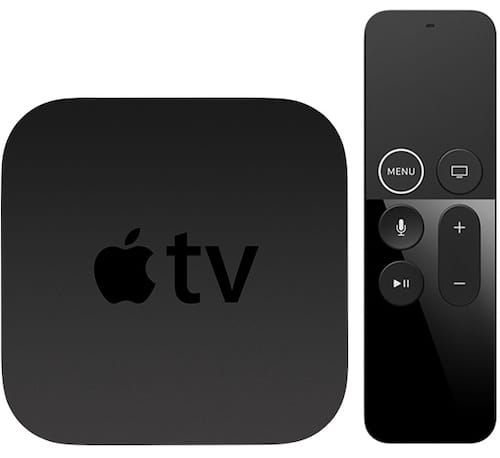
Credit: www.macobserver.com
Apple Tv Models And Light Behavior
Different Apple TV models have slight differences in their LED indicators. Here’s a quick comparison:
| Model | Light Location | Blinking Meaning |
|---|---|---|
| Apple TV 4K (2021/2022) | Front, center | Update, error, remote signal |
| Apple TV HD (2015–2021) | Front, center | Update, error, remote pairing |
| Apple TV 3rd Gen and older | Front, left | Update, boot, hardware issues |
Knowing your model helps you understand which solutions apply best.
Advanced Troubleshooting Steps
If you’re comfortable with more technical fixes, try these advanced steps.
Try A Different Power Adapter
Some users overlook the power adapter. A faulty adapter can cause intermittent power, leading to blinking lights.
- Use the official Apple power adapter if possible.
- Test with another compatible adapter to rule out the issue.
Reinstall Tvos In Dfu Mode
If a normal restore doesn’t work, you can put your Apple TV into Device Firmware Update (DFU) mode.
- Plug Apple TV into your computer as described earlier.
- Hold the Menu and Play/Pause buttons (for older remotes) for 6 seconds.
- Follow onscreen instructions in Finder or iTunes.
DFU mode is rarely needed, but it can rescue a device stuck in an update loop.
Check For Overheating
Apple TV can misbehave if it gets too hot. Feel the device—if it’s very warm, unplug it and let it cool for 20 minutes. Keep the device in a well-ventilated area, away from other electronics.
Update Your Tv Firmware
In rare cases, your TV’s firmware can cause handshake issues with Apple TV, resulting in blinking lights or no signal. Visit your TV manufacturer’s website to check for updates.
Non-obvious Insights Most Users Miss
- Not all HDMI cables are the same: Apple TV 4K needs a high-speed HDMI cable to work properly. A basic or old cable can cause handshake issues and blinking lights, even if it looks fine.
- Smart home interference: Devices like Wi-Fi routers, Bluetooth speakers, or even microwave ovens can interfere with Apple TV’s signal, especially during remote pairing. Try turning off nearby devices if you run into pairing problems.
When To Replace Your Apple Tv
Sometimes, the blinking light means your device is simply too old or damaged to repair. Here are signs you might need a new Apple TV:
- The device is over five years old and shows repeated blinking errors even after resets.
- You hear clicking or buzzing sounds from inside the device.
- The device gets very hot quickly.
- The Apple TV does not appear in Finder or iTunes during restore attempts.
Newer Apple TV models offer improved speed, better streaming quality, and longer support for software updates.
How To Prevent Future Blinking Issues
A few simple habits can keep your Apple TV running smoothly:
- Always use official Apple power and HDMI cables.
- Avoid unplugging the device during updates.
- Keep the Apple TV in a cool, open space.
- Regularly check for tvOS updates in Settings.
- Make sure your remote is charged or has fresh batteries.
Real-life Example
Anna, a user from New York, found her Apple TV’s light blinking rapidly after a storm. Her screen stayed black, and a forced restart didn’t help. By unplugging everything, using a new HDMI cable, and restoring her device via a USB-C connection to her Mac, Anna brought her Apple TV back to life.
She learned that a power surge had damaged her old HDMI cable, not the Apple TV itself—a simple fix most people overlook.
Where To Find More Help
If you want more details or need step-by-step videos, visit the official Apple Support page for Apple TV. You’ll find guides, downloads, and the latest troubleshooting advice.
Frequently Asked Questions
Why Is My Apple Tv Light Blinking But The Screen Is Black?
A blinking light with a black screen often means your Apple TV can’t complete its startup. This could be due to a failed update, a bad HDMI connection, or even a hardware fault. First, check all cables, try a different HDMI input, and restart your device.
If it still doesn’t work, you may need to restore the software using a computer.
Can I Fix A Blinking Apple Tv Light Without A Computer?
In many cases, yes. Simple problems like loose cables, remote pairing issues, or interrupted updates can be fixed without a computer. However, if your Apple TV is stuck in a boot loop (blinking rapidly and not starting), you’ll need a computer with Finder or iTunes for a full restore.
How Long Should I Wait If The Apple Tv Light Blinks During An Update?
A normal update may take anywhere from 5 to 30 minutes. Do not unplug the device during this time. If the light blinks for more than an hour with no change on the TV screen, try restarting the Apple TV or begin troubleshooting steps.
Does A Blinking Light Always Mean A Serious Problem?
Not always. Sometimes, the blinking light is just a signal that your Apple TV needs attention—like pairing a remote or waiting for an update to finish. However, persistent or very fast blinking can mean a deeper issue that may require restoring or even hardware repair.
Is It Safe To Use Third-party Power Adapters Or Hdmi Cables?
It’s best to use official Apple accessories. Cheap or non-certified cables and adapters can cause connection issues, power problems, and even damage your Apple TV. If you must use third-party accessories, choose those with good reviews and proper certification.
A blinking light on your Apple TV doesn’t have to mean panic. With the right approach, you can solve most issues yourself and get back to your favorite shows quickly. Remember, patience and careful troubleshooting are your best tools.

Credit: www.wikihow.com