Dropbox is one of the most popular cloud storage services, trusted by millions to keep files safe and accessible. But sometimes, you may notice that your Dropbox folder is not syncing. This can be frustrating, especially if you rely on Dropbox for work or personal files. Understanding why syncing issues happen and how to fix them is important.
This article explains common causes, step-by-step solutions, practical tips, and advanced troubleshooting. You’ll also see how Dropbox compares to other services, and find answers to frequent questions. If your Dropbox folder isn’t syncing, you’ll get clear guidance to solve it.
What Does “dropbox Folder Not Syncing” Mean?
When Dropbox is working well, files in your Dropbox folder update automatically across devices and the cloud. If you add, edit, or delete files, those changes appear everywhere. Not syncing means these updates are not happening. For example, you upload a file on your laptop, but it doesn’t appear on your phone or the Dropbox website. Or you delete a file on your desktop, but it stays on your tablet. Sometimes, syncing stops for just one folder; sometimes, the whole Dropbox stops updating.
This problem can lead to:
- Missing files on other devices
- Old versions of documents
- Conflicts when working with others
- Lost data if you rely on Dropbox for backup
Main Causes Of Dropbox Folder Not Syncing
Understanding why syncing fails is the first step to fixing it. Here are the most common reasons:
- Internet Connection Problems: Dropbox needs a stable and fast internet to sync. Slow or dropped connections can pause syncing.
- Dropbox App Not Running: The Dropbox desktop app must be running to sync files. If it’s closed or crashed, syncing stops.
- Outdated Dropbox App: Older versions may have bugs or compatibility issues.
- File Or Folder Name Issues: Dropbox can’t sync files with certain characters or very long names.
- Insufficient Disk Space: If your hard drive is full, Dropbox can’t download new files.
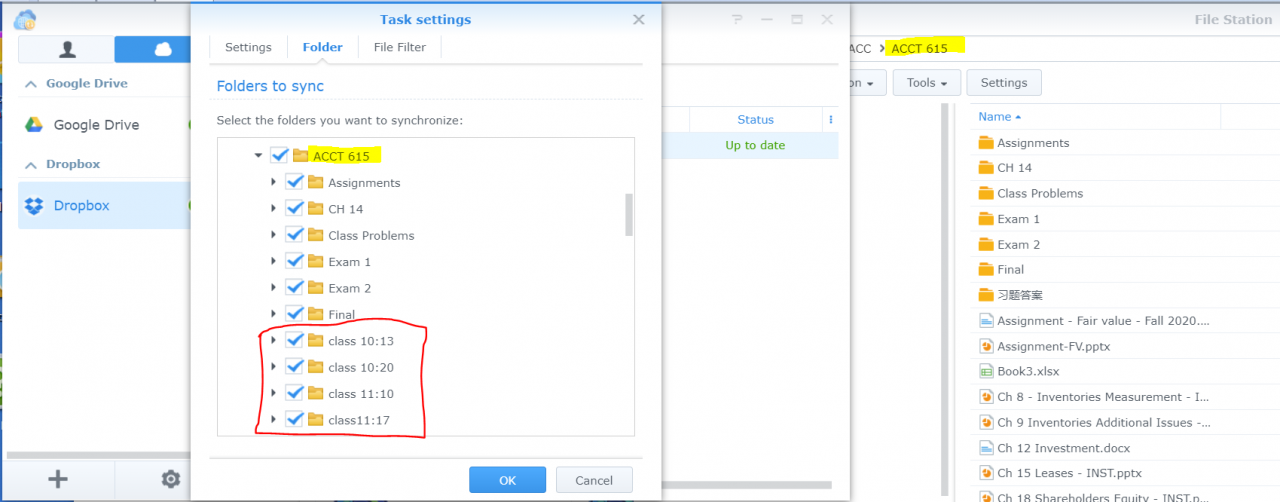
- Selective Sync Settings: Dropbox lets you choose which folders sync to your computer. If selective sync is on, some folders may not appear.
- Account Issues: Logged out, expired, or multiple accounts can cause confusion.
- Antivirus Or Firewall Blocking: Security software may block Dropbox from accessing files or the internet.
- Operating System Permissions: Dropbox needs permission to access folders. If permissions change, syncing stops.
- Server Outages Or Maintenance: Rarely, Dropbox itself may have downtime.
These issues can overlap. For example, a bad internet connection and an outdated app together can cause trouble.
How To Fix Dropbox Folder Not Syncing: Step-by-step Guide
You don’t need to be a tech expert to solve most syncing problems. Follow these steps in order for best results.
1. Check Your Internet Connection
- Make sure your device is connected to the internet.
- Test your speed using a service like Speedtest.
- If your connection is slow, try restarting your router.
2. Restart Dropbox
- On Windows: Right-click Dropbox icon in the system tray, select “Exit Dropbox.” Then open Dropbox again.
- On Mac: Click Dropbox in the menu bar, choose “Quit Dropbox.” Restart Dropbox.
3. Update Dropbox App
- Download the latest version from the official site.
- Install updates; restart your device if needed.
- Check if syncing resumes.
4. Review File And Folder Names
Dropbox doesn’t allow certain characters (like /, , ?, *, <, >, |) or names longer than 255 characters. If you see errors:
- Rename files or folders
- Avoid using special characters
5. Check Disk Space
- On Windows: Go to “This PC” and check available space.
- On Mac: Click Apple menu > “About This Mac” > “Storage.”
- Free up space if needed.
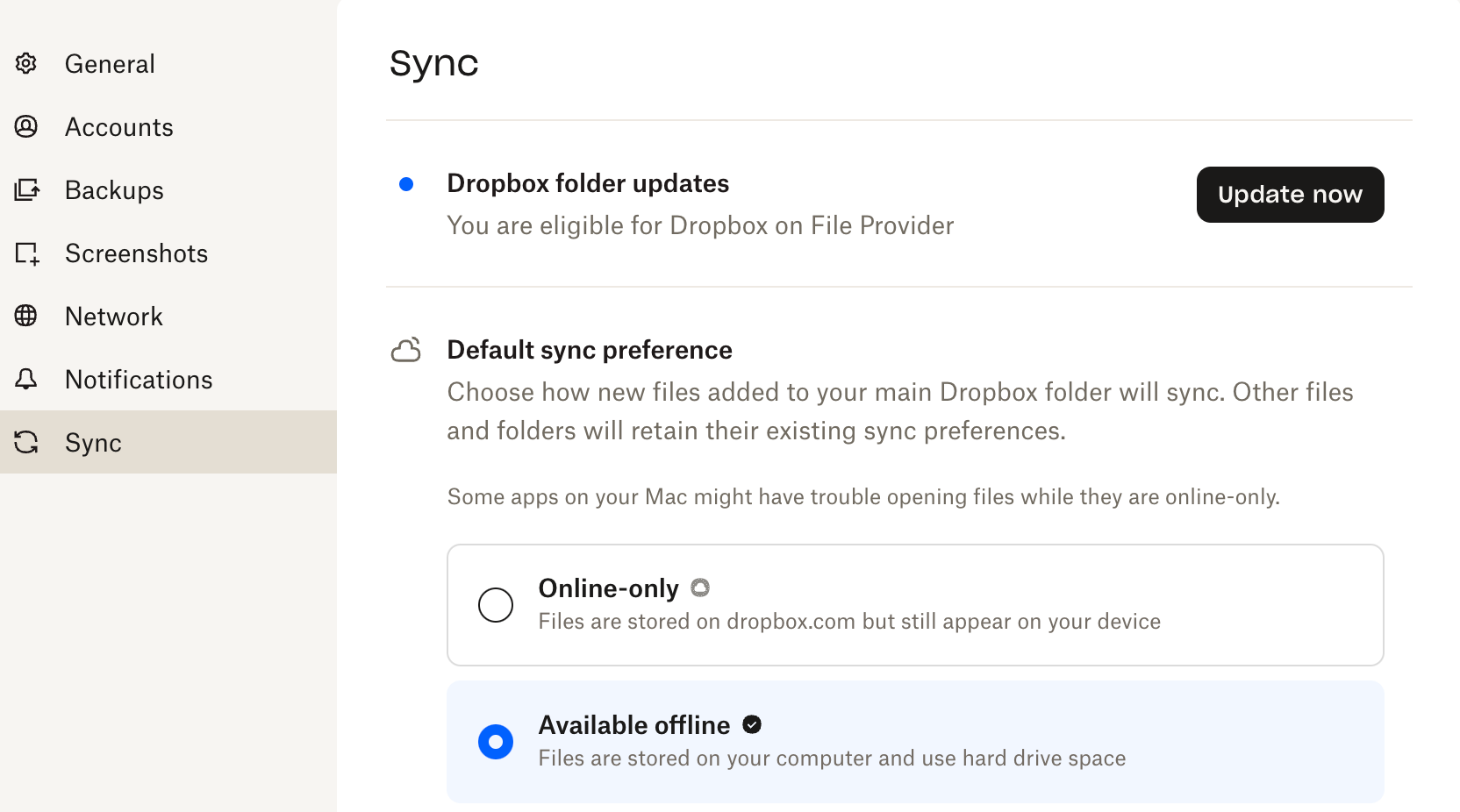
6. Verify Selective Sync Settings
Selective Sync lets you choose which folders appear on your device.
- Open Dropbox preferences.
- Go to “Sync.”
- Check if the folder is selected for syncing.
7. Confirm Account Status
- Ensure you’re logged in to the correct Dropbox account.
- Check for any alerts or messages in the Dropbox app.
8. Adjust Antivirus And Firewall Settings
- Add Dropbox as an exception in your antivirus or firewall.
- Temporarily disable security software to test.
9. Fix Permissions
On Windows:
- Right-click Dropbox folder > “Properties” > “Security.”
- Ensure your user account has “Full Control.”
On Mac:
- Right-click Dropbox folder > “Get Info.”
- Make sure your account can “Read & Write.”
10. Check Dropbox Server Status
Sometimes, Dropbox may have outages. Visit the official status page or search online.
11. Restart Your Computer
A simple restart can resolve temporary glitches.
12. Re-link Dropbox Account
- Unlink your account in Dropbox preferences.
- Log in again and re-link.
13. Reinstall Dropbox
- Uninstall Dropbox from your device.
- Download and install the latest version.
Following these steps solves most problems. If you still have trouble, advanced troubleshooting may be needed.
Advanced Troubleshooting For Persistent Sync Issues
Some syncing problems are more complex. Here are deeper solutions for stubborn issues:
Checking Dropbox Logs
Dropbox keeps logs to help diagnose problems.
- On Windows: Go to C:Users[YourName]Dropbox.dropboxlogs
- On Mac: ~/Dropbox/.dropbox/logs
Look for error messages about failed sync.
Clearing Dropbox Cache
Dropbox caches files to speed up syncing. Sometimes, the cache gets corrupted.
- Find the Dropbox cache folder:
- Windows: C:Users[YourName]Dropbox.dropbox.cache
- Mac: ~/Dropbox/.dropbox.cache
- Delete files inside (not the folder itself).
- Restart Dropbox.
Using Dropbox Website
If desktop syncing fails, upload or download files using the Dropbox website.
- Log in at dropbox.com
- Drag and drop files to upload
- Download missing files
Disabling Third-party Apps
Some apps can interfere with Dropbox. Try disabling:
- Backup software
- File managers
- Custom sync tools
Contacting Dropbox Support
If nothing works, contact Dropbox support. Provide:
- Description of the problem
- Steps you’ve tried
- Screenshots or error messages
Dropbox Sync Compared To Other Cloud Services
Dropbox is reliable, but it’s not alone. Here’s how it compares to Google Drive and OneDrive for syncing.
| Service | Sync Speed | File Size Limit | Offline Access | Selective Sync | Platform Support |
|---|---|---|---|---|---|
| Dropbox | Fast | 2 TB (paid) | Yes | Yes | Windows, Mac, Linux, Mobile |
| Google Drive | Medium | 5 TB | Yes | Partial | Windows, Mac, Mobile |
| OneDrive | Fast | 250 GB | Yes | Yes | Windows, Mac, Mobile |
Dropbox offers strong selective sync, fast speeds, and wide platform support. Google Drive has higher file size limits, but selective sync is less flexible. OneDrive is fast, but file size limits are lower.
Common Mistakes When Fixing Dropbox Sync Problems
It’s easy to miss simple solutions. Here are mistakes beginners often make:
- Ignoring Internet Speed: Assuming syncing is slow when the real problem is a weak connection.
- Not Updating Dropbox App: Old versions can cause invisible issues.
- Forgetting Selective Sync Settings: Thinking files are missing, when they’re just not selected.
- Overlooking File Name Restrictions: Special characters or long names block syncing.
- Mixing Up Accounts: Using multiple Dropbox accounts can confuse syncing.
- Skipping Disk Space Check: Dropbox needs free space to sync.
- Assuming Dropbox Is Always Running: Accidentally closing the app stops syncing.
- Ignoring Antivirus/firewall Alerts: Security software may silently block Dropbox.
- Trying To Sync System Files: Dropbox is not designed for system files or program folders.
Real-life Example: Dropbox Sync Issue At Work
Maria works at a design agency. She uses Dropbox to share files with her team. One day, her Dropbox folder stopped syncing. She tried restarting the app, but nothing changed. After checking her selective sync settings, she realized her project folder was not selected. She changed the setting, and files appeared. A week later, she noticed missing files again. This time, her antivirus had flagged Dropbox and blocked it. Maria added Dropbox as an exception, and syncing resumed.
The lesson: Problems can have more than one cause. Always check settings and security software.
Dropbox Sync Performance Data
Dropbox claims that its syncing technology is faster than most competitors. In a 2023 test by Cloudwards:
- Dropbox synced a 1 GB file in about 2 minutes
- Google Drive took 3 minutes
- OneDrive finished in 2.5 minutes
Dropbox uses LAN sync for local files, speeding up transfers between computers on the same network.
Dropbox Sync Settings: What Matters Most
Dropbox offers several settings to control syncing. Here’s a quick comparison:
| Setting | Impact | Recommended For |
|---|---|---|
| Selective Sync | Choose which folders sync to device | Low storage devices |
| Smart Sync | Show all files, download only when needed | Large Dropbox accounts |
| Bandwidth Limit | Control upload/download speed | Shared networks |
| LAN Sync | Sync files directly between devices | Office networks |
Selective Sync helps save disk space. Smart Sync is good for big accounts. Bandwidth Limit avoids network congestion.
How To Prevent Dropbox Sync Issues
Prevention is easier than fixing. Here are practical tips:
- Keep Dropbox updated: Install the latest app version.
- Check disk space regularly: Free up space before it’s full.
- Avoid special characters: Use simple names for files and folders.
- Review selective sync settings: Make sure important folders are selected.
- Use strong internet: Stable Wi-Fi or wired connections are best.
- Add Dropbox to security exceptions: Prevent antivirus or firewall from blocking.
- Don’t sync system files: Stick to documents, photos, and safe file types.
- Monitor Dropbox status page: Check for outages if syncing stops.
- Backup important files elsewhere: Don’t rely on Dropbox alone.
Dropbox Sync Insights Most Beginners Miss
New users often overlook these:
- LAN Sync boosts speed: If you use Dropbox on multiple computers in one office, LAN sync transfers files directly, much faster than internet syncing.
- Smart Sync doesn’t use disk space: Files appear in Dropbox but are stored in the cloud. Download only when needed.
- Dropbox logs help with diagnosis: Checking logs reveals hidden errors.
Dropbox Sync: Mobile Vs. Desktop
Dropbox works on both desktop and mobile devices, but syncing works differently.
| Device | Sync Method | Offline Access | Automatic Upload |
|---|---|---|---|
| Desktop | App syncs full folders | Yes | Manual |
| Mobile | Syncs selected files | Partial | Automatic (photos/videos) |
On desktop, Dropbox syncs entire folders. On mobile, you choose files to sync or make available offline. Mobile apps can auto-upload photos and videos.
When To Switch Cloud Services
If Dropbox syncing keeps failing, you might consider alternatives.
- Google Drive: Better for Google Docs integration.
- OneDrive: Works well with Microsoft apps.
- Box: Focused on business users.
Switch if:
- You need larger file limits
- Dropbox doesn’t support your device
- You need more collaboration features
How Dropbox Handles Sync Conflicts
When two people edit the same file at the same time, Dropbox creates a conflicted copy. This avoids overwriting data.
- Conflicted copies have a special name: “filename (User’s conflicted copy).”
- Both versions are saved.
- You must manually merge changes.
This system prevents accidental loss, but can be confusing. Always check for conflicted copies if files seem wrong.
Dropbox Sync Security
Dropbox uses strong security:
- AES 256-bit encryption for files
- SSL/TLS for data transfer
- Two-factor authentication for accounts
Still, syncing issues can expose data if permissions are wrong or devices are lost. Always secure your devices and accounts.
Dropbox Sync And Team Collaboration
Dropbox is popular for teams. Syncing keeps everyone updated. Problems can cause:
- Missed deadlines if files don’t update
- Duplicate work from unsynced files
- Confusion over file versions
To avoid these:
- Set clear folder structures
- Use selective sync wisely
- Communicate about changes
Dropbox Sync For Large Files
Dropbox handles large files well, but syncing can be slow for files over 1 GB. Tips:
- Use wired internet for faster upload
- Avoid syncing too many big files at once
- Check bandwidth limits in settings
Dropbox’s file size limit is 2 TB (for paid accounts), but uploading huge files needs stable connections.
Dropbox Sync And External Devices
Dropbox can sync with external hard drives, but be careful:
- Syncing to external drives can cause errors if the drive disconnects.
- Always keep the drive connected during syncing.
- Avoid using Dropbox on external drives for critical files.
Dropbox Sync And File Recovery
If syncing fails and files disappear, Dropbox keeps backup copies.
- Use Dropbox Rewind to restore folders to earlier versions.
- Deleted files stay in the Trash for 30 days (or more for paid accounts).
If you need to recover files, go to dropbox. com and use the recovery tools.
Dropbox Sync And Storage Plans
Dropbox offers several plans:
- Basic (free): 2 GB
- Plus: 2 TB
- Family: 2 TB shared
- Professional: 3 TB
Paid plans support larger files and more features. Choose a plan based on:
- Number of files
- Size of files
- Number of devices
If your Dropbox folder isn’t syncing, check your storage quota. If you exceed your limit, new files won’t sync.
Frequently Asked Questions
Why Is My Dropbox Folder Not Syncing Even Though I Have Internet?
A stable internet connection is needed, but other issues like selective sync, file name restrictions, or security software can block syncing. Restart Dropbox and check settings to find the cause.
What Characters Should I Avoid In File And Folder Names For Dropbox?
Avoid using /, ,? , *, <, >, |, and very long names (over 255 characters). These can prevent syncing.
How Can I Check Dropbox Server Status?
Go to the official Dropbox Status Page to see if Dropbox is having outages.
Can Dropbox Sync Files Between Devices On The Same Network Faster?
Yes. Dropbox uses LAN sync to transfer files quickly between computers connected to the same local network. This is much faster than syncing over the internet.
What Should I Do If Dropbox Keeps Creating Conflicted Copies?
Conflicted copies happen when files are edited at the same time. To fix, review each version, merge changes, and delete extra copies. Communicate with your team to avoid future conflicts.
Conclusion:
Dropbox is a powerful tool, but syncing issues can disrupt your workflow. By understanding causes and solutions, you can keep your files safe and always up to date. If problems persist, follow advanced troubleshooting and consider reaching out to Dropbox support or exploring other cloud services.
With these tips, your Dropbox folder should sync smoothly, helping you stay productive and organized.