If you own an Eero device, you know how important it is to have a stable Wi-Fi network. But sometimes, you may notice a yellow light blinking on your Eero. This small signal can mean several things, and knowing how to fix it can save you time and frustration. In this article, you’ll learn what the Eero yellow light blinking means, why it happens, and how to solve it. Whether you’re new to Eero or have used it for years, you’ll find practical tips and solutions here, written in clear, simple English. Let’s get started.
What Does The Eero Yellow Light Blinking Mean?
Eero uses colored lights to show the status of your device. A yellow light blinking is not something you should ignore. It usually signals that your Eero is having trouble connecting, either to the internet or to other Eero devices in your network.
Most often, the yellow blinking light means your Eero is in Bridge Mode, waiting for a connection, or experiencing a connection error. Sometimes, it’s related to power issues or setup problems. Understanding the light’s meaning can help you fix your Wi-Fi faster.
Common Reasons For Yellow Light Blinking
- Internet connection lost
- Eero device not set up
- Bridge Mode active
- Firmware update problems
- Power supply issues
Knowing these reasons is the first step. Next, let’s look at how Eero compares to other mesh routers when it comes to status lights.
| Brand | Status Light Colors | Meaning of Yellow Light |
|---|---|---|
| Eero | White, Blue, Yellow, Red | Bridge Mode or Connection Error |
| Google Nest WiFi | White, Orange, Red | Setup Needed |
| TP-Link Deco | Green, Yellow, Red | Connection Error |
As you can see, Eero’s yellow light is unique compared to other brands. Now, let’s dive into more details about why this light blinks.
Key Causes Of Eero Yellow Light Blinking
1. Bridge Mode
If your Eero is set to Bridge Mode, it acts as a simple Wi-Fi access point. This mode is often used when you already have a main router and want Eero to extend your network. The yellow blinking light tells you that Eero is waiting for a connection from your main router. If you see this, check your cables and router settings.
2. Internet Connection Lost
Sometimes, the yellow light means your Eero cannot reach the internet. This might happen if:
- Your modem is offline
- Ethernet cable is loose or damaged
- Your ISP is down
Check your modem and cables first. If everything looks fine, restart your modem and Eero.
3. Device Not Set Up
If your Eero is new or has been reset, it may blink yellow during setup. This means it’s waiting for you to finish the setup process in the Eero app. Open the app and follow the instructions.
4. Firmware Update Issues
Eero updates its software automatically. If there’s a problem during the update, the yellow light may blink. In this case, wait a few minutes. If the light stays yellow, restart your Eero.
5. Power Supply Problems
A faulty power adapter or loose connection can cause a yellow blinking light. Make sure your Eero is plugged in firmly. If possible, try another power outlet or adapter.

Credit: www.metronet.com
How To Fix Eero Yellow Light Blinking
Solving the yellow light issue can be easy if you follow these steps. Let’s break them down.
Step 1: Check Connections
Start by checking all cables. Make sure your Eero’s Ethernet cable is connected properly to your modem and router. Look for damage or loose ends.
Step 2: Restart Devices
Restart your Eero and modem. Unplug them, wait 30 seconds, then plug them back in. This simple step often solves the problem.
Step 3: Complete Setup
If your Eero is new, make sure you finish the setup in the Eero app. Follow the instructions until you see a solid white light.
Step 4: Update Firmware
Sometimes, updating the firmware can solve the blinking yellow light. Open the Eero app, go to settings, and check for updates. Install any available updates.
Step 5: Check Bridge Mode
If you’re using Bridge Mode, confirm that your main router is working. Go to the Eero app, check the network mode, and switch to Router Mode if needed.
Step 6: Power Supply Test
Try a different power adapter and outlet. If your Eero works, the problem was in the power supply.
Step 7: Contact Support
If none of these steps work, contact Eero support. They can guide you through advanced troubleshooting.
| Step | Action | Expected Result |
|---|---|---|
| 1 | Check cables | All cables secure, no damage |
| 2 | Restart devices | Eero light changes to white |
| 3 | Finish setup | Solid white light after setup |
| 4 | Update firmware | Light stops blinking |
| 5 | Check Bridge Mode | Light changes as network mode updates |
| 6 | Test power supply | Eero works with new adapter |
Practical Tips To Avoid Eero Yellow Light Issues
Nobody wants Wi-Fi trouble. Here are some easy ways to keep your Eero running smoothly:
- Use quality Ethernet cables, not old or damaged ones
- Keep your Eero near your modem for a strong connection
- Avoid plugging Eero into outlets with many other devices
- Update your Eero app regularly
- Restart your Eero every few months
These steps can help prevent most yellow light problems before they start.
Hidden Insights Most Users Miss
- Bridge Mode Confusion: Many users don’t realize that Bridge Mode disables many Eero features. If you want parental controls or device tracking, avoid Bridge Mode. Always check your network mode in the app before changing settings.
- Firmware Update Timing: Eero updates often happen late at night. If your Eero blinks yellow in the morning, it may have failed an update. Restarting early can solve this.
- ISP Compatibility: Not all internet providers support Eero easily. Some ISPs require special settings or logins. If your Eero blinks yellow after setup, check your ISP’s support page.
Eero Yellow Light Vs Other Eero Light Signals
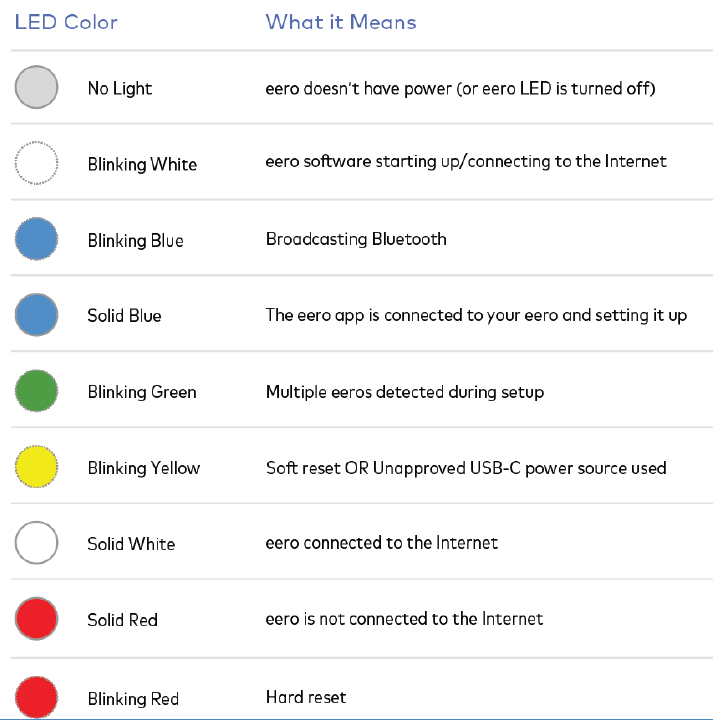
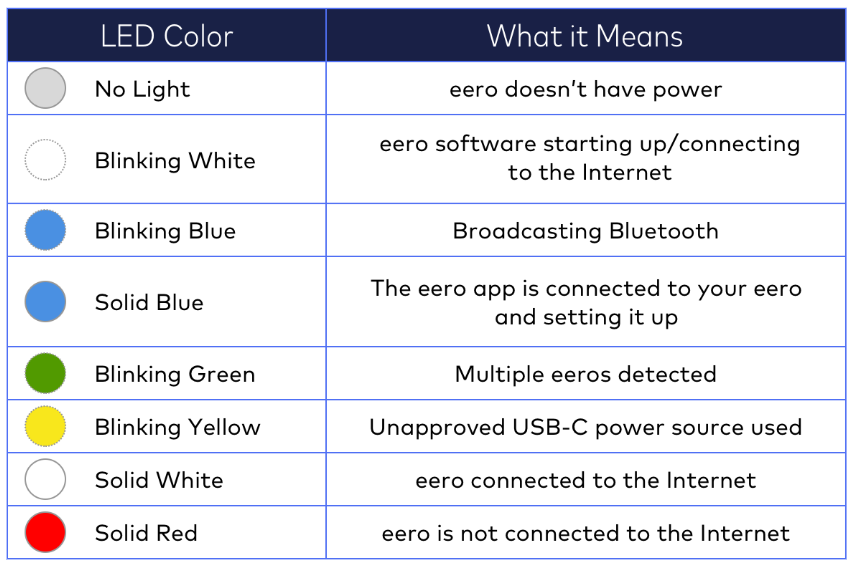
Eero uses different colors to communicate:
- White light: Normal operation, everything is fine
- Blue light: Eero is ready for setup
- Yellow light: Bridge Mode or connection problem
- Red light: Major error, no internet
Knowing these signals saves time when troubleshooting.
| Light Color | Status | Action Needed |
|---|---|---|
| White | Connected | None |
| Blue | Setup mode | Use app to finish setup |
| Yellow | Bridge/connection issue | Troubleshoot network |
| Red | No internet | Check modem and cables |
Credit: www.melita.com
Common Mistakes When Fixing Eero Yellow Light
- Forgetting to check both ends of the cable
- Restarting only the Eero, not the modem
- Skipping app setup steps
- Ignoring firmware updates
- Using old power adapters
Avoiding these mistakes can solve your yellow light problem faster.
When Should You Replace Your Eero?
If your Eero shows a yellow blinking light often and troubleshooting doesn’t help, it may be time to replace the device. Eero routers last around 4–5 years with normal use. If your device is older, consider upgrading to the latest model. Newer Eero versions offer better speed, stronger signal, and improved reliability.
Credit: www.tangerine.com.au
Eero Yellow Light: Real-world Example
Let’s look at a real case. John, a small business owner, noticed his Eero had a yellow blinking light after a storm. He checked his cables, restarted his devices, and finished setup in the app. Nothing worked. He then called his ISP and learned there was a local outage.
When the internet returned, his Eero’s light changed to white. This shows that sometimes the problem is outside your control.
How Eero Support Can Help
Eero has a strong support team. If your yellow light problem is hard to fix, contact them. Eero support can run remote diagnostics, guide you through advanced steps, and even replace faulty devices under warranty. You can find their contact details in the Eero app or on the official website.
For more technical details, you can visit Eero Official Support.
Frequently Asked Questions
Why Is My Eero Blinking Yellow After Setup?
Your Eero may blink yellow if it’s in Bridge Mode or has not finished connecting to your main router. Double-check your cables and finish setup in the Eero app.
How Long Does The Yellow Light Last?
Usually, the yellow light should stop within a few minutes after setup or restart. If it continues for more than 10 minutes, there may be a deeper issue with your network or device.
Does A Yellow Blinking Light Mean My Eero Is Broken?
No, the yellow light often means a connection problem, not a hardware failure. Try troubleshooting steps before considering replacement.
Can I Use Eero In Bridge Mode And Still Get Full Features?
No. In Bridge Mode, many Eero features—like device tracking and parental controls—are disabled. Switch to Router Mode for full features.
What If None Of The Fixes Work?
If you’ve tried all the steps and your Eero still blinks yellow, contact Eero support. They can run remote tests and may recommend replacing your device.
A blinking yellow light on your Eero doesn’t have to ruin your day. By understanding what it means, checking your connections, and following clear troubleshooting steps, you can get your Wi-Fi back up and running. Remember, most issues are easy to fix if you know where to look.
And if you’re ever stuck, Eero’s support team is ready to help. Wi-Fi problems happen to everyone, but with the right knowledge, you can solve them quickly and confidently.