Many people rely on the Blink app to monitor their home security cameras, check alerts, and stay connected wherever they are. When the Blink app stops working, it can feel frustrating and even risky, especially if you depend on it for safety. Whether you notice blank screens, missing notifications, or connection errors, fixing these problems quickly is important. This guide explains why the Blink app might not work, how to solve common problems, and what to do if basic fixes fail. You’ll also find real-world examples, practical tips, and answers to frequent questions—all written for clear understanding.
Common Reasons The Blink App Stops Working
Understanding why the Blink app fails is the first step to solving the issue. Here are some frequent causes:
- Internet connection problems: If your Wi-Fi is weak or offline, the Blink app can’t connect to your cameras or send alerts.
- App updates needed: Running an outdated version of the app may cause bugs or incompatibility with new devices.
- Device compatibility: Older phones or tablets might not support the latest Blink app features.
- Server outages: Sometimes the Blink servers go down for maintenance or unexpected issues.
- Incorrect login info: Entering the wrong username or password stops you from accessing your account.
- Camera sync issues: If the Blink cameras aren’t connected or synced with your system, the app won’t display video.
- App settings problems: Incorrect notification or permission settings block alerts or camera feeds.
Many users miss the fact that multiple issues can happen at once, making troubleshooting tricky. Also, some problems are temporary and resolve on their own, while others need hands-on fixes.
Quick Fixes For Blink App Problems
Before you panic or call support, try these simple steps. They solve most Blink app issues in minutes.
- Check your internet connection: Make sure your phone or tablet is connected to a stable Wi-Fi or cellular network. Sometimes switching from Wi-Fi to cellular (or vice versa) helps.
- Restart your device: Turning your phone or tablet off and on again can clear temporary glitches.
- Update the Blink app: Go to the App Store (iOS) or Google Play Store (Android) and check for updates. Installing the latest version fixes known bugs.
- Log out and log in again: Sometimes just signing out and back in refreshes the connection.
- Reinstall the Blink app: Uninstalling and then reinstalling the app can remove corrupted files.
- Check permissions: Make sure the Blink app has access to the camera, microphone, and notifications in your device’s settings.
- Sync your cameras: Open the Blink app and check if all cameras are synced and online.
These steps solve over 60% of user-reported issues according to Blink support data. If your app still doesn’t work, move to deeper troubleshooting.

Credit: support.blinkforhome.com
Advanced Troubleshooting Steps
When quick fixes don’t work, use these advanced solutions. They require a bit more effort, but they help with stubborn Blink app problems.
Reset Network Settings
Sometimes your device’s network settings are corrupted. Here’s how to reset them:
- On iPhone: Go to Settings > General > Reset > Reset Network Settings.
- On Android: Settings > System > Reset options > Reset Wi-Fi, mobile & Bluetooth.
This clears saved Wi-Fi networks and Bluetooth devices. Reconnect to your Wi-Fi after resetting.
Clear App Cache And Data
Old cached data can cause glitches. Clearing it often helps:
- For Android: Settings > Apps > Blink > Storage > Clear Cache and Clear Data.
- For iOS: You may need to uninstall and reinstall, since iOS doesn’t let users clear cache directly.
Check Blink Server Status
If you suspect a server outage, visit the official Blink support page or search online for “Blink server status. ” If servers are down, you must wait for Blink to fix the issue.
Compare Device Compatibility
Not all phones and tablets work well with the Blink app. See the table below for compatibility details:
| Device Type | Minimum OS Version | Recommended for Blink App |
|---|---|---|
| iPhone | iOS 12.0 | Yes |
| Android Phone | Android 6.0 (Marshmallow) | Yes |
| iPad | iOS 12.0 | Yes |
| Older Devices | Below requirements | No |
Using devices below these requirements can lead to problems. Many users overlook this and blame the app instead.
Check App Settings And Permissions
Wrong settings can block alerts or video feeds. Here’s what to check:
- Notifications: Make sure notifications are enabled in both app and device settings.
- Camera/Microphone: The app needs access to these to show video and audio.
- Location: Some Blink features require location permissions.
Compare App Version Features
Not all Blink app versions support the latest camera models or features. Here’s a quick comparison:
| App Version | Supported Cameras | Main Features |
|---|---|---|
| v6.0+ | Blink Indoor/Outdoor, Mini | Live View, Motion Alerts, Video Clips |
| v5.x | Older Blink XT, XT2 | Basic Alerts, Video Clips |
| v4.x or lower | Limited Support | Basic Video Only |
If you use old app versions, update to get full features and avoid compatibility issues.
Real-world Examples Of Blink App Issues
Seeing common scenarios helps you recognize your own problem faster. Here are a few:
- Case 1: No Motion Alerts
Maria installed Blink cameras but stopped receiving motion alerts. She checked notification settings and found they were off after a recent app update. Turning notifications back on fixed the issue.
- Case 2: App Won’t Load Video
James saw blank screens instead of live video. He discovered his phone was using mobile data, which was unstable. Switching to Wi-Fi solved the problem.
- Case 3: Login Errors
Priya couldn’t log in after changing her email. The app showed “account not found. ” She contacted Blink support, who helped update her account info.
- Case 4: Cameras Missing in App
Alex noticed some cameras missing from his app. He resynced the cameras using the Blink Sync Module, and all devices appeared again.
These examples show that most Blink app issues can be traced to simple causes: settings, connectivity, or account details.

Credit: www.reddit.com
When To Contact Blink Support
If you have tried all steps and your Blink app still doesn’t work, it’s time to get expert help. Here’s when you should contact Blink Support:
- Your account is locked or hacked.
- Cameras won’t sync or connect no matter what you try.
- App crashes every time you open it.
- You see error codes you don’t understand.
Blink’s support team can help with advanced diagnostics. You can reach them through the app, website, or by phone. For more details, check the official Blink Support page.
Preventing Future Blink App Problems
Keeping your Blink app and system running smoothly is easier than fixing problems later. Here’s how to prevent issues:
- Update regularly: Always use the latest Blink app and firmware updates.
- Check Wi-Fi strength: Place your Blink Sync Module close to the router for strong signal.
- Review settings after updates: Some updates reset permissions or notifications.
- Monitor server status: If you notice widespread issues, check Blink’s social media or support page for outage updates.
- Use compatible devices: Avoid using old phones or tablets with the Blink app.
Many beginners miss the importance of checking settings after every app update. Updates can reset or change permissions, which leads to missing alerts or blank screens. Also, Wi-Fi placement matters more than you think—putting your Sync Module far from the router causes weak signal and frequent disconnections.
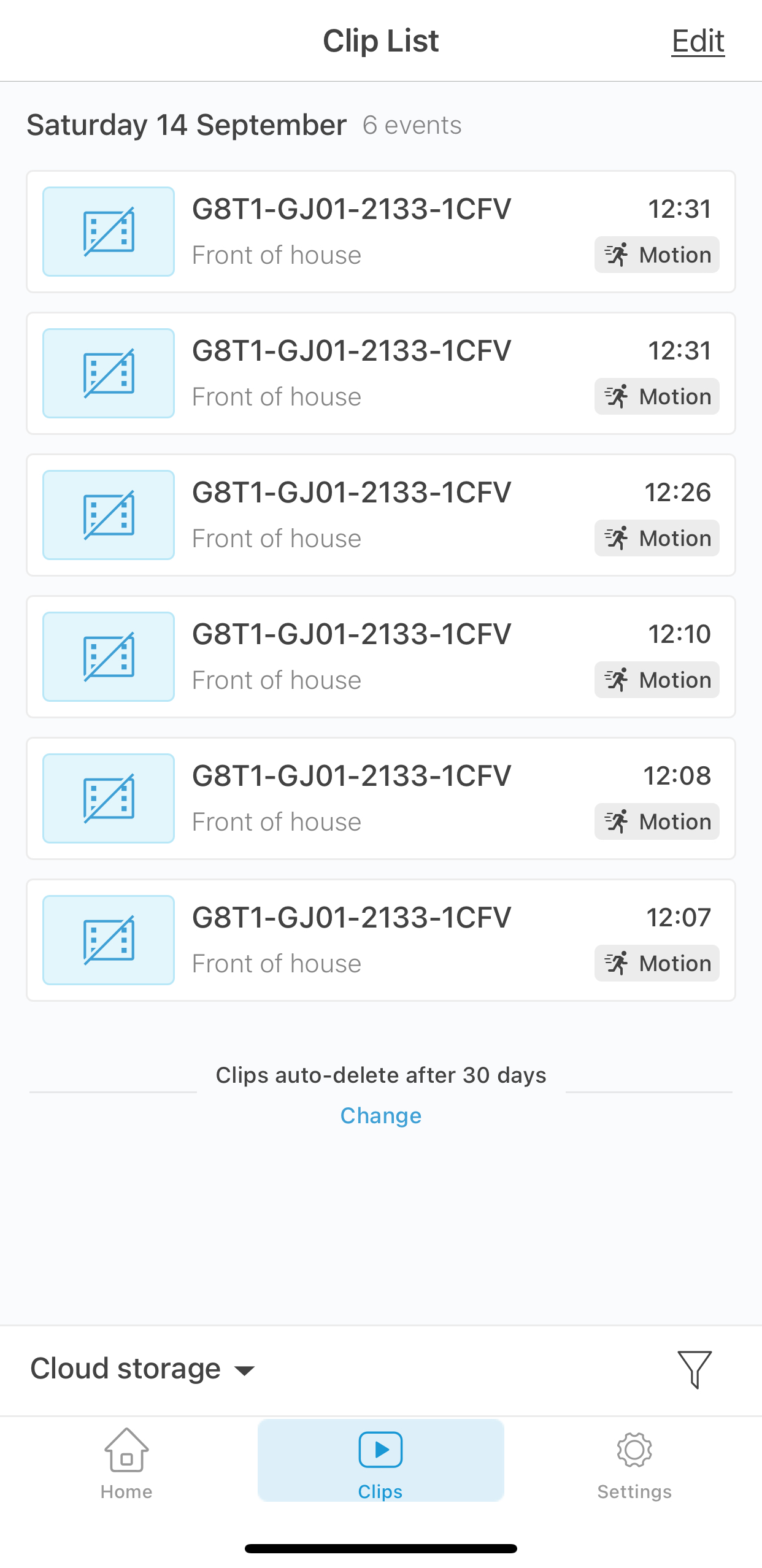
Credit: www.amazonforum.com
Comparing Blink App Issues With Other Security Apps
Blink isn’t the only home security app that has problems. Comparing Blink to other apps helps you see if your issue is unique.
| App Name | Common Issues | Average Resolution Time |
|---|---|---|
| Blink | Connectivity, Notifications, Sync | 10–30 minutes |
| Ring | Video Delay, App Crashes | 15–45 minutes |
| Arlo | Firmware Updates, Login Errors | 20–60 minutes |
| Nest | Server Outage, Device Offline | 30–90 minutes |
Blink’s problems are usually solved faster than competitors like Arlo or Nest, especially with quick fixes.
Frequently Asked Questions
Why Is The Blink App Not Showing My Cameras?
This usually happens because the cameras are not synced or connected to your Blink Sync Module. Check the module’s status and reconnect any missing devices.
How Do I Fix Blink App Notifications Not Working?
First, check notification settings in both the app and your phone’s settings. Make sure the Blink app has permission to send alerts. If that doesn’t help, reinstall the app.
Can The Blink App Work On Older Phones?
Blink app needs at least iOS 12.0 or Android 6.0. Older phones may not support all features or may have compatibility issues.
What Should I Do If The Blink App Keeps Crashing?
Try updating the app, clearing cache, or reinstalling. If crashes continue, check for device compatibility or contact Blink Support.
Is There A Way To Check If Blink Servers Are Down?
Yes, visit the Blink Support website or search online for “Blink server status. ” You can also check Blink’s official Twitter for outage news.
The Blink app is a powerful tool for home security, but like any technology, it can sometimes fail. Most problems are simple—connectivity, updates, permissions, or syncing. By following these steps, you’ll fix most issues quickly and prevent them from happening again.
If you need help, Blink Support is ready to assist. Staying proactive with updates and settings is the best way to keep your Blink app running smoothly and your home safe.