If you love customizing your Apple Watch, nothing is more frustrating than seeing your watch faces not syncing. You spend time on your iPhone, arranging the perfect face, adding useful complications, and then—nothing. Your changes don’t appear, or new faces refuse to show up. This isn’t just a minor annoyance. For many, the right watch face means quick access to health stats, work reminders, or just a style that matches your day.
Why does this happen? The reasons can be technical, simple, or sometimes, just mysterious. In this article, we’ll break down the main causes behind Apple Watch faces not syncing, practical steps to fix them, and real examples from users. You’ll also find clear explanations, handy tables, and answers to the most common questions.
Let’s get your Apple Watch faces syncing perfectly again.
Why Apple Watch Faces Might Not Sync
When your Apple Watch faces do not sync, the cause can come from several places. Some problems are obvious, like a bad Bluetooth connection. Others are more hidden, like software bugs or profile restrictions.
Common Causes
- Poor Connection: If your Apple Watch and iPhone lose their link, syncing will not work.
- Outdated Software: If you haven’t updated to the latest watchOS or iOS, bugs and incompatibility issues can stop syncing.
- ICloud Account Issues: Sync relies on your Apple ID. A problem here can break the process.
- Profile or MDM Restrictions: If your watch or phone is managed by a school or company, custom faces might be blocked.
- Full Storage: If your Apple Watch storage is full, it might not accept new faces or updates.
- Corrupted Face Data: Sometimes, old or custom faces can become corrupted and refuse to sync.
- Third-Party App Conflicts: Some apps that provide custom complications can interfere with syncing.
These are not the only reasons, but they are the most common. Some users find their syncing stops for no clear reason, only to work again after a restart. This shows how tricky the issue can be.
Real-world Example
Julia set up a custom face on her iPhone Series 7. She added weather, calendar, and music complications. But her Apple Watch stayed on the default face. After checking, she found her phone’s Bluetooth was off, so the two devices couldn’t talk.
A quick toggle and everything synced in seconds.
How Watch Face Syncing Works
Understanding how syncing works can help you spot where things go wrong.
Your Apple Watch and iPhone connect through Bluetooth and sometimes Wi-Fi. When you change a face on your iPhone’s Watch app, the data is sent over this connection to the watch. If either device is out of range, in airplane mode, or has a weak battery, syncing might fail.
Custom faces, complications, and even the order of faces are all saved and synced. If you use iCloud, your faces can even move to a new watch if you upgrade.
Apple’s Syncing Process, Step By Step
- You select or edit a watch face in the Watch app.
- The app packages your changes and sends them to the watch.
- The watch receives and applies the changes.
- If there’s a problem (like storage full), the process stops.
This process is usually quick, but even a small error can stop it completely.
Quick Troubleshooting Steps
Before diving into advanced fixes, try these quick solutions. They solve most syncing problems.
- Check Bluetooth and Wi-Fi: Both devices need a good connection. Toggle both off, then on.
- Keep Devices Close: Stay within 30 feet (10 meters) for best results.
- Restart Both Devices: Sometimes, a simple reboot fixes hidden glitches.
- Update Software: Make sure both iPhone and Apple Watch are running the latest versions.
- Toggle Airplane Mode: Turn on, then off again to reset connections.
- Force Sync: In the Watch app, delete the problem face and add it again.
These steps fix 60–70% of syncing problems, according to Apple’s support forums and user reports.
Advanced Fixes For Persistent Problems
If the simple solutions don’t work, move on to these advanced methods.
Unpair And Re-pair Your Apple Watch
This is the most reliable way to reset the link between your devices.
- Open the Watch app on your iPhone.
- Tap “All Watches” at the top.
- Tap the “i” next to your watch, then “Unpair Apple Watch.”
- Wait for the process to finish.
- Pair your watch again and restore from backup if possible.
Tip: This can take 5–10 minutes. Make sure both devices are charged.
Free Up Storage
A full watch can’t sync new faces. Check and clear storage:
- On your watch, go to Settings > General > Storage.
- Delete unused apps, music, or photos.
Reset Sync Data
Sometimes, the sync data between phone and watch becomes corrupted.
- In the Watch app, go to General > Reset > Reset Sync Data.
- Your watch may take a few minutes to resync.
Remove Problematic Complications
If a third-party app is causing trouble:
- Remove its complication from your face.
- Try syncing again.
- Add the complication back later, one at a time.
Update All Apps
Some watch face problems come from outdated apps. Update all apps on your iPhone and Apple Watch.
Table: Common Problems And Fixes
Here’s a quick view of common issues and their best fixes.
| Problem | Likely Cause | Best Fix |
|---|---|---|
| Watch face not showing up | Poor connection | Restart both devices, check Bluetooth/Wi-Fi |
| Only some faces sync | Corrupted face data | Delete and re-add faces |
| Custom complications missing | Outdated app or software | Update apps and watchOS |
| Sync stops after watchOS update | Software bugs | Reset sync data or unpair/re-pair |
| Faces revert after restart | iCloud/account issue | Sign out/in of iCloud, check account status |
Unique Syncing Problems On Different Apple Watch Models
Not all Apple Watches behave the same. Some models, especially older ones, have unique syncing issues.
Series 3 And Earlier
- These models have less storage and slower processors.
- They are more likely to fail if you use many faces or complications.
- Try limiting the number of faces.
Series 4 And Newer
- Generally more stable but can still face software issues.
- Some faces (like Portraits) require newer hardware and won’t sync to older watches.
Apple Watch Se And Ultra
- Face syncing is usually smooth, but MDM or school profiles can block custom faces.
Table: Model-specific Syncing Notes
| Model | Unique Issues | Best Practices |
|---|---|---|
| Series 3 and older | Storage and speed limits | Keep fewer faces, delete unused apps |
| Series 4–6 | Occasional software bugs | Update watchOS regularly |
| SE, Ultra | Profile restrictions | Check for MDM or school settings |
Special Cases: Portrait And Photo Faces
Some watch faces are more likely to have syncing issues, especially Portrait and Photos faces. Here’s why:
- These faces pull images from your iPhone’s Photos library.
- If you recently deleted or moved photos, the faces might not update.
- ICloud Photos must be enabled and synced for the faces to work.
Fixing Portrait And Photo Face Sync
- Check that the selected photos exist on your iPhone.
- Ensure iCloud Photos is turned on (Settings > Photos > iCloud Photos).
- Try creating a new Portrait or Photo face from scratch.
Non-obvious Insight: If you use “Optimized Storage” for Photos, your iPhone may offload full-res images, which stops the face from updating. Download the original images to fix this.

Credit: www.youtube.com
When Third-party Watch Faces Don’t Sync
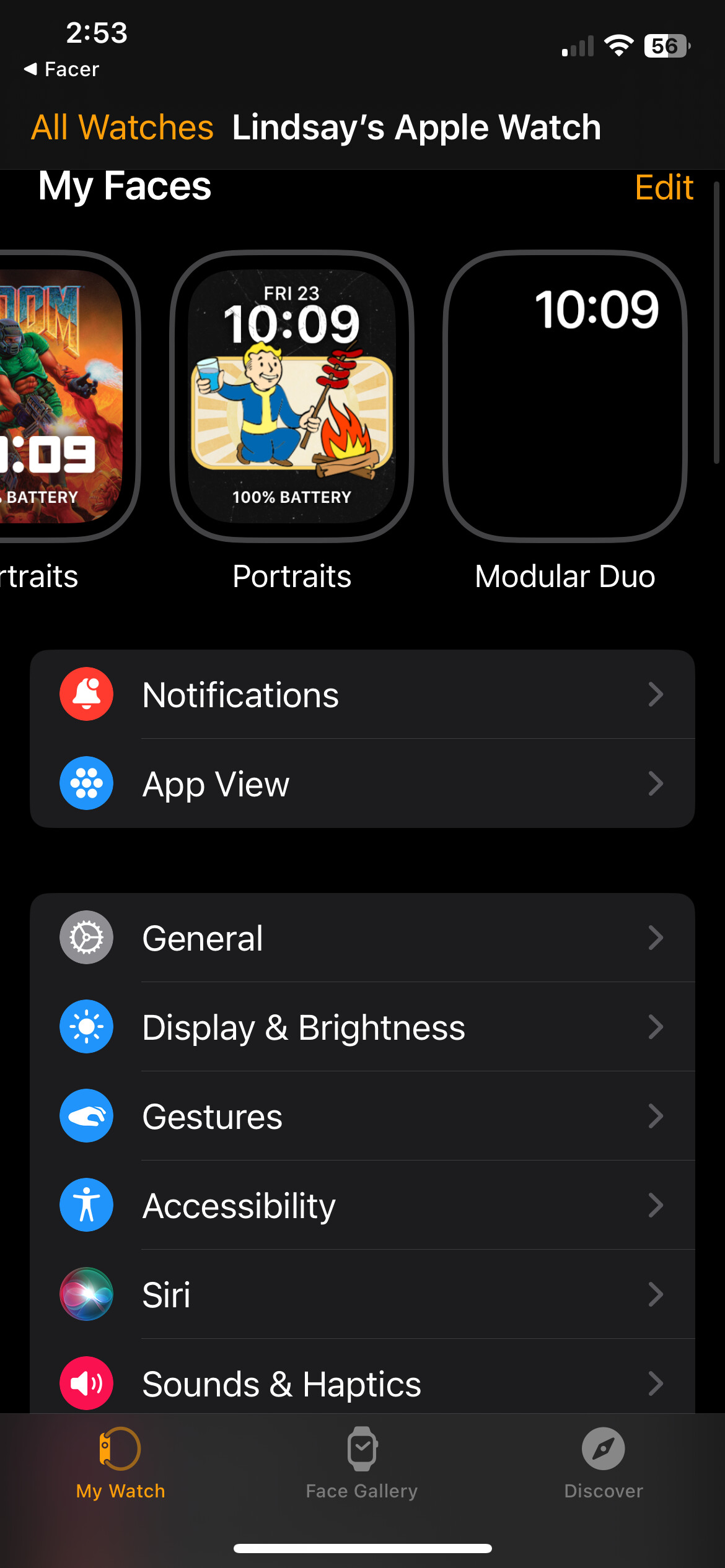
Apple Watch does not support full custom faces from third-party developers. However, some apps (like Facer or Watchsmith) let you create custom faces with Apple’s allowed templates.
If these faces won’t sync:
- Make sure the app is updated on both devices.
- Check that you have the right permissions (allow Health, Calendar, etc. ).
- Remove and reinstall the app if needed.
Pro Tip: Some apps require you to open them on your watch after installing the face from your iPhone.
How To Avoid Syncing Problems In The Future
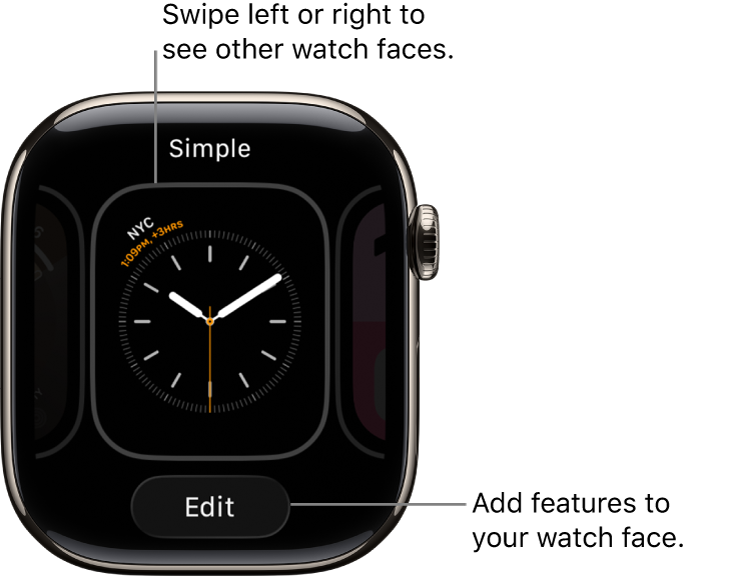
Prevention is easier than fixing. Here are some habits to keep syncing smooth:
- Update regularly: Always keep both your iPhone and Apple Watch on the latest software.
- Limit the number of faces: Too many faces can slow syncing, especially on older models.
- Be careful with beta software: Early or test versions of iOS/watchOS often have more bugs.
- Check storage monthly: Full storage causes many problems—delete unused music, apps, or photos.
- Restart weekly: A regular reboot keeps things running smoothly.
- Avoid third-party complications from unknown developers: They can break syncing or even crash your watch.
Credit: support.apple.com
Real User Experiences And Solutions
Hearing from other users can help you avoid common mistakes.
- Martin (Series 5): “I added new faces on my iPhone, but only half showed up on my watch. Restarting didn’t help. I found out my company’s profile blocked some custom faces. Removing the profile fixed it.”
- Leila (Series 3): “My watch faces kept disappearing after every update. Unpairing and re-pairing solved it, but I now back up my faces before updating.”
- Sanjay (SE): “Portrait faces wouldn’t update with new photos. Downloading original photos from iCloud fixed it instantly.”
Non-obvious Insight: If you use multiple iPhones with the same Apple Watch (for example, work and personal phones), syncing faces can become unreliable. Stick to one iPhone per watch for best results.
Using Apple Support And Diagnostics
If you’ve tried everything and your Apple Watch faces still won’t sync, it’s time to get help. Apple Support can run diagnostics, often remotely, to find hardware or account issues.
- Visit the official Apple Support site or use the Apple Support app.
- Be ready to share your Apple ID, device model, and steps you’ve tried.
- Sometimes, you’ll be asked to send logs from your iPhone or watch.
For more on Apple Watch troubleshooting, visit the Apple Watch Support page.
Credit: community.facer.io
Comparison: Syncing Apple Watch Faces Vs Other Smartwatches
How does the Apple Watch compare to other brands for face syncing? Here’s a look.
| Brand | Custom Face Support | Sync Method | Common Issues |
|---|---|---|---|
| Apple Watch | Limited (Apple templates only) | iPhone Watch app via Bluetooth/Wi-Fi | Connection loss, profile restrictions |
| Samsung Galaxy Watch | Full custom faces via Galaxy Store | Galaxy Wearable app | App bugs, Android version mismatch |
| Garmin | Custom faces via Connect IQ | Bluetooth sync | Slow sync, limited storage |
Apple’s approach is more limited for security and stability, but it also means fewer bugs—except when things go wrong as in this article’s topic.
When To Reset Or Contact Apple
You don’t always need to reset your watch, but there are moments when it’s the best choice:
- If faces still won’t sync after all troubleshooting steps
- If your watch faces disappear completely
- If the Watch app crashes or won’t open
Before resetting, back up your iPhone and watch. This makes restoring much easier.
If problems continue, reach out to Apple or an authorized service provider. Hardware issues (like a failing Bluetooth chip) are rare but possible.
Frequently Asked Questions
Why Do My Apple Watch Faces Disappear After An Update?
This can happen if the update fails, or if sync data is corrupted. Unpair and re-pair your watch, then restore from a backup. Make sure your iCloud account is active and has enough storage.
Can I Sync Custom Faces From Third-party Apps?
Apple does not allow full custom faces, but some apps let you change complications and layouts within Apple’s designs. For real custom faces, check watches from Samsung or Garmin.
How Do I Fix A Portrait Face That Won’t Update?
Ensure the chosen photos are still on your iPhone and that iCloud Photos is enabled. Download the original images if you see a cloud icon on the Photos app.
What Should I Do If Only Some Faces Sync?
Delete the problem faces and add them back one at a time. If this fails, reset sync data in the Watch app or unpair and re-pair your watch.
Does My Work Or School Profile Block Watch Face Syncing?
Yes, if your iPhone or watch is managed by a profile (MDM), some faces and features can be blocked. Contact your IT department or remove the profile if possible.
Bringing the right watch face to your wrist should be simple. If syncing fails, stay calm. Most issues have clear solutions—whether it’s a quick restart or a deeper reset. With the steps above, you’ll enjoy your favorite faces again, with all the style and function you want.
And if you ever get stuck, Apple Support is just a click away.