Dropbox is one of the most popular cloud storage tools, trusted by millions for keeping files safe and accessible from anywhere. But what happens when your Dropbox desktop app stops syncing? Suddenly, your files are not updated, important documents don’t show up, and collaboration becomes confusing. This is a common issue that can frustrate both beginners and experienced users. If you’re facing this problem, you’re not alone—and there are practical solutions.
Understanding why Dropbox won’t sync on your desktop can save you time, prevent data loss, and help you stay productive. This guide explains the main causes, offers step-by-step fixes, and shares expert tips that many users miss. With clear explanations and actionable advice, you’ll learn how to get Dropbox syncing again and avoid future headaches.
Why Dropbox Desktop May Not Sync
When Dropbox stops syncing, there are usually a few main reasons. Knowing these helps you fix the problem faster.
1. Internet Connection Issues
Dropbox needs a stable internet connection. If your Wi-Fi is weak or disconnected, Dropbox can’t upload or download files.
2. Dropbox App Problems
The desktop app can have bugs or errors, especially after updates. Sometimes, the app crashes or gets stuck.
3. File And Folder Issues
Dropbox has rules about file names and types. Files with special characters or unsupported formats won’t sync.
4. Account Problems
If your Dropbox account is full or your login details are wrong, syncing stops.
5. Device Storage Limits
If your hard drive is almost full, Dropbox can’t download new files.
6. Firewall And Antivirus Blocks
Security programs sometimes block Dropbox from accessing the internet.
7. Selective Sync Settings
Dropbox allows you to choose which folders sync. If you turn off syncing for a folder, it won’t appear on your desktop.
8. Operating System Issues
Sometimes, Windows or MacOS updates cause conflicts with Dropbox.
Common Symptoms Of Dropbox Not Syncing
How do you know your Dropbox isn’t syncing? Here are signs to watch for:
- Files added on your desktop don’t appear on other devices
- You see a syncing or connecting icon for a long time
- The Dropbox icon is gray or has a red mark
- You get error messages, like “Can’t sync” or “No internet connection”
- Files show up online but not on your computer
If you notice these, it’s time to start troubleshooting.

Credit: community.dropbox.com
Step-by-step Solutions To Fix Dropbox Sync Issues
1. Check Your Internet Connection
Before anything else, make sure your internet is working. Dropbox needs constant access to the web.
- Try loading a webpage to confirm your connection
- Switch from Wi-Fi to wired if possible
- Restart your router if the connection is slow
2. Restart Dropbox And Your Computer
Sometimes, a simple restart helps. Close Dropbox fully (not just minimize), then open it again. If that doesn’t work, restart your computer.
3. Update Dropbox App
Using an old version of Dropbox can cause problems. Check for updates:
- Open Dropbox settings
- Look for “Check for updates”
- Install any available updates
4. Check Storage Space
Dropbox won’t sync if your computer or Dropbox account is full.
- On your computer: Open File Explorer or Finder and check available space
- On Dropbox: Go to your account online and check storage limits
If you’re running out of space, delete unused files.
5. Review File Names And Types
Dropbox doesn’t sync files with certain characters or unsupported formats. Avoid using:
- / : ? ” < >| (in file names)
- Files over 50GB (for most plans)
- Temporary files or system files
Rename files if needed.
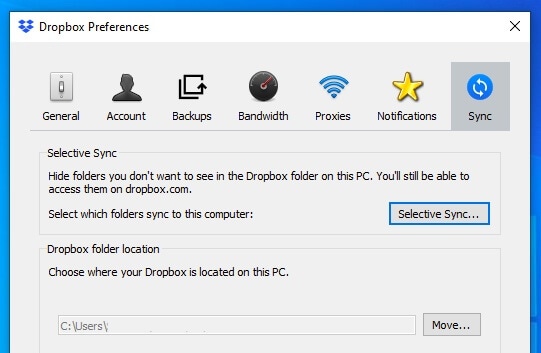
6. Adjust Selective Sync Settings
Selective Sync lets you choose which folders appear on your desktop. If a folder isn’t syncing, it may be turned off.
- Right-click the Dropbox icon
- Go to Preferences > Sync
- Click Selective Sync and check folders you want
7. Check Firewall And Antivirus Settings
Security software can block Dropbox. Add Dropbox to the list of allowed apps:
- Open your firewall or antivirus program
- Find “Allowed apps” or “Exceptions”
- Add Dropbox.exe
Restart Dropbox after adjusting settings.
8. Reconnect Your Account
Sometimes, logging out and back in fixes sync issues.
- Click the Dropbox icon
- Go to Settings > Account
- Log out, then log in again
9. Repair Dropbox Installation
If Dropbox is corrupted, repair it:
- On Windows: Go to Control Panel > Programs > Dropbox > Repair
- On Mac: Download the latest installer and run it
10. Reinstall Dropbox
If all else fails, uninstall Dropbox, restart your computer, and reinstall the app. This often solves deep software issues.
Advanced Troubleshooting For Persistent Problems
If your Dropbox still won’t sync after basic steps, try these advanced solutions.
Check For Os Updates And Compatibility
Dropbox works best with updated systems. Install the latest Windows or MacOS updates.
- On Windows: Go to Settings > Update & Security
- On Mac: Go to System Preferences > Software Update
If your OS is too old, Dropbox may not work properly.
Review Proxy Settings
If you use a proxy server, Dropbox may have trouble connecting.
- Open Dropbox settings
- Go to Network > Proxy
- Set to “No proxy” unless your network requires one
Analyze Dropbox Logs
Dropbox keeps logs of errors. These can help find hidden problems.
- On Windows: C:Users[YourName]Dropboxlogs
- On Mac: ~/Dropbox/logs
Look for repeated error messages or ask Dropbox support for help.
Compare Dropbox Versions
Dropbox offers different desktop apps: Stable, Beta, and Business editions. Sometimes, switching helps.
| Version | Main Features | Recommended For |
|---|---|---|
| Stable | Regular updates, fewer bugs | Most users |
| Beta | New features, more bugs | Testers, developers |
| Business | Team tools, advanced security | Companies, teams |
Switch to the Stable version if you experience too many problems.
Use Dropbox Web Interface
If the desktop app is unreliable, use Dropbox online:
- Go to dropbox.com
- Upload, download, or manage files from your browser
This helps while you troubleshoot the desktop app.
Credit: blog.dropbox.com
Real-world Examples And Data
Dropbox sync issues affect many users. According to Dropbox forums, about 15–20% of users report sync problems each year. The most common causes are internet issues, selective sync mistakes, and outdated apps.
For example, a user with a 90% full hard drive saw files stop syncing. After freeing up space, Dropbox worked again. Another user had trouble because an antivirus program blocked Dropbox. Adding Dropbox to the exceptions fixed the issue.
Dropbox also shares data on sync speeds. On average, Dropbox uploads at about 2–5 MB/s on home internet. Slower speeds can cause delays or failures, especially for large files.
How Dropbox Sync Works: A Simple Explanation
Dropbox uses block-level syncing. Instead of uploading whole files, it only updates the changed parts. This makes syncing faster and saves bandwidth. Dropbox also checks file names, types, and your account status before syncing.
Here’s how syncing usually works:
- You add or change a file in your Dropbox folder
- Dropbox scans the file
- If the file is allowed, Dropbox uploads the changed blocks
- Dropbox updates the file on all connected devices
If any step fails, syncing stops.
Important Non-obvious Tips For Reliable Dropbox Sync
Many guides miss these helpful tricks:
1. Limit Large File Uploads
Uploading huge files can block syncing for smaller files. Try uploading files under 1GB, or split big files into smaller parts.
2. Avoid Third-party File Managers
Some file managers interfere with Dropbox. Stick to built-in tools like File Explorer (Windows) or Finder (Mac).
3. Keep Dropbox Folder On Main Drive
Moving Dropbox to an external drive or network folder can break syncing. Keep it on your main hard drive for best results.
4. Check For Hidden Files
System files or hidden files sometimes block syncing. Show hidden files and remove any strange items.
5. Sync During Off-peak Hours
Internet is faster late at night or early morning. If you have slow speeds, try syncing then.
Comparison: Dropbox Vs Other Cloud Sync Tools
Dropbox isn’t the only cloud sync tool. How does it compare to others like Google Drive and OneDrive?
| Feature | Dropbox | Google Drive | OneDrive |
|---|---|---|---|
| Sync Speed | Fast (block-level) | Medium | Fast (block-level) |
| File Size Limit | 50GB (most plans) | 5TB | 250GB |
| Selective Sync | Yes | Yes | Yes |
| Offline Access | Yes | Yes | Yes |
| Common Sync Issues | Firewall, file names, storage | App errors, network | App errors, network |
Dropbox is strong in sync speed and selective sync, but file size limits can be a challenge. Other tools allow bigger files but may be slower.
Dropbox Sync Settings Explained
Dropbox offers several sync options:
- Selective Sync: Choose which folders appear on your desktop.
- Smart Sync: See all files, but only download them when needed.
- Bandwidth Control: Limit upload/download speeds.
Understanding these helps you avoid mistakes. For example, Smart Sync lets you save space, but files aren’t downloaded until you open them.
When To Contact Dropbox Support
If you’ve tried all solutions and Dropbox still won’t sync, contact support. Prepare this information:
- Your Dropbox version
- Your OS version
- Error messages or logs
- Steps you’ve tried
This helps support solve your problem faster.
Preventing Future Dropbox Sync Issues
Prevention is better than cure. Here are practical steps:
1. Keep Dropbox Updated
Install updates as soon as they’re available.
2. Check Storage Regularly
Don’t let your computer or Dropbox fill up.
3. Use Strong Internet
Avoid public Wi-Fi or weak connections.
4. Review Sync Settings After Updates
Updates can reset settings. Double-check after each update.
5. Backup Important Files
If Dropbox fails, have another backup (like an external drive).
Dropbox For Teams: Extra Sync Tips
If you use Dropbox with a team, special issues can appear.
- Make sure all team members use the same Dropbox version
- Set clear rules about file names and folder structure
- Use Dropbox Business for advanced tools
Teams often face sync conflicts if multiple people edit the same file. Dropbox creates “conflicted copies” to prevent data loss. Review these files and merge changes if needed.
Credit: inclowdz.wondershare.com
Dropbox Sync Status Icons And What They Mean
Dropbox uses icons to show sync status:
- Green check: Synced
- Blue rotating arrows: Syncing
- Red X: Sync error
- Gray Dropbox: Not connected
If you see the red X or gray icon, take action quickly.
| Icon | Status | Action Needed |
|---|---|---|
| Green check | Files synced | None |
| Blue arrows | Syncing | Wait or check connection |
| Red X | Sync error | Fix error |
| Gray Dropbox | Disconnected | Reconnect |
Expert Advice: What Most Beginners Miss
1. Sync Errors Can Hide
Not all errors show up as popups. Check the Dropbox icon often.
2. Dropbox Needs Background Access
If you close Dropbox or your computer sleeps, syncing stops. Keep Dropbox running.
3. File Permissions Matter
If you change file permissions (read-only, etc. ), Dropbox may not sync. Keep files editable.
4. Multiple Dropbox Accounts Can Cause Conflicts
If you log in with two accounts on one computer, syncing may break. Stick to one account per device.
5. Mobile Apps Can Affect Sync
Changes made on mobile may take time to appear on desktop. Wait a few minutes or refresh.
Useful Resources
If you want deeper knowledge or official help, check:
Frequently Asked Questions
What Should I Do If Dropbox Sync Is Stuck?
First, check your internet connection and restart Dropbox. If it’s still stuck, update the app, check for storage issues, and review file names. If none of these work, try reinstalling Dropbox.
Why Are Some Files Not Appearing On My Desktop?
This usually happens because of Selective Sync settings or unsupported file names. Open Dropbox preferences and make sure the folder is selected for syncing. Rename files if they have special characters.
Can Firewall Or Antivirus Block Dropbox Syncing?
Yes. Firewalls and antivirus programs can block Dropbox’s access to the internet. Add Dropbox to the list of allowed apps in your security software.
Is It Safe To Reinstall Dropbox If Syncing Fails?
Reinstalling Dropbox is safe if you follow steps carefully. Uninstall Dropbox, restart your computer, and download the latest version from the official site. Your files are stored online, so you won’t lose them.
How Do I Check Dropbox Sync Status?
Look at the Dropbox icon in your system tray or menu bar. Green check means synced, blue arrows mean syncing, red X means error, and gray Dropbox means disconnected.
Dropbox is a powerful tool, but syncing problems can cause stress and confusion. With the right steps, you can solve most issues quickly. By understanding how Dropbox works, checking your settings, and keeping your software updated, you’ll keep your files safe and accessible.
Remember to review sync icons, avoid common mistakes, and use official resources if needed. With this guide, you’re ready to fix Dropbox sync problems and stay productive.