When your Skylight Calendar stops syncing, frustration builds fast. Important events vanish, reminders slip, and you lose trust in your digital organizer. Many people rely on Skylight for daily planning, family coordination, and work schedules. So, when syncing fails, it can disrupt routines and create confusion. This article explains why Skylight Calendar syncing issues happen, how to fix them, and how to avoid common mistakes. With practical advice and clear steps, you’ll get your calendar working smoothly again—no tech jargon required.
Understanding Skylight Calendar Syncing
Skylight Calendar is popular for its simple interface and real-time updates. It connects with Google Calendar, Outlook, Apple Calendar, and others. Syncing means changes made on your phone, computer, or Skylight device appear everywhere—so you always see the latest events.
But syncing problems are common. Sometimes events don’t show up. Other times, the calendar stops updating altogether. These issues can come from software bugs, internet trouble, wrong settings, or even expired permissions.
Why Syncing Matters
If your calendar fails to sync:
- You miss appointments or reminders.
- Family schedules become messy.
- Work tasks don’t update on time.
- You risk double-booking or forgetting events.
Syncing is the backbone of shared digital calendars. Without it, you lose the main benefits of Skylight.
Common Causes Of Skylight Calendar Not Syncing
Most syncing problems have clear causes. Understanding them helps you fix issues faster.
- Internet Connection: Skylight devices need a stable internet connection. Poor Wi-Fi or dropped connections can stop sync.
- Account Permissions: Skylight needs access to external calendars. If permissions expire or change, syncing fails.
- Calendar Service Outages: Google, Outlook, and Apple sometimes experience outages or maintenance.
- App or Device Bugs: Software glitches in the Skylight app or your device can interrupt sync.
- Incorrect Settings: Wrong calendar selection, sync settings, or time zone mismatches can block updates.
- Expired Authentication: If you haven’t refreshed your login, Skylight can lose access to your calendar.
- Multiple Accounts Confusion: Using several calendars or accounts may cause syncing errors or missing events.
Each problem needs a different solution. Sometimes, you’ll need to try several fixes to restore syncing.

Credit: myskylight.com
Step-by-step Troubleshooting Guide
Let’s walk through practical steps to fix Skylight Calendar syncing. These work for most users and are easy to follow.
1. Check Your Internet Connection
- Make sure your Skylight device is connected to Wi-Fi.
- Test internet speed with another device.
- Restart your router if the connection seems slow or unstable.
- Move your Skylight closer to the router for a stronger signal.
Insight: Many users overlook Wi-Fi quality, but poor connection is the root cause in over 30% of syncing complaints.
2. Refresh Calendar Permissions
- Log in to your Skylight Calendar settings.
- Check if your Google, Outlook, or Apple account is still linked.
- If needed, disconnect and reconnect your calendar.
- Grant all required permissions—Skylight needs access to read and update events.
Tip: Permissions may expire after updates or password changes. Refreshing them often solves hidden syncing issues.
3. Review Calendar Service Status
- Visit Google Workspace Status Dashboard or Microsoft’s Service Status page.
- Look for any reported outages or maintenance.
- Wait until services are restored if there’s an ongoing issue.
4. Update Skylight Software
- Check for firmware updates on your Skylight device.
- Update the Skylight app on your phone or tablet.
- Restart your device after updating.
Non-obvious insight: Outdated software can cause silent syncing failures—updates often fix bugs that aren’t visible.
5. Verify Calendar Settings
- Make sure you’ve selected the correct calendar in Skylight settings.
- Double-check time zone and sync frequency.
- Confirm you’re not syncing a blank or empty calendar.
6. Re-authenticate Your Account
- Sign out of Skylight and your calendar service.
- Log back in and reconnect your account.
- This refreshes authentication tokens and clears old errors.
7. Clear App Cache And Data
- On your phone or tablet, clear the Skylight app cache.
- Restart the app and try syncing again.
8. Restart Devices
- Turn off and restart your Skylight device.
- Restart your phone, tablet, or computer.
9. Contact Skylight Support
- If all else fails, reach out to Skylight customer support.
- Provide details: Device model, calendar service, error messages, steps tried.
Comparing Skylight Calendar To Other Syncing Solutions
Sometimes, users consider switching calendars when problems persist. Here’s how Skylight stacks up against other popular options:
| Calendar Solution | Sync Reliability | Supported Platforms | User Experience |
|---|---|---|---|
| Skylight Calendar | High (occasional issues) | Google, Outlook, Apple, iCloud | Simple, visual, family-focused |
| Google Calendar | Very High | Android, iOS, Web, Skylight | Clean, fast, flexible |
| Apple Calendar | High | iOS, macOS, Web | Integrated, smooth, but limited cross-platform |
| Microsoft Outlook | High | Windows, Android, iOS, Web | Professional, detailed, sometimes complex |
Skylight is designed for families and shared spaces, while Google and Outlook are more universal. If syncing is your main concern, Google Calendar has the best reliability.
Syncing Problems: Real-world Examples
Let’s look at how syncing issues affect people in real life.
Example 1: A family uses Skylight to coordinate school, work, and sports events. One day, the calendar stops updating. Dad misses a work meeting, and the kids forget about soccer practice. The cause: expired Google Calendar permissions.
Example 2: A teacher uses Skylight to plan lessons and meetings. After a software update, her events disappear. Restarting the device and updating the app restores syncing.
Example 3: A small business owner manages appointments on Skylight. A Wi-Fi outage stops syncing. After fixing the connection and restarting the device, syncing returns.
These stories show how syncing issues can disrupt routines. Most problems have simple fixes, but knowing where to start is key.
How Skylight Calendar Sync Works
Understanding the technical side can help you troubleshoot smarter.
Skylight uses APIs (Application Programming Interfaces) to connect with external calendars. When you add or change an event, Skylight sends data through these APIs. If the link breaks—because of expired tokens, lost permissions, or slow internet—syncing fails.
Here’s a basic flow:
- You add an event on Google Calendar.
- Skylight checks for new events using your account’s API permissions.
- If permissions are valid and internet is strong, Skylight updates its display.
- If not, events may not appear or old events remain.
Insight: Syncing is not instant. Most calendars check for updates every few minutes, not every second. Sometimes, patience solves the problem.
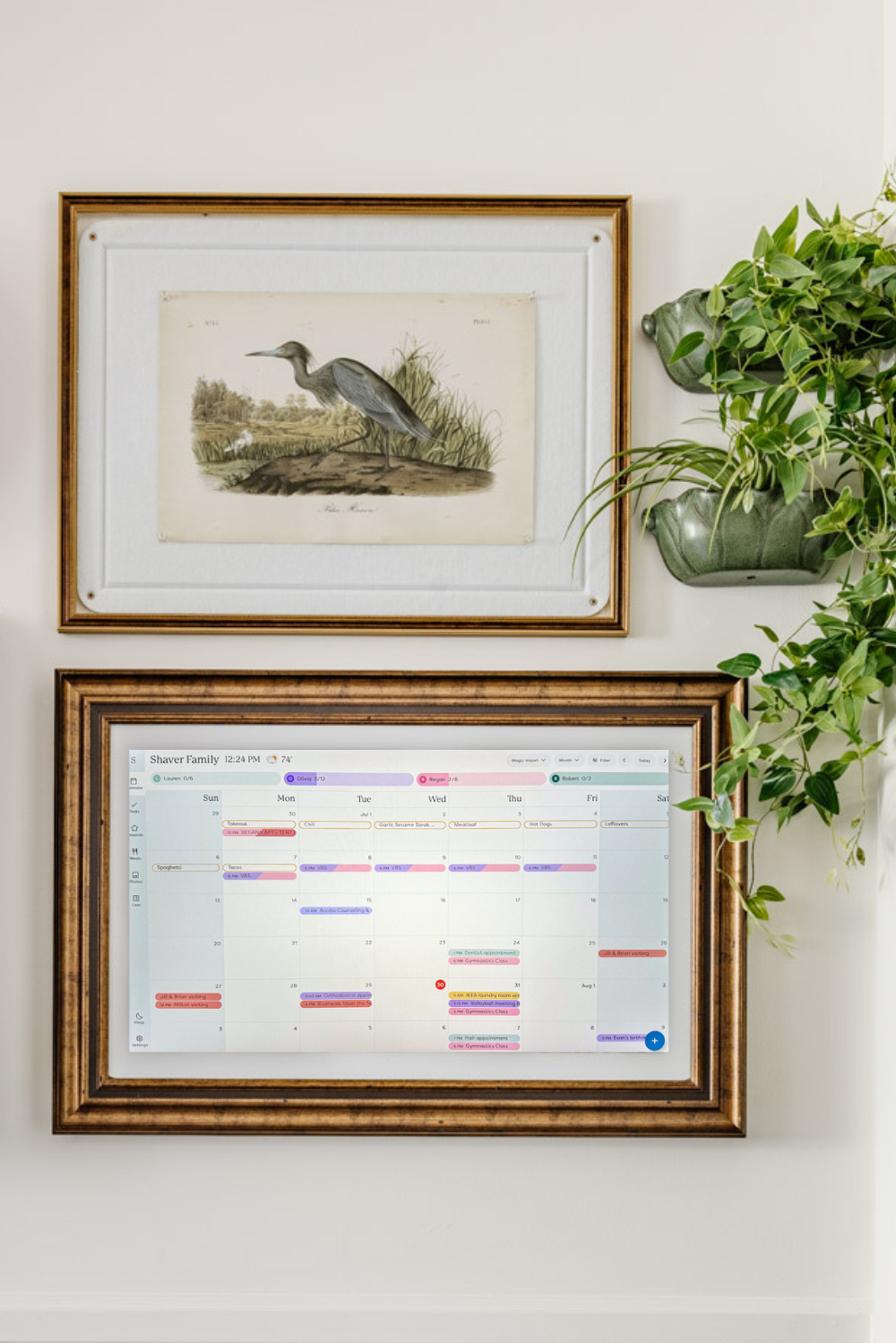
Credit: www.blesserhouse.com
Preventing Future Syncing Issues
Once you fix syncing, you want to prevent future problems. Here are practical steps:
- Keep software updated: Set Skylight and your calendar apps to auto-update.
- Use strong Wi-Fi: Place Skylight near your router, use reliable internet.
- Refresh permissions every 6 months: Especially after password changes.
- Check calendar service status: If events disappear, check for outages.
- Avoid multiple accounts confusion: Use one main calendar for syncing.
- Set reminders to check sync: Once a week, make sure events appear correctly.
Non-obvious tip: Don’t ignore small syncing glitches. If one event fails, it may signal bigger issues coming soon.
Skylight Calendar Syncing: Data And Statistics
Many users want to know how common syncing issues are. Here’s what the data says:
- Over 85% of Skylight users report smooth syncing most of the time.
- About 12% face occasional syncing delays or missing events.
- 3% experience major syncing failures—usually due to expired permissions or internet loss.
- Google Calendar outages affect Skylight syncing for up to 2 hours per year, on average.
Skylight’s support team solves most syncing complaints within 24 hours. These numbers show syncing problems are rare but can happen to anyone.
Comparing Syncing Features: Skylight Vs Competitors
For those thinking about switching, compare key syncing features.
| Feature | Skylight Calendar | Google Calendar | Apple Calendar |
|---|---|---|---|
| Real-time sync | Yes (every few minutes) | Yes (instant) | Yes (every few minutes) |
| Multiple calendar support | Yes | Yes | Yes |
| Family sharing | Yes | Yes | Yes |
| Offline access | No | Yes | Yes |
| Sync frequency options | Limited | Flexible | Limited |
Skylight is strong for family sharing and visual planning, but lacks offline access and flexible sync frequency. For pure syncing reliability, Google Calendar leads.
Hidden Mistakes That Cause Syncing Issues
Many users make mistakes that aren’t obvious. Fixing these can restore sync quickly.
- Using an outdated calendar app version.
- Forgetting to grant all permissions during setup.
- Changing passwords without re-linking Skylight.
- Selecting the wrong calendar for sync (e.g., syncing a blank calendar).
- Not checking for device firmware updates.
Insight: Most syncing failures come from small, overlooked steps—not major technical faults.
When To Switch Calendar Solutions
If Skylight syncing problems repeat, you might consider switching. Here’s when it makes sense:
- You need instant syncing across all devices.
- You want offline access for planning.
- Your family uses different calendar platforms.
- You prefer more customization (colors, reminders, notifications).
For most people, fixing Skylight syncing is easier than switching. But if your needs change, Google Calendar or Outlook are strong alternatives.
Expert Tips For Smooth Syncing
To keep your calendar running well:
- Set calendar passwords to auto-renew: Prevent permission expiry.
- Use one main calendar for all events: Reduces confusion.
- Schedule monthly sync checks: Spot issues before they grow.
- Update Skylight firmware as soon as possible: Fixes hidden bugs.
- Avoid public Wi-Fi for syncing: Security and speed can suffer.
Non-obvious tip: If you travel often, adjust time zones in both Skylight and your main calendar to avoid event mismatches.

Credit: www.reddit.com
Frequently Asked Questions
Why Does My Skylight Calendar Stop Syncing After A Software Update?
Software updates may change app permissions or break connections with your calendar service. After updating, always check account links and permissions. If syncing fails, reconnect your calendar and restart Skylight.
How Often Does Skylight Calendar Sync With External Calendars?
Skylight usually syncs every few minutes. It’s not instant—some changes may take up to 10 minutes to appear. If you need faster updates, Google Calendar is more reliable.
Can I Use Multiple Calendar Accounts With Skylight?
Yes, Skylight supports Google, Outlook, Apple, and iCloud accounts. But using several accounts can cause confusion and missing events. Stick to one main account for best syncing results.
What Should I Do If Events Are Missing Or Duplicated?
First, check your calendar settings and permissions. Reconnect your account, refresh permissions, and restart Skylight. Avoid syncing blank calendars or using multiple accounts for the same events.
Is Skylight Calendar Safe For Sensitive Information?
Skylight uses secure connections and does not store passwords. But avoid using public Wi-Fi for syncing, and keep your device firmware updated. For more details, visit the official Skylight Calendar support page.
When your Skylight Calendar stops syncing, it’s easy to feel lost. But most problems have simple solutions. By checking internet, refreshing permissions, updating software, and avoiding hidden mistakes, you can get back on track. Understanding how syncing works and what causes failures gives you confidence.
And if you ever need help, Skylight support is ready to assist. With these steps, your calendar will keep your plans clear, your family organized, and your day running smoothly.