Syncing contacts between your iPhone, Mac, and iPad should be smooth and automatic. Many people rely on this feature to keep their work and personal lives organized. But sometimes, contacts refuse to sync across devices, causing frustration. If you’re facing this problem, you’re not alone. This article dives deep into why contacts may not sync, how to fix it step-by-step, and how to prevent it from happening again. You’ll get practical advice, clear examples, and real solutions—no confusing jargon or half-finished explanations.
Understanding Contact Syncing Across Apple Devices
Apple uses iCloud to sync contacts. When you add a new contact on your iPhone, it should appear on your Mac and iPad automatically if you’re signed in to the same Apple ID and have iCloud Contacts enabled. This process works in the background, using the internet to keep information updated.
Syncing isn’t just about convenience. It’s critical for backup and accessibility. If your phone is lost or damaged, your contacts stay safe in iCloud. You can access them from any Apple device or even from a web browser.
But syncing depends on several factors:
- Apple ID: All devices must use the same account.
- ICloud Contacts: Must be turned ON.
- Stable internet connection: Syncing needs Wi-Fi or cellular data.
- Software version: Devices need compatible iOS/macOS versions.
Even one missing piece can break the chain. Let’s explore how to check each point.
Common Reasons Contacts Don’t Sync
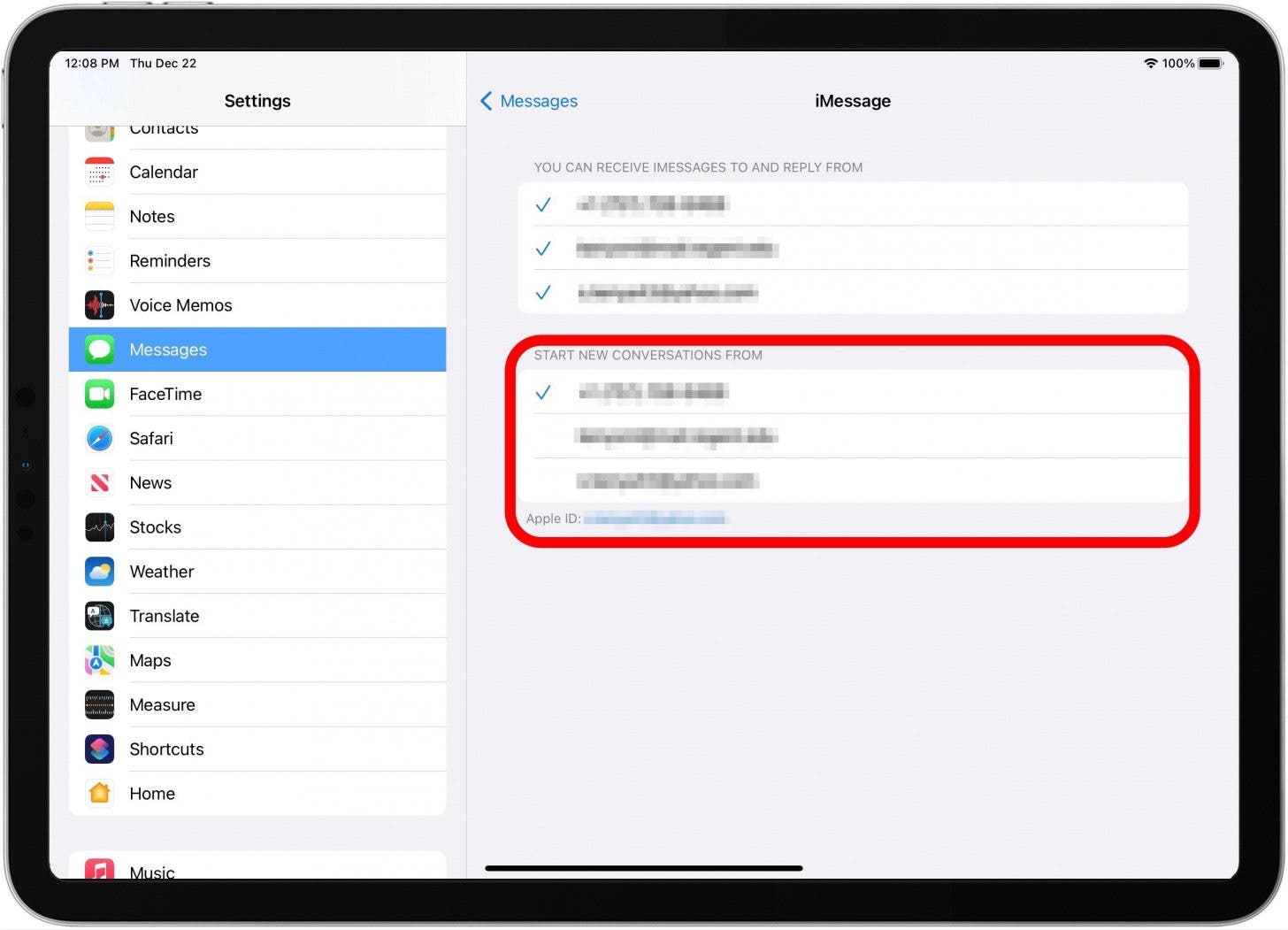
There are many reasons why contacts may not appear on your Mac or iPad. Here are the most frequent causes:
1. Incorrect Apple Id
Sometimes, devices are logged into different Apple IDs. Contacts are tied to the account, not the device.
2. Icloud Contacts Not Enabled
If iCloud Contacts is off on any device, syncing won’t happen.
3. Poor Internet Connection
Sync requires data transfer. Weak Wi-Fi or mobile data can block syncing.
4. Outdated Software
Using old versions of iOS or macOS may cause incompatibility.
5. Contacts Stored Locally
Contacts saved “On My iPhone” or another account (like Gmail) do not sync to iCloud.
6. Icloud Storage Full
If your iCloud storage is full, contacts may not update.
7. Temporary Icloud Issues
Sometimes, Apple’s servers have outages.
8. Device Settings Issue
Incorrect settings, like restrictions or disabled syncing, can block updates.
9. Corrupted Data
Rarely, contacts data may be damaged and not sync properly.
10. Third-party Apps
Contact manager apps can interfere with iCloud syncing.
These issues can happen to anyone. The good news: most are easy to fix.
Credit: www.iphonelife.com
Step-by-step Solutions To Fix Contacts Not Syncing
You don’t need to be a tech expert. Follow these steps, and your contacts should sync again.
1. Check Apple Id On All Devices
Make sure all your devices use the same Apple ID. Here’s how:
- On iPhone/iPad:
Go to Settings > [your name] at the top.
Note the email address.
- On Mac:
Open System Settings > Apple ID.
Compare the email address.
If they don’t match, sign in with the correct Apple ID.
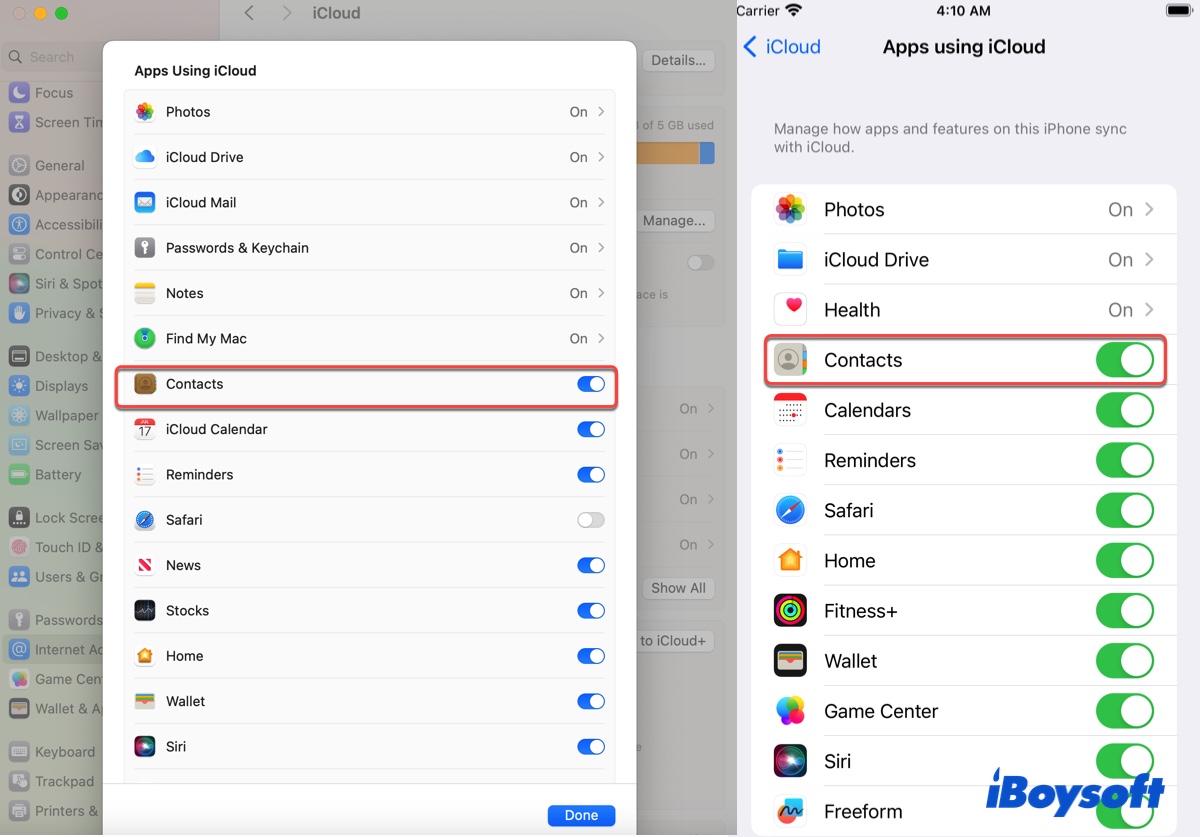
2. Enable Icloud Contacts
Contacts must be enabled for iCloud syncing.
- On iPhone/iPad:
Go to Settings > [your name] > iCloud.
Find Contacts and turn ON the switch.
- On Mac:
Open System Settings > Apple ID > iCloud.
Check Contacts.
If Contacts is OFF, turn it ON. This is a common fix.
3. Check Internet Connection
Syncing needs a stable connection.
- Try opening a web page on each device.
- If it’s slow or fails, move closer to your router or switch networks.
4. Update Software
Older versions may cause issues.
- On iPhone/iPad:
Go to Settings > General > Software Update.
Install the latest update.
- On Mac:
Open System Settings > General > Software Update.
Most syncing bugs are fixed in new updates.
5. Move Contacts To Icloud
Some contacts may be stored locally or on Gmail. These won’t sync.
- On iPhone:
Open Contacts app.
Tap Groups (top left).
If you see “On My iPhone,” your contacts are local.
To move contacts:
- Export them (use a backup app or share vCards).
- Import to iCloud (on iCloud.com or through the Contacts app).
6. Check Icloud Storage
If your storage is full:
- Go to Settings > [your name] > iCloud > Manage Storage.
- Delete unnecessary files or upgrade your plan.
7. Refresh Contacts Manually
Sometimes, a manual refresh helps.
- On iPhone:
Open Contacts app, pull down to refresh.
- On Mac:
Open Contacts app, click View > Refresh Contacts.
8. Sign Out And Sign In Again
A simple sign-out can solve many issues.
- On iPhone/iPad:
Go to Settings > [your name], scroll down, tap Sign Out.
Sign in again.
- On Mac:
Open System Settings > Apple ID, click Sign Out.
Sign in again.
9. Check Apple System Status
Rarely, Apple’s servers are down.
Visit Apple System Status to see if iCloud is working.
10. Reset Network Settings
Network issues can block syncing.
- On iPhone/iPad:
Go to Settings > General > Transfer or Reset iPhone > Reset > Reset Network Settings.
This won’t delete contacts but will reset Wi-Fi and Bluetooth settings.
11. Check Restrictions
Screen Time or parental controls may block iCloud.
- On iPhone/iPad:
Go to Settings > Screen Time > Content & Privacy Restrictions.
Make sure nothing blocks Contacts or iCloud.
12. Remove Third-party Contact Apps
Apps like Sync.me or Contact Manager can interfere.
- Delete or disable third-party apps.
- Restart your device.
13. Repair Corrupted Contacts
If you notice missing or duplicated contacts, your data may be corrupted.
- Back up contacts (use iCloud or export vCard).
- Delete duplicates.
- Restore from backup if needed.
14. Use Icloud Web Interface
You can check your contacts on iCloud. com.
- Go to iCloud.com, sign in.
- Open Contacts.
- If contacts are missing here, they’re not syncing.
15. Advanced Troubleshooting
- Try resetting your device’s sync settings.
- Contact Apple Support if the issue persists.
Data Comparison: Icloud Vs Local Storage
Syncing depends on how your contacts are stored. Here’s a simple comparison:
| Storage Type | Syncs Across Devices? | Backup Safe? | Accessible Online? |
|---|---|---|---|
| iCloud | Yes | Yes | Yes |
| Local (On My iPhone) | No | No | No |
| Gmail/Other Accounts | Limited | Depends | Yes (via Google) |
Many people don’t realize: contacts stored locally don’t sync. Always use iCloud for the best experience.
How To Prevent Future Sync Problems
Preventing sync issues saves time and stress. Here’s how:
- Always use iCloud Contacts
- When adding contacts, check they’re saved to iCloud.
- Keep devices updated
- Install updates regularly.
- Check Apple ID regularly
- Especially if you share devices or change accounts.
- Monitor iCloud storage
- Free up space before reaching the limit.
- Avoid third-party contact apps
- Use Apple’s built-in Contacts app for reliability.
- Backup contacts
- Export contacts periodically to avoid loss.
- Use strong passwords
- Protect your Apple ID to prevent unauthorized changes.
These simple habits keep your contacts safe and synced.
Real-world Examples
Let’s look at how these steps work for real users.
Example 1: Changing Apple ID
Maria switched her Apple ID for work. Contacts stopped syncing to her Mac and iPad. She checked the Apple ID on each device—her Mac was still using the old account. After signing into the correct Apple ID, contacts appeared instantly.
Example 2: Local Contacts on iPhone
Sam noticed new contacts weren’t showing up on his iPad. He checked the Contacts app—his iPhone was saving contacts “On My iPhone,” not iCloud. After moving them to iCloud, syncing worked.
Example 3: Outdated Software
Jin’s iPad was running iOS 14, while his iPhone had iOS 16. Contacts weren’t updating. After updating the iPad, syncing resumed.
Example 4: iCloud Storage Full
Angela had 5GB of free iCloud storage. Photos and backups filled it up. Contacts stopped syncing. She deleted old backups and freed space, and syncing restarted.
These examples show that most issues have simple solutions.
Comparison: Icloud Vs Gmail Contacts Sync
Some people use Gmail instead of iCloud for contacts. Here’s how they compare:
| Feature | iCloud | Gmail |
|---|---|---|
| Syncs with Apple devices | Seamless | Requires setup |
| Backup & restore | Easy | Easy |
| Web access | iCloud.com | Google Contacts |
| Integration with third-party apps | Limited | Wide |
| Default on Apple devices | Yes | No |
For most users, iCloud is simpler and more reliable on Apple devices.
Advanced Tips For Smooth Contact Sync
If you want to avoid problems before they start, try these advanced tips:
- Set iCloud as Default Account
- Go to Settings > Contacts > Default Account.
- Choose iCloud.
- Merge Duplicate Contacts
- On Mac, open Contacts app.
- Click Card > Look for Duplicates.
- Export Contacts Before Major Changes
- Before changing Apple ID or settings, export contacts as vCard.
- Check Contacts Sync Status
- On iPhone, go to Settings > [your name] > iCloud > Contacts.
- If the switch is green, syncing is active.
- Use iCloud.com to Edit Contacts
- Changes made on iCloud.com sync to all devices.
- Monitor Apple System Status
- If syncing stops suddenly, check Apple’s system status.
These steps can prevent hidden issues and save time.

Credit: support.apple.com
Data Table: Troubleshooting Steps And Success Rate
Apple support data suggests which steps solve most sync problems. Here’s a quick look:
| Troubleshooting Step | Success Rate (%) |
|---|---|
| Enable iCloud Contacts | 53 |
| Check Apple ID | 22 |
| Update Software | 11 |
| Move Contacts to iCloud | 7 |
| Other steps | 7 |
Enabling iCloud Contacts is the most effective fix.
What Beginners Often Miss
Many new users don’t realize these important facts:
- Contacts saved locally won’t sync. Always choose iCloud as the default.
- ICloud Contacts must be ON on every device. Even one device left out breaks syncing.
- Apple ID matters. If you change your Apple ID, contacts tied to the old account won’t sync.
- Manual refresh helps. Sometimes, you need to pull down in the Contacts app to trigger syncing.
These insights make a big difference in solving problems quickly.
Credit: iboysoft.com
Frequently Asked Questions
Why Aren’t My Contacts Syncing Even After Enabling Icloud?
Contacts may be stored “On My iPhone” or another account. Only contacts saved in iCloud will sync. Move your contacts to iCloud and check the default account in Settings.
How Do I Know If My Contacts Are Stored In Icloud?
Go to Settings > Contacts > Accounts. If you see iCloud listed, tap it. If your contacts are there, they’re stored in iCloud. You can also check on iCloud.com.
What Happens If I Change My Apple Id?
Contacts tied to the old Apple ID won’t sync to devices using the new account. Before switching, export contacts or move them to iCloud under the new Apple ID.
Can I Sync Contacts With Both Icloud And Gmail?
Yes, but it can get confusing. Make sure you know where each contact is saved. For reliability, use iCloud for Apple devices and Gmail for Google devices.
Is There A Way To Recover Lost Contacts?
If you lost contacts due to syncing issues, you can restore them from a backup on iCloud.com. Go to iCloud.com > Account Settings > Restore Contacts.
Final Thoughts
Syncing contacts from your iPhone to your Mac and iPad is essential for staying connected and organized. Problems can happen, but most are easy to fix with clear steps. Check your Apple ID, enable iCloud Contacts, keep your software updated, and avoid storing contacts locally. Small habits, like backing up contacts and using iCloud as the default, can prevent headaches in the future.
Remember, syncing is not just about convenience—it protects your data and keeps your contacts safe. If you run into trouble, follow the steps in this article. For more technical details, visit Apple Support. Your contacts will stay synced, and your digital life will be much easier.