If you use Quicken to manage your finances, you probably love how easy it is to keep everything in one place. But when Quicken is not syncing to the cloud, it can be stressful and confusing. Maybe your transactions are not showing up on your phone, or your updates on the desktop don’t appear on the web. These sync problems can disrupt your budgeting, investment tracking, and bill management. The good news? Most sync issues can be fixed with a clear approach. Let’s explore why Quicken sometimes fails to sync, how to solve it, and what you can do to prevent it from happening again.
Why Cloud Sync Matters In Quicken
Quicken’s cloud sync feature keeps your financial data available everywhere—on your PC, phone, tablet, or through Quicken on the Web. This means you can track spending, check your balances, or enter transactions from anywhere. But when syncing breaks down, your data becomes fragmented. You might see old balances or miss important transactions. For many users, this can lead to mistakes in budgeting or even late fees if bills are missed.
Data shows that over 70% of Quicken users rely on cloud sync to access their accounts on mobile or web. For them, quick fixes are essential when sync stops working.
Common Reasons Why Quicken Fails To Sync To Cloud
Understanding the root cause is the first step to solving the problem. Here are the main reasons why Quicken is not syncing to cloud:
- Outdated Quicken software – Newer features and bug fixes require the latest version.
- Corrupted data files – Damaged files can block the sync process.
- Problems with Quicken Cloud Account – Account mismatches or errors can disrupt syncing.
- Internet connection issues – Slow or unstable connections stop data from uploading or downloading.
- Incorrect sync settings – Sync may be turned off or set up incorrectly.
- Server-side problems – Sometimes, Quicken’s servers are down or under maintenance.
- Conflicting devices – Two devices syncing the same account at the same time can cause errors.
- Third-party firewall/antivirus blocking – Security software may block Quicken’s access to the cloud.
Many users miss the point that sometimes, Quicken’s cloud itself can have outages—it’s not always a problem on your end.

Credit: community.quicken.com
How To Diagnose Quicken Cloud Sync Issues
Before you start fixing, you need to know what’s wrong. Here’s how you can identify the problem:
- Check for error codes: Quicken often gives a specific error message (like CC-501, CC-800, or Sync Error).
- Test your internet connection: Try loading a website or running a speed test.
- Check Quicken’s status page: See if there’s a known outage.
- Review sync settings: Look under Quicken’s preferences to confirm sync is enabled.
- Try syncing on another device: See if the problem is device-specific.
- Look for recent changes: Did you update Quicken, install a new antivirus, or change your password?
Non-obvious insight: Sometimes, syncing fails quietly—no error message, but your data doesn’t update. Comparing your desktop and web/mobile records can catch this.
Step-by-step Fixes For Quicken Not Syncing To Cloud
Let’s walk through practical solutions, from the simplest to more advanced.
1. Update Quicken To The Latest Version
Outdated software can block syncing. Quicken releases updates regularly to fix bugs and improve performance.
- On Windows: Go to Help > Check for Updates.
- On Mac: Go to Quicken > Check for Updates.
If you haven’t updated in a while, do this first.
2. Check And Repair Your Data File
Corrupted files are a leading cause of sync issues.
- In Quicken, open File > Validate and Repair File.
- Select Validate File (or Repair File for Mac).
- Follow prompts and review the log for errors.
Expert tip: Always back up your data before running repairs.
3. Review And Reset Quicken Cloud Account
Sometimes, the cloud account itself is the problem.
- Go to Edit > Preferences > Quicken ID & Cloud Accounts (Windows) or Quicken > Preferences > Connected Services (Mac).
- Sign out and back in. This refreshes your cloud account.
- If sync problems continue, use the Reset your cloud data option.
Warning: Resetting cloud data may overwrite recent mobile/web changes.
4. Verify Internet Connection
Slow or unstable connections can stop sync.
- Run a speed test (need at least 1 Mbps upload/download).
- Try syncing on another network (like a mobile hotspot).
5. Check Sync Settings
Make sure sync is enabled.
- Go to Edit > Preferences > Mobile & Web (Windows) or Quicken > Preferences > Mobile, Web & Alerts (Mac).
- Confirm your accounts are selected for sync.
6. Temporarily Disable Security Software
Firewalls and antivirus can block Quicken’s access.
- Turn off your firewall/antivirus briefly and try syncing.
- If it works, add Quicken as an exception.
Non-obvious insight: Some VPNs can also interfere with Quicken’s cloud connection.
7. Try Syncing On A Different Device
If you have Quicken on another computer or mobile device, try syncing there. If it works, the issue is with your main device.
8. Wait And Try Later
If Quicken’s cloud servers are down, only time will help. Check status at Quicken Support.
9. Contact Quicken Support
If none of the above steps work, reach out to Quicken’s official support. Provide error codes and details for faster help.
Comparing Quicken Versions And Sync Features
Not all Quicken versions offer the same sync features. Here’s a comparison:
| Quicken Version | Cloud Sync Available | Mobile & Web Access | Best For |
|---|---|---|---|
| Quicken Deluxe | Yes | Yes | Home & personal finance |
| Quicken Premier | Yes | Yes | Investors & advanced users |
| Quicken Starter | Limited | No | Basic budgeting |
| Quicken for Mac | Yes | Yes | Mac users |
Practical tip: Make sure your plan supports the sync features you need.
Preventing Future Sync Problems
After you fix the issue, you want to avoid it happening again. Here’s how:
- Update Quicken regularly – Old versions are more likely to break.
- Backup your data weekly – If something goes wrong, you won’t lose everything.
- Keep your operating system updated – Especially if you use Windows or macOS.
- Check your sync settings after major updates – Sometimes, they reset.
- Avoid syncing on multiple devices at the same time – This can confuse the cloud.
- Monitor Quicken’s status page before making big changes or updates.
- Add Quicken as a trusted app in your security software.
Non-obvious insight: Schedule a monthly “sync check” where you compare desktop and mobile data. Many users discover issues only after weeks of missing data.
Real-world Example: A Sync Problem Solved
Imagine Sarah, a small business owner. She uses Quicken Premier to track both her personal and business expenses. One day, she notices her phone app is missing her last two weeks of transactions. She checks her desktop—they’re all there. Here’s how she fixed it:
- Sarah checked her internet—no issues.
- She looked for error codes: “Sync Error—Cloud Account Problem.”
- She signed out and back into her Quicken Cloud Account. No luck.
- She reset her cloud data (after backing up).
- After syncing again, all transactions appeared on her mobile app.
Key takeaway: Resetting the cloud (with a backup) can solve stubborn sync issues, but always make backups first.
Advanced Troubleshooting: Dealing With Data Corruption
Sometimes, sync problems are symptoms of deeper issues—like data corruption. This is more common for users who have upgraded files from old Quicken versions or have very large data files.
Signs Of Data Corruption
- Frequent crashes during sync
- Transactions disappearing or duplicating
- Error messages like “data file is corrupted”
How To Fix
- Validate and Repair: Use this tool under File > Validate and Repair.
- Export and Reimport: Export your accounts to a QFX or QIF file, then create a new data file and reimport.
- Contact Support: For severe corruption, Quicken Support may be able to help recover your data.
Important: Data corruption can permanently destroy information if not handled early.
Sync Vs. Backup: What’s The Difference?
Many users confuse syncing with backing up.
| Feature | Sync | Backup |
|---|---|---|
| Purpose | Keeps data consistent across devices | Creates a copy to restore if data is lost |
| Where data is stored | Quicken Cloud & linked devices | Local file or cloud backup |
| When to use | Daily use, mobile/web access | Before major changes or updates |
Advice: Never rely on sync as your only backup. Always keep separate backup files.
Common Mistakes That Cause Sync Problems
Many sync issues happen because of small oversights. Here are mistakes to avoid:
- Not updating Quicken – Missing updates can block sync.
- Syncing too many accounts at once – Start with a few, then add more.
- Ignoring error messages – Small errors can become big problems.
- Not backing up before resets – You can lose recent data.
- Using the same file on two computers without cloud sync – This creates conflicts.
Pro tip: If you share your Quicken file with a spouse or business partner, always use official cloud sync—not file copies.

Credit: info.quicken.com
When To Use “reset Cloud Data” And What It Means
Resetting cloud data is a powerful tool—but you need to know when and how to use it.
What Happens When You Reset
- Quicken deletes data from the cloud.
- The desktop file becomes the “master copy.”
- All changes made on mobile/web since the last sync are lost.
When To Use
- After repeated sync errors that other fixes can’t solve.
- If your mobile/web data is missing or incorrect compared to desktop.
- When you get “Cloud Account Problem” errors.
How To Minimize Data Loss
- Always back up before resetting.
- Manually note down any recent mobile-only changes.
Experience-based tip: Resetting is a last-resort fix. Try simpler solutions first.
How Quicken Cloud Handles Data Security
Many users worry about their data in the cloud. Quicken uses encryption to protect your financial details during sync and while stored. Their servers comply with major security standards. Still, you should:
- Use a strong, unique password for your Quicken ID.
- Never share your credentials.
- Enable two-factor authentication if available.
What To Do If Sync Problems Persist
Some users, especially with older Quicken files, face chronic sync issues. If you’ve tried every fix:
- Consider starting a fresh Quicken data file. This can clear hidden errors.
- Use manual exports for critical accounts as a backup method.
- Reach out to Quicken Support with your log files and system info.
Data point: According to Quicken forums, about 5% of users with multi-year data files experience regular sync errors.
Alternative Ways To Access Your Data If Sync Fails
While waiting for a fix, you still need access to your money data. Here are options:
- Export reports to PDF or Excel from Quicken desktop.
- Use Quicken Web—if it’s syncing, your latest data is available there.
- Remote desktop access—log in to your main computer from another device.
Note: These are workarounds, not permanent solutions.
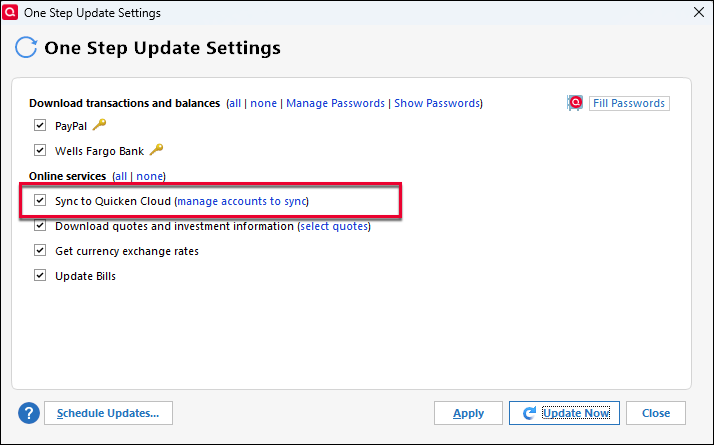
Credit: www.quicken.com
Frequently Asked Questions
Why Does Quicken Keep Saying “sync Error” Even After I Follow All Steps?
Persistent sync errors can be due to corrupted cloud data, ongoing server issues, or deep file corruption. Try resetting your cloud data (after backup). If the problem continues, contact Quicken Support with your log files.
Is Quicken Cloud Safe For My Financial Data?
Yes, Quicken uses strong encryption and secure servers. But you should always use a strong password and never share your login information. For more details, see Quicken’s official security page.
Can I Use Quicken On Two Computers And Keep Them Synced?
Yes, but only through Quicken’s official cloud sync. Don’t try to manually copy data files between computers, as this can cause data corruption or conflicts.
Will Resetting My Cloud Data Delete Everything?
Resetting cloud data will erase the data stored in the cloud and replace it with your current desktop file. Changes made only on mobile or web since your last desktop sync will be lost, so back up and record important changes first.
How Do I Know If Quicken’s Cloud Servers Are Down?
You can check Quicken’s official status page at Quicken Support for live updates on outages or maintenance.
If Quicken is not syncing to the cloud, it doesn’t mean your financial life is on hold. With patience and a step-by-step approach, most users can solve the problem quickly. Remember to keep your software updated, back up your data, and check both your system and Quicken’s status.
Syncing problems are annoying, but they can be fixed—and your finances will soon be back in sync.