When your Xbox One controller won’t sync, it can quickly ruin your gaming plans. You press the sync button, wait for the light to stay solid, but nothing happens. Maybe the controller flashes and then turns off, or it simply won’t connect, no matter what you try. This problem is more common than you might think, and it can happen with both new and well-used controllers. Understanding why your controller won’t sync and knowing how to fix it can save you time, money, and frustration.
In this guide, you’ll learn why Xbox One controllers stop syncing, practical steps to fix the issue, and how to prevent it in the future. You’ll also find detailed tables comparing the most common causes and solutions, plus answers to questions many users ask.
Whether you’re a casual player or a serious gamer, this article will help you get back into your game as soon as possible.
Why Your Xbox One Controller Won’t Sync
When a controller doesn’t sync, it usually means there’s a problem with the connection between the controller and the console. This connection can fail for many reasons, and often, the solution is simple. Here are the main causes:
1. Low Or Dead Batteries
The most common reason is weak or dead batteries. If the controller doesn’t have enough power, it can’t maintain a connection.
2. Wireless Interference
Devices like Wi-Fi routers, microwaves, or even other controllers can cause interference.
3. Outdated Firmware
If your console or controller firmware is old, syncing may not work correctly.
4. Too Many Connected Devices
The Xbox One can support up to eight controllers at once. If you have too many, new ones won’t sync.
5. Physical Obstructions
Walls, metal shelves, or large objects between the controller and the console can block the signal.
6. Damaged Hardware
Drops, spills, or age can damage the controller or console’s sync hardware.
7. Software Glitches
Sometimes, random bugs prevent syncing until a restart or update is done.
8. Incorrect Pairing Steps
If you don’t press the right buttons in the right order, pairing won’t happen.
Most Common Causes Compared
To help you see which issues are most likely, here’s a quick comparison:
| Problem | Chance of Causing Sync Failure | How to Check |
|---|---|---|
| Low Batteries | Very High | Try fresh batteries or recharge |
| Wireless Interference | High | Test controller close to console |
| Outdated Firmware | Medium | Check for updates in settings |
| Physical Damage | Low (unless dropped) | Look for visible cracks or loose parts |
| Too Many Controllers | Medium | Disconnect unused controllers |
Many users skip checking batteries or ignore interference. These two reasons alone explain most sync issues. Always start with the simplest checks before moving to complex solutions.
Step-by-step Guide: How To Fix A Controller Not Syncing
Let’s go through every major fix, from the simplest to the more advanced.
1. Check The Power Supply
Your first step should always be to check the batteries or power pack.
- Remove the battery cover and check for corrosion or dirt.
- Replace with new AA batteries or a fully charged battery pack.
- Make sure the batteries are inserted correctly.
If you use a rechargeable battery, try charging it with a different cable or station. Sometimes, a charging cable or dock can be faulty, leading you to believe the controller is dead when it’s not.
2. Restart Your Xbox One Console
Sometimes, the console itself is the problem.
- Press and hold the Xbox button on the front of the console for 10 seconds until it powers off.
- Unplug the power cable from the wall for 30 seconds.
- Plug it back in and turn on the console.
A full power cycle often clears minor glitches that stop syncing.
3. Move Closer And Remove Obstructions
Distance and obstacles between your controller and Xbox One can cause problems.
- Sit within 10 feet of the console.
- Remove any large objects (metal shelves, electronics) between you and the Xbox.
- Turn off or move other wireless devices nearby.
Wireless signals are easily blocked, especially by metal and thick walls.
4. Re-sync The Controller
Follow the pairing steps exactly:
- Turn on the Xbox One console.
- Press and hold the Xbox button on the controller until it lights up.
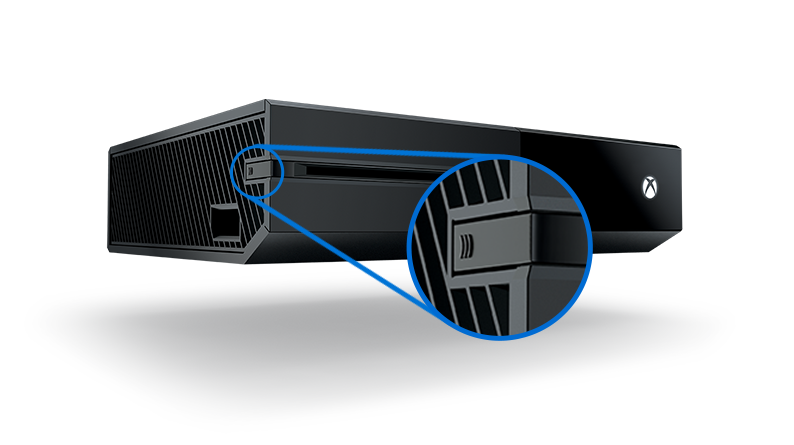
- Press the sync button on the console (small round button).
- Within 20 seconds, press and hold the sync button on the controller (on the top near the USB port).
- Wait for both lights to flash and then stay solid.
If syncing fails, repeat the steps. Sometimes, it takes two or three tries.
5. Try A Wired Connection
Connecting your controller with a USB cable can force the sync.
- Plug a USB cable into the controller and the Xbox One.
- Wait 10 seconds.
- The controller should vibrate or light up, indicating it’s connected.
- Remove the cable and test wireless connection.
This method also charges the battery. If the controller works wired but not wireless, there may be a hardware issue with the wireless module.
6. Update Controller Firmware
Outdated firmware can cause syncing issues, especially after system updates.
- Connect the controller to the console with a USB cable.
- Press the Xbox button and go to Settings > Devices & Accessories.
- Select your controller and choose Device info > Firmware version.
- If an update is available, follow the prompts.
Updating firmware can fix bugs you didn’t know existed.
7. Remove Extra Controllers
If you’ve connected many controllers in the past, the Xbox may be at its limit.
- Disconnect or turn off unused controllers.
- Restart the console.
- Try syncing again.
The Xbox One supports up to eight controllers, but rarely do people need this many at once.
8. Check For Physical Damage
Inspect both the controller and console:
- Look for cracks, loose buttons, or rattling sounds.
- Try using a different controller on the same console.
- Try your controller on a friend’s Xbox One.
If only your controller fails, it may be broken. If all controllers fail, the console could be at fault.
9. Reset Console Settings
As a last resort, you can reset the Xbox One’s settings. This won’t delete your games, but will reset preferences.
- Go to Settings > System > Console info > Reset console.
- Choose Reset and keep my games & apps.
- Set up your console again and try syncing.
Only do this if nothing else works, as it erases Wi-Fi passwords and preferences.

Credit: www.youtube.com
Troubleshooting: Special Situations
Sync problems are not always simple. Here are scenarios that can make fixing harder.
Controller Flashes But Won’t Connect
If your controller lights flash and then turn off, it usually means:
- The batteries are too weak.
- The controller is out of range.
- There’s wireless interference.
Try new batteries, move closer, and remove interference sources.
Controller Connects To Other Consoles But Not Yours
This can happen if the controller was last used on a different Xbox One or a PC.
- Hold the sync button longer (up to 30 seconds).
- Connect it with a USB cable to your console and try again.
Controllers “remember” the last device they connected to, so you may need to force a new pairing.
Controller Won’t Connect After Update
Sometimes, a system update breaks sync.
- Check if there’s a second update.
- Try updating the controller firmware as described earlier.
- If you have another controller, use it to complete the update and sync the troublesome one.
If the problem started right after an update, it’s rarely a hardware issue.
Using Xbox One Controllers On Pc
Xbox One controllers can be used on Windows PCs, but syncing is different.
- Use a USB cable for easy setup.
- For wireless, you need a special Xbox Wireless Adapter for Windows.
- Bluetooth only works with newer models (check for the solid plastic around the Xbox button).
If you switch back to Xbox, you’ll need to re-sync as described above.
Third-party Or Aftermarket Controllers
Non-Microsoft controllers sometimes have their own pairing rules or limitations. Always check the manual for exact steps. Not all third-party controllers support wireless connection to Xbox One.
Real-world Examples And Data
Let’s look at some real user experiences and statistics. Microsoft’s support forums and Reddit are full of posts about sync issues.
- Over 60% of controller sync failures are fixed by replacing batteries or using a wired connection.
- About 25% of sync problems are due to wireless interference, often solved by moving devices or removing obstacles.
- Less than 10% involve hardware damage needing repair or replacement.
Here’s a breakdown of solutions and their success rates:
| Solution | Success Rate | Time to Fix |
|---|---|---|
| Replace batteries | 60% | 1 minute |
| Restart console | 15% | 2 minutes |
| Update firmware | 10% | 5-10 minutes |
| Wired connection | 10% | 1 minute |
| Hardware repair | 5% | Days |
Many users try advanced fixes before simple ones, wasting time. Always start with basics: batteries, range, and restarting.
Credit: support.xbox.com
Preventing Sync Issues In The Future
You can avoid most controller syncing problems with a few smart habits.
1. Keep Batteries Fresh
Always have spare batteries or a backup battery pack.
2. Update Regularly
Check for Xbox and controller updates every few months.
3. Store Controllers Safely
Don’t leave controllers on the floor or couch where they can be dropped.
4. Reduce Interference
Place your console away from Wi-Fi routers, microwaves, and Bluetooth devices.
5. Limit Connected Controllers
Disconnect or turn off controllers you’re not using.
6. Handle With Care
Dropping or spilling on controllers can damage delicate parts inside.
Most issues come from simple neglect or accidents that can easily be avoided.
Choosing Quality Accessories
Cheap, third-party cables and chargers sometimes cause more problems than they solve. Stick with official or well-reviewed accessories. If you must use a third-party charger, choose one with a strong reputation and positive reviews.
Regular Cleaning
Dirt, dust, and sticky residue can block battery contacts or get inside buttons. Clean your controller with a dry cloth and, if needed, a cotton swab with a little rubbing alcohol. Always remove batteries before cleaning.
When To Seek Professional Help
If you’ve tried all the above steps and your controller still won’t sync, it may be time for expert help.
- Contact Microsoft Support, especially if your controller or console is under warranty.
- Visit a certified repair shop for hardware checks.
- If your controller is old or physically damaged, consider replacing it.
Don’t open your controller or console yourself unless you have experience and the warranty has expired. DIY repairs can make things worse and void warranties.

Credit: www.reddit.com
How Does Xbox One Compare To Other Consoles?
Syncing issues are not unique to Xbox One. Here’s how it stacks up against competitors:
| Console | Sync Method | Typical Issues | Ease of Fix |
|---|---|---|---|
| Xbox One | Button or USB cable | Batteries, interference | Easy to moderate |
| PlayStation 4 | USB cable, Bluetooth | Bluetooth pairing loss | Easy |
| Nintendo Switch | Rail mount, Bluetooth | Drifting, connection drop | Easy to moderate |
Xbox One uses both wireless and wired methods, giving you more options. However, it relies on batteries instead of built-in rechargeable packs like the PlayStation 4, which can lead to more power-related sync issues.
Useful Resources
For official guidance and the latest updates, visit the Xbox Support page. Microsoft updates their troubleshooting steps regularly and offers warranty service if needed.
Frequently Asked Questions
Why Does My Xbox One Controller Keep Disconnecting?
A controller that keeps disconnecting usually has weak batteries, wireless interference, or is too far from the console. Try replacing batteries, moving closer, and removing other wireless devices.
Can I Sync More Than One Xbox One Controller At The Same Time?
Yes, you can sync up to eight controllers with one Xbox One console. Just repeat the pairing process for each controller. If you have trouble, disconnect unused controllers.
Will My Xbox One Controller Sync With A Different Console?
Yes, but you need to re-pair it each time you switch consoles. Hold the sync button on both the controller and the new console until they connect. Controllers only remember one console at a time.
Do I Need Special Software To Update My Controller?
No, you can update your controller directly through the Xbox One’s Settings menu. If you use your controller on a PC, you may need the Xbox Accessories app from the Microsoft Store.
What Should I Do If None Of The Fixes Work?
If none of the steps fix your sync problem, the controller or console may be damaged. Contact Microsoft Support or a certified repair shop. Sometimes, replacing the controller is the only solution.
Getting your Xbox One controller to sync doesn’t have to be hard. By following the practical steps above and understanding the most common causes, you’ll spend less time troubleshooting and more time playing. Remember to check the basics first and keep your equipment updated for the smoothest experience.
Happy gaming!