Many people rely on Box Drive every day to store, sync, and share important files across devices. But what happens when Box Drive stops syncing? Suddenly, your work documents, photos, or shared project folders may not update as expected. This can lead to confusion, lost time, and even missed deadlines. If you’ve ever asked, “Why is my Box Drive not syncing?” you’re not alone. Sync issues are common, but they can usually be solved with clear steps and a bit of troubleshooting.
This article explains why Box Drive might not sync, how to fix it, and how to prevent future problems. You’ll get practical advice for both Windows and Mac users, common mistakes to avoid, and advanced tips that most beginners miss.
Let’s get your files updating smoothly again.
How Box Drive Sync Works
Understanding how Box Drive sync works helps you spot where things can go wrong. When you add or change a file in your Box folder, Box Drive uploads that file to the cloud. Then, it makes sure every device connected to your Box account has the latest version. This means your laptop, desktop, and even mobile devices all see the same files.
Syncing is automatic, but several factors must work together:
- Internet connection: Box Drive needs a stable connection to upload and download files.
- Box account status: If your account is suspended or out of storage, syncing stops.
- Software permissions: Box Drive needs the right access on your device to read and write files.
- Operating system compatibility: New OS versions may require Box Drive updates.
If any of these parts fail, syncing may stop or slow down. Knowing these basics helps you troubleshoot more effectively.
Common Reasons Why Box Drive Is Not Syncing
Before you try complex solutions, let’s look at the most common reasons Box Drive not syncing issues happen:
- Internet connectivity problems: Slow or unstable Wi-Fi can interrupt syncing.
- Paused or stopped sync: Box Drive can be paused manually or by mistake.
- Outdated Box Drive app: Older versions may not work with the latest Box servers.
- Account issues: Low storage, expired password, or account suspension can block sync.
- File or folder permissions: You might not have permission to sync certain items.
- Unsupported file types or names: Box Drive rejects files with special characters or very long names.
- Conflicting software: Antivirus or firewall settings may block Box Drive.
- Operating system bugs: OS updates may break compatibility.
Many users miss one key point: Box Drive only syncs files and folders inside the Box folder. Anything outside will not sync, even if you drag it in by mistake.

Credit: itssc.rpi.edu
Basic Troubleshooting Steps
Before you dig into advanced fixes, start with these basic steps. They solve most sync problems quickly.
- Check your internet connection: Open a browser and visit any website. If it’s slow or won’t load, fix your connection first.
- Restart Box Drive: Close Box Drive completely, then reopen it. On Windows, use the system tray; on Mac, use the menu bar.
- Update Box Drive: Go to the Box website and download the latest version. Updates often fix sync bugs.
- Check for paused sync: Right-click the Box Drive icon and look for a “Resume Sync” option.
- Restart your computer: Sometimes, a simple reboot resets permissions and services.
- Sign out and back in: Open Box Drive settings, sign out, and log in again with your Box credentials.
If these steps don’t solve the problem, it’s time to dig deeper.
Advanced Troubleshooting: Step-by-step
Some sync issues need more than a simple restart. Here’s how to tackle stubborn Box Drive syncing problems.
1. Check Box Account Status
Go to the Box website in your browser. Log in and check if your account:
- Has enough storage space (see your usage in settings)
- Is not suspended or locked
- Shows any error messages about your password or access
If you’re out of space, delete files or upgrade your plan. Account issues must be solved online before Box Drive can sync again.
2. Inspect File And Folder Permissions
If a specific file or folder won’t sync:
- Right-click the item in your Box folder.
- Check if you have editor or owner access.
- On Box.com, open the folder, click “Share,” and see your permission level.
If you only have viewer access, you cannot upload or change files. Ask the owner to change your permissions if needed.
3. Spot Unsupported Files And Names
Box Drive cannot sync files with:
- Names longer than 255 characters
- Special characters (like , ?, “, <, >, |)
- Temporary files (like .tmp or system files)
- Very large files (over 15GB for most plans)
Check the files that won’t sync and rename them. Shorten names and remove special characters. For more details, see the official Box support page.
4. Review Antivirus And Firewall Settings
Some security tools block Box Drive’s connection. Try these steps:
- Temporarily disable your antivirus and check if syncing starts.
- Add Box Drive to your firewall’s “allowed apps” list.
- If you’re on a work or school network, contact your IT team.
Remember to turn your antivirus back on after testing. If Box Drive syncs with the antivirus off, adjust its settings instead of leaving it disabled.
5. Check Operating System Compatibility
Box Drive supports only certain versions of Windows and macOS. If you recently updated your operating system, check the Box website for compatible versions.
If you’re running an unsupported OS, you may need to upgrade or roll back your system. This is a common cause after major OS updates.
6. Reset Box Drive’s Local Data
Corrupted local files can block syncing. You can reset Box Drive’s cache:
- On Windows: Navigate to `%LOCALAPPDATA%BoxBox` and delete the “Cache” folder.
- On Mac: Go to `~/Library/Application Support/Box/Box` and delete the “Cache” folder.
After restarting Box Drive, syncing should resume. This step fixes problems that basic restarts do not.
Box Drive Vs Box Sync: Key Differences
Many users confuse Box Drive with the older Box Sync. They work differently, and using both at the same time can cause problems.
Here is a direct comparison:
| Feature | Box Drive | Box Sync |
|---|---|---|
| Real-time Sync | Yes | No (Manual) |
| File On-Demand | Yes | No |
| OS Compatibility | Windows, Mac | Windows, Mac (older versions) |
| Active Support | Yes | No (Deprecated) |
| Simultaneous Use | No | No |
Box Drive is now the main tool for most users. If you still have Box Sync installed, uninstall it to avoid conflicts.
How To Fix Box Drive Not Syncing On Windows
Sync issues can look different on Windows. Here’s a practical guide for Windows users:
- Run Box Drive as Administrator: Right-click the Box Drive shortcut and select “Run as administrator.” This fixes some permission issues.
- Check Windows Updates: Go to Settings > Update & Security > Windows Update. Install any missing updates.
- Clear Temporary Files: Use Windows Disk Cleanup to remove old temp files that may conflict with Box Drive.
- Check Folder Paths: Files nested in too many folders (deep path) may not sync. Shorten folder paths if possible.
- Verify Proxy Settings: Some work networks use proxies. Open Internet Options > Connections > LAN Settings and check if a proxy is set.
If none of these work, uninstall Box Drive, reboot, and reinstall the latest version.
How To Fix Box Drive Not Syncing On Mac
Mac users face a few unique challenges. Here are tailored solutions:
- Grant Full Disk Access: Go to System Preferences > Security & Privacy > Privacy. Add Box Drive to “Full Disk Access.”
- Check for macOS Updates: Outdated systems may block syncing. Update to the latest supported macOS.
- Remove Keychain Issues: Sometimes, saved passwords in Keychain block Box Drive. Open Keychain Access, search for “Box,” and delete old entries.
- Check Finder Integration: If Box Drive does not appear in Finder, go to System Preferences > Extensions > Finder Extensions and enable Box.
- Reset Permissions: Use Disk Utility to repair disk permissions, especially after macOS upgrades.
If problems continue, uninstall Box Drive with a tool like AppCleaner, then reinstall.
How To Prevent Box Drive Sync Issues
Prevention saves time and stress. Here’s how to avoid most Box Drive sync problems:
- Keep Box Drive updated: Turn on auto-updates if possible.
- Regularly check your storage: Delete unused files and folders to avoid hitting your quota.
- Use supported file names: Stick to short, simple names without special characters.
- Avoid deep folder nesting: Keep folder structures simple for faster syncing.
- Backup important files: Never rely only on cloud sync—keep a local backup too.
- Log out before OS upgrades: Before updating Windows or macOS, log out of Box Drive to avoid compatibility issues.
- Stay on one sync tool: Never install both Box Drive and Box Sync together.
A common beginner mistake: Not checking storage limits. Even if you only have a few big files, you may run out of space and stop syncing. Always check your account’s storage usage online.
When To Contact Box Support
If you have tried all the above and Box Drive not syncing is still a problem, it may be time to contact support. Here’s when to get help:
- Syncing fails on multiple devices.
- You see error codes you cannot resolve.
- Files disappear or are corrupted.
- You think your account has been hacked or compromised.
Before contacting support, collect:
- Your Box Drive version
- Your operating system version
- Screenshots of error messages
- A list of steps you have already tried
Providing this info speeds up the support process.
Real-world Examples
Let’s look at two common scenarios.
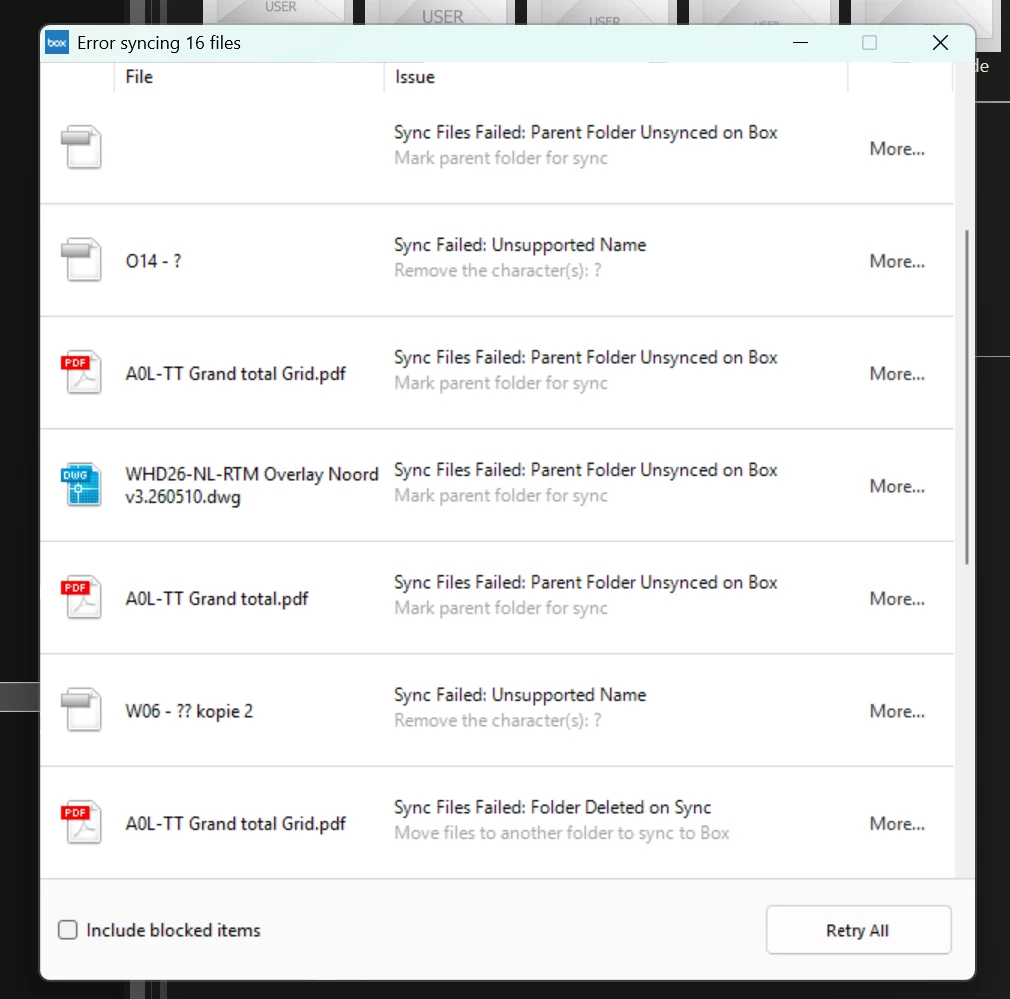
Example 1: Maria works at a university and notices her lecture notes won’t upload. She checks her internet—no problem. After following the steps above, she finds her file name is over 260 characters. She shortens the name, and Box Drive syncs instantly.
Example 2: James uses Box Drive at a design agency. After a macOS update, Box Drive disappears from Finder. He opens System Preferences, enables Box under Finder Extensions, and syncing returns.
These cases show that simple issues like file names or OS settings often block syncing.
Credit: community.box.com
Box Drive Sync Error Messages Explained
If you see an error in Box Drive, it usually gives a code or message. Here’s what some common errors mean:
| Error Message | Possible Cause | Suggested Fix |
|---|---|---|
| “Storage quota exceeded” | Out of space in your Box account | Delete files or upgrade plan |
| “Permission denied” | No write access to file/folder | Request edit access from owner |
| “File name too long” | File or folder name exceeds 255 characters | Shorten the name |
| “Network error” | No or unstable internet connection | Check Wi-Fi or restart router |
| “Unsupported file type” | File type not allowed by Box | Remove or rename the file |
Quick tip: If you see an error, search for that exact message on the Box support site. Many users miss this step and waste time guessing.
Two Overlooked Tips For Reliable Syncing
- Sync only what you need offline: Box Drive lets you mark folders for offline access. Don’t sync your entire Box folder if you don’t need it offline. This reduces sync errors and saves space.
- Monitor sync status regularly: Check the Box Drive icon in your system tray (Windows) or menu bar (Mac). If it’s not spinning or shows a warning, fix the issue immediately instead of letting problems build up.

Credit: support.box.com
Frequently Asked Questions
Why Do Some Files Sync But Others Do Not?
Some files may have unsupported names, sizes, or types. Also, you may not have permission to upload or change certain files. Check for special characters, long names, or folder ownership.
Can I Use Box Drive And Box Sync Together?
No. Running both can cause file conflicts, lost data, or sync failures. Box recommends uninstalling Box Sync before installing Box Drive.
How Do I Know If My Box Drive Is Syncing?
Look for the Box Drive icon in your system tray (Windows) or menu bar (Mac). A spinning icon means it’s syncing. A green check means up to date. A warning or red X means there’s a problem.
What Should I Do If Box Drive Keeps Asking Me To Log In?
This usually means a problem with saved credentials, a password change, or security settings. Try logging out, deleting any saved passwords (Keychain on Mac), and logging in again. If on a work device, check with your IT team.
Where Can I Get More Help With Box Drive Issues?
Visit the official Box support site for guides and to contact support directly.
When Box Drive stops syncing, it can disrupt your work and lead to frustration. But with the steps above, you have the tools to solve most problems quickly. Remember, start with the basics—check your connection, update the app, and look for permission issues. For stubborn cases, check file types, security software, and OS compatibility. Prevention is even better: keep Box Drive updated, stay within your storage limit, and use simple file names.
If you still have trouble, don’t hesitate to reach out to Box support. With a little patience and these strategies, your files will be syncing smoothly again.