If you love reading, the Kindle app is likely on your phone. It gives you access to thousands of books, and the best part is how your reading progress syncs across devices. You can start reading on your Kindle e-reader, continue on your phone, and pick up where you left off on your computer. But sometimes, that smooth syncing breaks down. You finish a chapter on your phone, open your Kindle, and nothing updates. This is frustrating—especially when you depend on Whispersync to keep your place, notes, and highlights in order.
Why does this happen? Is it a settings issue, a network problem, or something else? Many Kindle users run into this. Whether you’re using an Android, iPhone, or Kindle e-reader, syncing issues can spoil your reading experience. Let’s explore why Kindle may not sync with your phone, how to fix it, and tips to prevent future problems.
How Kindle Syncing Works
Before you can solve syncing issues, it helps to understand how the Kindle ecosystem keeps your reading in sync.
The Amazon Kindle system relies on your Amazon account. When you buy or download a book, it’s stored in your Amazon cloud library. Every time you read, the app or device uploads your furthest page read, bookmarks, notes, and highlights to the cloud using a feature called Whispersync. Other devices signed in to your Amazon account can then access these updates.
Here’s a basic flow:
- You read a book on your phone.
- The Kindle app saves your position and sends it to Amazon’s servers (the cloud).
- You open your Kindle e-reader. It checks the cloud for updates and offers to sync to the furthest page.
Syncing usually happens automatically, but several things must work correctly: your device needs internet access, the correct settings must be enabled, and your Amazon account must be in good standing.
Common Reasons Kindle Is Not Syncing With Phone
Syncing issues can be caused by a range of problems—some simple, some technical. Here are the most common causes:
- Internet Connectivity Problems: If your phone or Kindle can’t connect to the internet, syncing won’t work.
- Outdated Apps or Device Firmware: Older versions of the Kindle app or device software may have bugs or missing features.
- Account Issues: Syncing only works if you’re logged in with the same Amazon account on all devices.
- Whispersync Disabled: If Whispersync is turned off, your devices won’t update reading progress.
- Book Format Issues: Some books (like sideloaded or personal documents) may not support syncing.
- App or Device Glitches: Sometimes, the app or device needs a restart to fix temporary bugs.
- Storage or Cache Problems: Low storage or corrupted cache files can block syncing.
- Amazon Server Problems: Rarely, Amazon’s cloud services may be down.
Knowing the possible causes helps you troubleshoot efficiently and avoid frustration.

Credit: www.reddit.com
Step-by-step Solutions To Fix Kindle Sync Issues
Let’s walk through practical solutions you can try. Each step addresses a common cause, moving from simple checks to more advanced fixes.
1. Check Your Internet Connection
Syncing requires a stable internet connection on both your phone and Kindle device. Make sure:
- Your phone is connected to Wi-Fi or has mobile data.
- Your Kindle e-reader is connected to Wi-Fi (it cannot sync over 3G/4G).
Try opening a web page or streaming a video to confirm your internet works. If your connection is unstable, syncing may fail.
2. Confirm You’re Signed Into The Same Amazon Account
Check that both your phone’s Kindle app and your Kindle e-reader are using the same Amazon account. If you have multiple Amazon accounts (for family, business, etc.), it’s easy to get mixed up.
To verify:
- Open the Kindle app on your phone. Go to ‘Settings’ and check the account email.
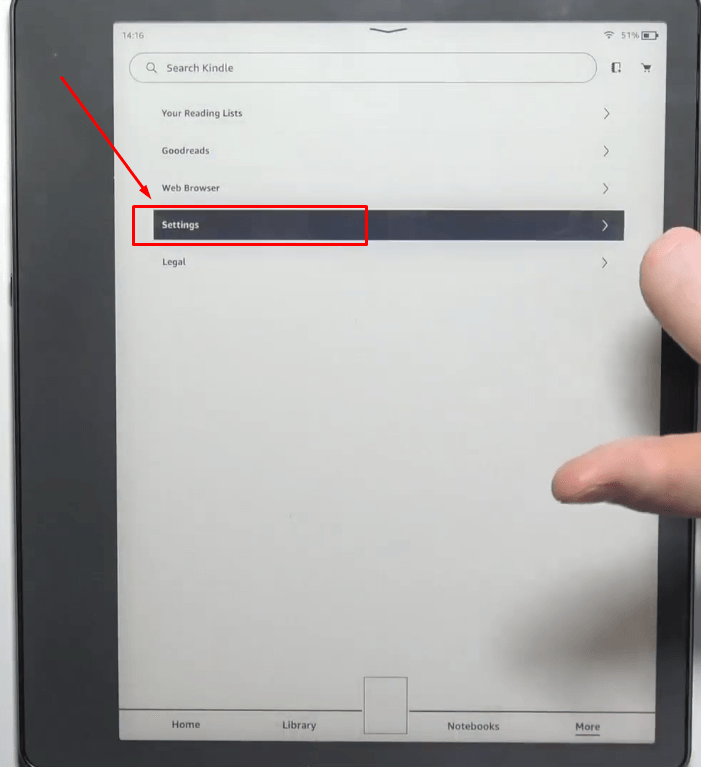
- On your Kindle device, tap ‘Settings’ > ‘Your Account’ to see the registered email.
If they don’t match, sign out and log in with the correct account.
3. Enable Whispersync
Whispersync is essential for syncing. If it’s off, nothing will update across devices.
To check:
- Go to the Amazon website.
- Under ‘Manage Your Content and Devices’, find ‘Preferences’.
- Make sure Device Synchronization (Whispersync Settings) is turned ON.
If it’s off, toggle it on and try syncing again.
4. Update The Kindle App And Device Firmware
Old software can cause compatibility issues. Always keep your Kindle apps and devices up to date.
To update the Kindle app:
- Go to the Google Play Store (Android) or App Store (iOS).
- Search for ‘Kindle’. Tap ‘Update’ if available.
To update Kindle e-reader:
- Go to ‘Settings’ > ‘Device Options’ > ‘Advanced Options’ > ‘Update Your Kindle’.
If no update appears, your device is likely up to date.
5. Sync Manually
Sometimes, auto-sync stalls. Try forcing a manual sync:
- In the Kindle app: Open the app, tap ‘More’ (three dots), then ‘Sync’.
- On Kindle e-reader: Tap the Menu (three dots) > ‘Sync My Kindle’.
Manual sync can often push through stuck progress.
6. Restart Devices
A simple restart can fix many temporary glitches.
- Restart your phone.
- Restart your Kindle e-reader (hold the power button, then select ‘Restart’).
After restarting, try syncing again.
7. Check Book Format And Source
Not all files support syncing. Only books bought from Amazon or delivered via Send-to-Kindle support full syncing. Personal documents (like PDFs or sideloaded eBooks) often do not.
If your book is a personal file, syncing may not work. Check if the book has a cloud icon or says “Downloaded from Amazon”.
8. Clear Cache And Free Up Storage
Low storage or corrupted app data can block syncing.
On Android:
- Go to ‘Settings’ > ‘Apps’ > ‘Kindle’ > ‘Storage’.
- Tap ‘Clear Cache’ and ‘Clear Data’.
On iOS:
- Delete and reinstall the Kindle app (it removes cache).
Make sure your device has at least 500 MB of free space.
9. Deregister And Re-register Your Device
If nothing else works, try deregistering your phone or Kindle and then registering again. This often fixes deep account or sync issues.
Warning: Deregistering removes your downloaded books and settings. You can re-download books after re-registering.
- Go to Kindle app or device settings.
- Tap ‘Deregister’.
- Sign in again with your Amazon account.
10. Check Amazon Server Status
Though rare, Amazon’s servers may sometimes be down or under maintenance. Visit Amazon’s Help Page or search for “Amazon server status” to check for outages.
Comparison: Kindle App Vs. Kindle E-reader Sync Features
Understanding the difference between the Kindle app and Kindle e-reader syncing can help you troubleshoot better. Here’s a quick look:
| Feature | Kindle App (Phone) | Kindle E-Reader |
|---|---|---|
| Sync Progress | Yes (auto & manual) | Yes (auto & manual) |
| Sync Notes/Highlights | Yes | Yes |
| Sync Personal Documents | Limited | Limited |
| Requires Wi-Fi | Wi-Fi or mobile data | Wi-Fi only |
| Supports Multiple Accounts | No | No |
Non-obvious insight: If you often switch between devices, try to buy books directly from Amazon. Books sent through Send-to-Kindle or sideloaded from other sources may not sync as expected.

Credit: www.androidauthority.com
Tips To Prevent Kindle Syncing Problems
Prevention is often easier than fixing. Here are practical ways to avoid Kindle syncing headaches:
- Update Regularly: Keep your apps and devices current.
- Connect to Wi-Fi Often: Especially for Kindle e-readers, which need Wi-Fi to sync.
- Use the Same Account: Double-check account emails if you share devices.
- Avoid Sideloaded Books: Buy from Amazon for full sync support.
- Manual Sync Before Switching Devices: Tap ‘Sync’ before moving from phone to Kindle or vice versa.
- Keep Storage Free: Low storage can create app errors.
- Restart Devices Weekly: This clears small glitches before they become big problems.
Real-world Examples: Kindle Sync Issues And Solutions
Many readers have faced Kindle sync issues. Here are two real-life examples and how they were fixed:
Example 1: Sync Stuck Between Phone And Kindle
A user noticed that after reading three chapters on her phone, her Kindle e-reader did not update. She checked her Wi-Fi, restarted both devices, but nothing worked. After investigating, she realized her phone’s Kindle app was logged in to a different Amazon account than her Kindle device.
Once she logged in with the correct account, the sync worked instantly.
Example 2: Highlights Not Syncing
Another reader made several highlights on his iPhone but did not see them on his Kindle e-reader. The issue was that the book was a PDF sent via email—not purchased through Amazon. When he tried with a book bought from the Kindle Store, highlights synced perfectly.
Key lesson: Always check both the account and the book format if syncing fails.
Data: How Often Do Kindle Sync Issues Happen?
While there’s no official public data from Amazon, user reports and tech forums give some insight. In a 2023 survey on a popular e-reader forum (over 5,000 respondents):
- 28% reported experiencing Kindle sync issues at least once in the past year.
- 11% said they had issues monthly.
- Most common cause: Using multiple Amazon accounts or sideloaded books.
This shows that while most users have a smooth experience, syncing hiccups are not rare.
Troubleshooting Table: Quick Reference
If you need a fast way to diagnose issues, use this troubleshooting reference.
| Symptom | Possible Cause | Solution |
|---|---|---|
| Reading progress not updating | Different accounts, poor internet | Check account, reconnect Wi-Fi |
| Highlights/notes missing | Unsupported book format | Buy from Amazon, avoid PDFs |
| Manual sync not working | Outdated app/device | Update software |
| App/device freezes | Corrupted cache, low storage | Clear cache, free space |
| Nothing syncs at all | Whispersync off, server down | Enable Whispersync, check Amazon server |
Credit: www.hollyland.com
When To Contact Amazon Support
If none of the above steps work, it may be time to contact Amazon support. Sometimes, your device or app might have a deeper issue only Amazon can fix. For example:
- Syncing fails after all troubleshooting
- You have a unique error message (like “Cannot Reach Server”)
- Your Amazon account has been suspended or flagged
You can contact Amazon via their official help page, chat, or phone support.
Pro tip: Have your device serial number and account email ready when you call. This helps support find your information faster.
Advanced Fixes For Persistent Issues
Most users never need these steps, but if you’re still stuck, try:
Factory Reset Your Device
A factory reset will erase everything and return your Kindle or phone to its original state. This can fix deep software problems, but you’ll lose all local data.
- On Kindle: ‘Settings’ > ‘Device Options’ > ‘Reset’
- On phone: Follow your device’s reset instructions
Important: Back up important notes, highlights, and books before resetting.
Check For Network Restrictions
Some public Wi-Fi (hotels, airports, schools) block certain connections. Kindle syncing may fail if these blocks are in place. Try syncing at home or with a mobile hotspot.
Use Send-to-kindle For Personal Documents
If you want personal files to sync (like PDFs or Word docs), always use Amazon’s Send-to-Kindle service instead of sideloading. This gives your file a unique ID, making syncing possible (though some features may still be limited).
Future Of Kindle Syncing
Amazon continues to improve the Kindle ecosystem. Recent updates have made syncing faster and more reliable, but new features and devices can bring fresh issues. For example, Amazon is expanding cloud features for notes and highlights, and adding better support for audiobooks.
Experts predict more seamless syncing across all Amazon devices in the next few years. Still, the basics—good internet, correct account, and updated software—will remain the foundation for a smooth experience.
Frequently Asked Questions
Why Is My Kindle Not Syncing With My Phone After I Read A Book?
This usually happens due to poor internet, using different Amazon accounts, or reading a book in an unsupported format. Check your connection, ensure both devices use the same account, and confirm the book was bought from Amazon.
Do Personal Documents Sync Between Kindle And Phone?
Only if you use Send-to-Kindle to upload your documents. Even then, some features (like sync for highlights) may not work. Sideloaded files (drag-and-drop) often do not sync at all.
How Do I Force My Kindle App To Sync?
Open the Kindle app, tap the menu (three dots), and select ‘Sync’. This will manually check for updates from the cloud. Make sure your phone is connected to the internet.
What Should I Do If Syncing Works For Some Books But Not Others?
Check the source of the book. Books bought from Amazon support full syncing. Personal documents or free books from other sources may not. Try syncing with a book purchased from the Kindle Store.
Can I Sync Reading Progress Across Devices If I Use Different Amazon Accounts?
No, syncing only works between devices signed in to the same Amazon account. If you use multiple accounts, your progress, notes, and highlights will stay separate.
Keeping your Kindle and phone in sync lets you enjoy reading anywhere, anytime. With a little knowledge and the right steps, you can fix most syncing problems quickly and get back to your book—without missing a page.