When you rely on QuickBooks to keep your business finances in order, you expect every bank transaction to sync smoothly. But sometimes, QuickBooks does not sync all transactions—leaving gaps, confusion, and real accounting headaches. You might see missing expenses, incomplete deposits, or even entire days with no data.
This issue can throw off your reports, create errors in reconciliation, and even affect your decision-making. Luckily, you can fix most syncing problems with the right approach. Let’s look at why this happens, how to troubleshoot, and how to keep your books accurate and up to date.
Why Quickbooks Fails To Sync All Transactions
QuickBooks, whether you use Online or Desktop, relies on connections with banks, apps, and internal processes. When it misses transactions, there’s usually a clear cause. Understanding these reasons helps you fix the problem faster.
- Bank connection issues: If your bank changes security settings or updates its website, QuickBooks can lose access. This causes missed or partial downloads.
- Outdated credentials: If you change your password or banking details, QuickBooks may stop syncing until you update your info.
- Bank-imposed limits: Some banks only allow a set number of transactions per download (such as 90 days of history). Older transactions may not sync.
- Duplicate prevention: QuickBooks tries to stop double entries. If it thinks a transaction is already present, it will skip it—even if it’s not actually in your records.
- Corrupted cache or data: Sometimes, QuickBooks’ internal files get corrupted, blocking proper syncing.
- Third-party app errors: If you use apps to import data, those apps might filter or block certain transactions.
- Manual changes: Editing or deleting transactions in QuickBooks can create conflicts that prevent future syncing.
Many users miss the fact that some banks don’t support direct connections for all account types. Business credit cards, savings accounts, or loan accounts might have stricter security. Also, QuickBooks Online and Desktop have slightly different syncing engines, which means troubleshooting steps can vary.
Symptoms Of Transactions Not Syncing
Spotting missing transactions can be tricky, especially if you have a high volume of activity. Here are common signs:
- Unmatched balances: Your bank balance does not match your QuickBooks balance, even after reconciling.
- Unusual gaps: There are days or weeks with zero transactions, even though you know you made purchases.
- Partial downloads: Some transactions for a day appear, but others are missing.
- Duplicate entries: You see two versions of the same transaction, one manually entered and one from syncing.
- Reconciliation errors: You cannot finish reconciliation because of missing deposits or withdrawals.
Experienced users often rely on regular bank reconciliations to catch these issues early. If you only review your books once a month or less, you might not notice until it’s a big problem.

Credit: quickbooks.intuit.com
How To Quickly Diagnose The Root Cause
Acting fast can save you hours of frustration. Use this simple checklist to find out why QuickBooks isn’t syncing all transactions:
- Check your bank connection status: Go to the Banking or Bank Feeds section. Look for alerts, error codes, or sync failures.
- Compare transaction dates: See if the missing transactions are before, during, or after a certain date. This can reveal a cutoff or sync gap.
- Test your login details: Log in to your bank’s website with the same username and password you use in QuickBooks.
- Review bank limits: Visit your bank’s FAQ or support page. Look for statements about how many days of history they allow for syncing.
- Scan for duplicates: Look for similar transactions that might have been imported under a slightly different name or date.
- Check for app integrations: If you use third-party apps, open their logs or dashboards to see if they are filtering or blocking transactions.
- Review account types: Make sure the account in QuickBooks matches the actual bank account type (e.g., checking vs. savings).
A common mistake is assuming that syncing issues always come from the bank. Sometimes, the problem is a setting or filter inside QuickBooks, especially if you have custom rules or automated workflows.
Common Solutions For Quickbooks Not Syncing All Transactions
Most syncing problems can be fixed with a few targeted steps. Below, you’ll find methods for both QuickBooks Online and Desktop. If you’re not sure which one you use, check the logo or menu style—Online is web-based, Desktop is installed on your computer.
For Quickbooks Online
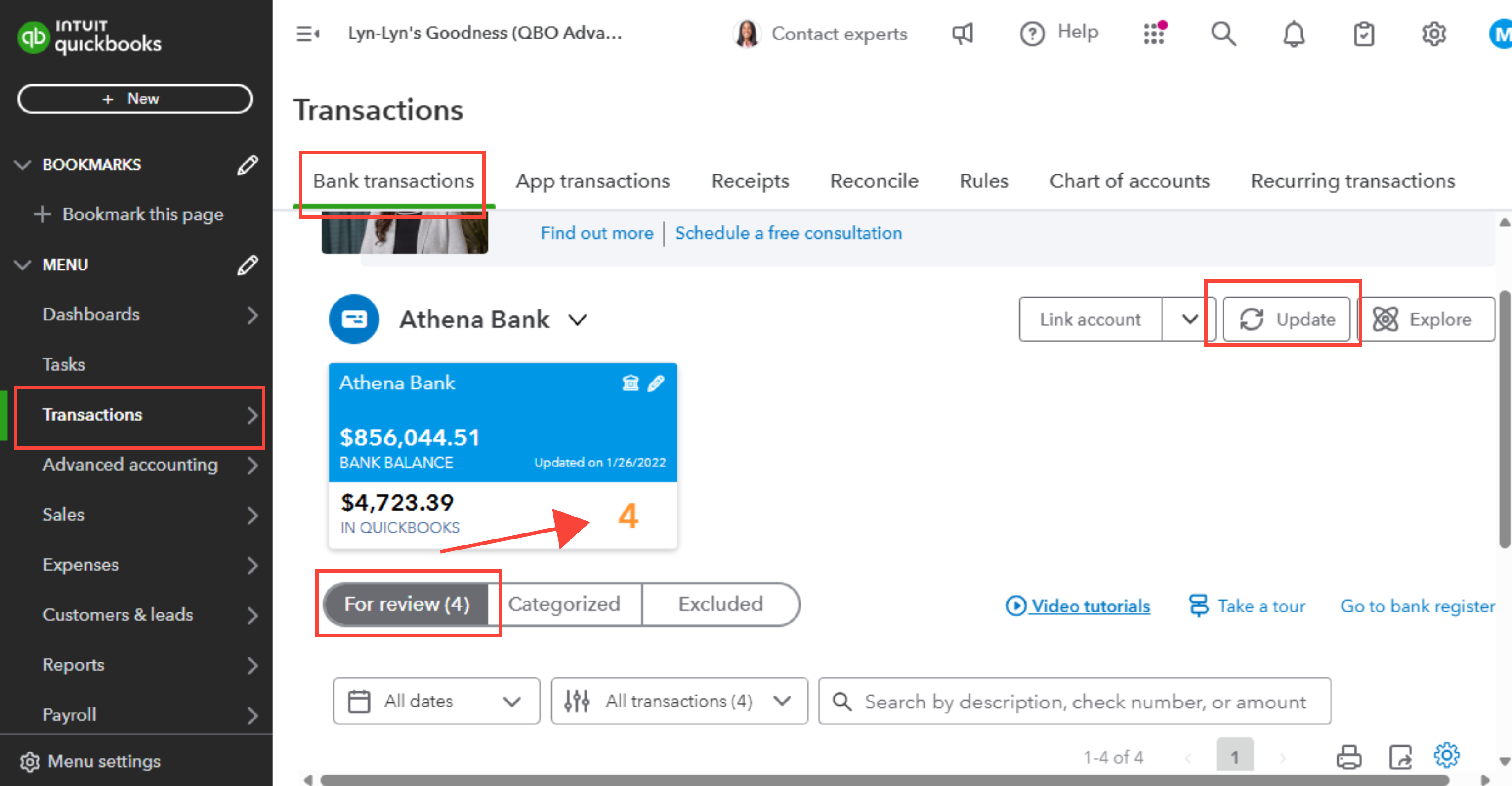
1. Update Your Bank Connection
- Go to Banking.
- Click the account with syncing issues.
- Select Update (sometimes shown as a circular arrow).
- Wait for the refresh to finish.
This forces QuickBooks to fetch the latest transactions. If you see an error code, note it—it can help with further troubleshooting.
2. Reauthorize Your Bank Account
Some banks require you to re-connect every few months for security. To do this:
- In the Banking section, click the small pencil (edit) icon next to the account.
- Choose Edit sign-in info.
- Enter your updated username and password.
- Save and try syncing again.
3. Check And Adjust Date Ranges
QuickBooks may only download recent transactions by default.
- Click on your bank account.
- Look for Download more transactions or similar.
- Adjust the date range to include the missing period.
- Click Update.
Not all banks let you change the range, but it’s worth checking.
4. Review And Remove Filters
If you use filters to view only certain transactions (e. g. , only expenses), you might not see everything.
- Turn off all filters or set them to “All.”
- Check if the missing transactions appear.
5. Manually Upload Transactions
If transactions are still missing, you can manually upload them.
- Download a CSV, QBO, or OFX file from your bank’s website.
- In QuickBooks, go to Banking > Upload transactions.
- Follow the prompts to import the file.
Always check for duplicates after importing.
For Quickbooks Desktop
1. Refresh Bank Feed
- Go to Bank Feeds Center.
- Click the account.
- Select Download Transactions.
2. Reconnect Your Bank
- Go to List > Chart of Accounts.
- Right-click the account.
- Choose Edit Account > Bank Feed Settings.
- Disconnect, then reconnect the account with the latest credentials.
3. Fix Damaged Company Files
Corrupted data can block syncing. QuickBooks Desktop includes a tool to fix this:
- Go to File > Utilities > Rebuild Data.
- Follow the prompts.
- After rebuilding, try syncing again.
4. Import Manually
If you cannot sync, download a QBO file from your bank and import:
- Go to File > Utilities > Import > Web Connect Files.
- Select your QBO file and follow prompts.
For Both Versions
1. Check For Software Updates
- In QuickBooks, go to Help > Update QuickBooks (Desktop) or look for update notifications (Online).
- Install any available updates.
Banks and QuickBooks both update their security regularly. Using an old version can break the sync.
2. Review User Permissions
If you use QuickBooks with a team, make sure you have full access to banking features. Limited access can block syncing.
3. Clear Browser Or App Cache
A corrupted cache can prevent proper syncing. Clear your browser cache (Online) or restart the program and computer (Desktop).
4. Contact Bank Support
If you still cannot sync, ask your bank if there are known issues or outages. Some banks have special support for QuickBooks users.
Real-world Examples Of Syncing Problems
Let’s look at a few common scenarios:
Example 1: Partial Transactions For A Month
A small business owner noticed that only transactions from the last two weeks appeared in QuickBooks Online. The earlier half of the month was missing. After checking, they found their bank only allowed syncing the last 14 days. The solution was to manually download and import the missing transactions.
Example 2: Duplicate Transactions After Manual Entry
An accountant entered expenses manually when the sync was down. When the connection was restored, those same expenses appeared again as synced transactions. QuickBooks flagged them as possible duplicates, but not all were matched automatically. The fix was to use the “Find Match” tool to merge duplicates.
Example 3: App Filter Blocking Certain Expenses
A company used a third-party app to bring in PayPal sales. The app was set to exclude refunds. This meant refund transactions never appeared in QuickBooks, causing revenue to look higher than actual. Changing the app settings fixed the missing transactions.
How To Prevent Syncing Problems In The Future
You can save time and avoid stress by following these best practices:
- Reconcile monthly: Always compare your QuickBooks and bank balances at least once a month.
- Update passwords: Whenever you change your bank password, update QuickBooks immediately.
- Check for software updates: Both your bank’s website and QuickBooks release updates—apply them regularly.
- Limit manual entries: Only enter transactions manually if absolutely necessary. Otherwise, you risk duplicates.
- Monitor app integrations: If you use apps, review their settings after any update or change.
- Review notifications: Pay attention to QuickBooks alerts and error messages—they often point to sync problems.
One insight many users miss is that even “minor” changes (like closing a credit card and opening a new one) can break the connection and cause missed transactions. Always treat account changes as a possible sync trigger.
Comparing Quickbooks Online Vs. Desktop Syncing Features
The experience of syncing transactions differs between QuickBooks Online and Desktop. Here’s a quick comparison:
| Feature | QuickBooks Online | QuickBooks Desktop |
|---|---|---|
| Bank connection type | Direct (cloud-based) | Web Connect or Direct Connect |
| Update frequency | Automatic (daily) | Manual (user-initiated) |
| Supported banks | Most major US/international banks | Fewer banks, more US focus |
| Error codes | Standardized with help links | Less detailed, often generic |
Knowing these differences helps you decide which version fits your needs and how to approach troubleshooting.
Limitations By Bank: What You Need To Know
Not every bank allows unlimited syncing. Some have strict rules, which can cause missed transactions.
| Bank Name | Transaction History Available | Special Syncing Notes |
|---|---|---|
| Bank of America | 90 days | Requires regular password updates |
| Chase | Up to 2 years (with download) | Older transactions require manual upload |
| Wells Fargo | Up to 18 months | Business accounts may need extra verification |
| American Express | 6 months | Corporate cards often have restrictions |
Always check your bank’s policy if you notice missing data.
When To Contact Support
Sometimes, the problem isn’t on your end. Here’s when it’s smart to reach out for help:
- Persistent error codes that don’t go away after updates.
- Multiple accounts affected at the same bank.
- Recent changes to your bank’s website or security.
- QuickBooks outage notifications on the login page.
QuickBooks support has special tools to reset connections and fix corrupted data. Before calling, have your company file backup and error details ready.
Advanced Troubleshooting For Experienced Users
If you’re comfortable with technology, try these deeper fixes:
Use The Audit Log (quickbooks Online)
Check if transactions were edited or deleted by another user. Go to Gear > Audit Log and review recent changes.
Restore A Backup (quickbooks Desktop)
If syncing has failed for a long time, restore a backup from before the issue started. This can help recover lost data.
Reset App Integrations
If you use apps like PayPal, Square, or Expensify, disconnect and reconnect them. Review their sync logs for blocked transactions.
Use Web Connect Files
For banks that don’t support direct syncing, download Web Connect files (QBO or OFX) and import them. This method is slower but more reliable for some banks.
Check Firewall And Security Settings
Firewalls, antivirus, or VPNs can block syncing. Temporarily disable them to see if syncing works.
What To Do If You Can’t Recover Missing Transactions
If all else fails, you may need to enter missing transactions manually. Here’s how to do it safely:
- Download a CSV or PDF statement from your bank for the missing period.
- Enter transactions in QuickBooks one by one, matching the date, amount, and description.
- Mark them as “cleared” once you reconcile with your bank statement.
- Add a memo explaining the manual entry, so future users understand why it was needed.
Manual entry is time-consuming, but it keeps your books accurate.
The Risks Of Ignoring Syncing Problems
Missing transactions are not just a minor annoyance. They can lead to:
- Inaccurate financial statements: You might overstate or understate profits.
- Tax filing errors: Missing expenses or income can cause IRS issues.
- Lost business insights: You can’t see cash flow or spending patterns clearly.
- Bank reconciliation failures: This makes audits and loan applications harder.
The longer you wait to fix syncing, the harder it becomes to untangle errors. Act quickly to keep your books clean.
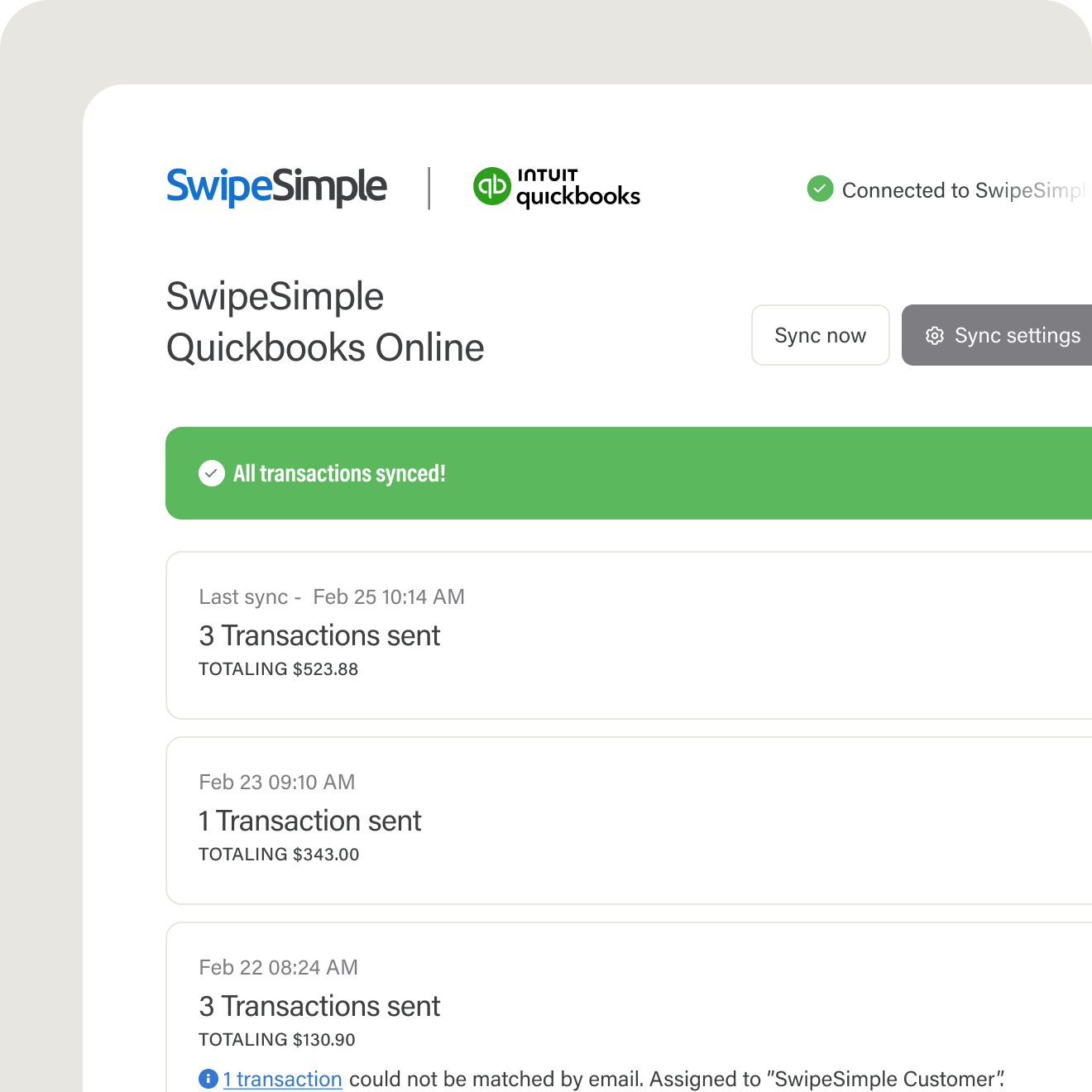
Credit: home.swipesimple.com
Expert Tips For Reliable Syncing
- Set a monthly reminder to review syncing status and reconcile.
- Limit the number of connected apps—each one increases the risk of conflicts.
- Document all manual entries so you know why and when they were made.
- Use bank feeds only for supported accounts—avoid forcing connections for loan or investment accounts.
- Stay informed about updates from both QuickBooks and your bank.
Many users overlook the importance of reviewing their bank’s online banking settings. Sometimes, a bank will add a new security feature (like two-factor authentication) that breaks the connection. Always check for changes after any update.
Where To Find More Help
If you’re stuck, QuickBooks’ official support pages are a great resource. For banking issues, try your bank’s customer service. For advanced topics, communities like the Intuit Community or business accounting forums can provide extra guidance.
For more information on how bank feeds and syncing work, see the official Intuit QuickBooks Help Center.
Credit: quickbooks.intuit.com
Frequently Asked Questions
Why Does Quickbooks Miss Some Transactions But Not Others?
QuickBooks may miss transactions if there are bank-imposed limits, outdated credentials, or if the account type is not fully supported. Filters or app integrations can also block certain entries.
Can I Force Quickbooks To Sync Older Transactions?
You can try adjusting the date range in the Banking section or by manually importing older transactions from a CSV or QBO file. However, some banks do not allow syncing beyond their set limits.
What’s The Risk Of Entering Transactions Manually?
Manual entry increases the risk of duplicates and errors. Always check your bank statement and mark manual entries clearly to avoid confusion during reconciliation.
Do Syncing Problems Affect Tax Filings?
Yes. If transactions are missing, your income or expenses may be reported incorrectly. This can lead to tax penalties or audits. Always resolve syncing issues before filing taxes.
How Do I Know If The Problem Is With My Bank Or Quickbooks?
Check for error messages in QuickBooks, try logging into your bank directly, and see if other users report similar issues. If multiple accounts or users are affected, contact your bank or QuickBooks support.
Keeping your books accurate is essential for business success. With careful attention, regular checks, and the right troubleshooting steps, you can resolve syncing issues and keep your financial data reliable.