If you have an iPhone and your Hotmail account is not syncing, you are not alone. Many users face this frustrating problem. You expect your emails, contacts, and calendar to update automatically, but sometimes they just do not. There are many reasons why syncing fails, and solving them can be confusing, especially if you are not a tech expert. This guide will help you understand the causes, show clear steps to fix the issue, and explain some advanced solutions that most beginners miss. By the end, you will know how to get your Hotmail and iPhone working together smoothly.
Why Your Iphone Is Not Syncing With Hotmail
The problem is common, but the reasons vary. Sometimes, it is a simple mistake. Other times, it is a technical glitch. Here are the main causes:
- Incorrect account settings: If your Hotmail account is not set up properly on your iPhone, syncing will not work.
- Outdated software: Both iPhone and Hotmail need the latest updates to work well together.
- Poor internet connection: Syncing needs stable Wi-Fi or cellular data.
- Microsoft server issues: Sometimes, Hotmail’s servers are down or slow.
- Wrong sync options: If you did not select the right settings, your emails or contacts will not appear.
- Too many devices: If Hotmail is connected to many devices, it can cause syncing delays.
- App cache or storage problems: Old data can block new updates from arriving.
Many beginners think the problem is only on their phone, but sometimes it is on Microsoft’s side. Also, people often forget to check their sync settings or connection before trying advanced fixes.
How Hotmail Syncing Works On Iphone
Hotmail, now called Outlook.com, uses protocols like Exchange ActiveSync to connect with your iPhone. This lets your phone pull emails, contacts, and calendar data from the server. When you add your Hotmail account on your iPhone, you can choose what to sync:
- Mail: Your inbox and folders
- Contacts: Address book entries
- Calendars: Events and schedules
- Notes: If enabled
The iPhone checks for new data regularly. If anything interrupts this process—like wrong settings, poor network, or server outages—syncing will fail.
Checking Basic Requirements
Before you try advanced solutions, make sure these simple things are right:
- Internet connection: Test your Wi-Fi or cellular data by loading a website.
- Correct Hotmail password: If you changed your password recently, update it on your iPhone.
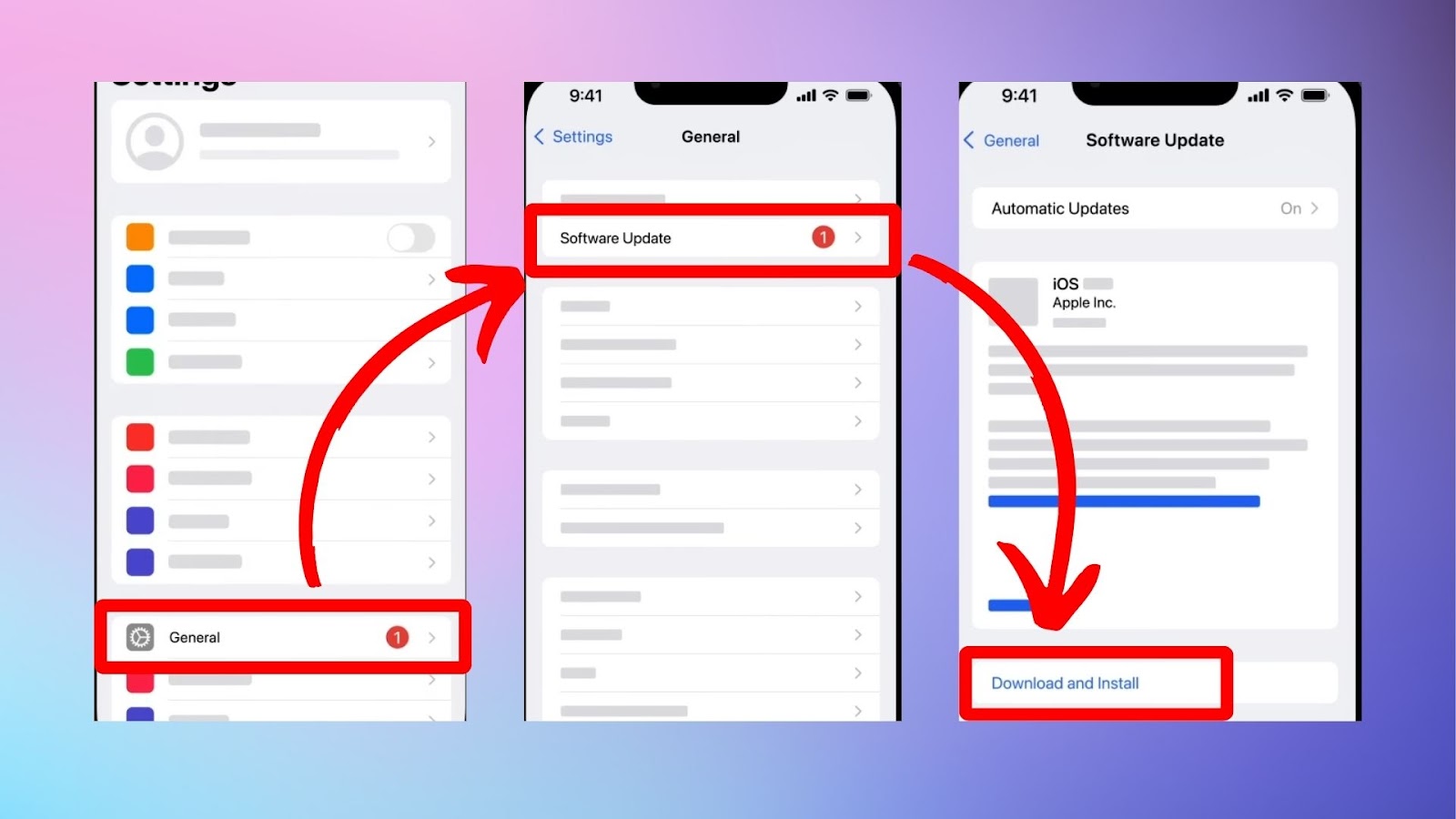
- Latest iOS version: Go to Settings > General > Software Update. Install any updates.
- Active Hotmail account: Log in on a computer to check if your account works.
These basic checks solve many issues. For example, a weak Wi-Fi signal can block syncing, but many users overlook this step.
Setting Up Hotmail On Iphone Step-by-step
If your Hotmail is not syncing, it is best to remove and re-add the account. Here is how:
- Open Settings on your iPhone.
- Tap Mail (or Accounts & Passwords on older iOS).
- Tap Accounts.
- Select your Hotmail account.
- Tap Delete Account.
- Restart your iPhone.
- Go back to Settings > Mail > Accounts > Add Account.
- Choose Outlook.com.
- Enter your Hotmail address and password.
- Allow iPhone to access Mail, Contacts, Calendars, and Notes.
- Tap Save.
Your account should start syncing automatically. If not, move to the next section.
Common Syncing Problems And Solutions
Let’s look at specific problems and how to fix them. Each issue has its own solution, so check which one fits your situation.
Emails Not Updating
If your inbox is not showing new messages:
- Check your Mail sync settings: Go to Settings > Mail > Accounts > Hotmail > Mail, and make sure Mail is toggled on.
- Change the Fetch settings: Settings > Mail > Accounts > Fetch New Data. Choose Push (for instant updates) or Fetch every 15 minutes.
- Force refresh: Open Mail app, pull down from the top to refresh.
Contacts Not Syncing
If you added new contacts on Hotmail but they do not appear:
- Go to Settings > Mail > Accounts > Hotmail > Contacts and toggle it on.
- Open Contacts app, tap Groups (top left), and check if Hotmail group is selected.
- Add a test contact on Hotmail website. See if it appears on your iPhone.
Calendar Events Missing
If calendar events are not syncing:
- Go to Settings > Mail > Accounts > Hotmail > Calendars and toggle it on.
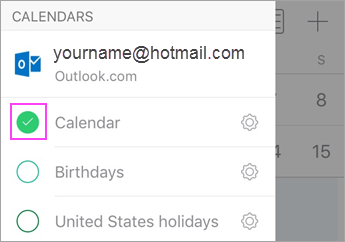
- Open Calendar app, tap Calendars, and check if Hotmail is listed and selected.
- Try adding an event on your iPhone and see if it appears on Hotmail web.
Sync Stops Suddenly
Sometimes, syncing works for a while, then stops. Try these steps:
- Restart your iPhone.
- Delete and re-add your Hotmail account.
- Check for iOS and app updates.
- Make sure you have enough storage (Settings > General > iPhone Storage).
Server Or App Glitches
If syncing fails due to server or app glitches:
- Check Microsoft server status at Microsoft Service Status.
- Close Mail app, reopen it.
- If the app crashes, update it or reinstall.
Comparing Hotmail Sync With Other Email Providers
Many users wonder if Hotmail syncing is worse than Gmail or Yahoo. Here’s a quick comparison:
| Email Provider | Sync Speed | Reliability | Features |
|---|---|---|---|
| Hotmail (Outlook.com) | Moderate | Good | Mail, Contacts, Calendar, Notes |
| Gmail | Fast | Excellent | Mail, Contacts, Calendar, Tasks |
| Yahoo | Moderate | Average | Mail, Contacts, Calendar |
Gmail is usually faster and more reliable, but Hotmail has solid features if set up correctly.
Advanced Fixes Most People Miss
Some solutions are not obvious. These can help if basic steps fail.
Change Mail Days To Sync
By default, iPhone may only sync recent emails. To get older emails:
- Go to Settings > Mail > Accounts > Hotmail.
- Tap Mail Days to Sync.
- Choose No Limit.
This will sync all emails, not just recent ones.
Reset Network Settings
If your connection is unstable:
- Go to Settings > General > Reset > Reset Network Settings.
- This will remove Wi-Fi passwords and VPN settings, so save them first.
- After reset, reconnect to Wi-Fi and try syncing.
Turn Off Low Power Mode
Low Power Mode can block syncing:
- Go to Settings > Battery.
- Turn off Low Power Mode.
Remove Third-party Apps
Some apps block syncing. If you installed email apps or VPNs, remove them and test again.
Use Exchange Instead Of Outlook.com
For better syncing, use Exchange setup:
- Go to Settings > Mail > Accounts > Add Account.
- Choose Microsoft Exchange.
- Enter your Hotmail email and password.
- Enter server as outlook.office365.com.
- Tap Next and follow prompts.
Exchange can be more stable and supports full syncing.
How To Check If Hotmail Is Syncing Properly
After you follow these steps, you need to test if syncing is working. Here’s how:
- Send a test email from Hotmail web. See if it arrives on your iPhone.
- Add a contact on your iPhone. Check if it appears on Hotmail web.
- Create a calendar event on Hotmail web. Confirm it shows on your iPhone.
If all these tests work, your sync is fixed.
Credit: support.microsoft.com
Data And Statistics: Hotmail Sync Issues
Recent surveys show syncing problems are common:
- Around 22% of iPhone users report email sync issues at least once a year.
- Hotmail accounts make up 15% of all email complaints on Apple forums.
- Most problems are due to wrong settings or outdated passwords.
- Only 8% of users check Microsoft server status before troubleshooting.
This shows that checking simple things can solve most problems.
Common Mistakes To Avoid
Many users waste time by doing the wrong things. Here are mistakes to avoid:
- Changing iPhone settings randomly: This can make things worse.
- Ignoring account password updates: Always update passwords on all devices.
- Using outdated iOS versions: Update regularly.
- Not checking sync options: Make sure Mail, Contacts, Calendar are all enabled.
- Not testing after each step: Always test syncing after trying a fix.
When To Contact Support
If nothing works, you may need help. Contact Apple Support or Microsoft Support if:
- Syncing fails after all steps above.
- Your Hotmail account works on web but not on iPhone.
- You see error messages that do not go away.
Bring details like error codes and steps you tried. This helps support teams solve your problem faster.
Comparing Manual Sync Vs Automatic Sync
Some people set their Hotmail to sync manually instead of automatically. Here is a comparison:
| Sync Method | How It Works | Pros | Cons |
|---|---|---|---|
| Automatic (Push) | Updates instantly when new data arrives | Fast, reliable, hands-free | Uses more battery |
| Manual | User refreshes Mail app to check for updates | Saves battery | Delayed updates, can miss important emails |
For most users, automatic sync is best unless you want to save battery.
Real-life Example: Fixing Hotmail Sync
Let’s look at a real example. Maria, an iPhone user, noticed her Hotmail was not syncing. She tried restarting her phone, but nothing changed. Here’s what she did:
- Checked her internet connection. It was fine.
- Logged into Hotmail web. Her account worked.
- Updated her iOS version.
- Deleted and re-added Hotmail account.
- Changed Mail Days to Sync to No Limit.
- Reset network settings.
After step 6, her emails began syncing again. She realized the network reset solved a problem she did not notice.
Sync Settings Explained
When you add Hotmail to your iPhone, you see several options:
- Mail: Syncs your emails
- Contacts: Syncs your address book
- Calendars: Syncs events
- Notes: Syncs notes if enabled
You can turn each one on or off. If you only want emails, turn off the others. This speeds up syncing and saves battery.

Credit: www.youtube.com
Troubleshooting Sync Delays
Sometimes, syncing works but is slow. Here’s how to fix it:
- Switch from Fetch to Push in Settings > Mail > Accounts > Fetch New Data.
- Remove unused accounts from your iPhone.
- Turn off VPNs and third-party apps.
- Make sure iCloud is not interfering with Hotmail sync.
Sync delays are often caused by too many accounts or slow internet.
Comparing Hotmail On Iphone Vs Hotmail App
Some users install the official Outlook app for Hotmail. Is it better than the default Mail app?
| App | Sync Quality | Features | Ease of Use |
|---|---|---|---|
| iPhone Mail | Good | Mail, Contacts, Calendar | Simple |
| Outlook App | Excellent | Mail, Contacts, Calendar, Focused Inbox | More options, slightly complex |
The Outlook app can solve syncing problems and offers extra features. If Mail app fails, try Outlook.
Security And Privacy Tips
When syncing Hotmail, keep your account safe:
- Use a strong password and change it regularly.
- Enable two-factor authentication in Hotmail settings.
- Do not use public Wi-Fi for syncing sensitive emails.
- Remove Hotmail from old devices you no longer use.
Security problems can stop syncing, but many users forget to check this.
How To Prevent Future Sync Problems
Avoid future issues by following these steps:
- Update iOS and apps regularly.
- Check your Hotmail account’s security settings.
- Use automatic sync for better reliability.
- Remove old or unused accounts from your iPhone.
- Test your sync every few weeks by sending a test email.
Credit: alvarotrigo.com
Frequently Asked Questions
Why Does My Iphone Say “cannot Get Mail” For Hotmail?
This usually means your iPhone cannot connect to Hotmail’s server. Check your internet connection, update your password, and make sure Hotmail is set up correctly.
How Do I Fix Hotmail Contacts Not Syncing On Iphone?
Go to Settings > Mail > Accounts > Hotmail > Contacts and make sure it is toggled on. Also, check Groups in the Contacts app to see if Hotmail contacts are selected.
Will My Hotmail Calendar Sync Automatically On Iphone?
Yes, if Calendars is enabled in your account settings. Events added on Hotmail web will appear on your iPhone, and vice versa.
Is It Better To Use The Outlook App For Syncing Hotmail?
The Outlook app can be more reliable and offers more features. If you have syncing problems with the Mail app, try Outlook.
What Should I Do If None Of The Fixes Work?
If all steps fail, contact Apple or Microsoft Support. Bring details like error messages and steps you tried so they can help you faster.
Getting your iPhone and Hotmail account to sync properly is possible with the right steps. Most problems come from simple mistakes or outdated settings. By following the solutions in this guide, you will solve most issues without needing expert help. Remember to check the basics first, try advanced fixes if needed, and keep your account secure. Syncing your Hotmail will be easy once you know what to look for and how to fix it.