If your Garmin Vivoactive 5 is not recording steps, you’re not alone. Many people rely on fitness trackers to monitor daily activity, but sometimes these devices stop working as expected. Missing step data can be frustrating, especially if you’re tracking progress for health or fitness goals. But don’t worry—there are practical ways to solve this issue and understand why it happens.
This article gives clear advice on fixing step tracking problems, explains the main reasons behind them, and helps you avoid common mistakes. You’ll learn about five specific items that often cause the Vivoactive 5 to miss steps, with dedicated sections for each. Whether you’re a new user or an experienced fitness tracker owner, you’ll find useful tips and actionable solutions. Let’s get started and make sure your steps are counted again.
Common Reasons Garmin Vivoactive 5 Is Not Recording Steps
Understanding the main causes is the first step to fixing the issue. The Vivoactive 5 uses sensors and software to detect movement. If something interferes with these parts, the step count can be wrong or missing. Here are the five most common items you need to check:
- Wrist Placement and Tightness
- Software Glitches
- Sensor Malfunction
- Low Battery or Power Saving Mode
- Syncing Errors with Garmin Connect
Let’s dive into each item and see how they affect step tracking.
1. Wrist Placement And Tightness
The Vivoactive 5 uses an accelerometer, a sensor that detects movement patterns. If your watch is not worn correctly, it might not pick up your steps.
- Loose wrist placement: If your watch is too loose, the sensor may miss your arm movements.
- Worn on the wrong wrist: The device is calibrated for a specific wrist. Wearing it on the non-dominant wrist can reduce accuracy.
- Too tight: This can restrict movement and affect sensor readings.
Example: Imagine you’re walking quickly, but your watch slides around. The movement is not stable, so the sensor misses steps.
How To Fix
- Wear the Vivoactive 5 snugly, but not uncomfortably tight.
- Make sure the device stays in place during daily activities.
- Set the correct wrist in the Garmin app settings.
Non-obvious insight: Many people don’t realize the watch needs to be worn for at least 15 minutes before the sensors adjust to your movement style.
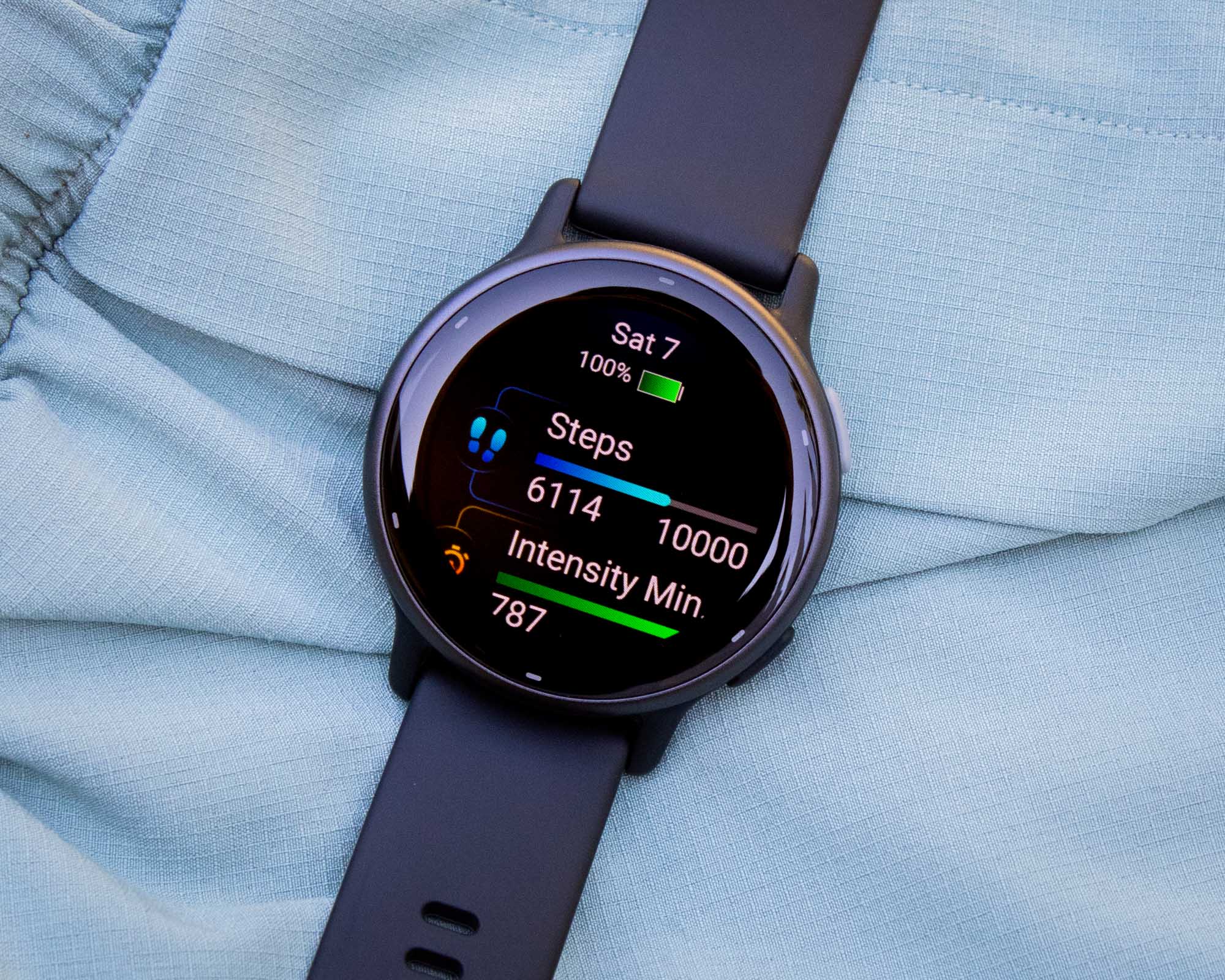
Credit: www.ablogtowatch.com
2. Software Glitches
Like all smart devices, the Vivoactive 5 runs on firmware and software. Sometimes, bugs or glitches can cause step tracking to fail.
- Recent update: A new software version can introduce errors.
- Frozen app: If the Garmin Connect app hangs, it may not sync steps.
- Corrupted data: Sometimes, stored activity files become damaged.
Example: After a recent update, a user notices that steps are no longer recorded until a restart.
How To Fix
- Restart your watch by holding the power button.
- Update to the latest firmware using Garmin Express.
- If the app freezes, uninstall and reinstall Garmin Connect.
Non-obvious insight: Soft resets (restarting the device) can clear temporary glitches but won’t fix deeper software bugs—those need firmware updates.
3. Sensor Malfunction
The accelerometer is the core hardware for step counting. If it fails, steps won’t register.
- Physical damage: Dropping the watch or hitting it hard can damage sensors.
- Manufacturing defect: Rare, but some units have faulty sensors from the factory.
- Dust or moisture: Debris inside the device can block sensor function.
Example: You drop your Vivoactive 5 on a hard floor, and afterwards, it stops counting steps.
How To Fix
- Inspect for visible damage. If the device is cracked or chipped, contact Garmin support.
- Clean the device gently with a dry cloth.
- Run a sensor test in device settings (if available).
If you suspect a hardware issue, warranty or repair may be the only solution.

Credit: correasmartwatch.es
4. Low Battery Or Power Saving Mode
When the battery drops below a certain level, the Vivoactive 5 switches to power-saving mode. This can turn off sensors to conserve energy.
- Low battery: Sensors may stop working at 5% or less.
- Battery saver mode: Sometimes activated by accident, it disables step tracking.
Example: You notice step recording stops when your battery is almost empty, but resumes after charging.
How To Fix
- Keep your device charged above 20% for reliable tracking.
- Check power saving settings and turn off battery saver mode.
Non-obvious insight: Battery saver mode can be triggered by third-party apps, not just manual settings. Always check app permissions.
5. Syncing Errors With Garmin Connect
Even if the watch records steps, syncing problems can cause them to disappear from your phone or the cloud.
- Bluetooth issues: Connection drops can prevent data transfer.
- Account conflicts: Multiple devices linked to one account can cause confusion.
- Outdated app: An old version of Garmin Connect may not sync properly.
Example: Steps appear on your watch but never show up in the Garmin Connect app.
How To Fix
- Make sure Bluetooth is enabled and connected.
- Use only one device per Garmin account.
- Update Garmin Connect to the latest version.
If syncing fails, try logging out and back in, or re-pairing your device.
Comparing The Five Main Causes
To help you understand which issue is most likely, here’s a comparison of the five items:
| Cause | Frequency | Difficulty to Fix | Requires Support |
|---|---|---|---|
| Wrist Placement | Common | Easy | No |
| Software Glitches | Moderate | Medium | Sometimes |
| Sensor Malfunction | Rare | Hard | Yes |
| Low Battery | Common | Easy | No |
| Syncing Errors | Moderate | Medium | No |
Step Tracking Accuracy: Garmin Vivoactive 5 Vs Other Wearables
The Garmin Vivoactive 5 is known for good step tracking, but how does it compare to other devices? Here’s a quick look:
| Device | Step Accuracy (%) | Typical Issues |
|---|---|---|
| Garmin Vivoactive 5 | 96 | Sensor, Sync |
| Fitbit Charge 5 | 94 | Wrist Fit |
| Apple Watch SE | 98 | Battery |
| Xiaomi Mi Band 7 | 90 | App Sync |
As you can see, step tracking is reliable on most devices, but no tracker is perfect. The Vivoactive 5 performs well compared to its competitors.
Steps To Troubleshoot Garmin Vivoactive 5 Not Recording Steps
Here’s a practical checklist to get your step tracking working again:
- Check wrist fit and placement
- Restart your device
- Update Garmin Connect and device firmware
- Inspect for physical damage
- Charge your device fully
- Turn off battery saver mode
- Re-pair Bluetooth connection
- Log out and back into Garmin Connect
- Contact Garmin support if hardware is damaged
Following these steps covers nearly all common reasons for step tracking failure.
Data Loss: Can You Recover Missing Steps?
If steps are not recorded, can you get them back? The short answer is: not always. Most fitness trackers do not store missed steps if the sensor fails or the software crashes. However, if syncing is the problem, steps may still be saved on the device and can be recovered after fixing the connection.
Example: If your device didn’t sync but tracked steps, reconnecting and resyncing will often restore the data.

Credit: support.garmin.com
How To Prevent Step Tracking Issues
Prevention is better than cure. Here’s how to keep your Vivoactive 5 working smoothly:
- Regularly clean your device and check for damage.
- Update firmware and apps as soon as updates are available.
- Avoid letting the battery drop below 10%.
- Reboot your device weekly to clear temporary glitches.
- Use only official accessories and chargers.
These habits can reduce the risk of step tracking problems.
When To Seek Professional Help
Some issues are too complex for home fixes. If you experience:
- No steps counted after following all troubleshooting steps
- Visible physical damage
- Device won’t turn on or charge
Contact Garmin support or visit an authorized service center. Most devices have a one-year warranty covering sensor defects.
Real-world Example: User Experiences
Many users share their problems and solutions online. For example, one runner noticed step counts stopped after a swim. The fix was drying the device thoroughly and updating software. Another user found that changing the wrist setting in Garmin Connect improved accuracy.
These stories show that sometimes simple solutions are enough. But don’t ignore repeated failures—they may signal bigger problems.
External Resource
For official troubleshooting steps and support, visit Garmin Support.
Frequently Asked Questions
Why Is My Garmin Vivoactive 5 Not Counting Steps Even Though I’m Walking?
The most common reasons are improper wrist placement, low battery, or a software glitch. Check if the watch is worn correctly and restart your device.
Can Low Battery Cause Step Tracking To Stop?
Yes. When the battery is very low or power saving mode is enabled, the step sensors can turn off to save energy.
How Do I Fix Syncing Errors With Garmin Connect?
Make sure your phone’s Bluetooth is on, update the Garmin Connect app, and re-pair your device. If the problem continues, log out and back in.
Will A Factory Reset Fix Step Tracking Problems?
A factory reset can fix software-related issues but won’t solve hardware defects. Only use this option if other fixes fail.
What If The Device Is Physically Damaged?
Physical damage to the accelerometer or other sensors will prevent step tracking. Contact Garmin support for repair or replacement if you see cracks or water inside.
Getting your Garmin Vivoactive 5 back to recording steps is possible with careful troubleshooting. By understanding the main causes, checking each item carefully, and following practical steps, you can restore your step tracking and keep moving towards your fitness goals. Remember, small changes like adjusting wrist placement or updating software can make a big difference. If you need more help, Garmin’s official support resources are a reliable next step.