When you play Xbox games on your PC, you expect your progress, achievements, and save files to stay up-to-date across devices. But sometimes, data just doesn’t sync as it should. Maybe you finish a level on your PC, but when you try to continue on your Xbox console, your progress is gone. Or you unlock achievements, but they don’t show up in your profile. This can be frustrating—especially if you rely on cloud saves to pick up games anywhere. If your Xbox PC is not syncing data, you’re not alone. Many players face this issue, but the good news is that there are practical solutions.
In this article, you’ll learn why Xbox data sync problems happen on PC, how to fix them step by step, and how to keep your gaming experience smooth. We’ll also clear up common misconceptions and answer the most frequent questions.
Whether you play on Windows 10 or 11, or use the Xbox app or Game Pass, this guide will help you get back on track and avoid losing your progress.
Understanding Xbox Pc Data Syncing
What Is Xbox Data Syncing?
Xbox data syncing means your game progress, settings, and achievements are stored in the cloud and kept up-to-date across devices. For example, you can play Forza Horizon on your Xbox console, then continue on your PC without losing progress. The syncing uses your Microsoft account and works through the Xbox network.
Why Syncing Matters
Without proper syncing, your game saves can become outdated or lost. This is especially important for:
- Cloud gaming users who switch between devices
- Players who upgrade their PCs or consoles
- Anyone relying on backup in case of device failure
If syncing fails, you might have to replay long sections or lose valuable achievements.
Where Syncing Happens
Syncing can occur in several places:
- In-game cloud save: Many modern Xbox games automatically upload saves to the cloud.
- Xbox app: The Xbox app manages your profile, achievements, and game library on PC.
- Game Pass for PC: Cloud saves and syncing are integrated for Game Pass titles.
- Microsoft Store: Some games bought through the Microsoft Store sync via your account.
Common Causes Of Syncing Problems
Before fixing, it helps to know what usually goes wrong. Let’s look at the main reasons Xbox PC is not syncing data.
1. Internet Connection Issues
Syncing needs a stable, reliable internet connection. If your connection drops or is slow, syncs can fail or get stuck.
2. Xbox Live Service Outages
If Microsoft’s servers are down, syncing can’t happen. Xbox Live outages affect all cloud services, including saves and achievements.
3. Outdated Xbox App Or Windows
An old version of the Xbox app or Windows system files can cause compatibility problems with syncing.
4. Microsoft Account Problems
If you’re not logged in, or if there’s a mismatch between devices (like using different accounts), syncing won’t work.
5. Game-specific Bugs
Some games have their own save systems and may not handle cloud sync properly. This is especially true for early-access or indie titles.
6. Local Save Conflicts
If you play offline or on multiple devices without proper syncing, local saves can conflict with cloud saves.
7. Firewall Or Antivirus Blocking
Sometimes, security software blocks the Xbox app or games from accessing the internet, which stops syncing.
8. Corrupted Save Files
Damaged save files can prevent syncing. The cloud may refuse to upload or download incomplete data.
How To Check If Your Data Is Syncing
Before you fix anything, it helps to confirm if syncing is really the problem. Here’s how to check:
Check Your Last Save
- Open the game on your PC and note your latest progress.
- Open the same game on another device (Xbox console or another PC).
- See if your progress matches. If it doesn’t, syncing is failing.
Look For Syncing Messages
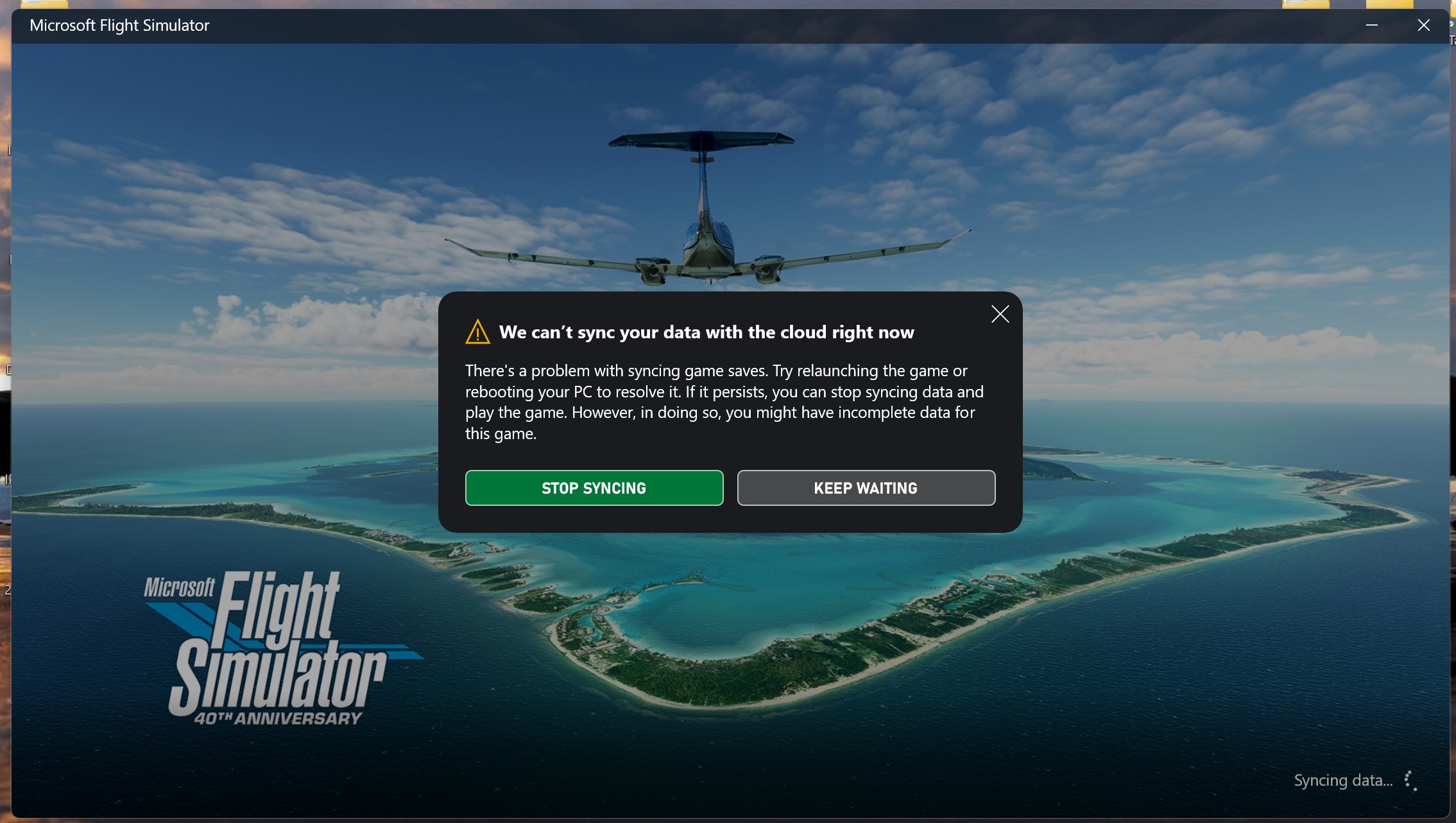
Many Xbox games show a “Syncing Data” message when you launch them. If you see errors like “Unable to sync” or “Cloud save not available,” that’s a clear sign.
Check Xbox App Notifications
Open the Xbox app. Look for alerts or warning icons next to games. The app may also show syncing errors.
Review Achievements
If achievements are missing or outdated, it’s another sign of sync trouble. Go to your profile and compare with what you know you’ve unlocked.
Test Internet Speed
Use a tool like Speedtest. net to check your connection. Slow upload speeds can block cloud syncing.
Step-by-step Solutions To Fix Xbox Pc Not Syncing Data
Let’s walk through practical steps, from simplest to more advanced, to get your Xbox PC syncing again.
1. Check Xbox Live Service Status
First, make sure the problem isn’t on Microsoft’s end.
- Visit the official Xbox Live Status page.
- If cloud saves or Xbox Live Core Services are down, wait until they’re restored.
2. Restart The Xbox App And Your Pc
Simple, but often effective.
- Close the Xbox app completely (not just minimize).
- Restart your PC.
- Open the Xbox app again and check if syncing resumes.
3. Log Out And Back In To Your Microsoft Account
Session issues can block syncing.
- In the Xbox app, click your profile picture.
- Select “Sign Out.”
- Close the app, open it again, and sign back in.
- Reopen your game to check sync.
4. Update Windows And Xbox App
Old software often causes compatibility problems.
- Go to Settings > Windows Update. Install any pending updates.
- Open the Microsoft Store, click Library, and update the Xbox app.
- Restart your PC and try syncing again.
5. Check Internet Connection
You need a strong, stable connection.
- Use a wired connection if possible.
- Restart your router.
- Avoid heavy downloads or streaming while syncing.
6. Disable Vpns And Proxies
These can block or slow cloud communication.
- Turn off any VPN or proxy.
- Try syncing again.
7. Adjust Firewall And Antivirus Settings
Make sure the Xbox app and your games can access the internet.
- In your antivirus/firewall software, add the Xbox app as an exception.
- Allow connections for Gaming Services and your specific games.
8. Clear Xbox App Cache
Corrupted cache can block syncing.
- Press Windows + R, type `%localappdata%PackagesMicrosoft.XboxApp_8wekyb3d8bbweLocalCache`, and press Enter.
- Delete the files in this folder (don’t delete the folder).
- Reopen the Xbox app.
9. Sync Manually (if Supported)
Some games let you manually choose which save to keep.
- When prompted about a save conflict, pick the cloud save if you want your latest progress.
- If you played offline, upload your local save to the cloud when possible.
10. Reinstall The Xbox App
If nothing else works, try a clean reinstall.
- Uninstall the Xbox app.
- Restart your PC.
- Download the latest version from the Microsoft Store.
- Sign in and check if syncing works.
Credit: forums.flightsimulator.com
Advanced Solutions: When Basic Fixes Don’t Work
If syncing still fails after basic steps, try these advanced methods.
Reset Gaming Services
The Gaming Services app is required for Xbox games and syncing.
- Open PowerShell as administrator.
- Enter: `get-appxpackage Microsoft.GamingServices | remove-AppxPackage -allusers`
- Then, install again from the Microsoft Store.
Remove Problematic Local Saves
If your local save is corrupted, delete it:
- Open the game’s folder (usually in “Saved Games” or “AppData”).
- Back up your saves before deleting.
- Delete the local save and try syncing again. The cloud should download the latest save.
Create A New User Profile
Sometimes, your Windows user profile is the issue.
- Create a new local user in Windows.
- Open the Xbox app, sign in, and test syncing.
Check For Game-specific Patches
Some games may need an update to fix sync bugs.
- Open the game’s page in the Microsoft Store or Xbox app.
- Click “Update” if available.
How Xbox Data Sync Works Behind The Scenes
For curious readers, here’s a quick look at what happens when Xbox PC syncs data:
- When you finish a level, the game creates a save file.
- The Xbox app uploads this save to Microsoft’s cloud servers.
- When you launch the game on another device, it downloads the cloud save.
- Achievements and settings are also updated in your Microsoft account.
If any step fails—due to internet, account, or server problems—syncing breaks down.
Comparison: Xbox Pc Vs. Xbox Console Syncing
Not all syncing is the same. Here’s a quick look at how PC and console syncing compare:
| Feature | Xbox PC | Xbox Console |
|---|---|---|
| Cloud Save Support | Most games (Game Pass, Microsoft Store) | All digital games |
| Manual Sync Option | Some games | Yes, on save conflict |
| Save Location | PC local folders, synced to cloud | Internal storage, synced to cloud |
| Common Issues | App bugs, firewall, save file problems | Network, account, server outages |
Data Table: Common Xbox Pc Sync Error Messages And What They Mean
Here’s a quick reference for error messages you might see:
| Error Message | Meaning | Recommended Action |
|---|---|---|
| “We couldn’t sync your data with the cloud right now” | Cloud server is unavailable or your connection is down | Check Xbox Live status and your internet |
| “Choose which save to keep” | Local and cloud saves are different | Pick the newer save, upload to cloud |
| “Syncing data” (stuck) | Sync process is frozen | Restart app/PC, clear cache |
| “Achievement not unlocking” | Account or server issue | Log out/in, check Xbox Live status |
Practical Tips For Keeping Xbox Pc Syncing Reliable
To avoid future syncing issues, try these smart habits:
- Always connect to the internet before starting or quitting a game.
- Close games properly—don’t just shut down your PC, as this can corrupt saves.
- Update your apps and Windows regularly.
- Avoid switching devices mid-session without closing the game.
- Backup important save files for critical games, especially single-player titles.
- Check Xbox Live status if you notice syncing delays.
Common Misconceptions About Xbox Pc Syncing
Let’s clear up some myths:
- Myth: “All Xbox games support cloud sync on PC.”
Reality: Most do, but not all. Some older or indie games may only save locally.
- Myth: “If I play offline, my progress will always upload later.”
Reality: Only if your local save is newer than the cloud save, and if you connect before playing on another device.
- Myth: “Uninstalling a game deletes my cloud saves.”
Reality: Cloud saves stay tied to your Microsoft account, not your device.
- Myth: “Achievements are always instant.”
Reality: There can be delays, especially if you earned them offline or during a server issue.

Credit: www.reddit.com
When To Contact Support
If you’ve tried all fixes and syncing still fails, it may be time to contact Microsoft support. Be ready to provide:
- Your Xbox and Windows versions
- Your Microsoft account email
- Game titles affected
- Any error messages you see
You can start with the official Xbox support page or use the “Get Help” app on Windows.
Real-world Example
Imagine you play Halo Infinite on your Xbox Series X, then later on your gaming PC. Your progress is missing on PC. You check the Xbox Live Status page—services are up. After restarting the Xbox app and PC, syncing still fails. You log out and back in—no luck. Finally, you clear the Xbox app cache and update Windows. Now, when you open Halo Infinite, your progress appears as expected. This shows that sometimes, a combination of small fixes solves the problem.

Credit: www.reddit.com
Data Table: Key Differences Between Xbox Pc Save Types
To help you understand how saves are handled:
| Save Type | Location | Sync Method | Can Be Backed Up? |
|---|---|---|---|
| Cloud Save | Microsoft servers | Automatic when online | No direct access |
| Local Save | PC hard drive | Manual or automatic | Yes, by copying files |
| Hybrid Save | PC + Cloud | Syncs latest version | Yes, for PC copy |
Frequently Asked Questions
Why Does My Xbox Pc Keep Asking Me To Choose A Save File?
This usually happens if you played the same game on two devices without syncing in between. The app finds two different saves—one local, one in the cloud—and asks which to keep. Always pick the newest progress, but if unsure, back up both before deciding.
Can I Force Xbox Pc To Sync My Data?
Most Xbox games sync automatically, but you can sometimes force a sync by closing and reopening the game while connected to the internet. If there’s a sync conflict, the game will prompt you to choose. There’s no manual “sync now” button for all games, but keeping your app and Windows updated helps.
What Should I Do If My Achievements Aren’t Syncing?
First, check the Xbox Live Status page for service problems. Then, log out and back into your Microsoft account in the Xbox app. Try unlocking another achievement to “wake up” the sync. If achievements are still missing, they usually appear within 24 hours when services are restored.
Does Uninstalling A Game On Pc Delete My Cloud Saves?
No, uninstalling only removes local files. Your cloud saves stay tied to your Microsoft account. When you reinstall the game and sign in, your progress should return. To be safe, always check that your latest save is in the cloud before uninstalling.
Are There Any Games That Don’t Support Xbox Cloud Saving On Pc?
Yes, a few games—especially older, indie, or games outside the Microsoft Store—may not support cloud saves. Always check the game’s description or developer FAQ. For critical single-player games, back up your save files manually.
If you follow the practical steps and tips in this guide, you’ll solve most Xbox PC syncing problems without losing precious game progress. Remember, syncing relies on good connections, up-to-date software, and your Microsoft account. Stay aware of how cloud saves work, and you’ll enjoy a seamless gaming experience—whether you play on PC, console, or both.