Fitbit Inspire Not Syncing: Causes, Solutions, And Expert Guidance
Fitness trackers help people stay active, monitor health, and improve their lifestyle. The Fitbit Inspire series is popular for its simple design and helpful features. But sometimes, users face an annoying problem: the Fitbit Inspire does not sync. This issue means your device is not sending data to the Fitbit app or website. You may miss steps, sleep records, or heart rate details. If your Fitbit Inspire is not syncing, you’re not alone. Many people experience this, and there are proven ways to fix it.
In this guide, you’ll learn why syncing fails, how to solve it step by step, and how to prevent future issues. We’ll cover both Fitbit Inspire and Fitbit Inspire 2 models, as their syncing process is similar. You’ll also see real examples, practical tips, and answers to common questions. By the end, you’ll feel confident to get your Fitbit back on track.
What Syncing Means On Fitbit Inspire
Syncing is the process where your Fitbit Inspire transfers data to your smartphone app or computer. This includes your steps, calories, sleep, and other health metrics. When syncing works, you see updated numbers in the Fitbit app. If syncing fails, your device shows outdated data or nothing at all.
Syncing usually happens over Bluetooth. The Fitbit Inspire uses Bluetooth Low Energy (BLE) to connect to your phone. The Fitbit app then collects the information and uploads it to the Fitbit cloud. This makes your stats available on all your devices.
Syncing can also happen through a computer with the Fitbit Connect program, but most people use their phones. Syncing is automatic when your phone and Fitbit are close together, but you can also start it manually in the app.
Main Reasons Fitbit Inspire Does Not Sync
Understanding why syncing fails helps you fix it faster. Here are the most common causes:
- Bluetooth issues: If Bluetooth is off, weak, or unstable, syncing cannot happen.
- App problems: The Fitbit app may freeze, glitch, or need an update.
- Device errors: Your Fitbit Inspire may need a restart or have low battery.
- Account conflict: If your Fitbit is linked to another account, it cannot sync.
- Software bugs: Sometimes, a bug in the device or app stops syncing.
- Network issues: Poor Wi-Fi or mobile data can block syncing with the Fitbit cloud.
- Too many devices: If your phone connects to many Bluetooth devices, it can confuse the Fitbit Inspire.
Many beginners think only the device matters, but syncing needs both the Fitbit Inspire and the Fitbit app to work together. If one is not ready, syncing will fail.
Signs Your Fitbit Inspire Is Not Syncing
How do you know if your Fitbit Inspire is not syncing? Some clues are obvious, but others are easy to miss.
- No updated data: The app shows yesterday’s steps, sleep, or heart rate.
- Sync error message: The app says “Sync failed” or “Unable to sync.”
- Missing device in app: Your Fitbit Inspire does not appear in the device list.
- Bluetooth not connected: The app shows “Bluetooth disconnected.”
- Data mismatch: Your Fitbit Inspire shows today’s steps, but the app shows zero.
If you notice these signs, your Fitbit Inspire is not syncing correctly.
Quick Fixes For Fitbit Inspire Not Syncing
Most syncing issues can be solved with simple steps. Try these first before moving to advanced solutions.
1. Check Bluetooth
Make sure Bluetooth is turned on for your phone. Open your phone’s Bluetooth settings and confirm it’s enabled.
2. Restart Your Fitbit Inspire
Press and hold the button on your Fitbit Inspire for about five seconds until you see a smiley face. This restarts the device and clears minor errors.
3. Force Quit The Fitbit App
On your phone, close the Fitbit app completely and open it again. Sometimes, the app freezes and needs a restart.
4. Update The Fitbit App
Go to the App Store (iPhone) or Google Play Store (Android). Search for Fitbit and check for updates. Install the latest version.
5. Charge Your Fitbit Inspire
If the battery is low, syncing can fail. Place your Fitbit Inspire on the charger and let it reach at least 40%.
6. Try Manual Sync
Open the Fitbit app, tap your profile picture, select your device, and tap “Sync Now. ” This forces a sync.
7. Move Closer To Your Phone
Bluetooth works best within 30 feet (10 meters). Bring your Fitbit Inspire closer to your phone.
These steps solve most syncing problems. If syncing still fails, try advanced troubleshooting.

Credit: www.caconnect.biz
Advanced Troubleshooting Steps
Some syncing issues need deeper solutions. Here’s what to do if basic fixes don’t work.
Re-pair Your Fitbit Inspire
Unpairing and pairing again often solves hidden Bluetooth errors.
- Open your phone’s Bluetooth settings.
- Find your Fitbit Inspire in the list.
- Tap “Forget” or “Remove” device.
- Open the Fitbit app and tap your profile picture.
- Tap “Set Up a Device” and follow the instructions.
This creates a fresh Bluetooth connection.
Reinstall The Fitbit App
Sometimes, the app gets corrupted. Uninstalling and reinstalling can help.
- Delete the Fitbit app from your phone.
- Restart your phone.
- Download the Fitbit app again from the App Store or Google Play Store.
- Log in and try syncing.
Update Your Phone’s Os
If your phone’s operating system is out of date, Bluetooth may not work well.
- Go to your phone’s settings.
- Check for software updates.
- Install any available updates.
- Restart your phone and try syncing.
Clear Bluetooth Cache (android Only)
On Android phones, the Bluetooth cache can get cluttered.
- Go to Settings > Apps > Bluetooth.
- Tap “Storage” then “Clear Cache.”
- Restart your phone.
Remove Other Bluetooth Devices
Too many paired devices can confuse Bluetooth.
- Go to Bluetooth settings.
- Remove devices you don’t use.
- Keep only your Fitbit Inspire and essentials.
Sync Using A Computer
If syncing fails on your phone, try using a computer.
- Download Fitbit Connect from the official Fitbit site.
- Plug your Fitbit Inspire into your computer with the charging cable.
- Follow the instructions to sync.
Factory Reset Your Fitbit Inspire
This step erases all data but often solves deep issues.
- Open the Settings on your Fitbit Inspire.
- Scroll to “Clear User Data.”
- Confirm the reset.
- Re-pair your device with the Fitbit app.
Factory reset is a last resort. Only use it if all other steps fail.
Real Examples: Syncing Problems And Solutions
Let’s look at actual cases to see how these steps work.
Example 1: Bluetooth Interference
Maria’s Fitbit Inspire stopped syncing after she bought wireless headphones. She had both devices paired at once. After removing the headphones from Bluetooth settings, her Fitbit Inspire synced perfectly.
Example 2: Outdated App
John’s Fitbit Inspire showed steps on the device but not in the app. He had not updated the Fitbit app for months. After updating the app, syncing worked again.
Example 3: Battery Too Low
Linda forgot to charge her Fitbit Inspire. Syncing failed until she charged the device to 50%.
Example 4: Account Conflict
Ravi gave his old Fitbit Inspire to his sister, but the device was still linked to his account. When his sister tried to sync, it failed. After removing the device from Ravi’s account and pairing it with her phone, syncing succeeded.
Example 5: Cache Build-Up
Sam’s Android phone lost Bluetooth sync. Clearing the Bluetooth cache fixed the problem.
These examples show that syncing issues are often simple to solve but sometimes need careful checks.

Credit: www.youtube.com
Common Mistakes Beginners Make
Many users repeat the same errors. Avoid these to fix syncing faster.
- Ignoring app updates: The Fitbit app often gets new features and bug fixes. Not updating can block syncing.
- Pairing to multiple phones: If your Fitbit Inspire is paired to more than one phone, it can lose connection.
- Leaving Bluetooth off: Sometimes Bluetooth turns off during phone updates or battery saving.
- Not restarting devices: Restarting both your phone and Fitbit Inspire solves many hidden problems.
- Forgetting to check account settings: Make sure your Fitbit Inspire is registered to your own account.
Comparison: Fitbit Inspire Vs Inspire 2 Syncing
Both Fitbit Inspire and Fitbit Inspire 2 have similar syncing processes. Let’s compare key syncing details.
| Feature | Fitbit Inspire | Fitbit Inspire 2 |
|---|---|---|
| Bluetooth Version | 4.0 | 4.2 |
| Sync Range | 30 feet (10 meters) | 30 feet (10 meters) |
| Battery Life | Up to 5 days | Up to 10 days |
| Syncing App | Fitbit App | Fitbit App |
| Troubleshooting Steps | Same | Same |
The main difference is battery life and Bluetooth version. Inspire 2 has slightly better Bluetooth, which can help with stability. But syncing steps and solutions are almost identical.
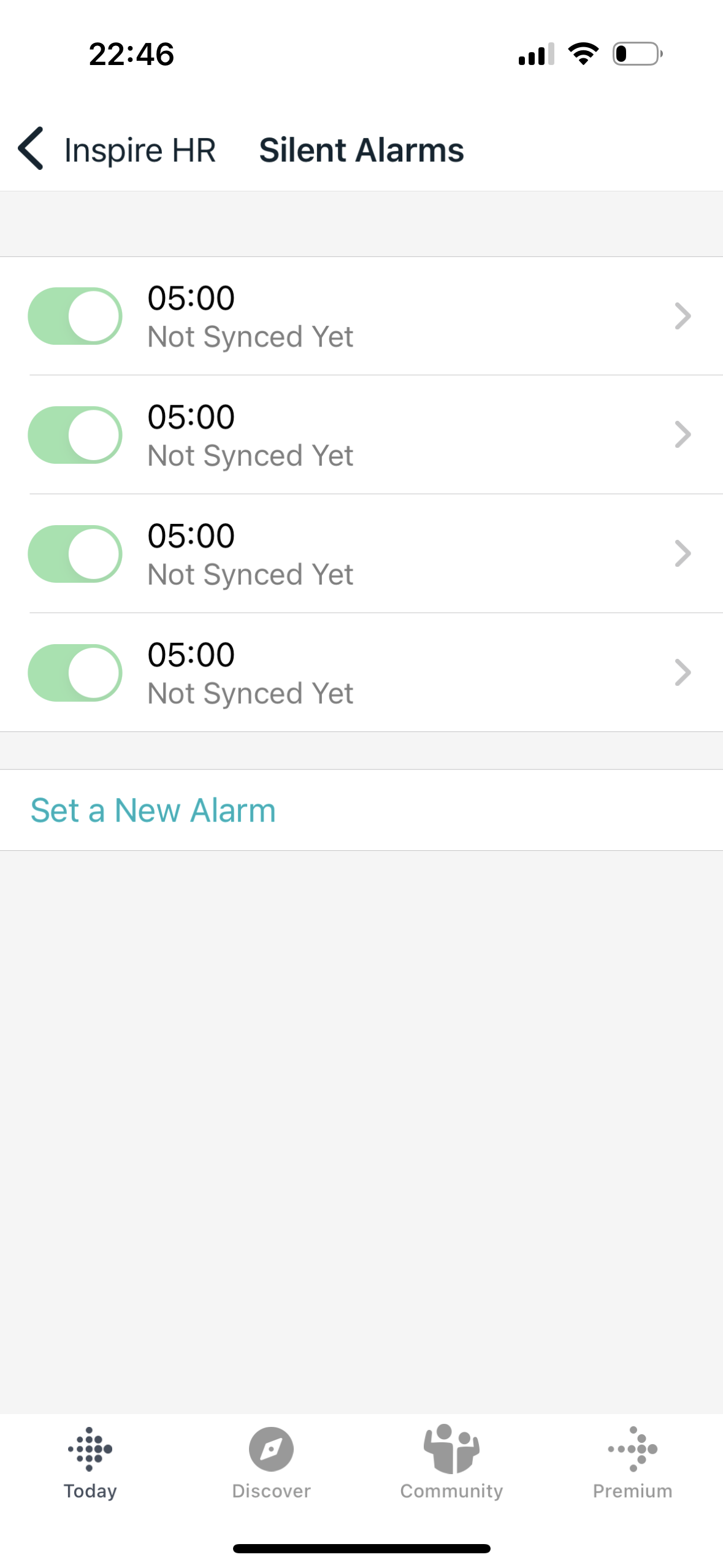
Credit: community.fitbit.com
Data Table: Common Sync Errors And Solutions
Here’s a quick reference table for common syncing errors and how to fix them.
| Sync Error | Possible Cause | Solution |
|---|---|---|
| No data in app | Bluetooth off | Turn on Bluetooth |
| Sync failed message | App glitch | Restart app |
| Device not found | Not paired | Pair device again |
| Data mismatch | Outdated app | Update app |
| Bluetooth disconnected | Too many devices | Remove extra devices |
| Syncing delayed | Low battery | Charge device |
Fitbit Inspire Syncing Statistics
Fitbit is one of the world’s leading fitness tracker brands. According to Fitbit’s official data, over 29 million devices are active worldwide. Syncing is a critical feature, and Fitbit reports that over 98% of daily syncs succeed on their Inspire line.
But about 2% of users experience syncing issues at least once a month. Most problems are solved in less than 10 minutes. User forums show that the main causes are Bluetooth problems and outdated apps.
Non-obvious Insights
Beginners often miss these two important points:
- Bluetooth Interference Is Real: Other wireless devices, like headphones, speakers, and even some smart home gadgets, can cause syncing to fail. Always test by removing extra Bluetooth devices.
- Syncing Needs Both Device and App: Your Fitbit Inspire may look fine, but if the app has a bug, syncing will fail. Don’t focus only on the device—check the app and phone settings too.
Another insight: The Fitbit Inspire stores several days of data without syncing. If you miss syncing for a few days, your device keeps the steps, but you may lose detailed sleep or heart rate logs. Sync often to keep all details.
Preventing Future Syncing Issues
After solving syncing problems, it’s smart to prevent them in the future.
- Update the Fitbit app regularly: Enable auto-updates on your phone.
- Keep Bluetooth on: Avoid turning Bluetooth off for battery saving.
- Charge your Fitbit Inspire often: Don’t let the battery drop below 20%.
- Restart your phone weekly: This keeps Bluetooth stable.
- Avoid pairing with multiple phones: Stick to one main phone for your Fitbit Inspire.
- Remove unused Bluetooth devices: This keeps the connection clear.
- Check for software updates: Update your phone’s OS and Fitbit Inspire firmware.
These habits help your Fitbit Inspire sync smoothly every day.
When To Contact Fitbit Support
If you’ve tried all troubleshooting steps and syncing still fails, it’s time to contact Fitbit Support. They can help with advanced fixes, warranty issues, or device replacement. Before contacting support, collect these details:
- Your device model (Inspire or Inspire 2)
- Your phone model and OS version
- Fitbit app version
- Steps you’ve already tried
- Error messages or symptoms
Fitbit’s support page offers chat, phone, and email help. You can visit their official site at Fitbit Help Center.
Frequently Asked Questions
Why Does My Fitbit Inspire Sync Sometimes But Not Always?
This is usually due to Bluetooth instability or interference. Your phone may be busy with other Bluetooth devices, or your Fitbit Inspire is too far from the phone. Try keeping your device closer and removing unused Bluetooth connections.
Can I Sync Fitbit Inspire With More Than One Phone?
No, your Fitbit Inspire works best with one phone at a time. Pairing with multiple phones can cause syncing failures and data loss. If you want to switch phones, unpair from the first phone and pair with the new one.
What Happens If I Don’t Sync For Several Days?
Your Fitbit Inspire stores data for a few days (about 7 days for steps). But detailed stats like sleep stages or heart rate may not be saved forever. Sync your device often to keep all records in the app.
Does A Low Battery Affect Syncing?
Yes, if your Fitbit Inspire battery is below 20%, syncing may fail or be delayed. Always charge your device to at least 40% before syncing for best results.
How Do I Know If My Fitbit Inspire Needs A Firmware Update?
Open the Fitbit app, tap your profile picture, select your device, and look for “Update Available. ” Firmware updates fix bugs and improve syncing. Install updates as soon as they appear.
Final Thoughts
Syncing issues can be frustrating, but most are easy to solve. The Fitbit Inspire is a reliable tracker, but syncing needs Bluetooth, a healthy battery, and an updated app. Start with simple fixes, move to advanced troubleshooting if needed, and remember common mistakes to avoid. Keep your device and app updated, and sync often to protect your health data. If you hit a dead end, reach out to official Fitbit support.
Your fitness journey should be smooth, and solving syncing issues quickly keeps you moving forward. With these expert tips, you’ll get your Fitbit Inspire syncing again and enjoy every step, sleep, and workout tracked.