Many people trust Hikvision DVRs for home and business security. These devices usually work well, recording footage from security cameras 24/7. But what happens when your Hikvision DVR stops recording? You might miss important events, feel unprotected, or even risk business losses. This problem can be frustrating and confusing, especially if you’re not a tech expert. Luckily, most recording issues have clear causes and practical solutions.
This guide will help you understand why your Hikvision DVR is not recording and show you step-by-step how to fix it. You’ll learn the most common mistakes, how to avoid them, and some expert tips that beginners often miss. By the end, you’ll feel confident to get your security system back on track.
How A Hikvision Dvr Records Footage
To fix a recording issue, it helps to know how the system works. A Hikvision DVR (Digital Video Recorder) connects to security cameras and saves video data to a hard drive inside the unit. It can record in different ways:
- Continuous recording: Records all the time
- Scheduled recording: Records only during set hours
- Motion detection recording: Records when movement is detected
If your DVR isn’t recording, the problem could be with the hardware, settings, or connected devices. Sometimes, the issue is a simple wrong setting. Other times, it’s a failed hard drive or camera problem.
Main Reasons A Hikvision Dvr Is Not Recording
Many things can cause recording to stop. Here are the most common reasons:
- Hard drive problems: Damaged, disconnected, or full hard drive.
- Wrong recording settings: Recording disabled or schedule not set.
- Camera issues: Cameras are offline, or not sending video.
- Firmware/software bugs: Outdated or buggy firmware.
- Power or connection issues: Power loss or loose cables.
- Storage quota limits: Storage set too low in settings.
- Time and date errors: Wrong system time can stop recording.
- Overheating or system error: Device health problems.
Let’s explore how to check and solve each of these.

Credit: www.use-ip.co.uk
Step-by-step Troubleshooting
1. Check Dvr Hard Drive Status
The hard drive stores all video files. If it fails, fills up, or disconnects, your DVR will stop recording.
- Go to the DVR’s main menu and find the HDD (hard disk drive) status section.
- Look for errors like “No HDD,” “Uninitialized,” or “Bad.”
- If the drive is full, the DVR should overwrite old data—but if “overwrite” is off, it may stop.
If you see errors:
- Power off the DVR, open the case, and make sure the SATA cable is firmly connected.
- Try another hard drive to see if the issue is with your current one.
- If the hard drive is uninitialized, use the DVR’s menu to format it. Warning: This deletes all saved video.
A surprising fact: Even new hard drives can be faulty. Always test with another drive if you’re not sure.
2. Review Recording Settings
It’s easy to accidentally disable recording or set the wrong schedule.
- Open the recording schedule menu.
- Check if recording is set to “Continuous,” “Motion,” or “Event.”
- Make sure days and hours are selected. If the grid is empty, nothing will record.
- If using motion detection, check the sensitivity and detection zones.
A common mistake: Enabling motion recording but not setting any detection zones. The DVR sees nothing to record.
3. Check Cameras And Connections
If cameras are offline, the DVR has nothing to record.
- Check the camera status in the DVR’s menu.
- Look for “No video” or black screens.
- Inspect cables for damage. BNC and power cables can come loose.
- Try swapping the camera to a different port. If the problem follows the camera, the camera may be faulty.
Non-obvious tip: Sometimes a camera’s image appears on the live view, but if the signal is unstable, the DVR may not record it. Try a different camera to compare.
4. Update Firmware
Firmware bugs can silently stop recording, especially after a power cut or update.
- Check the Hikvision support site for the latest firmware for your model.
- Follow the guide to update safely. Never power off during an update.
- After updating, reboot the DVR and check if recording resumes.
Firmware updates often fix rare bugs and improve performance.
5. Power And System Health
Brief power losses, overheating, or bad power adapters can cause DVR errors.
- Make sure the DVR is plugged into a reliable power source.
- Feel the unit. If it’s very hot, improve ventilation.
- If you see random restarts, replace the power adapter.
DVRs need stable power to record without problems.
Comparing Common Dvr Problems
To help you quickly spot the issue, here’s a comparison of three common DVR problems:
| Problem | Symptoms | Likely Cause | Solution |
|---|---|---|---|
| No recording at all | No new video files, blank timeline | Hard drive or recording settings | Check/replace HDD, review schedule |
| Records sometimes | Gaps in recording, only motion clips | Schedule or motion config | Adjust schedule/detection zones |
| Recording stops after a few days | Old files remain, no new files | Full hard drive, overwrite off | Turn on overwrite, format drive |
Advanced Issues And Solutions
Storage Quota And Partition Problems
Hikvision DVRs let you set storage quotas for each camera. If the quota is too low, recording stops early.
- In the menu, find the storage management section.
- Check each camera’s quota. Adjust if needed.
Some models use hard drive partitions. If a partition is full, that camera’s recordings will stop.
Time And Date Settings
If the system clock is wrong, recording may not start or may record at the wrong time.
- Check time and date in the DVR’s system settings.
- Set it to auto-update from the internet if possible.
A small time error can confuse scheduled recording and motion events.
Motion Detection Tips
Many people set up motion recording but miss key details:
- Sensitivity too low: Small movements are ignored.
- Detection area not set: Camera only records in selected areas.
Set enough sensitivity to catch people, but not so high that wind or bugs trigger it. Set the detection area to cover doors and windows.
Real-world Example
A small store owner noticed their Hikvision DVR stopped recording overnight. Cameras showed live video, but no new footage appeared. After checking, they found the hard drive was “uninitialized. ” They had a power cut the night before. By rebooting, initializing the hard drive, and turning on “overwrite,” the system started recording again.
This example shows how a simple power issue can cause a big recording problem.
Credit: www.exportersvyapar.com
Best Practices For Reliable Recording
To avoid future problems, follow these best practices:
- Use a reliable, surveillance-rated hard drive (not a standard PC drive).
- Schedule regular hard drive checks (every few months).
- Keep firmware up to date.
- Use a UPS (Uninterruptible Power Supply) to prevent power loss.
- Review your recordings weekly to catch problems early.
- Keep cables tidy and protected from weather or tampering.
When To Call For Help
Most DVR recording issues can be fixed with these steps. But if:
- The hard drive is new but not detected
- Firmware update fails or bricks the device
- The DVR keeps restarting or freezing
…it’s time to call a professional. Don’t open the DVR if it’s under warranty, as this could void support.
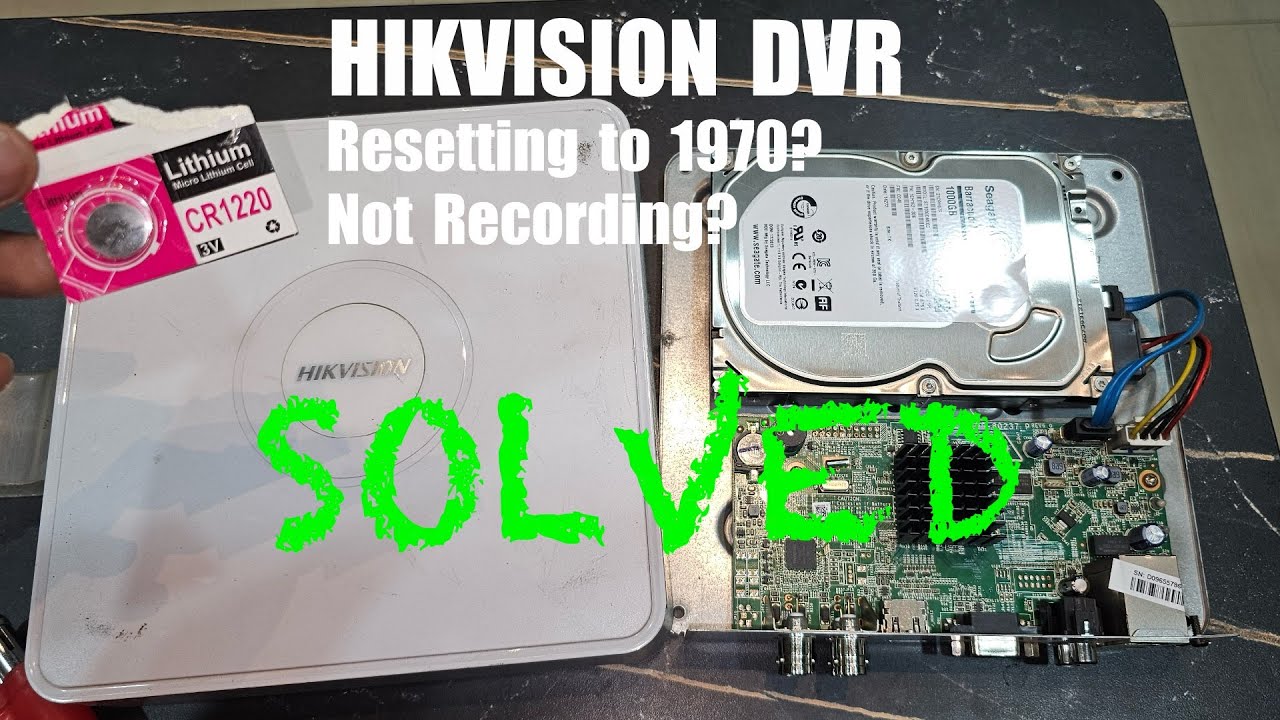
Credit: www.youtube.com
Comparing Recording Modes
Here’s a quick look at how different recording modes affect your system:
| Recording Mode | Storage Use | Best For | Downside |
|---|---|---|---|
| Continuous | High | 24/7 coverage | Fills drive quickly |
| Motion Detection | Medium/Low | Low-activity areas | Misses quiet events |
| Scheduled | Varies | Business hours, specific times | Can miss off-hours events |
Choose the mode that fits your needs. Many users forget to check this after installation.
Data Security And Backup
A little-known risk: If your DVR’s hard drive fails, you may lose all footage. Consider:
- Backing up important clips to a computer or cloud.
- Setting up network storage if your model supports it.
Hikvision supports exporting video via USB or over a network. For more details, see the Hikvision official support center.
Frequently Asked Questions
Why Does My Hikvision Dvr Say “no Hdd” Even With A Hard Drive Installed?
This usually means the hard drive is not connected properly, is damaged, or needs initialization. Power off the DVR, check the cables, and try formatting or replacing the hard drive.
How Do I Know If My Dvr Is Recording?
Check the recording indicator (often a red dot or “REC” symbol) on the live view screen. You can also play back recent footage from the menu to see if new video files exist.
Can I Recover Deleted Or Lost Footage?
Once footage is overwritten or deleted from the DVR, recovery is difficult. There are some data recovery tools, but success is low. For important video, export it quickly to another device.
My Dvr Records Only When There’s Movement, But I Want It To Record All The Time. How?
Go to the recording schedule and set the mode to “Continuous” for all days and hours. Save the changes. Make sure the hard drive has enough space for 24/7 recording.
Does A Firmware Update Erase My Recordings?
No, updating the firmware does not erase saved footage. However, it’s always wise to back up important clips before making any major changes.
A Hikvision DVR not recording is stressful, but most problems have clear solutions. By checking the hard drive, settings, and cameras, and keeping your system healthy, you can keep your security working well. Don’t forget to review your footage often and back up anything important.
With these tips, your Hikvision DVR will protect you when it matters most.