A home security system is only as reliable as its ability to record events when they happen. If your Zosi DVR is not recording, it can leave your property vulnerable and reduce your peace of mind. Many users face this problem, but the reasons and solutions are not always clear. This guide will help you understand why your Zosi DVR may stop recording and what you can do to fix it. With real examples, practical steps, and expert insights, you’ll learn how to get your system working again—even if you’re not a tech expert.
Common Reasons Why Zosi Dvr Is Not Recording
There are several reasons why your Zosi DVR might not record footage as expected. Understanding these causes can save you time and prevent frustration.
1. Hard Drive Issues
The hard drive inside your DVR is where video is stored. If there’s a problem with the drive, your system may stop recording.
- Full hard drive: When the drive is full, new footage can’t be saved unless old files are overwritten.
- Disconnected or faulty drive: If the drive is not properly connected or is damaged, recording fails.
- Formatting errors: A drive that is not formatted correctly will not work with your Zosi DVR.
2. Incorrect Recording Settings
Sometimes the settings are not configured for continuous or motion recording.
- Recording mode: If set to manual or schedule, the DVR may only record at certain times.
- Motion detection sensitivity: If the sensitivity is too low, the system may not trigger recording.
3. Camera Connection Problems
If cameras are not connected properly, the DVR cannot record from them.
- Loose cables: Damaged or loose cables can stop the video signal.
- Power issues: Cameras not receiving power will not send footage.
4. Firmware Or Software Errors
The firmware is the software running on your DVR. Errors here can stop recording.
- Outdated firmware: Older software may cause problems.
- Corrupted files: If the system files are damaged, features may fail.
5. User Mistakes
Beginners often overlook simple things:
- Accidentally disabling recording: Some users turn off recording without realizing.
- Wrong time zone or schedule: Setting the wrong time can cause the DVR to record at unexpected times.
Step-by-step Troubleshooting Guide
Solving the recording issue usually involves checking each possible cause, starting with the most common.
1. Check Hard Drive Status
Begin by making sure your hard drive is working.
- Log in to the DVR menu using your remote or mouse.
- Go to “Storage” or “HDD Management.”
- Look for the drive’s status. If it’s marked “Normal,” it should be fine.
- If you see “No disk” or “Error,” reconnect the drive or replace it.
Here’s a quick comparison of hard drive status and what they mean:
| Status | Meaning | Action Needed |
|---|---|---|
| Normal | Drive working | No action |
| No disk | Not detected | Reconnect or replace |
| Error | Faulty | Replace or repair |
| Full | No space left | Set overwrite or delete files |
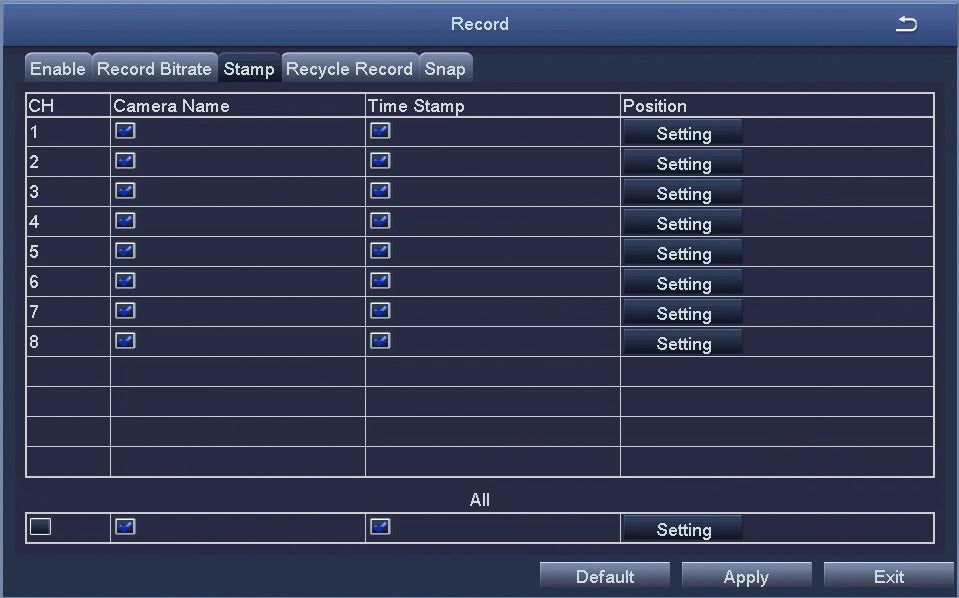
2. Review Recording Settings
Check your recording mode and schedule:
- Open the DVR menu.
- Find the “Record” or “Schedule” section.
- Make sure cameras are set to record—either continuously or based on motion.
- Adjust the sensitivity if using motion detection.
- Save changes and exit.
Many users forget to save settings after making changes, so double-check before leaving the menu.
3. Inspect Camera Connections
Check each camera:
- Make sure cables are plugged in tightly.
- Inspect for damage or rust.
- Confirm the cameras are powered (LEDs should be on).
If a camera is not working, try plugging it into another port. If it works, the original port may be faulty.
4. Update Firmware
Visit the Zosi website for the latest firmware updates. Download the correct file for your DVR model and follow the instructions to update.
Firmware updates can fix bugs, improve stability, and add new features.
5. Test With Manual Recording
Try recording manually to check if the system can save footage.
- Press the “Record” button on the remote or menu.
- Wait a few minutes, then stop recording.
- Check playback to see if the footage was saved.
If manual recording works but scheduled or motion recording does not, there may be a settings problem.

Credit: www.zositech.com
Advanced Fixes For Persistent Issues
Sometimes, basic troubleshooting does not solve the problem. Here are advanced solutions:
Reformat Hard Drive
If your drive is recognized but not recording, reformat it:
- Go to “HDD Management.”
- Select your hard drive.
- Click “Format.” This will erase all data.
- Restart the DVR.
Warning: Formatting deletes all saved video. Only do this if you have no important footage.
Reset To Factory Settings
If settings are corrupted, a factory reset can help:
- Go to “System Settings.”
- Select “Default” or “Reset.”
- Confirm and restart.
This will remove custom settings, so you’ll need to set up the system again.
Replace Hard Drive
If your drive is old or damaged, replace it with a compatible model. Most Zosi DVRs use SATA hard drives. Choose a drive with at least 1TB for good storage.
Contact Zosi Support
If nothing works, contact Zosi support. They can help diagnose hardware issues or provide replacement parts.
Practical Examples And Real-world Insights
Many users share their experiences online. Here are a few real cases:
- A homeowner noticed recordings stopped after a power outage. The DVR’s time was reset, causing the schedule to fail. Setting the correct time fixed the issue.
- In another case, a user’s recordings were missing because motion sensitivity was set too low. Raising the sensitivity allowed the system to record more events.
- One user found their drive failed after two years. Installing a new hard drive restored normal recording.
Non-obvious insight: Sometimes, interference from other electronics can cause cameras to lose signal. Try moving wireless devices away from your DVR and cameras.
Another overlooked tip: If your system is using old cables, upgrading to new, shielded cables can improve recording stability.
Credit: www.zositech.com
How Zosi Dvr Recording Compares To Other Brands
Zosi is popular for its value and ease of use, but how does it compare to other DVR brands? Here’s a quick comparison:
| Brand | Recording Modes | Storage Management | Reliability |
|---|---|---|---|
| Zosi | Continuous, schedule, motion | Manual overwrite, auto overwrite | Good for price |
| Hikvision | More advanced modes | Smart storage, redundancy | Very reliable |
| Dahua | Similar to Zosi | Efficient management | Reliable |
| Swann | Cloud + local | Cloud backup | Depends on model |
Zosi offers most basic features but may lack some advanced options found in more expensive brands.
Preventing Zosi Dvr Recording Problems In The Future
After fixing your system, it’s wise to prevent future issues.
Regular Maintenance
- Check hard drive health every few months.
- Update firmware at least once a year.
- Inspect cables for wear and tear.
Backup Important Footage
Since hard drives can fail, back up important clips to a computer or cloud storage. This prevents loss if the DVR stops recording.
Set Up Alerts
Many Zosi DVRs can send email alerts if there is a problem. Set this up for quicker response.
Use A Surge Protector
Power surges can damage the DVR or hard drive. Use a surge protector to keep your equipment safe.
Keep Your System Clean
Dust and heat can cause electronics to fail. Place your DVR in a cool, dry place and clean it regularly.

Credit: www.zositech.com
The Importance Of Recording For Security
Recording is the heart of any security system. When your Zosi DVR is not recording, you lose a vital layer of protection. Fixing the issue quickly means you can trust your system again and feel safer at home or work.
Statistics: According to a 2022 survey, over 40% of security system users report at least one recording failure per year. Most are solved by checking settings or replacing the hard drive.
If you want more details on how security systems work, you can check this Wikipedia page.
Frequently Asked Questions
What Should I Do If My Zosi Dvr Says “no Disk”?
If your DVR says “No disk”, check the hard drive connection. Open the DVR and make sure the SATA cable is plugged in tightly. If it still does not detect the disk, try another cable or replace the hard drive.
How Do I Set Up Motion Recording On Zosi Dvr?
Go to the “Record” menu, select your camera, and choose motion detection mode. Adjust the sensitivity so it catches movement without too many false alarms. Save settings before exiting.
Why Is My Zosi Dvr Not Recording At Night?
This can happen if infrared (IR) lights on your cameras are not working. Check if the IR LEDs glow in the dark. If not, the cameras may need repair or replacement. Also, check the recording schedule for night hours.
Can I Use An External Hard Drive With Zosi Dvr?
Most Zosi DVRs require internal SATA hard drives. External USB drives are not supported for recording, but you can use them to back up footage.
How Often Should I Update My Zosi Dvr Firmware?
Update your firmware at least once a year or when you notice bugs. New firmware can fix errors and improve performance. Always use official files from the Zosi website.
Getting your Zosi DVR to record again is possible with careful checks and a few simple fixes. With these steps, your security system can protect you better and give you confidence every day.