If you’re a gamer or content creator, recording your screen is important. Many people use GeForce Experience, a free tool from NVIDIA, to capture gameplay or tutorials. But sometimes, GeForce Experience simply refuses to record. The “Not Recording” issue is frustrating, especially if you want to save a great gaming moment or create a video. The problem can happen for many reasons, from simple settings to deeper technical issues. Whether you’re new to screen recording or have used GeForce Experience for years, this guide will help you understand why it isn’t recording—and what you can do to fix it.
Why Geforce Experience Might Not Record
GeForce Experience relies on several things to record smoothly. If one part fails, the whole process can stop. Common reasons include:
- Outdated drivers: Your graphics card needs the latest drivers to work well with GeForce Experience.
- Hardware limitations: Some PCs don’t meet the requirements for recording.
- Incorrect settings: Simple misconfigurations can block recording.
- Software conflicts: Other apps might interfere with GeForce Experience.
- Windows permissions: Missing permissions can stop the app from accessing your screen.
Knowing these basics can save time. Many users spend hours troubleshooting, not realizing the fix is simple—like updating a driver or changing a setting.
Checking Hardware And System Requirements
Before diving into software fixes, make sure your system is compatible. Not every PC can use GeForce Experience’s recording features.
| Requirement | Minimum Specification | Recommended |
|---|---|---|
| Graphics Card | NVIDIA GeForce GTX 600 series or later | GeForce GTX 900 series or newer |
| RAM | 4 GB | 8 GB or more |
| Operating System | Windows 7/8/10 (64-bit) | Windows 10/11 (latest updates) |
| Driver Version | R430 or later | Latest available from NVIDIA |
Tip: If your graphics card is older or you have less RAM, recording may not work well or at all.

Credit: www.antillespr.edu
Updating Nvidia Drivers
One of the most common reasons GeForce Experience won’t record is outdated drivers. NVIDIA releases updates regularly to fix bugs and add features. Here’s how to check and update:
- Open GeForce Experience.
- Go to the Drivers tab.
- Click Check for Updates.
- If an update is available, click Download and then Install.
After updating, restart your computer. This simple step often solves recording issues. If you’re not sure, you can also visit the official NVIDIA Driver Download page for manual downloads.
Enabling In-game Overlay
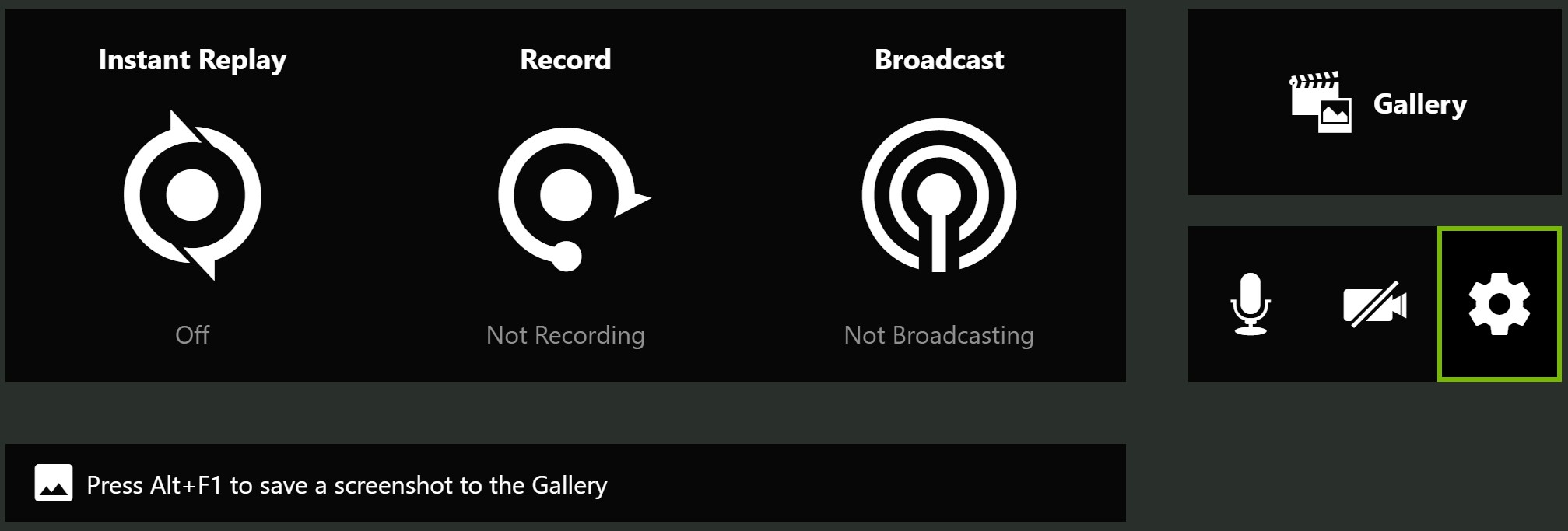
The In-Game Overlay (previously called Share) is needed for recording. If it’s turned off, GeForce Experience can’t record your screen.
To enable:
- Open GeForce Experience.
- Click the gear icon (Settings).
- Under General, find In-Game Overlay and toggle it ON.
If it’s already on and still not working, try turning it off and then on again. Sometimes, this resets the overlay and fixes the problem.
Checking Privacy And Permissions
Windows and some games have privacy settings that block screen recording. GeForce Experience needs permission to capture your display.
For Windows 10/11
- Go to Settings > Privacy > Microphone and Camera.
- Make sure Allow desktop apps to access your microphone/camera is ON.
- Under Settings > Gaming > Game Bar, ensure Record game clips is ON.
Sometimes, running GeForce Experience as an Administrator helps:
- Right-click the GeForce Experience shortcut.
- Select Run as administrator.
This gives the app higher access and may solve recording problems.
Fixing Software Conflicts
Other apps can block or interfere with GeForce Experience. These include:
- Screen recording or streaming software (OBS, XSplit)
- Overlays (Discord, Steam, MSI Afterburner)
- Antivirus tools
Try closing these programs before recording. If you notice GeForce Experience works only when other apps are closed, there’s a conflict. Disabling overlays in those apps can help.
Non-obvious Insight: Some users forget that even web browsers with hardware acceleration can interfere. Try closing all browsers before recording.
Credit: www.nvidia.com
Adjusting Recording Settings
Incorrect settings can stop recording or make files unusable. Double-check these options:
- Open the In-Game Overlay (default: Alt+Z).
- Click Settings > Video Capture.
- Set Quality to Medium or High (avoid Custom unless you know what you’re doing).
- Choose a safe Save location—preferably on a drive with enough free space.
If your hard drive is nearly full, recording will fail. Free up space or change the save folder.
Common Error Messages And Their Solutions
GeForce Experience may show error codes or messages when it can’t record. Here are some common ones and what they mean:
| Error Message | Possible Cause | Solution |
|---|---|---|
| “Recording is not supported on this system” | Old GPU or driver | Update drivers or check hardware requirements |
| “Recording failed to start” | Overlay disabled or blocked by another app | Enable overlay, close conflicting apps |
| “Cannot save video” | No disk space or permission issue | Free up space, check folder permissions |
Pro Tip: If you see a generic “unknown error,” try restarting your PC and updating both Windows and GeForce Experience.
Advanced Troubleshooting Steps
If the basics don’t work, try these deeper fixes:
1. Reinstall Geforce Experience
Sometimes, files become corrupted. Uninstall GeForce Experience from Control Panel > Programs and Features, then download and install the latest version.
2. Clean Install Nvidia Drivers
A clean install removes old files that might cause problems:
- Download the latest driver from NVIDIA.
- During installation, choose Custom (Advanced).
- Select Perform a clean installation.
This resets settings and often fixes stubborn issues.
3. Check Windows Game Mode
Windows has a Game Mode that can interfere with some overlays. Try turning it off:
- Go to Settings > Gaming > Game Mode.
- Toggle Game Mode OFF.
4. Reset Overlay Hotkeys
If custom hotkeys overlap with other software, recording may not start. Reset to default:
- Open In-Game Overlay (Alt+Z).
- Go to Settings > Keyboard Shortcuts.
- Click Restore Defaults.
5. Update Windows
Some updates fix bugs that affect screen recording. Open Settings > Update & Security and check for updates.
Non-obvious Insight: Some users report that specific Windows updates break or fix GeForce Experience recording. If you recently updated and recording stopped, check online forums for known issues.
Alternative Recording Solutions
If GeForce Experience still won’t record, consider these alternatives:
- OBS Studio: Free, open-source, highly customizable.
- Windows Game Bar: Built into Windows 10/11, simple for basic recording.
- Bandicam: Paid, but offers advanced features.
- ShadowPlay Standalone: Some older NVIDIA cards support ShadowPlay without GeForce Experience.
Each tool has its strengths. OBS Studio, for example, is more flexible but can be harder to set up for beginners.
Preventing Future Recording Problems
You can avoid many issues by keeping your system updated and following best practices:
- Regularly update NVIDIA drivers and Windows.
- Keep GeForce Experience up to date.
- Close unnecessary background apps before recording.
- Check that you have enough free disk space.
- Periodically review your overlay hotkeys and settings.
Proactive maintenance saves time and reduces frustration.
When To Contact Nvidia Support
If nothing works, it might be a deeper technical issue. Contact NVIDIA Support if:
- Your hardware meets all requirements, but recording still fails.
- You see unusual error codes not listed in documentation.
- You suspect a bug in the latest version.
Before contacting, collect information like your GPU model, driver version, and error messages. This helps support solve your problem faster.

Credit: dokasch.com
Frequently Asked Questions
Why Is My Geforce Experience Recording Blank Or Black Screen?
This usually happens when recording is blocked by another overlay, or when the wrong display is selected. Try disabling other overlays (like Discord or Steam), and make sure you’re recording the correct monitor in multi-display setups.
Can I Use Geforce Experience To Record Non-game Applications?
Yes, but only if desktop capture is enabled. Go to the In-Game Overlay settings and turn on “Desktop Capture.” Remember, some apps (like protected video players) may still not record due to DRM.
How Much Disk Space Do I Need For Geforce Experience Recordings?
Video files, especially at high quality, can be large. For example, a 10-minute 1080p video at high quality can use 1–2 GB. Make sure you have at least 10–20 GB free if you plan to record often.
Does Geforce Experience Recording Affect Game Performance?
Yes, a small drop in FPS (frames per second) is normal, especially on older hardware. Lower the recording quality if you notice significant slowdowns, or upgrade your hardware for smoother performance.
What’s The Difference Between Instant Replay And Manual Recording?
Instant Replay saves the last few minutes of gameplay automatically, so you can capture unexpected moments. Manual Recording starts and stops when you press a hotkey, giving you more control. Both can be used together, but Instant Replay uses more system resources.
GeForce Experience is a powerful tool, but like any software, it can run into problems. With the steps in this guide, you should be able to fix most “not recording” issues quickly. Remember, regular updates and careful settings are the best way to avoid future trouble.
For more advanced help, NVIDIA’s official resources are always available. Happy recording!