If you rely on Gmail for work, school, or personal messages, nothing is more frustrating than opening the Gmail app and finding it’s not working as expected. Maybe emails won’t load, notifications don’t show up, or the app crashes again and again. These problems can make you miss important messages and lose productivity. The good news? Most Gmail app issues have clear solutions that you can try yourself—no need to wait for a tech expert.
In this article, you’ll learn why the Gmail app might not be working, how to fix the most common problems, and what to do if nothing seems to help. You’ll also see a few useful tables to compare solutions and find the best steps for your situation.
Whether you use Gmail on Android or iOS, these tips will help you get back to your emails quickly and with less stress.
Common Gmail App Problems
Understanding the most frequent issues makes fixing them easier. The Gmail app is usually reliable, but some problems appear often:
- App won’t open or crashes
- Emails don’t sync or load
- Notifications are missing
- Can’t send or receive emails
- Attachments won’t download
- App is slow or freezes
- Authentication errors
- Account not recognized
- Spam or junk filter issues
- UI glitches (buttons not working, screen freezes)
Each of these problems can have different causes—sometimes your phone’s settings, other times Gmail’s servers, or even the app itself. For example, you might notice that your emails stop syncing after a recent phone update, or attachments fail to download only when using mobile data.
Sometimes, these problems are triggered by a mix of factors, so don’t be surprised if you need to try several solutions.
Why Is The Gmail App Not Working?
The Gmail app can stop working for many reasons. Here are the main causes, explained simply:
- Internet connection issues: Weak Wi-Fi or mobile data can prevent emails from syncing. Even if your phone shows a connection, it might be too slow or unstable for Gmail to work well.
- Outdated app version: Older versions may have bugs or lack support. Developers often fix problems in updates, so using an old app increases the risk of errors.
- Device storage problems: If your phone is full, the app can’t save new emails or attachments. Low storage also slows your device, causing Gmail and other apps to freeze.
- Corrupted cache/data: Cached files can become damaged and cause crashes. This is more common if you use the app heavily or don’t restart your phone often.
- Incorrect account settings: Wrong passwords or sync settings block email access. Accidentally changing a password or enabling two-step verification can also cause login failures.
- Google server outages: Sometimes, Gmail’s servers are down (rare, but possible). Outages usually affect many users at once and may last from a few minutes to several hours.
- Third-party apps or security software: Some apps block Gmail functions. For example, aggressive battery savers or VPNs may stop notifications.
- Operating system bugs: OS updates can break compatibility. New Android or iOS versions sometimes introduce problems that take time to fix.
Many beginners forget to check their internet connection first or ignore app updates, which are simple fixes. Also, clearing the app’s cache is often overlooked, but it solves many problems. Another mistake is not checking device permissions—if you accidentally deny Gmail access to storage or notifications, many features won’t work.

Credit: www.getinboxzero.com
Quick Fixes For Gmail App Issues
If your Gmail app isn’t working, start with these simple steps. Most problems are solved by one or more of these actions.
Restart Your Device
A restart clears temporary glitches. Hold the power button and choose restart or power off, then turn your phone back on. This often helps after system updates, app crashes, or when your device feels slow. Restarting is quick and can fix problems you might not expect—like notifications suddenly working again.
Check Your Internet Connection
Open a browser or another app to check if the internet works. Switch between Wi-Fi and mobile data to see if Gmail loads. Sometimes, even if your signal looks strong, a weak or unstable connection will block email syncing. Try connecting to a different Wi-Fi network if possible.
If you use mobile data, check if your plan is active and not out of credit.
Update The Gmail App
Go to the Google Play Store (Android) or App Store (iOS) and search for Gmail. Tap “Update” if available. Updates often include bug fixes, new features, or security improvements. If you’re not updating apps automatically, check for updates every few weeks.
Clear Cache And Data
Clearing cache removes temporary files. On Android:
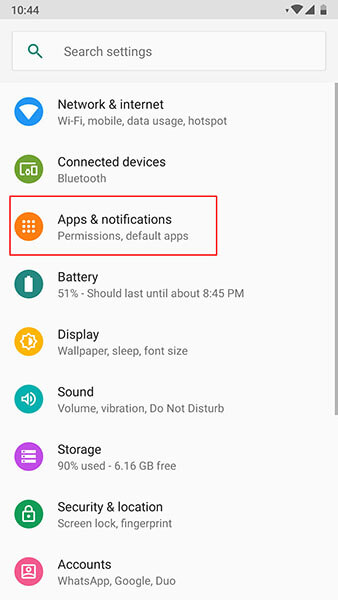
- Go to Settings > Apps > Gmail
- Tap Storage
- Choose Clear Cache
- If issues persist, select Clear Data (note: This logs you out)
On iOS, uninstalling and reinstalling the app is the easiest way. Clearing data resets Gmail to its default state, solving many stubborn problems.
Check Gmail Server Status
Rarely, Gmail’s servers go down. Visit Google Workspace Status Dashboard to see if Gmail is having problems. If you see a yellow or red indicator for Gmail, the problem is likely on Google’s side.
Re-add Your Account
Remove your Gmail account from the app and add it again:
- Open Gmail, tap your profile icon, choose Manage accounts
- Remove your account
- Add it back and enter credentials
This process refreshes account data and solves many sync or authentication errors.
Update Your Device’s Operating System
Go to Settings > System > Update and install any available updates. OS updates can improve overall device performance and fix bugs affecting the Gmail app.
Disable Third-party Apps
Some security or VPN apps block Gmail. Try disabling them temporarily to see if Gmail works. If Gmail works after disabling a security app, adjust its settings or find an alternative.
Troubleshooting Specific Gmail App Problems
Let’s dive deeper into particular issues and their solutions.
Gmail App Won’t Open Or Keeps Crashing
This is usually caused by corrupted data, outdated app versions, or operating system bugs.
- Clear cache and data as described above.
- Update the Gmail app.
- Update your device’s OS.
- If the app still crashes, uninstall and reinstall Gmail.
On some devices, a conflicting app can also cause crashes. Think about any new apps you installed recently—try uninstalling them to see if Gmail improves.
Emails Aren’t Syncing Or Loading
If your inbox stays empty or won’t refresh:
- Check Sync settings: Open Gmail > Settings > Your account > Sync Gmail
- Make sure Auto-sync is enabled in device settings.
- Confirm internet connectivity.
- Clear cache and data.
If you use battery saver modes, turn them off and see if syncing returns. Also, check if your phone is in “Data Saver” mode, which can block background activity.
Notifications Don’t Appear
Missing notifications can mean you miss urgent emails.
- Open Gmail > Settings > Your account > Notifications: Choose “All” or “High priority.”
- Check device notification settings: Settings > Apps > Gmail > Notifications
- Ensure Do Not Disturb is off.
- Update the app.
Some manufacturers (like Xiaomi or Huawei) have aggressive power management that blocks notifications. Exclude Gmail from battery optimization if you use these brands.
Can’t Send Or Receive Emails
This problem can be caused by account issues or server errors.
- Check if you’re signed in.
- Ensure your account has enough storage.
- Try sending an email to yourself.
- Check Google’s server status.
- Remove and re-add your account.
If your email bounces back with an error, check the exact message—sometimes it’s due to large attachments or blocked addresses.
Attachments Won’t Download
If files won’t download:
- Check internet connection.
- Make sure device storage isn’t full.
- Update the Gmail app.
- Try downloading on another device.
If attachments open in the browser but not the app, the problem is likely with app settings or permissions.
Gmail App Is Slow Or Freezes
Slowness is often caused by limited phone storage or too many cached files.
- Clear cache and data.
- Free up device storage.
- Restart your phone.
- Update Gmail and your device’s OS.
If your device is old, using the mobile web version of Gmail (via browser) can be faster.
Authentication Errors
If you see errors like “Couldn’t sign in”:
- Double-check your password.
- Re-add your account.
- Enable 2-step verification if prompted.
If you recently changed your Google password on another device, sign out everywhere and log in again.
Account Not Recognized
If Gmail says your account doesn’t exist:
- Make sure you’re entering the correct email.
- Check if the account was deleted or suspended.
- Try logging in on a browser.
Sometimes, typing mistakes or extra spaces cause login failures.
Spam Or Junk Filter Issues
If legitimate emails go to spam:
- Open Gmail, find the email in Spam
- Tap Not spam
- Add sender to contacts.
For important senders, create a filter to always mark their emails as “Not spam. ”
Ui Glitches
If buttons don’t work or screens freeze:
- Clear cache and data.
- Update the app.
- Restart your device.
If the issue appears after a system update, report it to Google so they can fix it in the next app update.
Gmail App Troubleshooting: Step-by-step Table
To help you pick the best solution, here’s a comparison of common Gmail app problems and their fixes:
| Problem | Likely Cause | Quick Fix | Advanced Fix |
|---|---|---|---|
| App crashes | Corrupted cache/data | Clear cache | Reinstall app |
| Emails not syncing | Sync disabled | Enable sync | Remove/re-add account |
| No notifications | Notification settings | Enable notifications | Update app |
| Can’t send/receive | Account problem | Check credentials | Check Google server |
| Attachments won’t download | Low storage | Free up space | Try another device |
| App slow/freezes | Too many files | Clear cache | Update OS |
Advanced Solutions For Persistent Gmail App Issues
If basic fixes don’t work, try these advanced options.
Factory Reset (android/ios)
As a last resort, you can reset your device. This erases all data, so back up important files first.
- Go to Settings > System > Reset options
- Choose Erase all data (factory reset)
- After restarting, install Gmail again
Most users don’t need to do this, but it’s effective for deep software problems. Remember, this deletes everything on your device, so only use it when you’ve tried all other steps.
Check Device Compatibility
Older phones may not support the latest Gmail app. Check Gmail’s requirements:
| Device | OS Version Required | Support Status |
|---|---|---|
| Android | Android 8.0 or higher | Full support |
| iOS | iOS 12 or higher | Full support |
| Android (older) | Below Android 8.0 | Limited or no support |
| iOS (older) | Below iOS 12 | Limited or no support |
If your device is too old, consider updating your OS or upgrading your phone. Using unsupported devices means you’ll see more app errors over time.
Gmail App Permissions
The app needs permissions to work correctly:
- Go to Settings > Apps > Gmail > Permissions
- Enable permissions for Contacts, Storage, Notifications
Missing permissions can block syncing, notifications, or attachments. If you’re unsure, enable all permissions for Gmail and test the app.
Remove Google Account Sync Conflicts
If you have multiple Google accounts, sync conflicts can appear. Try these steps:
- Go to Settings > Accounts > Google
- Remove extra accounts
- Add only your main Gmail account
This stops conflicts that confuse the app. Some users find that having too many accounts (personal, work, shared) increases sync errors—reducing accounts often helps.
Clear System Cache (android Only)
Some Android devices let you clear the system cache:
- Turn off your device
- Hold Power + Volume Up until the logo appears
- Choose Wipe cache partition
- Restart
This solves deeper software issues. It’s especially useful if you notice problems after a big system update.
Contact Google Support
If nothing works, reach out to Google. Visit Google Support and describe your problem. Attach screenshots if possible. Support may offer solutions specific to your device or account.
Gmail App Not Working On Iphone Vs. Android
The Gmail app works differently on Android and iOS. Here’s a quick comparison:
| Feature | Android | iOS |
|---|---|---|
| Custom Notifications | Yes | Limited |
| Background Sync | Automatic | Manual (sometimes) |
| Widget Support | Yes | Yes |
| App Permissions | Granular control | Basic control |
| App Updates | Frequent | Frequent |
Android users have more control over Gmail’s settings. iOS users often need to reinstall the app for fixes. On iOS, background syncing is sometimes limited by the system, so emails may not appear instantly unless the app is open.
How To Prevent Gmail App Problems
Prevention is better than cure. Here’s how to avoid Gmail app issues:
- Update the app regularly: New updates fix bugs and improve performance.
- Keep your device’s OS up to date: Older OS versions can cause compatibility problems.
- Maintain enough device storage: Clear unused apps and files often.
- Check permissions after updates: Sometimes updates reset app permissions.
- Avoid using too many accounts: More accounts mean more chances for sync errors.
- Don’t ignore app notifications: If Gmail asks for permissions or updates, follow through.
- Restart your device weekly: This keeps apps running smoothly.
- Install apps only from trusted sources: Avoid apps that may conflict with Gmail.
- Monitor your internet connection: Switch between Wi-Fi and mobile data if you see errors.
- Back up important emails: Use Google Takeout or another backup tool.
Many users forget about permissions after app updates. Also, restarting your device weekly is a simple step that prevents many performance issues. Regularly deleting old emails and attachments can also help Gmail run faster, especially on phones with small storage.
Non-obvious Tips For Gmail App Troubleshooting
There are some lesser-known tricks that can help:
- Turn on airplane mode, then off: This resets network connections and can fix sync errors.
- Change DNS settings: Sometimes, your network provider’s DNS blocks Gmail. Use Google’s DNS (8.8.8.8) for smoother access.
- Try Gmail in a browser: If the app fails, log in at gmail.com. If Gmail works there, the problem is with the app or device.
- Check battery optimization settings: Some phones restrict Gmail in the background to save battery. Go to Settings > Battery > App optimization and exclude Gmail.
These steps are rarely mentioned but can solve tricky app failures. Another tip: if your Gmail app behaves strangely after a major system update, wait a few days—sometimes, Google releases quick app updates to fix new bugs.
When To Switch To Gmail Alternatives
If Gmail app problems continue for days, consider other options:
- Use Gmail in your browser: Works on mobile and desktop.
- Try another email app: Apps like Microsoft Outlook or BlueMail support Gmail accounts.
- Forward emails to another account: Use Gmail’s forwarding feature to send mail to a backup email.
Switching apps is not ideal, but it ensures you don’t miss important emails. Trying a new app can also show if the problem is with Gmail or your device itself.
Gmail App And Security Concerns
Security can affect Gmail’s performance. Some users enable extra protections:
- 2-step verification: Keeps your account safe but can block the app if not set up correctly.
- Security apps and VPNs: These can block Gmail’s syncing or notifications.
If you suspect security apps are causing issues, disable them temporarily. Make sure 2-step verification is configured correctly. If you often travel, check if your location triggers Google’s security systems—this can sometimes block access until you confirm your identity.
Gmail App Not Working: Statistics And Trends
Gmail is used by over 1.8 billion users worldwide (2024 data). According to Google’s own support forums:
- Over 50% of app issues are solved by updating the app.
- About 25% are related to device storage or permissions.
- Less than 5% are caused by Google server outages.
Most problems are device-related, not Gmail’s servers. Interestingly, user reports show that Android users tend to face more cache-related issues, while iOS users report more notification problems. Keeping both your device and app updated greatly reduces your chances of trouble.

Credit: www.youtube.com
What If Your Gmail Account Is Suspended Or Disabled?
Sometimes, Gmail app problems happen because your account is suspended.
- Check your inbox for Google’s warning emails.
- Visit Google Account Recovery for help.
- Follow instructions to restore your account.
Account suspensions are rare but can stop the app from working entirely. Reasons for suspension include security violations, sending spam, or breaking Google’s terms. Always read any messages from Google carefully to understand what happened.
Frequently Asked Questions
Why Does My Gmail App Keep Crashing?
The most common reason is corrupted cache/data or an outdated app version. Clearing the cache or reinstalling the app usually fixes it. Sometimes, operating system bugs or incompatible device versions are the cause.
What Should I Do If Emails Aren’t Syncing?
First, check your internet connection and Gmail sync settings. Make sure auto-sync is enabled. If that doesn’t help, clear the app’s cache or remove and re-add your account. Also, check if your device is in battery saver mode, which can block syncing.
How Do I Fix Gmail Notifications Not Showing?
Open Gmail’s settings and set notifications to “All. ” Also, check your phone’s notification settings for Gmail. Updating the app and restarting your device can help. On some Android models, exclude Gmail from battery optimization.
Can Low Storage Make Gmail App Stop Working?
Yes, if your device is nearly full, Gmail can’t save new emails or attachments. Free up storage by deleting unused apps or files. Clearing Gmail’s cache helps too.
Is Gmail Down Right Now?
Visit the Google Workspace Status Dashboard to check for outages. Gmail outages are rare but possible. If other Google services are down too, just wait for Google to fix the problem.
Getting the Gmail app working again is usually a matter of trying the right steps in the right order. Start simple: restart your device, check your internet, and update the app. If those don’t help, clear cache and data, check permissions, and remove/re-add your account. For stubborn issues, use advanced solutions or contact Google support. Stay proactive with updates and storage management, and you’ll avoid most Gmail app problems. With these tips, you can get back to your emails—and your life—fast.
Credit: drfone.wondershare.com