When a Zebra scanner light stops working, daily operations can slow down or come to a halt. For warehouse teams, retail employees, or logistics coordinators, a non-functioning scanner light means barcodes can’t be read, products can’t be tracked, and errors pile up. You might feel frustrated, especially when the device seems fine in every other way. But don’t worry—most of the time, the problem can be solved without sending the scanner for repair. This guide will help you understand why the Zebra scanner light may not work, how to fix it, and what to do if it happens again.
Understanding Zebra Scanners And Their Lights
Zebra scanners are used worldwide for reading barcodes in shops, warehouses, hospitals, and more. The scanner light is a key part of these devices. This light, often red or green, shines on the barcode and helps the sensor “see” the lines. Without it, the scanner can’t read any codes.
Why The Light Matters
The scanner light does more than just help you aim. It lets the scanner’s camera or sensor capture the barcode image. No light, no scan—simple as that. Some scanners use lasers, while others use LEDs. Both types need their light source to work.
Types Of Zebra Scanners
Zebra makes different models, such as handheld, fixed-mount, and presentation scanners. They also use different technologies:
- Laser scanners: Use a thin laser beam to read barcodes.
- Linear imagers: Use a row of LEDs.
- 2D imagers: Use a bright light to capture pictures of codes, including QR codes.
Knowing your model helps when troubleshooting.
Common Reasons The Zebra Scanner Light Is Not Working
Several things can make the scanner light stop working. Some are easy to fix, while others need technical help. Here are the most common causes:
- Power issues: The scanner may not get enough power from its cable or battery.
- Cable problems: Damaged or loose cables can cut off power to the light.
- Settings misconfiguration: The light may be turned off in the software.
- Firmware issues: Outdated or corrupted firmware can cause malfunctions.
- Hardware failure: The light itself (LED or laser) may be broken.
- Trigger or button failure: The button that turns on the light might not work.
- Environmental interference: Sunlight or strong lights can “blind” the sensor.
- Scanner timeout: Some scanners turn off the light automatically to save power.
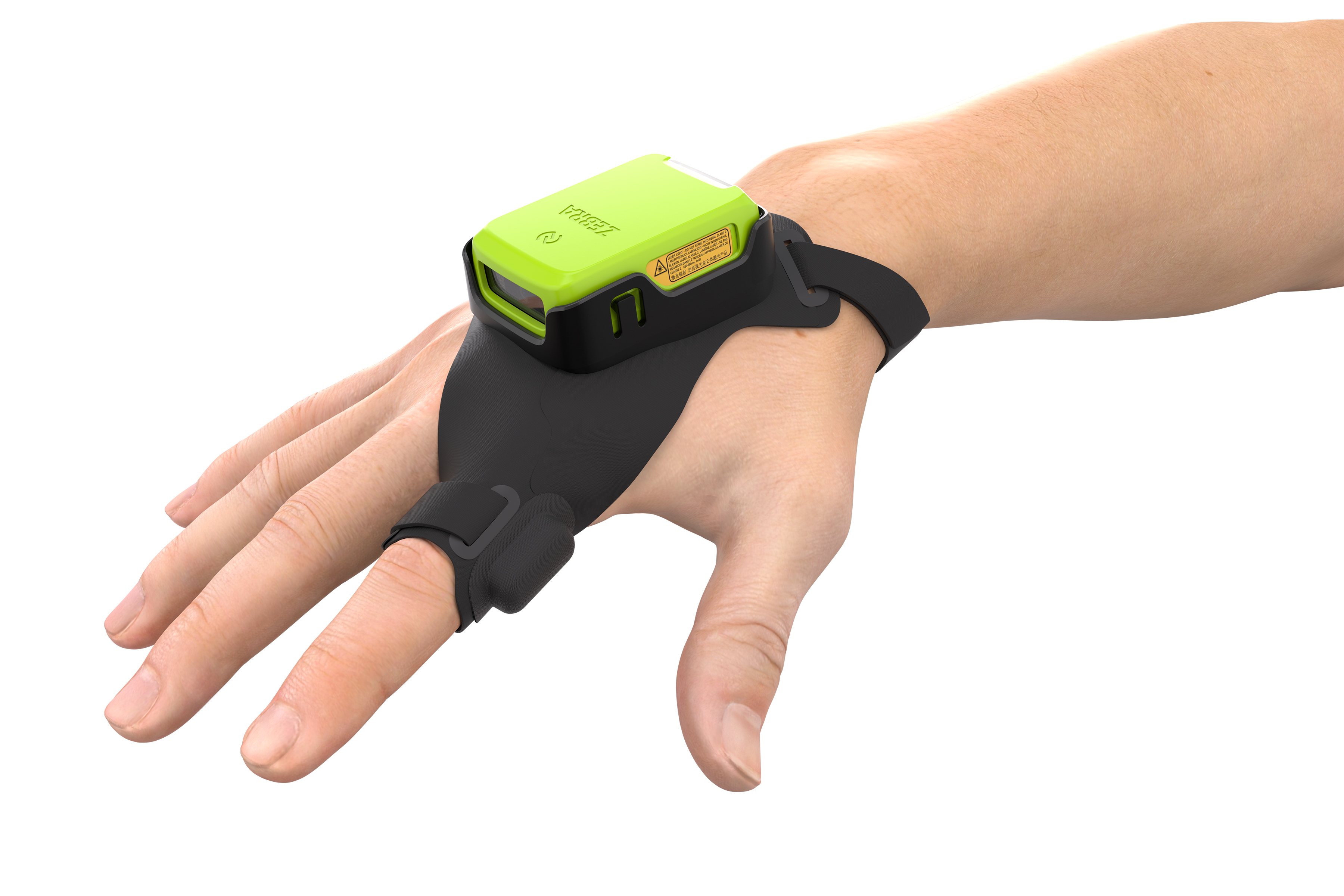
Credit: www.zebra.com
Diagnosing The Problem
Before you try to fix anything, it’s important to find out what’s wrong. Follow these steps for a clear diagnosis.
Step 1: Check The Obvious
- Is the scanner plugged in or charged?
- Does any part of the scanner light up at all?
- Is the device making any beeping sounds when you try to scan?
- Is there any physical damage?
If your scanner is completely dead, the problem may not be the light but the whole device.
Step 2: Try Another Barcode
Sometimes, the barcode itself is the issue. Try scanning a clear, standard barcode. If possible, test on different surfaces and in good lighting.
Step 3: Swap Cables And Ports
If you use a wired scanner, try a different USB port or a new cable. For wireless models, check the battery or charging base.
Step 4: Look For Error Indicators
Many Zebra scanners have indicator lights or screens. If you see a blinking light or error code, check the user manual for its meaning.
Step 5: Test On A Different Computer Or Device
Connect your scanner to another system. If it works, the problem might be with your computer, not the scanner.
Quick Fixes You Can Try
Some problems can be solved in minutes. Here are practical solutions you can try before calling support.
Reboot The Scanner
Turn off your scanner, wait 10 seconds, and turn it back on. This can reset minor errors.
Check And Replace Cables
A loose or damaged cable is a common cause. Make sure all connections are secure. If possible, try a new cable.
Charge Or Replace The Battery
Low battery power can turn off the light to save energy. Charge the scanner fully or swap in a new battery.
Clean The Scanner Window
Dirt or smudges on the scanner window can block the light. Use a soft, dry cloth to clean the glass—never use strong chemicals.
Reset Scanner Settings
Many Zebra scanners can be reset by scanning a special “factory default” barcode found in the manual. This can fix settings that turned off the light.
Update Firmware
Outdated firmware can cause problems. Visit the Zebra website to download the latest firmware for your model. Follow instructions carefully—interrupting a firmware update can damage your device.
Try Different Host Devices
If your scanner works on one computer but not another, check for driver issues or software conflicts.

Credit: support.sitoo.com
Advanced Troubleshooting
If the quick fixes don’t work, dig a little deeper. These steps need more attention but can help pinpoint the problem.
Use Zebra’s Scanner Management Software
Zebra offers tools like 123Scan or Scanner SDK. These let you:
- View scanner status and logs
- Update firmware
- Change settings
- Test the scanner’s light function
Download the right tool for your scanner model from the Zebra website.
Check Device Manager (for Windows Users)
- Open Device Manager.
- Look under “Imaging Devices” or “Human Interface Devices.”
- If you see a yellow warning sign, the driver may be missing or corrupted.
Install the latest driver from Zebra’s support page.
Review Power Settings
On some computers, USB ports may go into power-saving mode and turn off power to the scanner. To fix this:
- Go to Device Manager.
- Right-click your USB Root Hub.
- Click “Properties,” then the “Power Management” tab.
- Uncheck “Allow the computer to turn off this device to save power.”
Inspect For Physical Damage
If the scanner has been dropped or exposed to water, the scanner light itself might be broken. Check for cracks, watermarks, or burnt smells.
Test The Trigger Or Button
If the button feels loose or doesn’t click, it may not activate the light. Some models let you test the trigger using Zebra’s software.
Compare With A Working Scanner
If you have another scanner of the same model, try swapping cables, batteries, or testing on the same computer. This can help you find out which part is faulty.
Here’s a simple comparison to help you track the issue:
| Test | Scanner A (Working) | Scanner B (Not Working) | Possible Cause |
|---|---|---|---|
| Light turns on? | Yes | No | Power or light failure |
| Beep sound? | Yes | No | Mainboard issue |
| Scans barcode? | Yes | No | Sensor or light |
| Works on PC 2? | Yes | No | Scanner hardware |
| Works with new cable? | Yes | No | Cable or port issue |
When To Repair Or Replace
Sometimes, the problem needs expert help or a new device. Here’s how to decide.
Repair
Choose repair if:
- The scanner is under warranty.
- Only the light or button is faulty.
- The device is expensive or hard to replace.
Contact Zebra support or an authorized service center. They can guide you on repair options and costs.
Replace
Replacement makes sense if:
- The scanner is old or out of warranty.
- Repair costs are high (more than 50% of a new scanner).
- The device has multiple failures.
Upgrading to a new model can save time and reduce long-term costs.
Cost Comparison
Use this data to help your decision:
| Scenario | Average Cost (USD) | Time to Fix | Recommendation |
|---|---|---|---|
| Repair under warranty | $0–$50 (shipping) | 1–2 weeks | Repair |
| Out-of-warranty repair | $100–$250 | 1–2 weeks | Consider replace |
| New scanner purchase | $200–$600 | 1–5 days | Replace if old |
Preventing Future Problems
Fixing the scanner light is good, but preventing the problem is better. Here are the best ways to keep your Zebra scanner working.
Handle With Care
- Don’t drop or hit the scanner.
- Avoid exposure to water or dust.
- Use wrist straps or holders if available.
Regular Cleaning
Dirt can block the scanner light. Clean the window weekly using a microfiber cloth.
Update Firmware And Software
Check for updates every 3–6 months. New firmware can fix bugs and improve performance.
Check Cables And Batteries
Replace old cables and batteries before they fail. Avoid using damaged or third-party parts.
Store Properly
When not in use, store the scanner in a safe, dry place. Avoid extreme temperatures.
Train Staff
Many problems happen because of incorrect use. Train staff to handle scanners gently and follow best practices.
Special Scenarios And Models
Different Zebra models can have unique problems. Here’s a quick look at some popular ones.
Zebra Ds2208
- Common issue: Light not turning on after a firmware update.
- Fix: Reset to factory defaults and update firmware again.
Zebra Ds3678
- Common issue: Scanner light fades or flashes.
- Fix: Replace battery or check for firmware updates.
Zebra Ls2208
- Common issue: No light when trigger is pressed.
- Fix: Check USB power settings and test with another cable.
Zebra Ds9308
- Common issue: Light works, but won’t read certain barcodes.
- Fix: Clean window and check barcode quality.
If you have a rare model, always check the manual or the official Zebra support website.
Real-world Example
Let’s look at a real-life case. A retail store used Zebra DS2208 scanners. One day, the scanner light on three devices stopped working. Staff tried rebooting and swapping cables but had no luck. The IT manager followed these steps:
- Checked Device Manager—no errors found.
- Tested on a different PC—still no light.
- Used 123Scan software—found that firmware was out of date.
- Updated firmware—two scanners started working, one did not.
- Sent the faulty scanner for repair.
Result: The store avoided downtime and learned to keep firmware up to date.
Useful Resources
If you want more details or need model-specific guides, Zebra’s support site is a good start. They offer manuals, troubleshooting tools, and live chat:
zebra Support And Downloads
For barcode standards and technology background, see the Wikipedia: Barcode Reader article.

Credit: support.zebra.com
Common Mistakes And Non-obvious Insights
Many users repeat the same errors when fixing scanner lights. Here’s what to avoid:
- Ignoring firmware: Many light issues happen after firmware changes. Always check for updates or roll back to a stable version.
- Overlooking USB power: Some computers cut power to USB ports when idle or in power-saving mode. This can quietly turn off the scanner light.
- Using the wrong cleaning method: Water or harsh chemicals can damage the scanner window. Only use a dry, soft cloth.
- Not backing up settings: If you reset the scanner, you may lose custom settings. Back up profiles using Zebra’s tools if possible.
- Assuming all barcodes are equal: Some barcodes are low quality or printed with reflective ink, which can confuse the scanner.
Two insights beginners often miss:
- Firmware mismatches: If you use management software or integrate with other systems, mismatched firmware can disable features like the scanner light. Always match firmware to your system needs.
- Environmental interference: Strong overhead lighting or direct sunlight can “blind” the scanner, making it seem like the light is broken. Test in different lighting before assuming hardware failure.
Choosing A Replacement Scanner
If you need to buy a new device, here’s what to consider:
- Compatibility: Make sure the new scanner works with your software and systems.
- Type of barcodes: Do you scan 1D, 2D, or QR codes?
- Durability: For warehouses, choose rugged models.
- Connectivity: USB, Bluetooth, or wireless?
- Budget: Balance cost with needed features.
Here’s a quick comparison of popular Zebra scanners:
| Model | Scan Type | Durability | Battery Life | Price Range |
|---|---|---|---|---|
| DS2208 | 1D/2D | Moderate | Wired | $150–$200 |
| DS3678 | 1D/2D | High (rugged) | 10–15 hrs | $400–$600 |
| LS2208 | 1D | Basic | Wired | $100–$150 |
| DS9308 | 1D/2D | Moderate | Wired | $200–$250 |
For most retail or office needs, the DS2208 or LS2208 is a good choice. For tough warehouse use, the DS3678 is better.
Frequently Asked Questions
Why Did My Zebra Scanner Light Suddenly Stop Working?
Most sudden failures are caused by power loss, cable failure, or a settings change. Try rebooting the scanner, checking cables, and resetting settings. If the problem started after a firmware update, try rolling back or updating again.
Can I Fix The Scanner Light Myself?
You can solve many problems by cleaning, checking cables, updating firmware, or resetting the scanner. However, if the light hardware is broken, you’ll need professional repair. Never open the scanner yourself unless you are trained and the warranty allows it.
Does The Scanner Light Affect Barcode Quality?
Yes. Without the scanner light, barcodes may not be read, especially in dark areas or with faded labels. Always keep the light clean and working for best performance.
How Long Do Zebra Scanner Lights Last?
Most LED scanner lights last for 10,000–20,000 hours of use. Lasers can last even longer. If the light fails early, it’s usually due to drops, water, or power problems—not normal wear.
Where Can I Get Official Help For My Zebra Scanner?
Visit the Zebra Support and Downloads page for manuals, firmware, and live support. You can also call Zebra’s service centers for warranty and repair help.
—
A Zebra scanner light not working can be stressful, but with the right steps, most problems can be solved quickly. Start with simple checks, move to deeper troubleshooting if needed, and don’t be afraid to ask for help. Keeping your scanner in good shape means smooth scanning, fewer errors, and happier teams. If you follow the advice above, you’ll be well prepared for whatever your Zebra scanner throws at you.