If you’re trying to check your bank balance, send money, or pay a bill, few things are more frustrating than opening the Santander app—and nothing happens. Maybe you see a spinning wheel, an error message, or the app crashes before you even log in. When the Santander app is not working, it can quickly turn a simple task into a stressful situation, especially if you need to move money fast or check a payment. You’re not alone: every day, thousands of Santander customers face these issues, and most can be solved without waiting on hold for customer support.
This guide explains why the Santander app may not work, how to fix common problems, and what to do if nothing helps. We’ll also cover how the app works, the main features, and what makes mobile banking so popular. With practical steps, clear explanations, and expert tips, you’ll learn how to get your Santander app running again—and avoid problems in the future.
Why People Use The Santander App
The Santander app has become a daily tool for millions. From checking your balance in seconds to sending money to family, the app lets you manage your finances from anywhere. Here’s why so many people rely on it:
- 24/7 access to your bank accounts
- Quick payments and transfers
- Easy bill payments
- Viewing statements without paper
- Security features like biometric login
According to Santander’s own reports, over 5 million UK customers use their mobile app at least once a week. In Spain, the number is even higher. Mobile banking now accounts for more than half of all Santander customer interactions.
But with so much usage, even small issues can affect thousands. That’s why understanding how the app works—and why it sometimes fails—is key to solving problems quickly.
Common Reasons The Santander App Fails
Before you can fix the app, you need to know what’s causing the problem. Most issues fall into a few main categories:
- Network problems – Slow or unstable internet is the most common cause.
- Outdated app version – Old versions may have bugs or miss new security updates.
- Device issues – Problems with your phone’s settings, storage, or operating system.
- Santander server outages – Sometimes, the bank’s systems are down for maintenance or unexpected errors.
- Security blocks – If the bank detects suspicious activity, it may block access.
- App-specific bugs – New updates can sometimes introduce glitches.
Let’s look at each in more detail.
1. Network Problems
The Santander app needs a stable internet connection. If you’re on weak Wi-Fi or have a poor mobile signal, the app may not load or could freeze during use. Many users miss this simple cause and start troubleshooting the app, when the real issue is their connection.
2. Outdated App Version
Banks often update their apps for security and performance. If you ignore updates, you may find the app stops working, especially after major changes. Santander sometimes blocks old versions for safety reasons.
3. Device Issues
Your phone or tablet can also create issues. Low storage, an outdated operating system, or conflicting apps might cause the Santander app to crash. Sometimes, security settings or third-party antivirus apps block it from running.
4. Santander Server Outages
Like all banks, Santander sometimes has planned maintenance or unexpected server issues. If their systems go down, nobody can log in—even with a perfect connection and up-to-date app. These outages are usually temporary but can last from a few minutes to several hours.
5. Security Blocks
If Santander sees login attempts from a new device, location, or after failed passwords, it may lock access to protect your account. You might see messages like “Access blocked” or “Unusual activity detected.”
6. App-specific Bugs
Sometimes, a new app update introduces a glitch. For example, a 2023 update caused the biometric login to fail for some Android users. These bugs are usually fixed quickly, but you may need to wait for a patch.
How The Santander App Works
Understanding the app’s basic design can help you pinpoint problems faster. The Santander app is a mobile banking tool that connects your phone to the bank’s servers using encryption. Here’s what happens when you log in:
- You open the app.
- The app checks your device and internet connection.
- It sends a secure request to Santander’s servers.
- The servers confirm your identity (using biometrics, passwords, or codes).
- You see your account dashboard.
If any step fails, you might get an error or a blank screen.
Key Features
- Balance and transaction history
- Send money (to Santander or other banks)
- Pay bills
- Mobile check deposit (in some countries)
- Block or unblock cards
- Notifications for payments, deposits, or fraud alerts
These features depend on a smooth connection between your device and Santander’s servers.
Quick Checks Before Troubleshooting
Before you try advanced fixes, start with these simple checks:
- Is your internet connection working? Try browsing a website.
- Are you using the latest version of the app?
- Is your device’s operating system up to date?
- Are you using the correct login details?
- Is the Santander app down for everyone?
If you answer “no” to any, fix that first. Most problems are solved at this stage.

Credit: www.reddit.com
Step-by-step Fixes For Santander App Not Working
If your app still isn’t working, follow these steps. Each one solves a common problem, and you don’t need technical skills.
1. Check For Santander Outages
Sometimes, the problem isn’t your phone—it’s Santander’s servers. Go to Santander’s official status page or check their social media for outage reports. You can also search for “Santander app down” on Google or visit sites like Downdetector for live outage maps.
If you see reports of an outage, there’s nothing you can do but wait.
2. Restart Your Phone
A simple restart can fix many glitches. This refreshes your phone’s memory and closes stuck apps. Turn your device off, wait 10 seconds, and turn it back on.
3. Update The Santander App
Go to the App Store (iPhone) or Google Play (Android). Search for “Santander” and check for updates. If an update is available, install it. Updated apps have fewer bugs and better security.
4. Update Your Device’s Operating System
Old operating systems may not support the latest app versions. Check your settings for system updates and install any available.
5. Clear App Cache And Data
Sometimes, old data or cache files cause the app to misbehave.
- On Android: Go to Settings > Apps > Santander > Storage > Clear Cache/Clear Data.
- On iPhone: Delete and reinstall the app. This removes old data.
Note: Clearing data will log you out, so have your login details ready.
6. Check Security Or Antivirus Apps
Some security apps block banking apps. If you use third-party antivirus or VPN, try disabling them and open the Santander app again.
7. Free Up Device Storage
If your phone is nearly full, apps may crash. Delete unused apps, photos, or files to free space.
8. Reinstall The App
Delete the Santander app and download it again from the official store. This can fix corrupted files.
9. Try A Different Network
Switch from Wi-Fi to mobile data (or vice versa). Sometimes, network restrictions block banking apps, especially on public Wi-Fi.
10. Check Date And Time Settings
Incorrect date or time can cause login issues. Set your device to automatic date and time.
11. Reset Your Password
If you see a “login failed” or “incorrect password” message, reset your Santander password using the “Forgot password? ” link.
12. Contact Santander Support
If none of these steps work, call Santander customer service. Be ready to answer security questions. They can check for account-specific blocks or walk you through advanced fixes.
Comparing Santander App Problems To Other Bank Apps
Is Santander’s app less reliable than others? Not really. All banking apps face similar issues. Here’s a quick comparison:
| Bank App | Main Problems | Average Outage Frequency |
|---|---|---|
| Santander | Login errors, slow loading, biometric failures | 1-2 per month |
| Barclays | Authentication bugs, payment delays | 2 per month |
| HSBC | App crashes, failed transactions | 1 per month |
| Monzo | Notification delays, card block glitches | 1-2 per month |
Santander’s rate of outages and bugs is similar to other large banks. The difference is often how quickly issues are fixed and how clearly the bank communicates with users.
How Santander Handles App Outages
When a major issue happens, Santander will usually:
- Post updates on their website and social media
- Send push notifications (if possible)
- Fix critical bugs within hours
For planned maintenance, you’ll see a message before the app goes offline. For unplanned outages, updates are posted as soon as possible. If you don’t see any message, check a third-party site like Downdetector or Twitter for user reports.
Security And Privacy Issues
Some problems happen because Santander is protecting your account. If the app detects:
- Unusual login locations
- Multiple failed login attempts
- A device not seen before
It may block access until you verify your identity.
Never share your password or code with anyone. Santander will never ask for your full PIN or online banking password over the phone or email.
If you suspect a security block:
- Reset your password using the app or website.
- Check your email or SMS for messages from Santander.
- Call customer support for help unlocking your account.
Real-world Examples
Let’s look at common scenarios Santander users report, and how they were solved.
Example 1: App Freezes After Login
Maria, a customer in London, found her app froze after she entered her password. Restarting her phone did not help. She switched from Wi-Fi to mobile data, and the app worked—her office Wi-Fi was blocking banking connections for security.
Example 2: Face Id Not Working
John’s iPhone app stopped accepting Face ID after an update. He deleted and reinstalled the app, then set up Face ID again. The problem was fixed.
Example 3: “access Blocked” Message
Sasha saw an “Access Blocked” warning after traveling abroad. Santander detected a login from a new country. She called customer service, verified her identity, and access was restored.
These examples show most app problems are caused by simple issues and can be fixed without expert help.
When To Visit A Branch Or Use Online Banking
If the app is down and you need urgent access, consider these options:
- Use Santander Online Banking via a web browser.
- Visit a branch (check opening hours).
- Call customer service.
- Use ATMs for balance checks and transfers.
Online banking has most of the same features as the app. Some actions, like setting up new payees, may be easier in a branch if you have ID with you.
Common Error Messages And What They Mean
Here are some frequent Santander app error messages and what to do:
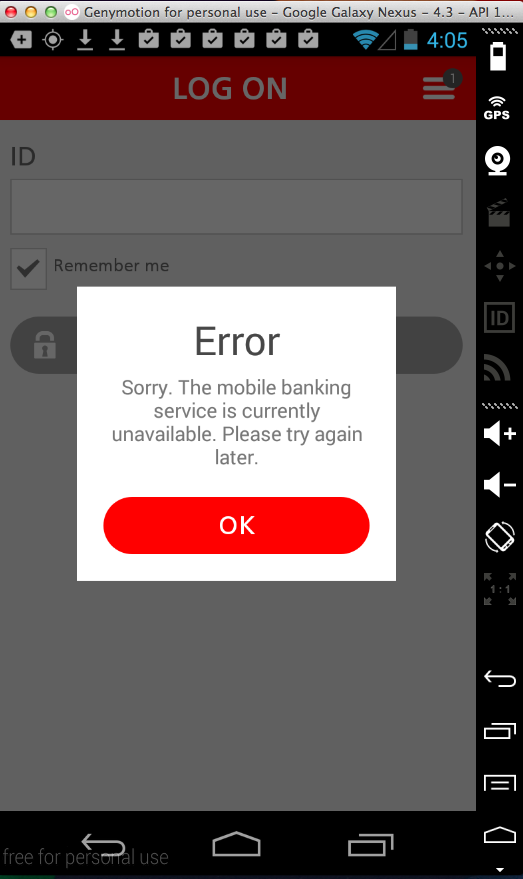
- “Service temporarily unavailable” – Usually a server outage. Wait and try again.
- “Incorrect credentials” – Check your password and username. Reset if needed.
- “Device not recognized” – Santander wants to confirm it’s really you. Follow the steps to verify.
- “Update required” – Your app version is too old. Update from the app store.
- “Access blocked for security reasons” – Call Santander to unlock your account.
How To Report An Issue To Santander
If you need to contact Santander, have this information ready:
- Your full name and account number
- Device type and operating system (e.g., iPhone 13, iOS 17)
- App version (found in app settings)
- A description of the problem and error messages
- Screenshots (if possible)
You can report issues by:
- Calling the customer service number (see Santander’s official website)
- Using the chat feature on Santander’s website (if available)
- Visiting a branch
Reporting detailed information helps Santander fix the problem faster.
Advanced Fixes For Persistent Problems
If your app still won’t work after basic troubleshooting, try these advanced steps:
1. Check For Device Compatibility
Some older devices may not support the latest Santander app. Check the app store listing for minimum requirements.
2. Remove And Re-add Your Account
If you have multiple accounts or profiles in the app, remove and add them again. This can refresh account data.
3. Try A Different Device
Log into the Santander app on another device (e. g. , a family member’s phone). If it works, your device may have a hardware or software issue.
4. Factory Reset (last Resort)
If all else fails and you have similar issues with other apps, a factory reset may help. Back up your data first. Only do this if you’re confident with your phone’s settings.
How To Prevent Future Santander App Issues
Most app problems can be prevented with a few simple habits:
- Keep your app and device updated – Check for updates regularly.
- Avoid suspicious links or downloads – Malware can block banking apps.
- Don’t use public Wi-Fi for banking – These networks are less secure.
- Set up biometric login (fingerprint or Face ID) for faster, safer access.
- Check Santander’s website for planned maintenance before important payments.
Following these tips reduces the chance of future problems and keeps your banking secure.
Santander App Features That Can Cause Confusion
Some features, while helpful, can confuse new users:
Pending Transactions
The app sometimes shows “pending” payments or deposits that haven’t cleared. These can affect your balance but aren’t final until processed.
Multiple Logins
If you log in on multiple devices, the app may log you out or ask for additional verification.
Push Notifications
You must allow notifications in your device settings to get real-time alerts. If notifications don’t work, check your settings.
Two-factor Authentication
Santander may require a code sent by SMS or email. If you don’t get it, check your network and spam folder.
Is The Santander App Safe?
Santander’s app uses industry-standard encryption and regular security audits. Biometric login adds an extra layer of safety. Even so, users play a big role in security:
- Never share your phone or login details
- Don’t download the app from unofficial sources
- Log out after each session (especially on shared devices)
Santander’s security record is strong, with few reported breaches from the app itself.
Pros And Cons Of Mobile Banking Vs. Traditional Banking
Mobile banking offers convenience, but it’s not perfect. Here’s a comparison:
| Mobile Banking (Santander App) | Traditional Banking (Branch/Phone) |
|---|---|
| Available 24/7 | Limited by branch hours |
| Quick payments and transfers | Slower, may require forms or calls |
| Immediate balance checks | Need to visit or call |
| Risk of technical problems | Less affected by digital glitches |
| Requires device and internet | Works without technology |
| May be confusing for new users | Staff can answer questions in person |
Mobile banking is more convenient for most, but branches are still useful when the app fails.
What To Do If You Miss A Payment
If the app was down and you missed a payment:
- Log in as soon as possible and make the payment.
- Contact the payee (landlord, utility, etc.) And explain.
- If you’re charged a late fee, ask Santander for a refund—they may help if the issue was bank-side.
- Set up payment alerts to avoid missing deadlines in the future.
Delays are usually rare, but good communication can prevent bigger problems.

Credit: support.truelayer.com
Non-obvious Insights Most Beginners Miss
Many users don’t realize that switching networks (from Wi-Fi to mobile data or vice versa) often solves app issues—especially in offices, hotels, or public spaces with strict firewalls.
Another overlooked tip: Uninstalling and reinstalling the app does not affect your bank account or money. Your account data is stored on Santander’s servers, not your device. This means it’s safe to reinstall as often as needed.
Where To Get Trusted Help
If you need more help, use only official channels:
- Santander’s official website or app help section
- Customer service phone line
- In-branch staff
Avoid forums or unofficial websites for sensitive advice. For more information on secure mobile banking, see the Santander Support Centre.
Credit: samsclass.info
Frequently Asked Questions
Why Does The Santander App Keep Crashing On My Phone?
This usually happens due to outdated app versions, low device storage, or conflicting apps. Try updating the app, clearing space, and restarting your device. If it still crashes, delete and reinstall the app.
How Do I Know If Santander’s App Is Down For Everyone Or Just Me?
Check Santander’s official website or social media for outage updates. Sites like Downdetector also show live user reports. If others are reporting the same problem, it’s likely a widespread outage.
Can I Use Santander Online Banking If The App Is Not Working?
Yes, you can access most features through Santander’s website using a browser. Log in with your usual credentials. Some actions (like setting up new devices) may require additional verification.
What Should I Do If I’m Locked Out Of My Santander App?
First, reset your password using the “Forgot password? ” option. If you still can’t access your account, call Santander customer service—they can verify your identity and unlock your account.
Is It Safe To Reinstall The Santander App?
Yes, reinstalling is safe and won’t affect your bank account. Your data is stored on Santander’s secure servers, not your phone. After reinstalling, log in as usual.
If you follow the steps in this guide, most Santander app problems can be solved quickly. Mobile banking is a powerful tool, but technology isn’t perfect—knowing how to fix issues helps you stay in control of your money, wherever you are.